How to create a WhatsApp QR Code Campaign?
Step-by-step process to create a QR code campaign and connecting it with Chatbot
How to create a WhatsApp QR Code Campaign?
Step-by-step process to create a QR code campaign and connecting it with Chatbot
Looking to connect with your in-store or product-engaged customers on WhatsApp?
WhatsApp QR code is the best tool to engage potential customers on WhatsApp. By scanning your WhatsApp QR code, customers can instantly start a conversation, providing you with valuable leads.
These leads are high-value since they've first-hand visited your store or engaged with your product containing your WhatsApp QR code.
A WhatsApp QR code campaign allows you to track the number of users who connect with you on WhatsApp by scanning your WhatsApp QR code.
In this doc, we'll tell you:
How to create a WhatsApp QR code campaign
How to connect your QR code campaign with WhatsApp Chatbot for automating conversations.
So, let's get started.
How to create a QR Code Campaign in AiSensy?
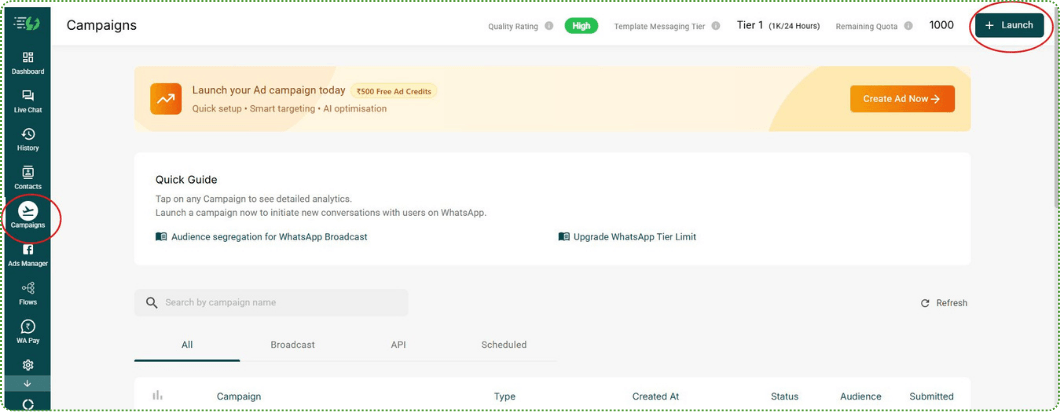
1. In the AiSensy app, go to the "Campaigns" section and tap on "+Launch"
2. Choose "QR Campaign" from the available options

3. Customize Your Campaign
Name: Give your campaign a descriptive name.
Pre-filled Custom Message: Enter a custom message that users will see when they scan the QR code. This message should be relevant and encourage interaction.
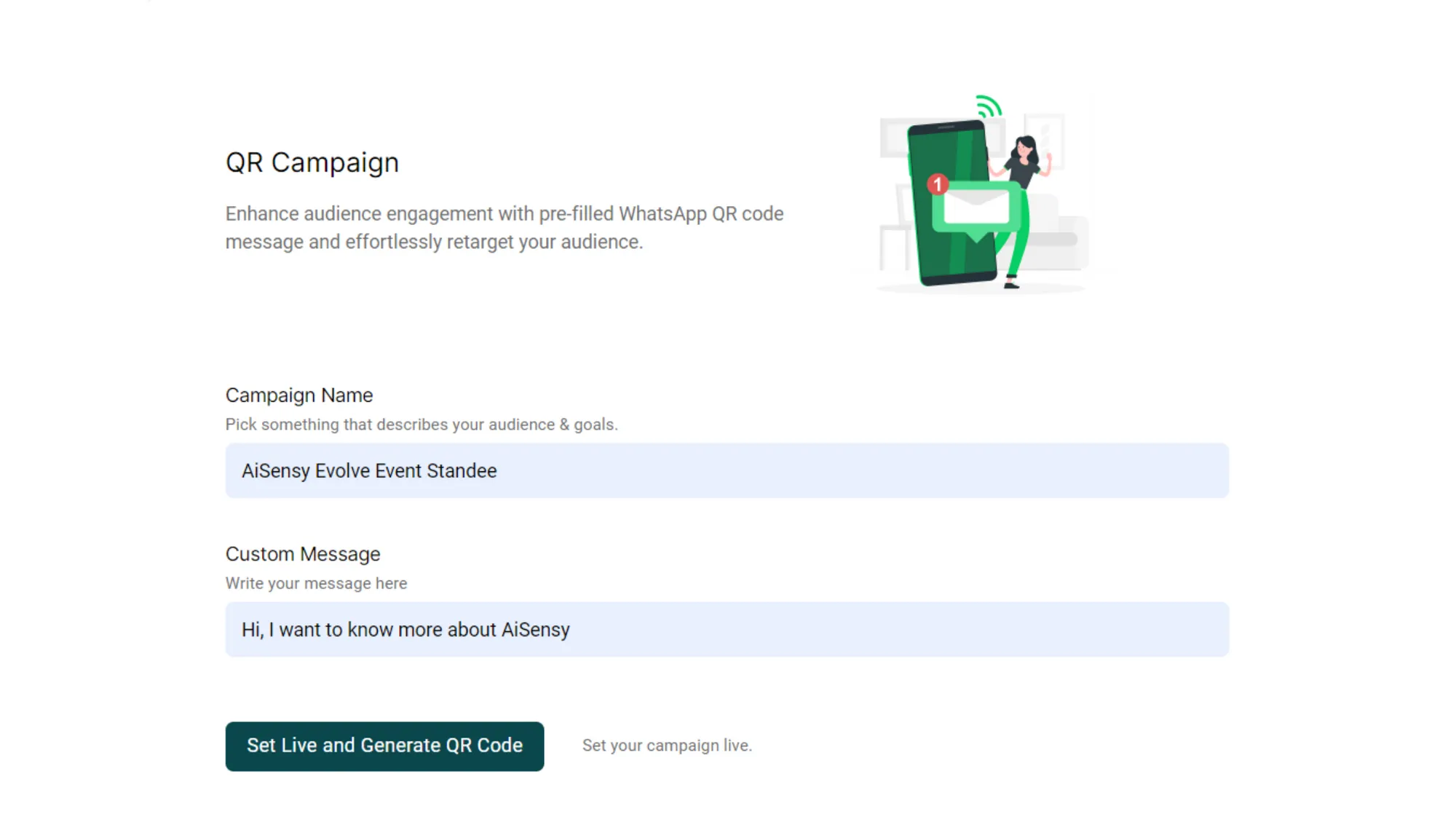
4. Tap "Set Live and Generate QR Code" to activate your campaign and create the QR code
Name: Give your campaign a descriptive name.
Pre-filled Custom Message: Enter a custom message that users will see when they scan the QR code. This message should be relevant and encourage interaction.
5. Download QR Code or QR Code Standee
Congratulations!! Your WhatsApp QR Code campaign is Live!
QR Code: Download a standard QR code image for use on websites, social media, or printed materials.
QR Code Standee: Download a customizable template for creating a physical QR Code Standee to display in your store or at events.
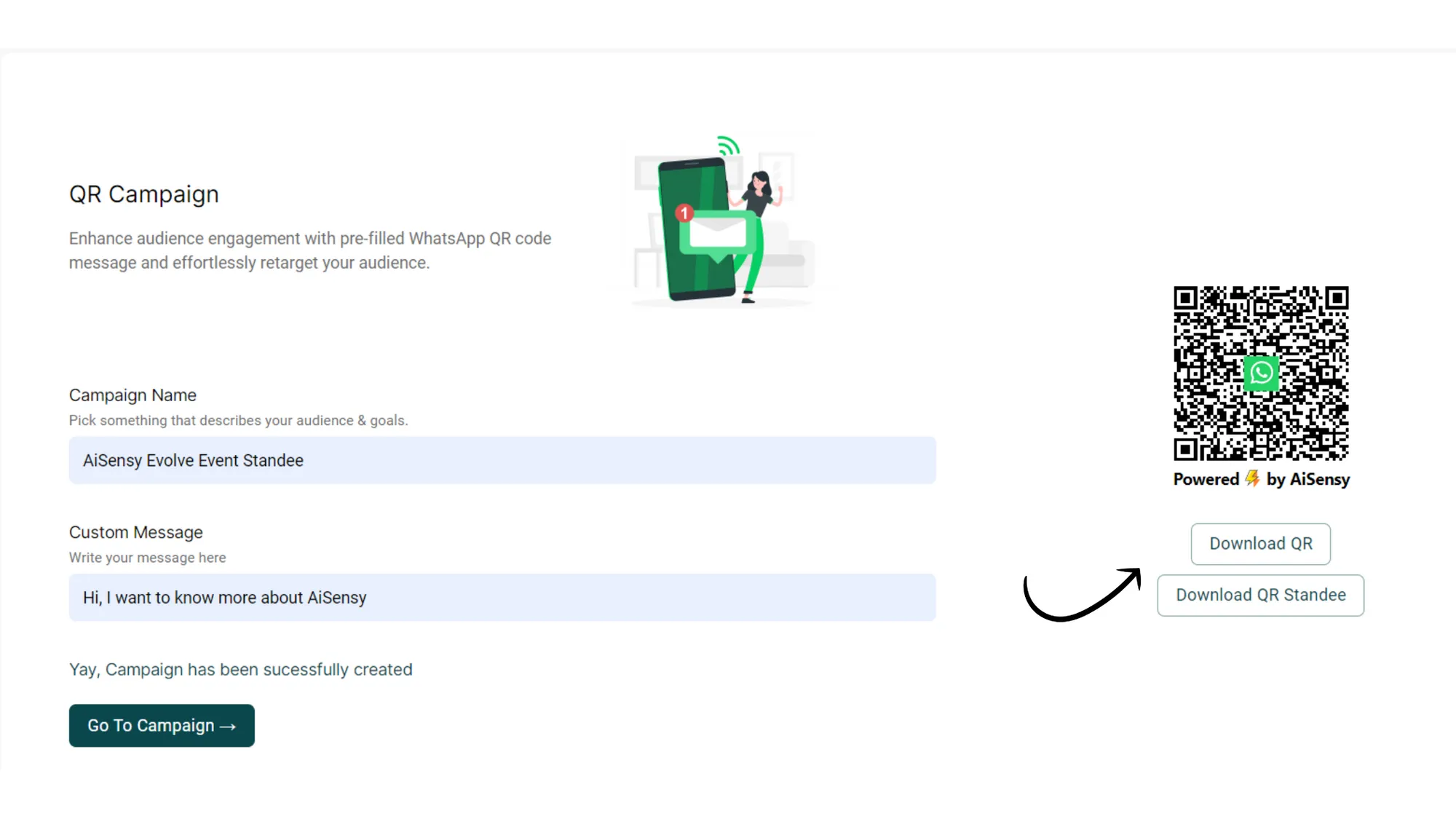
6. Customize Your Standee
Congratulations!! Your WhatsApp QR Code campaign is Live!
QR Code: Download a standard QR code image for use on websites, social media, or printed materials.
QR Code Standee: Download a customizable template for creating a physical QR Code Standee to display in your store or at events.

Track QR Campaign Leads
Once your WhatsApp QR Code campaign is live, you can track the leads driven through this QR Code campaign.
Go to Campaign👉🏻QR Scan👉🏻Replied
From here, you can export the leads, send them a broadcast, assign a new tag, monitor their actions and so on!
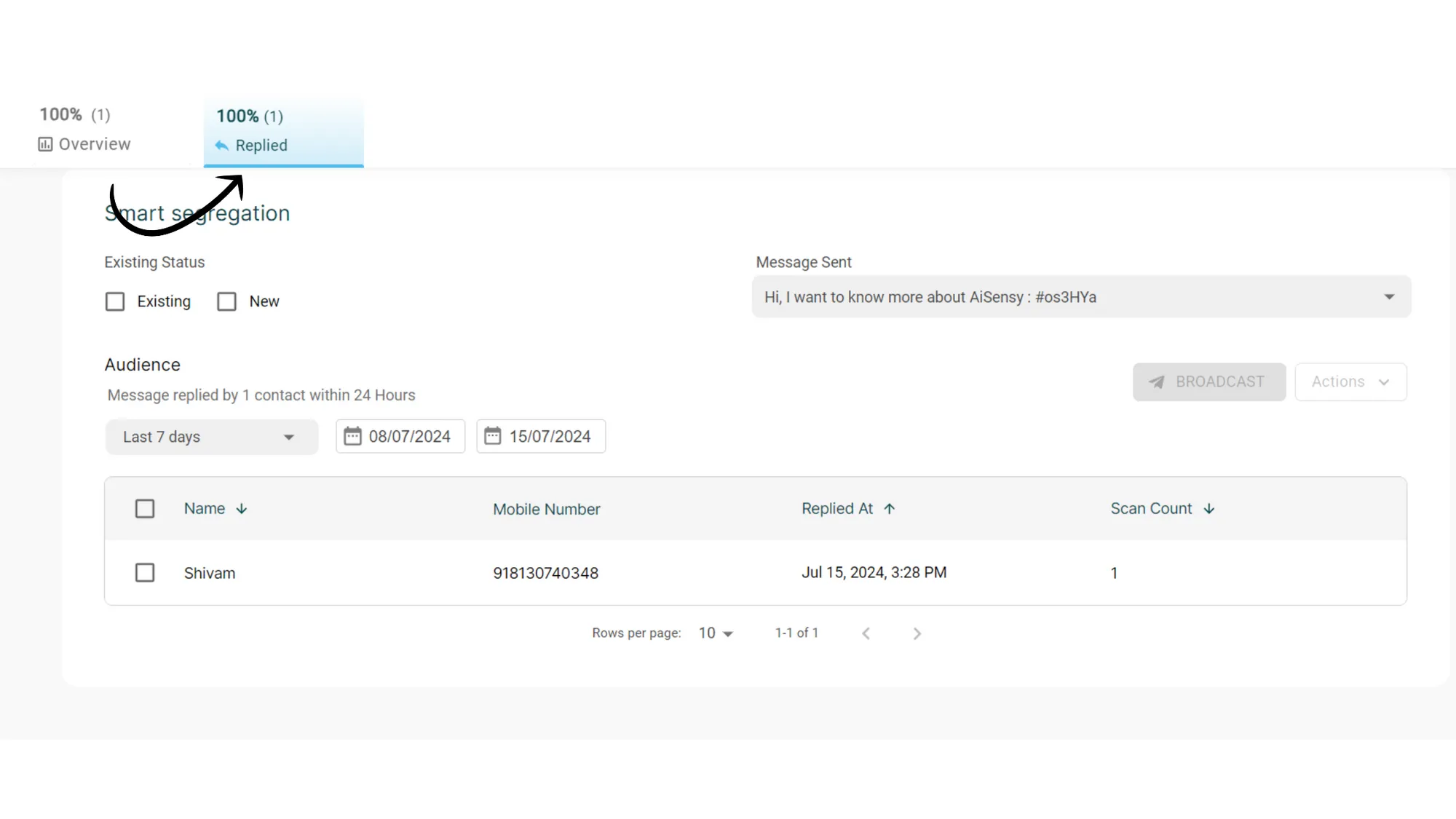
Connect your QR Code Campaign with the WhatsApp Chatbot
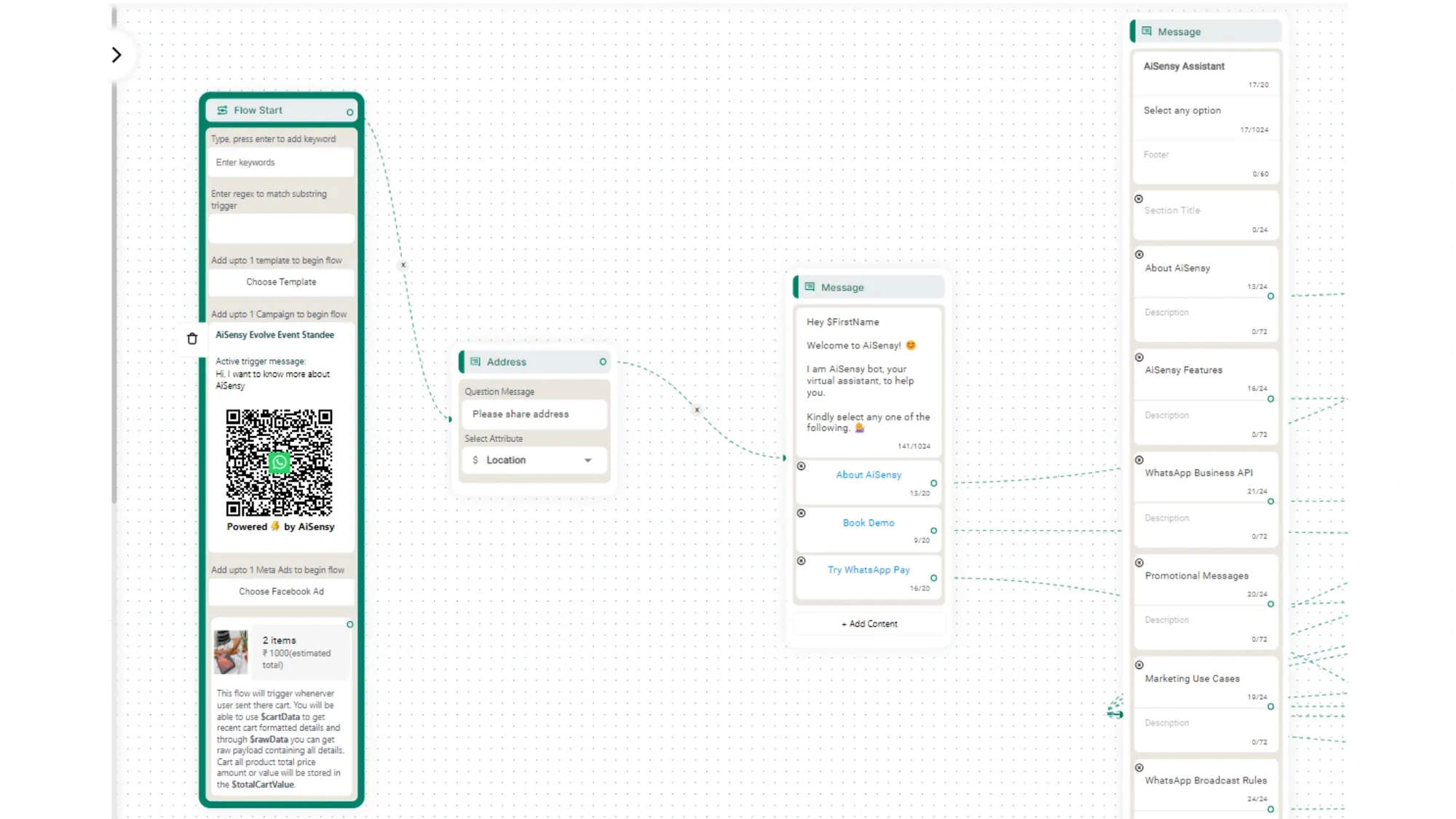
1. Go to Flows and create a new flow
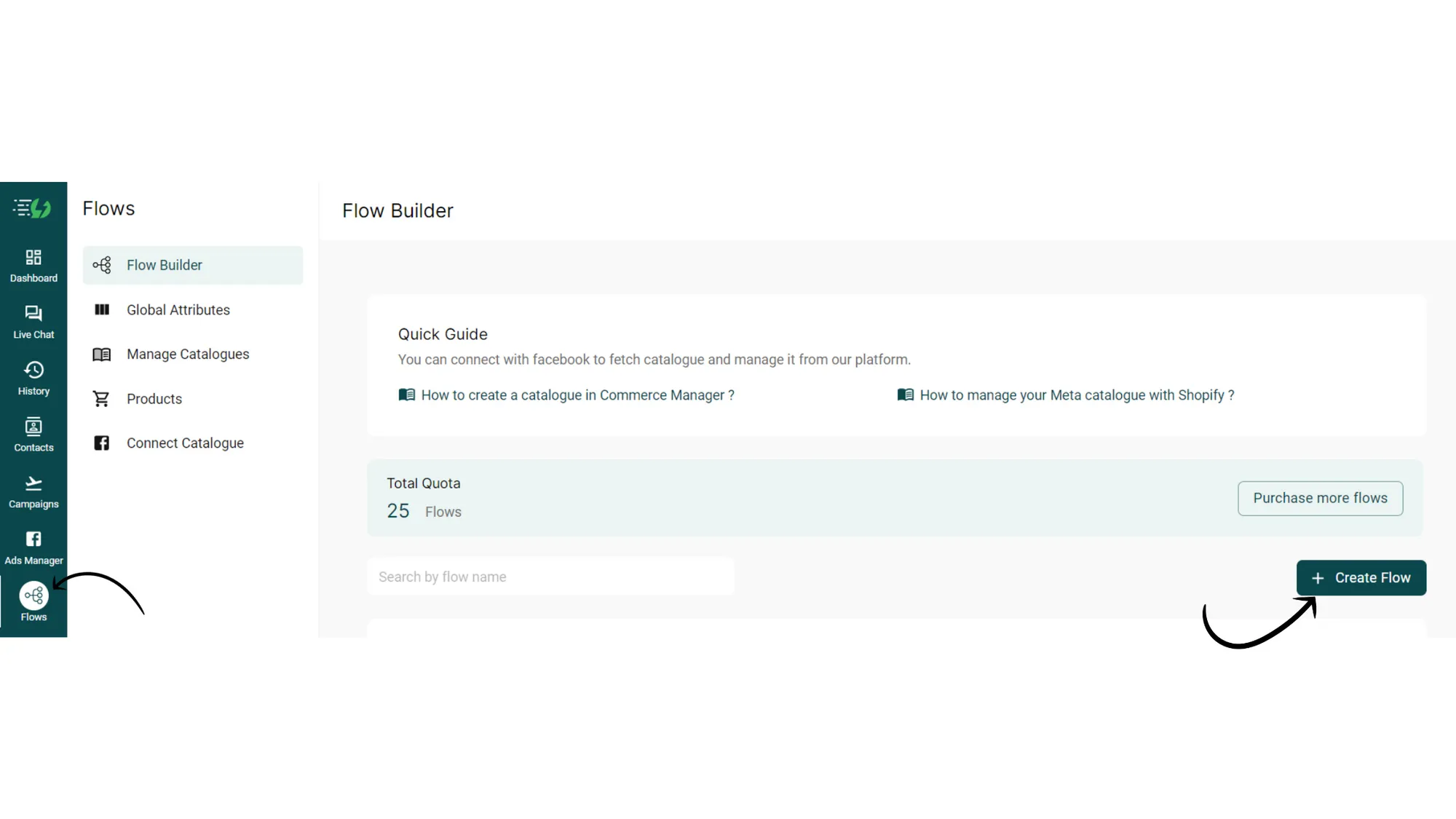
2. Tap "Choose QR Campaign"
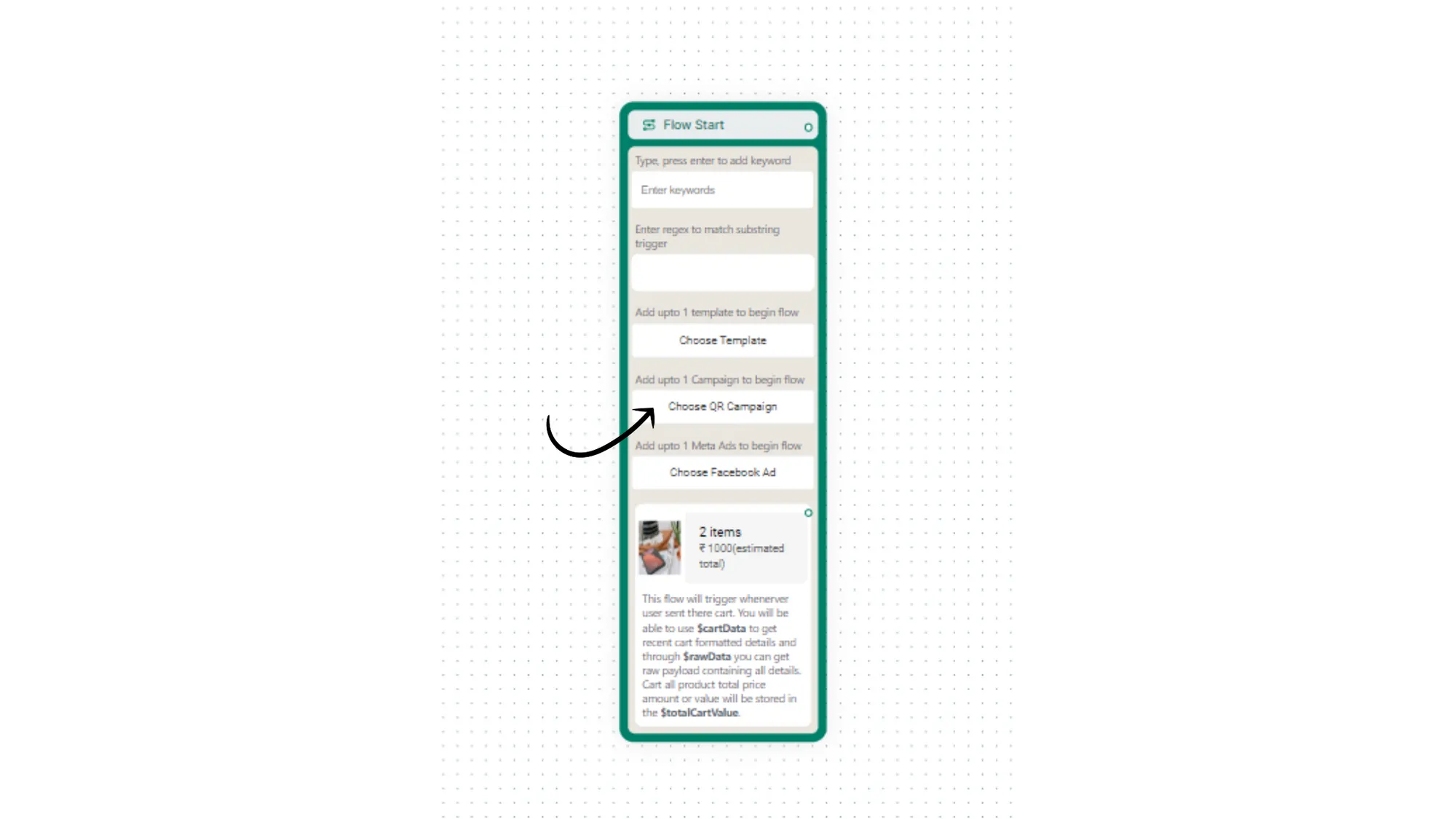
3. Select the QR Campaign you wish to connect with the WhatsApp Chatbot
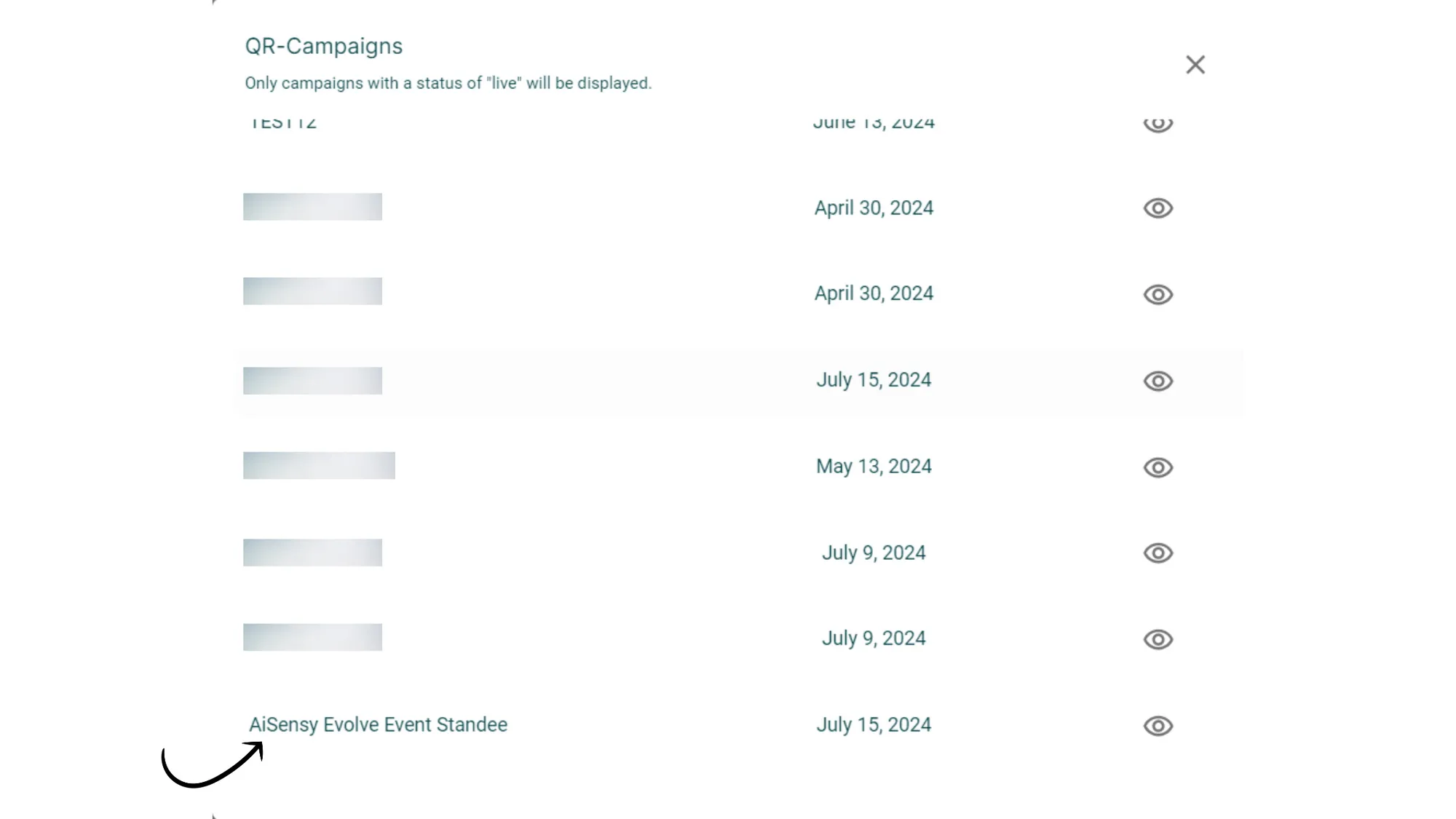
4. Create and enable your Chatbot Flow
That's it! You've successfully connected your QR Code campaign with your WhatsApp Chatbot.
Now you'll be able to easily engage hundreds of users who visit your WhatsApp QR Code standee with the power of WhatsApp Chatbot that will continue to reply to them even during off hours.
If you don't know how to create a WhatsApp Chatbot in AiSensy, click on the tutorial below: