How to Integrate Xtreme Gen AI with AiSensy for WhatsApp Messaging
Connect your Xtreme Gen AI Voice AI Agent with AiSensy to send approved WhatsApp templates and continue customer conversations on WhatsApp.
How to Integrate Xtreme Gen AI with AiSensy for WhatsApp Messaging
Connect your Xtreme Gen AI Voice AI Agent with AiSensy to send approved WhatsApp templates and continue customer conversations on WhatsApp.
Connecting Xtreme Gen AI with AiSensy
Here are the steps you need to follow to connect your Xtreme Gen AI Voice AI Agent with AiSensy and start sending WhatsApp messages.
Start the AiSensy Integration
First, open the AiSensy integration in Xtreme Gen AI to connect your voice agent with WhatsApp.
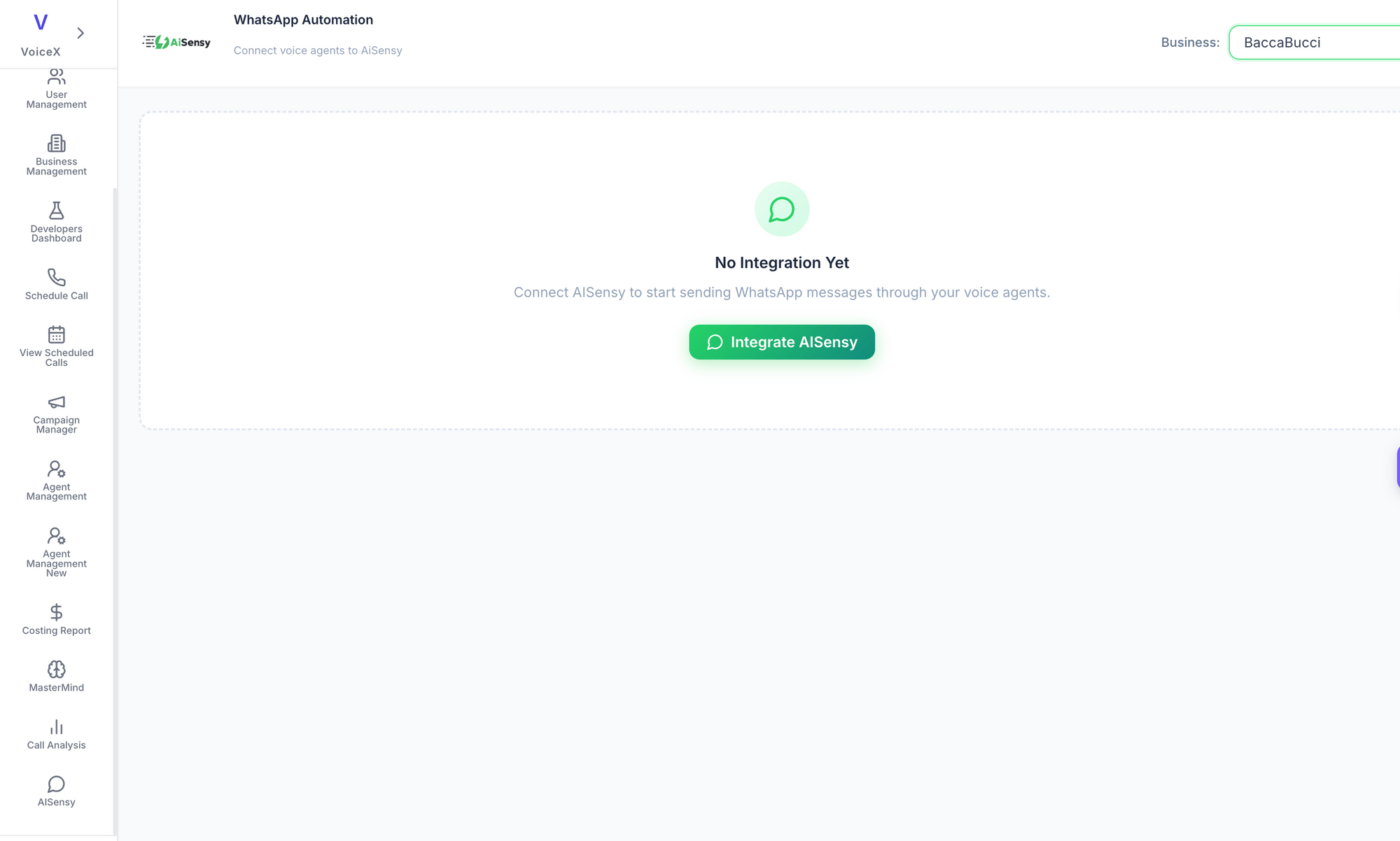
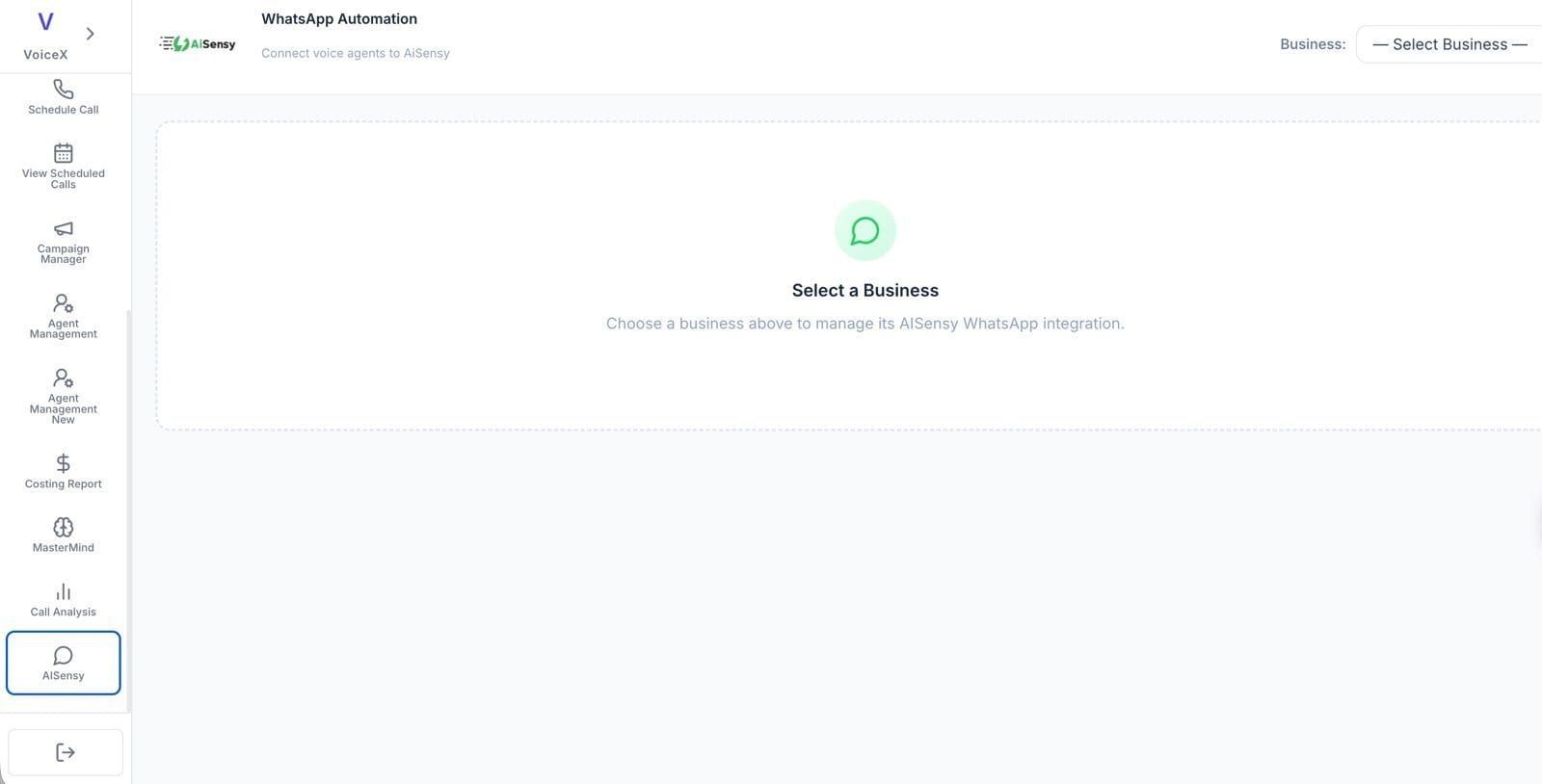
In Xtreme Gen AI, go to WhatsApp Automation → AiSensy.
Select the Business you want to connect.
Click Integrate AiSensy to start the integration.
Once you click Integrate AiSensy, you’ll be taken to the integration setup screen where you can connect your AiSensy project and select your Voice AI Agent.
Configure Your AiSensy Integration
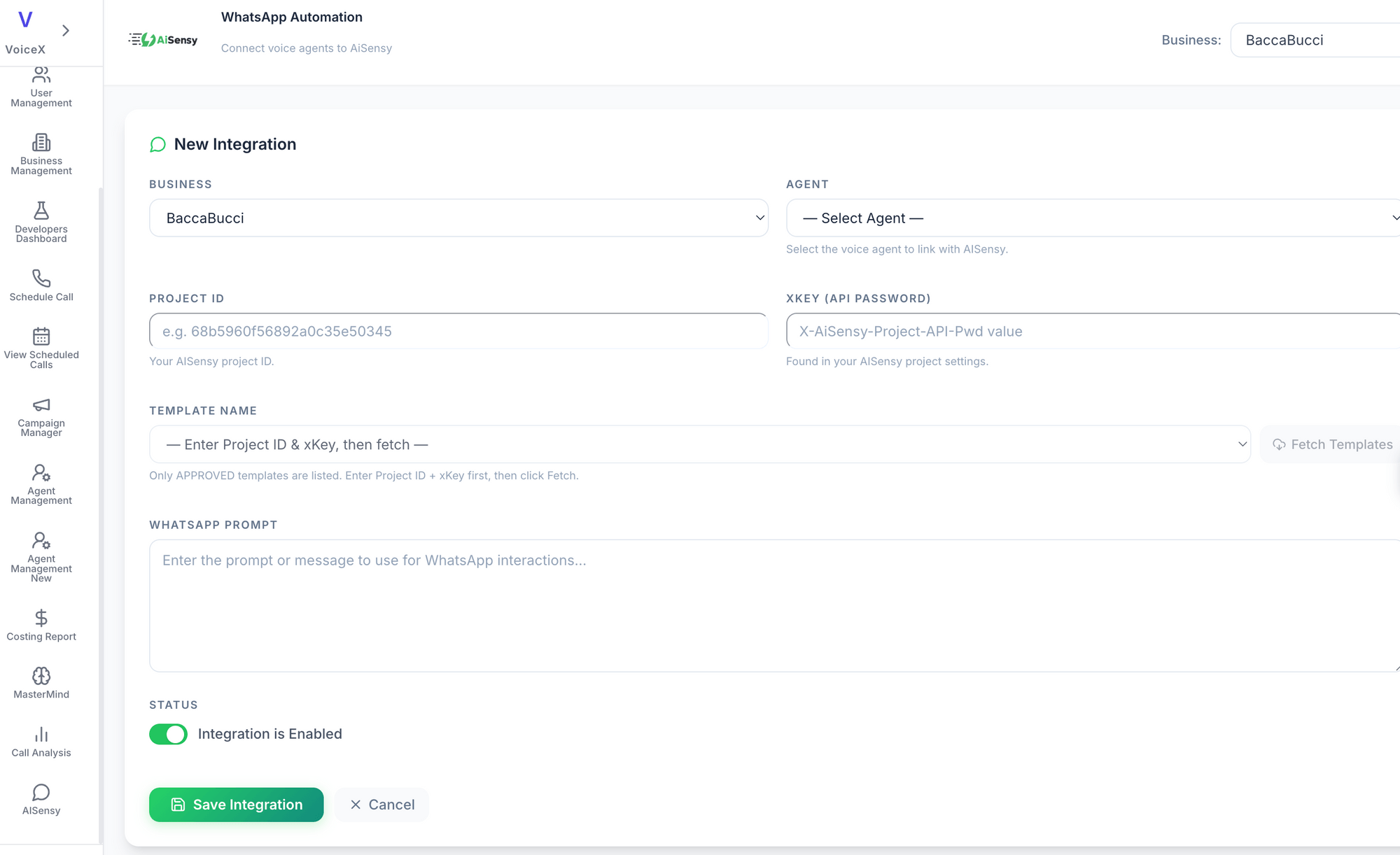
Now, enter your AiSensy details and select the Voice AI Agent you want to connect.
Select the Voice AI Agent you want to connect.
Enter your AiSensy Project ID.
Enter your xKey (API Password).
Click Fetch Templates to load your approved WhatsApp templates.
Enter the WhatsApp Prompt you want to use for WhatsApp interactions.
Make sure Integration is Enabled.
Click Save Integration to complete the setup.
Once saved, your AiSensy integration will be configured in Xtreme Gen AI, and you can use the available WhatsApp templates in your workflow.
Add the WhatsApp Step to Your Workflow
Now that your AiSensy integration is configured, add the WhatsApp (AiSensy) node to your Xtreme Gen AI workflow.
Open the workflow where you want to send a WhatsApp message.
Add the WhatsApp (AiSensy) node to your workflow.
Place the node where you want the WhatsApp message to be sent.
Select the AiSensy campaign you want to use.
Map the required workflow fields to your WhatsApp template variables.
Check that the recipient and message details are mapped correctly.
Once the WhatsApp step is configured, you're ready to create or select the AiSensy campaign you'll use in the workflow.
Create an AiSensy Campaign
If you don't already have an AiSensy campaign, create one using an approved WhatsApp template.
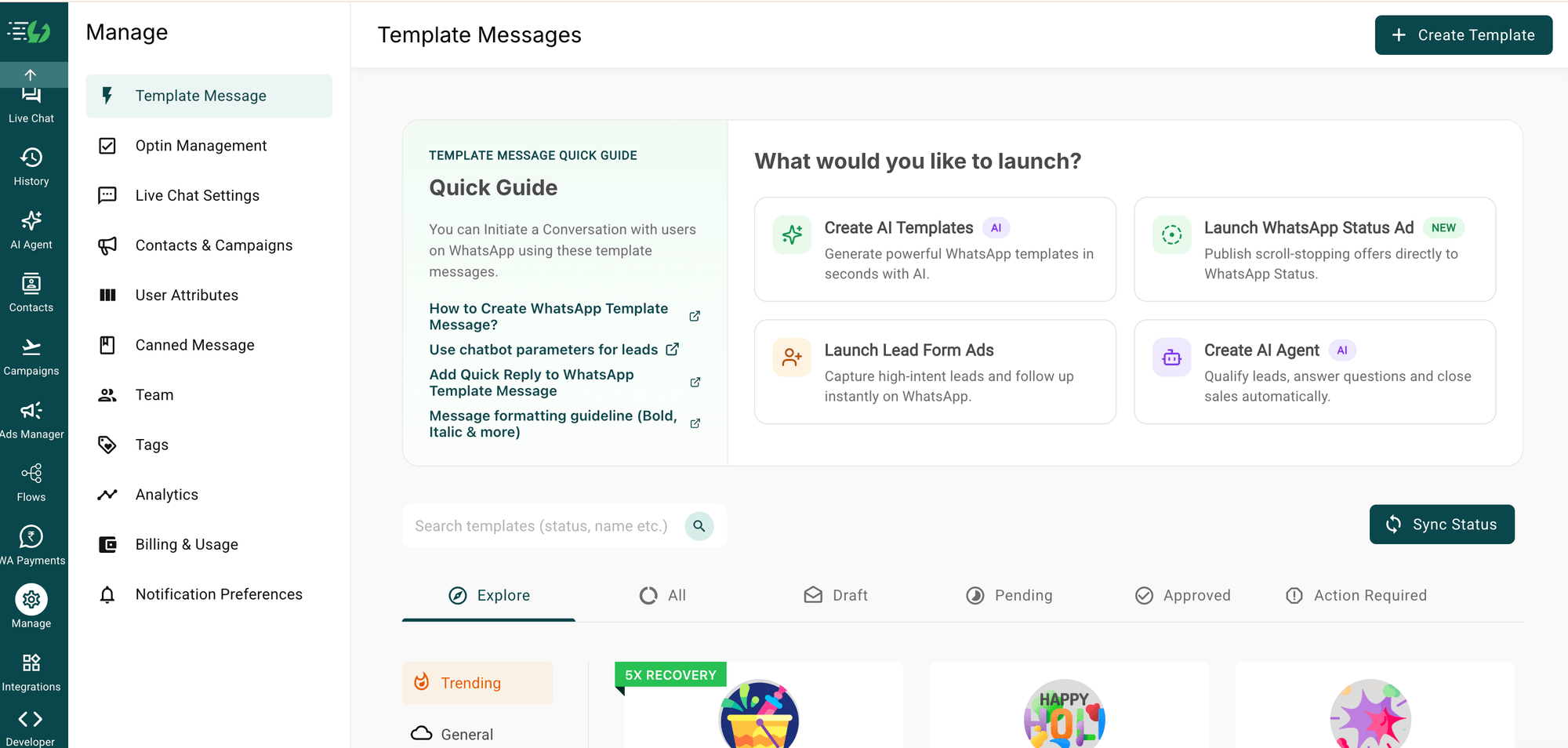
Log in to your AiSensy Dashboard and open the project you want to use.
Go to Manage → Template Message.
Create or select a WhatsApp template and submit it for Meta approval.
Once the template is approved, go to Campaigns → Launch.
Select API Campaign.
Enter a campaign name and select your approved WhatsApp template.
Click Set Live to launch the campaign.
Once the campaign is live, return to Xtreme Gen AI and refresh the campaign list. Your AiSensy campaign will then be available to select in the WhatsApp (AiSensy) step.
Refresh Your Campaign List in Xtreme Gen AI
Once your AiSensy campaign is live, return to Xtreme Gen AI and refresh the campaign list.
Open the WhatsApp (AiSensy) node in your workflow.
Refresh the available campaign list.
Select the newly created AiSensy campaign.
Make sure the correct campaign and template are selected.
Your AiSensy campaign is now ready to use in your Xtreme Gen AI workflow.
Publish Your Workflow
Once you've selected the correct AiSensy campaign and mapped the required variables, you're ready to publish your workflow.
Review the WhatsApp (AiSensy) step and make sure the campaign and variables are correct.
Check that the recipient is mapped to the correct workflow field.
Click Publish to make your workflow live.
Once published, Xtreme Gen AI will trigger the selected AiSensy campaign whenever the workflow reaches the WhatsApp step.
Your Xtreme Gen AI X AiSensy Integration is Live 🎉
That’s it! Your Xtreme Gen AI workflow is now connected with AiSensy.
You can now send approved WhatsApp templates through AiSensy whenever your workflow reaches the WhatsApp (AiSensy) step.
Combine voice AI and WhatsApp messaging to create seamless customer journeys across both channels.