How to Integrate AiSensy with Adverti for Analytics
Step-by-step process to connect AiSensy with Adverti and analyze your WhatsApp campaign performance.
How to Integrate AiSensy with Adverti for Analytics
Step-by-step process to connect AiSensy with Adverti and analyze your WhatsApp campaign performance.
How to Connect AiSensy with Adverti?
Here are the steps you need to follow to connect your AiSensy account with Adverti:
1. Go to Developer Hub in AiSensy
First, log in to your AiSensy account and go to Developer → Developer Hub → Project API Keys.
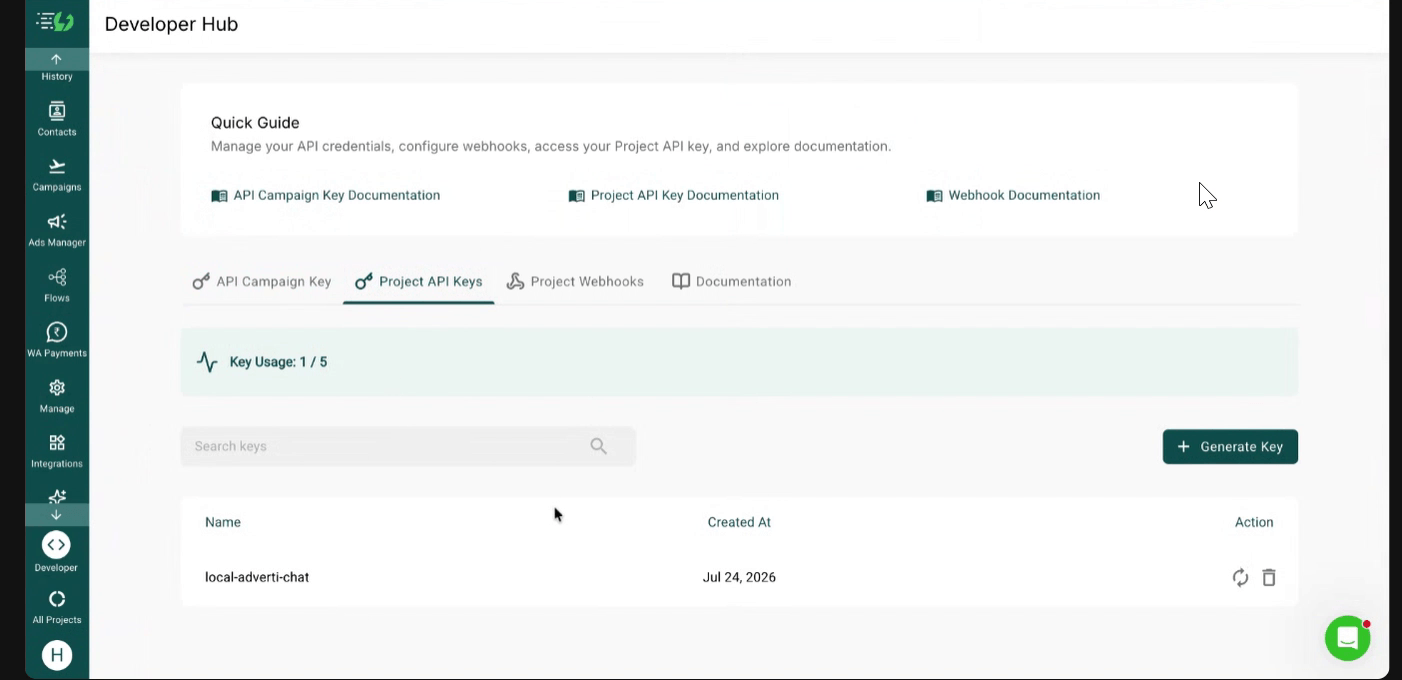
2. Click '+ Create Key'
Next, click + Create Key to create a new Project API Key.
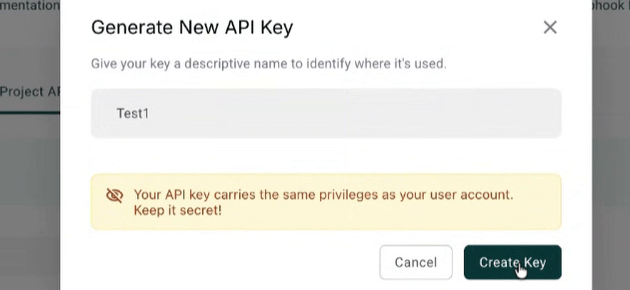
3. Add a name & Create Key
Give your API key a descriptive name.
For example: adverti-integration
After adding the name, click Create Key.
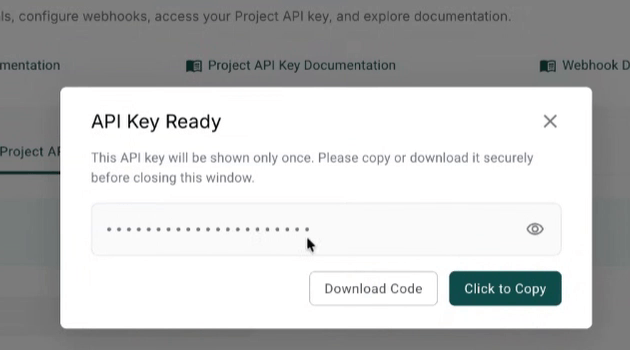
Copy your Project API Key
Your API key will be shown after creating it.
Note: Make sure you copy the API key before closing the window. The key is shown only once.
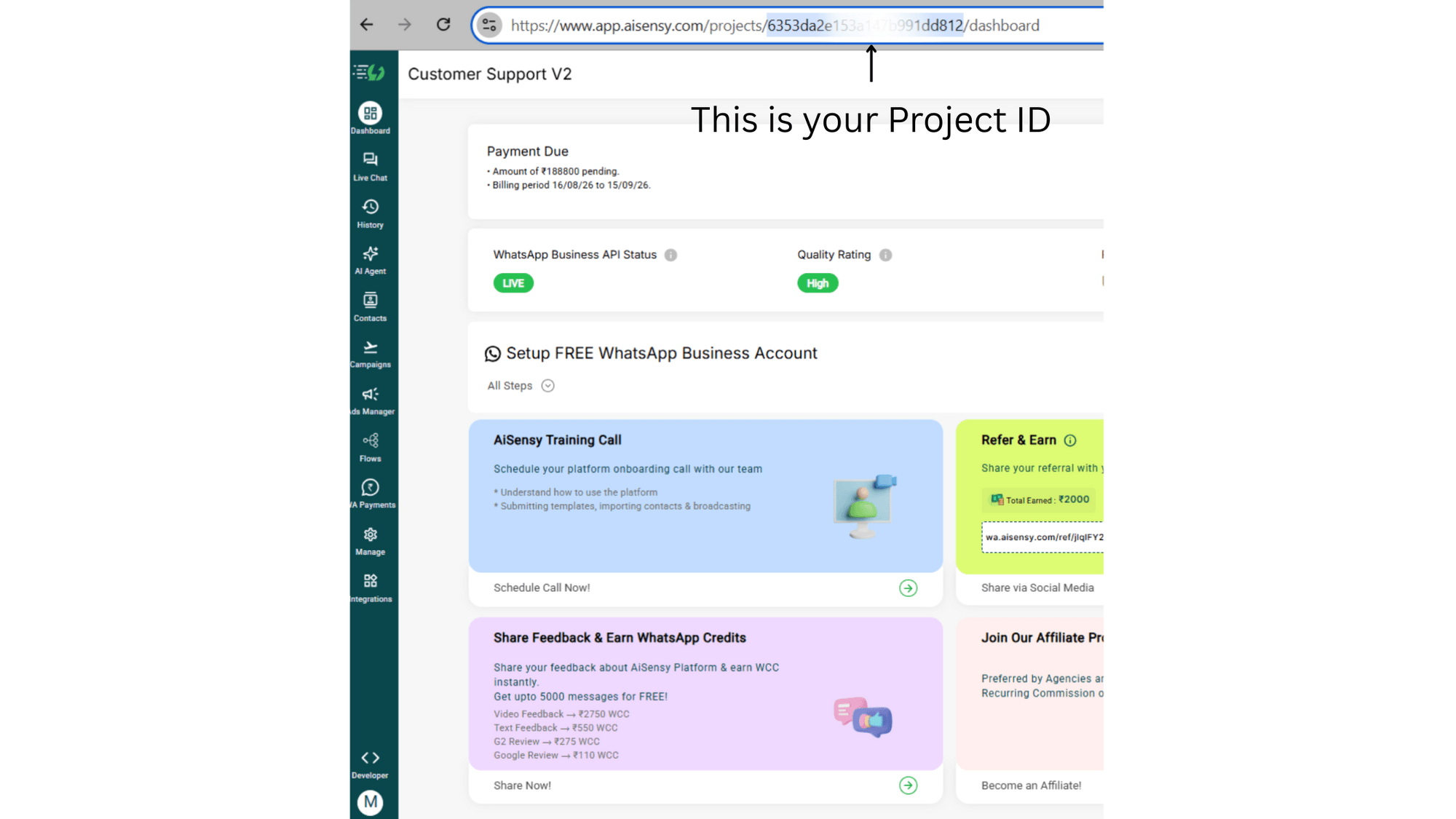
5. Note down your Project ID
You'll also need your Project ID to connect AiSensy with Adverti.
You can find it in your AiSensy Dashboard URL:
app.aisensy.com/projects/<id>/dashboard
Copy the <id> from the URL.
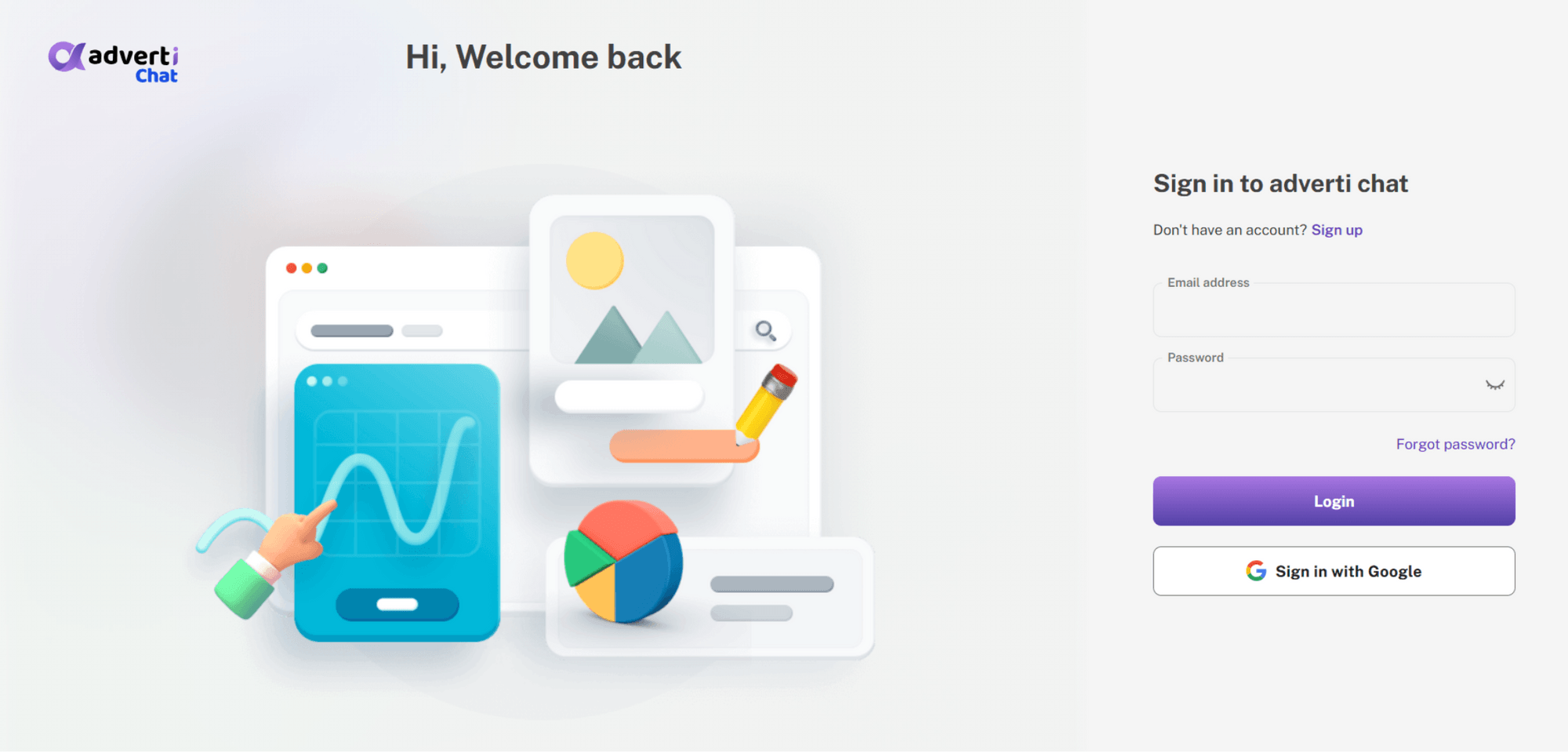
6. Go to Brands in Adverti
Now, log in to your Adverti account and go to Brands.
7. Select the Brand you want to connect
Select the brand you want to connect with AiSensy and open its Integrations.
You can do this through Edit or while continuing the brand setup.
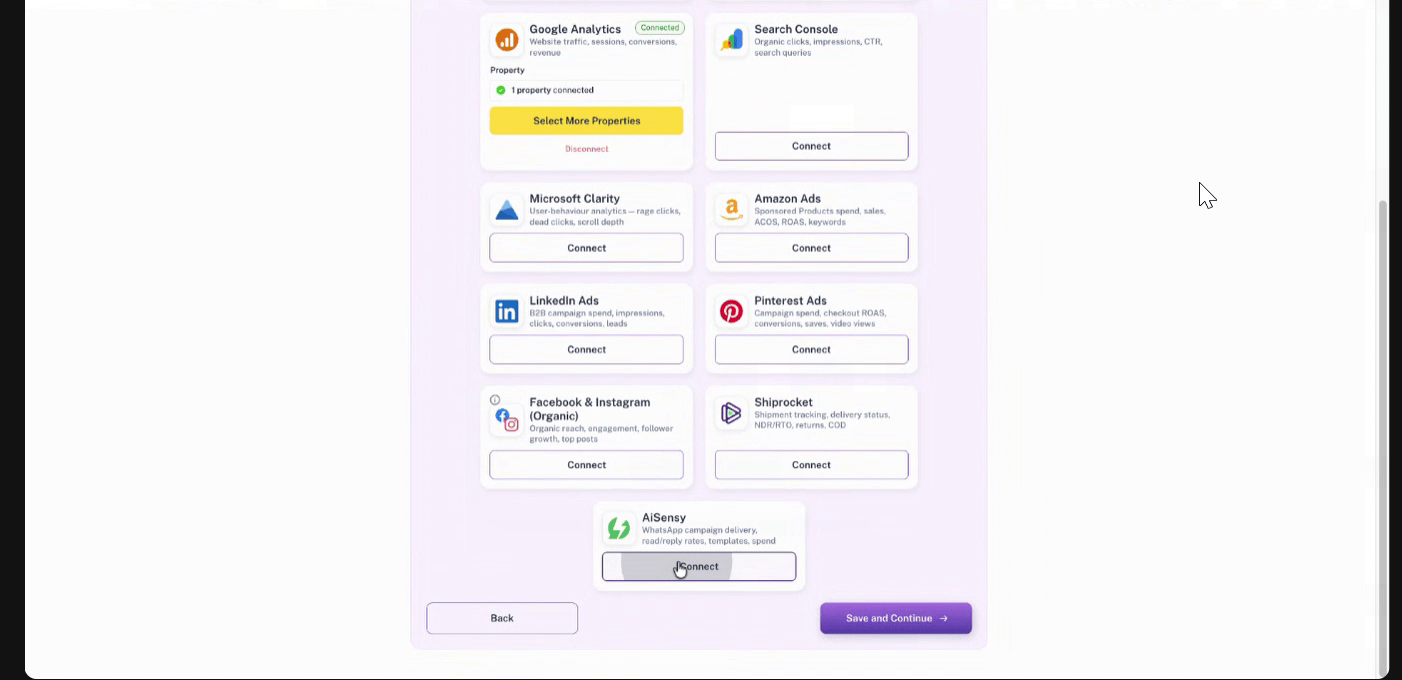
8. Find AiSensy under 'Supercharge Your Insights'
Scroll down to the AiSensy card under Supercharge Your Insights.
Click Connect.
9. Enter your AiSensy details
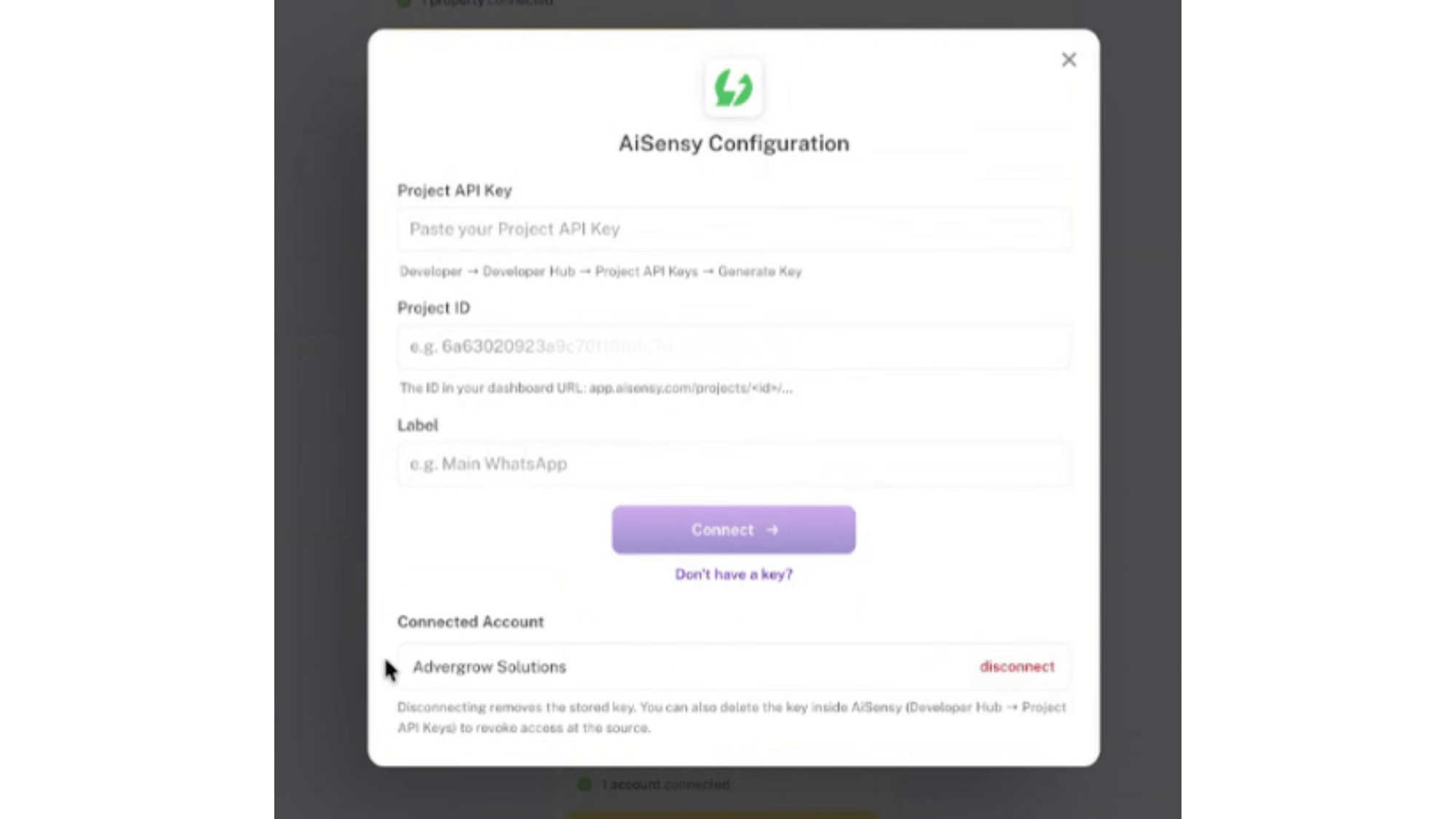
In the AiSensy Configuration pop-up, enter the following details:
Project API Key: Paste the key you generated in AiSensy.
Project ID: Paste the Project ID from your AiSensy Dashboard URL.
Label: Add a name to identify this connection. For example, your brand name.
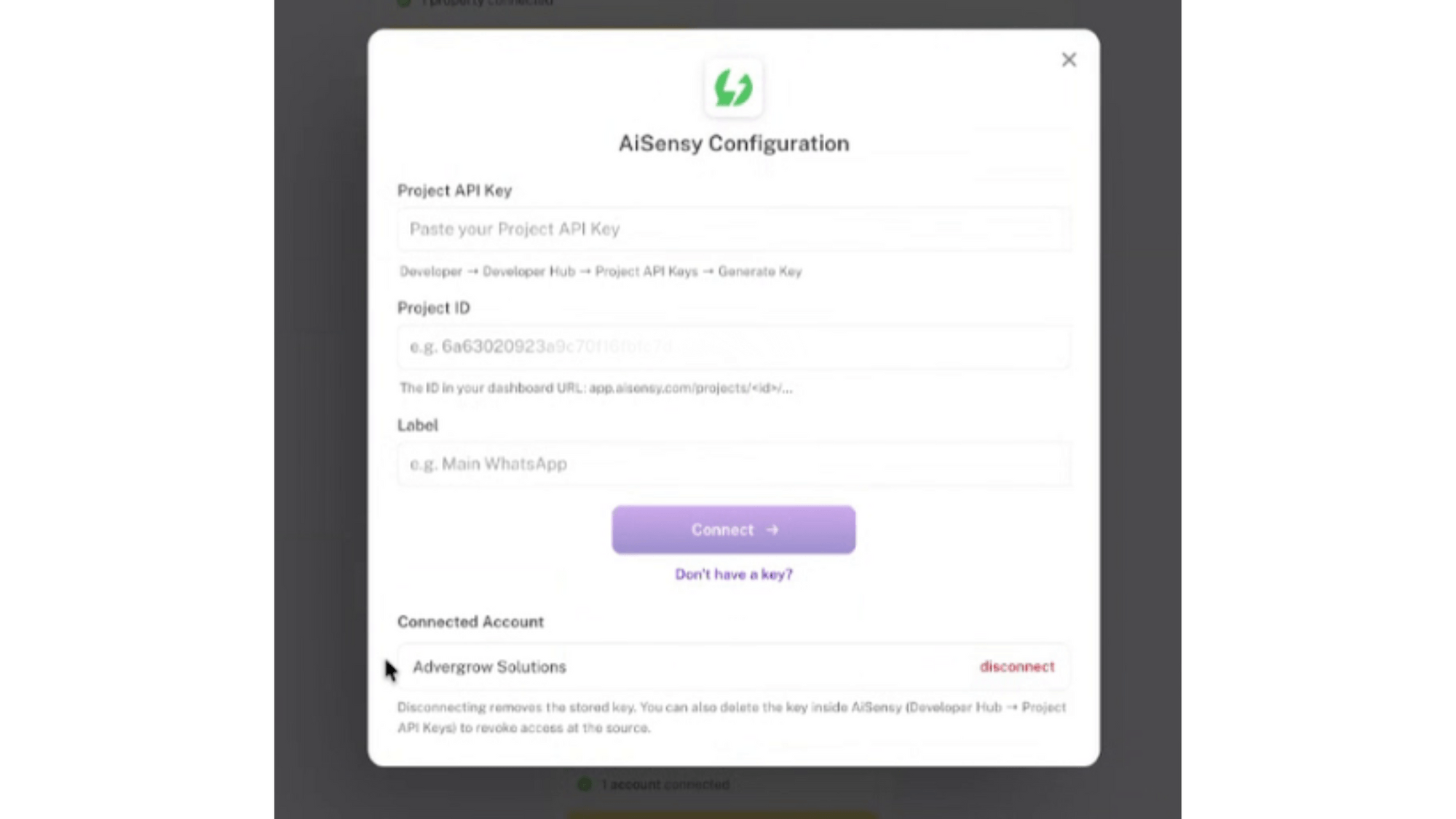
Click 'Connect'
After adding all the details, click Connect.
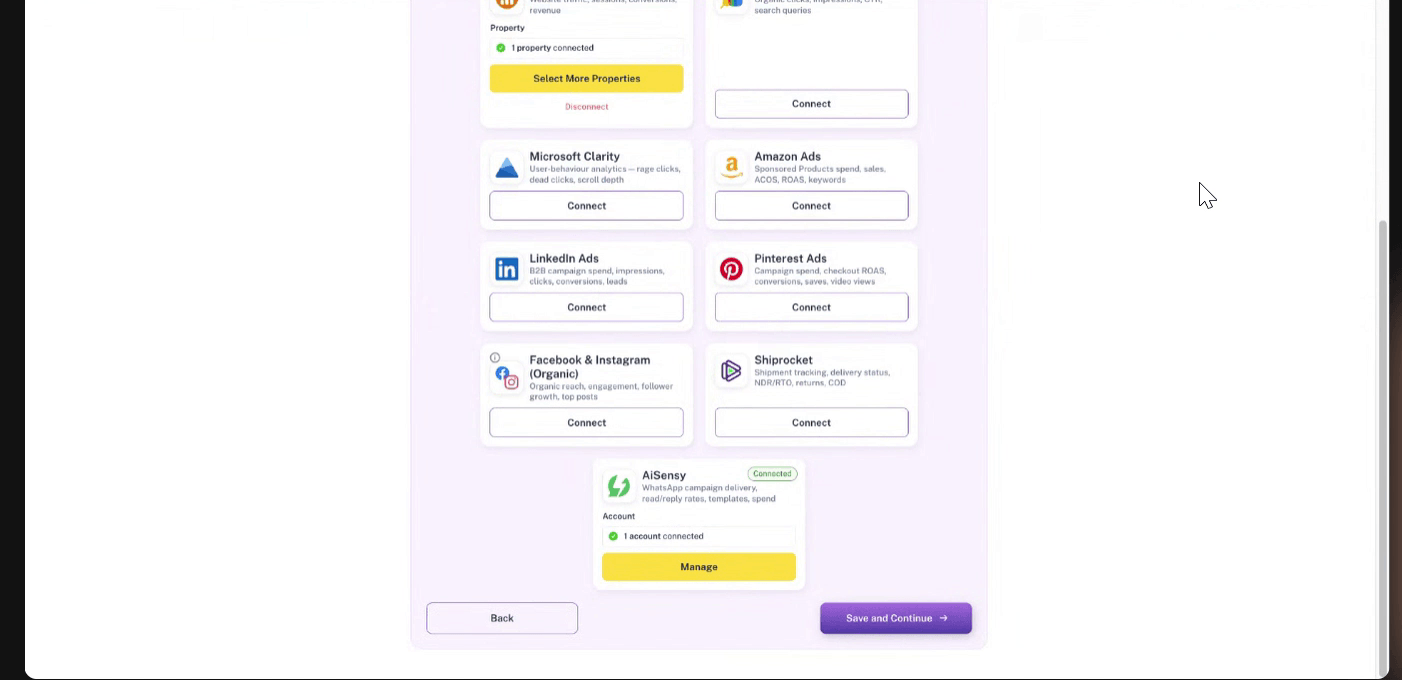
Once connected, you'll see a Connected badge on the AiSensy card and your account will appear under Connected Account.
Click 'Save and Continue'
Once AiSensy shows as connected, click Save and Continue to finish the integration.
12. Your AiSensy data is now connected to Adverti
That's it!
The AiSensy icon will now appear in Adverti's top navigation, and your WhatsApp campaign data will start flowing into Adverti.
You can now analyze your WhatsApp campaigns alongside your other marketing channels.
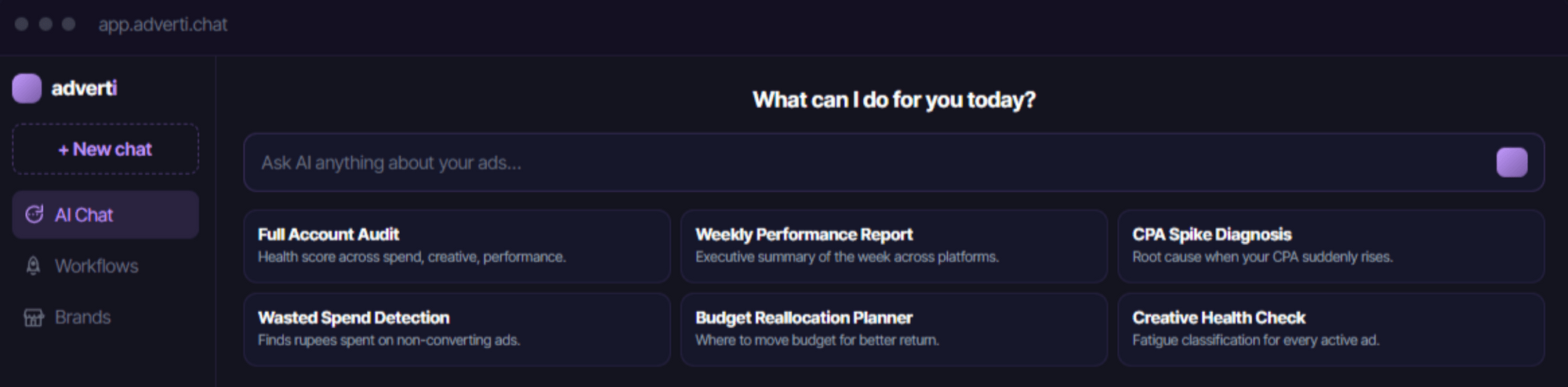
Ask Adverti's AI Analyst about your WhatsApp campaigns
Once AiSensy is connected, you can ask Adverti's AI Analyst questions about your WhatsApp campaign performance directly from AI Chat.
That's it! You can now analyze your WhatsApp campaign performance directly inside Adverti.
