Notification Preferences: Customize sound & Push Notifications for Requesting Chats
Customize sound and push notifications in AiSensy to never miss important messages from requesting chats.
Notification Preferences: Customize sound & Push Notifications for Requesting Chats
Customize sound and push notifications in AiSensy to never miss important messages from requesting chats.
What are Notification Preferences?
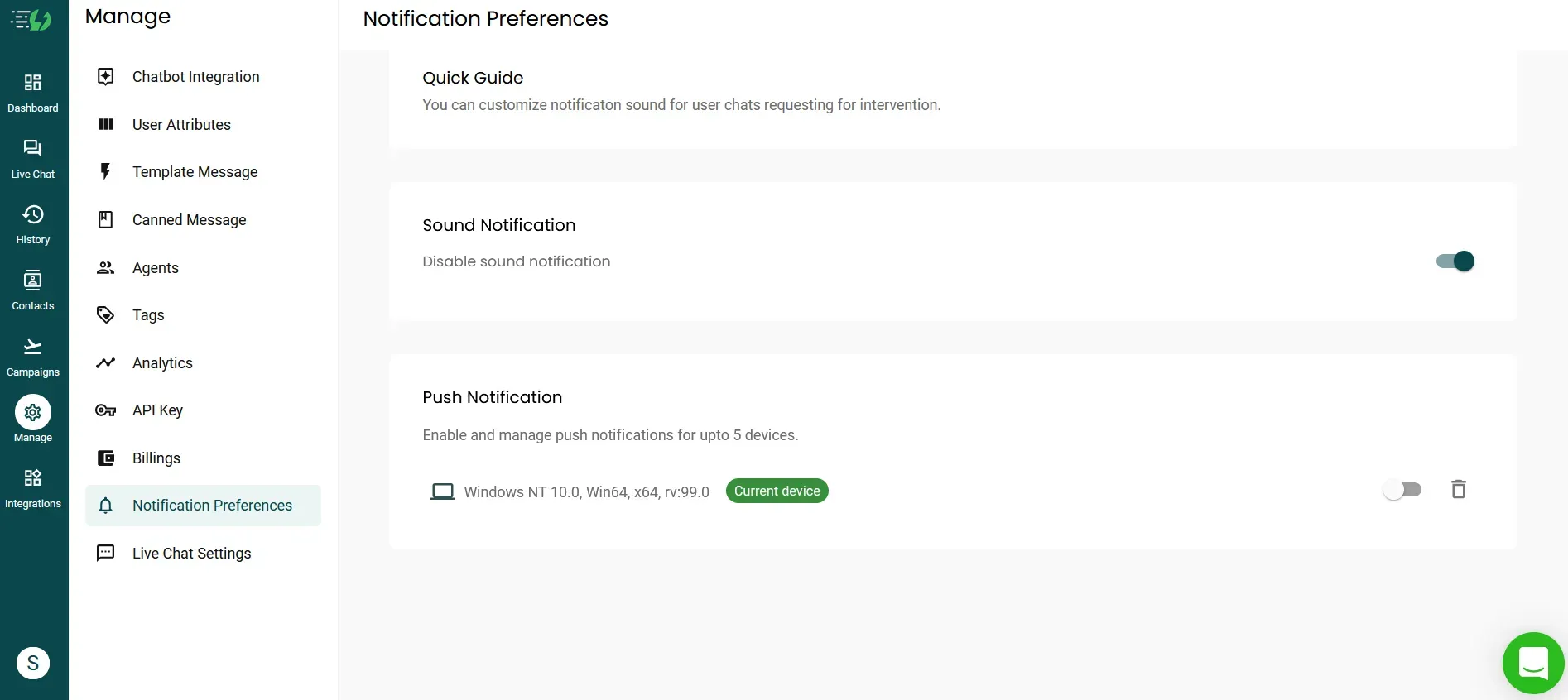
'Notification Preferences' is a section in AiSensy's Manage page that enables you to handle notification sounds for messages received.
In Notification preferences, you can manage:
1. Sound Notifications
2. Push Notifications
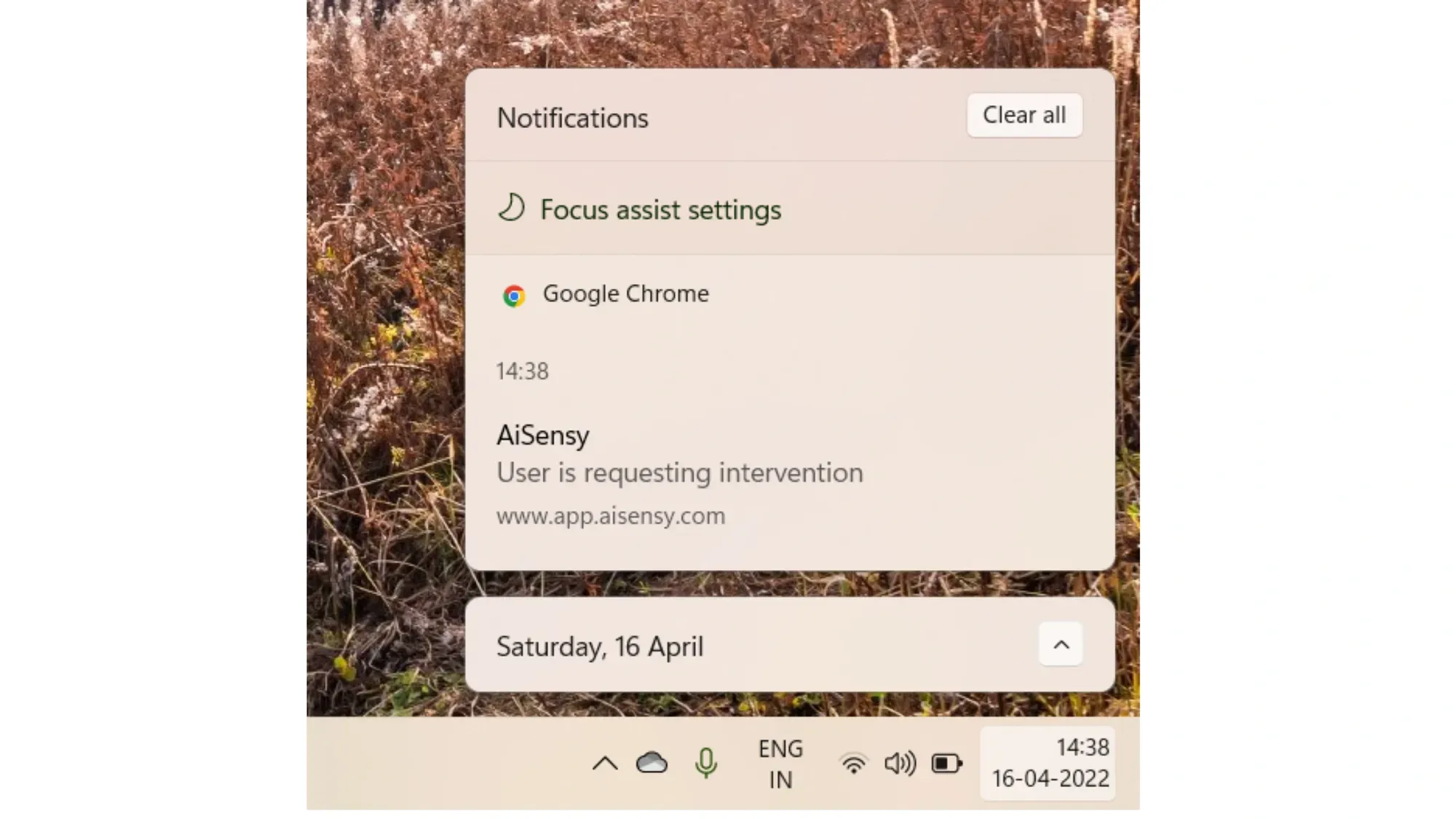
By enabling Push Notifications, your agents will receive a notification on their respective devices (windows, android) informing them of a new user message in AiSensy App.
Like this👇
How to customize notification sounds?
You can either enable or disable the notification sounds in AiSensy App.
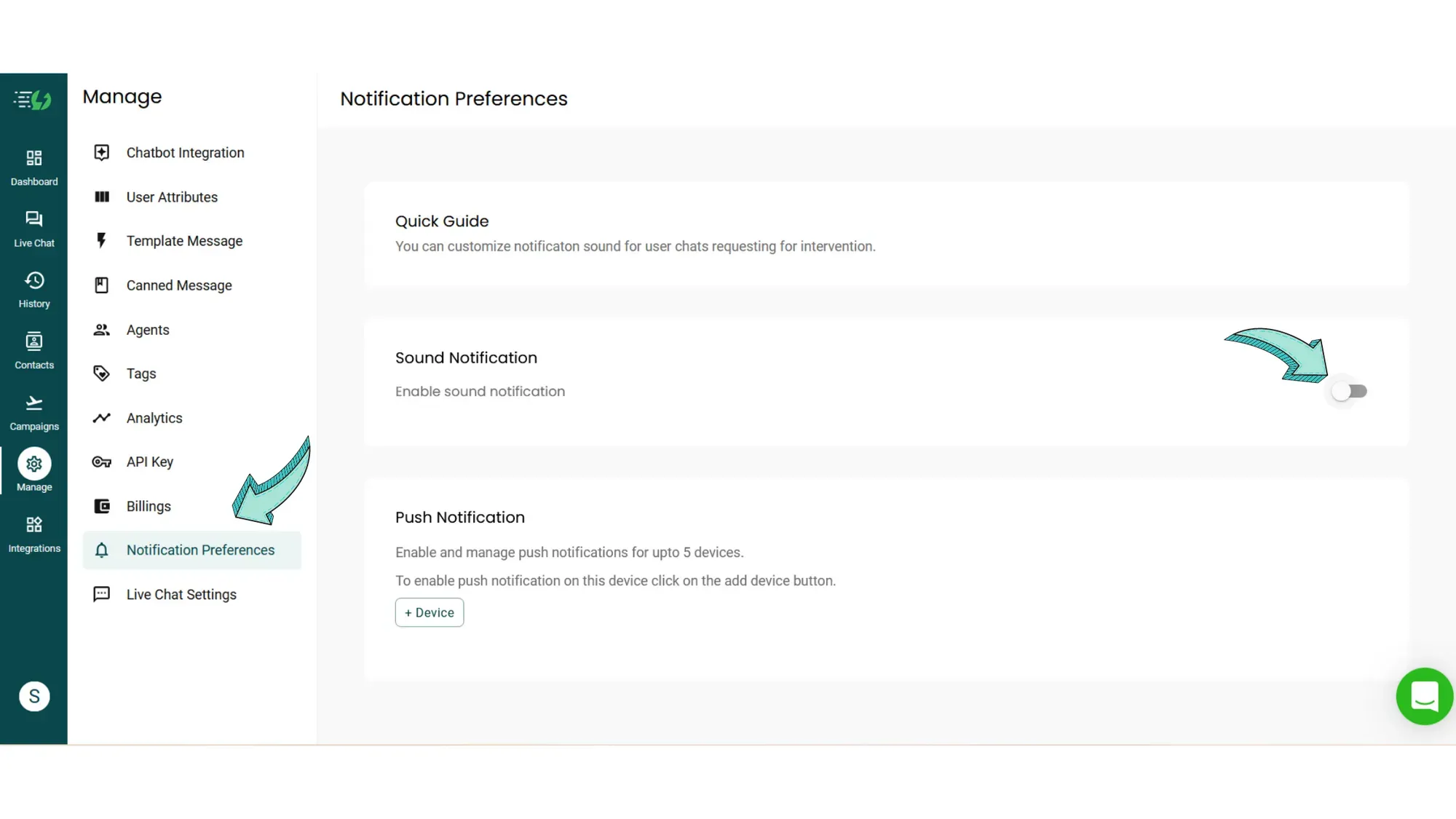
Go to 'Notification Preferences' in the Manage section & click 'enable' notification sounds to enable the sweet chime notification whenever you receive a message on AiSensy App. Refresh the browser for the changes to take effect.
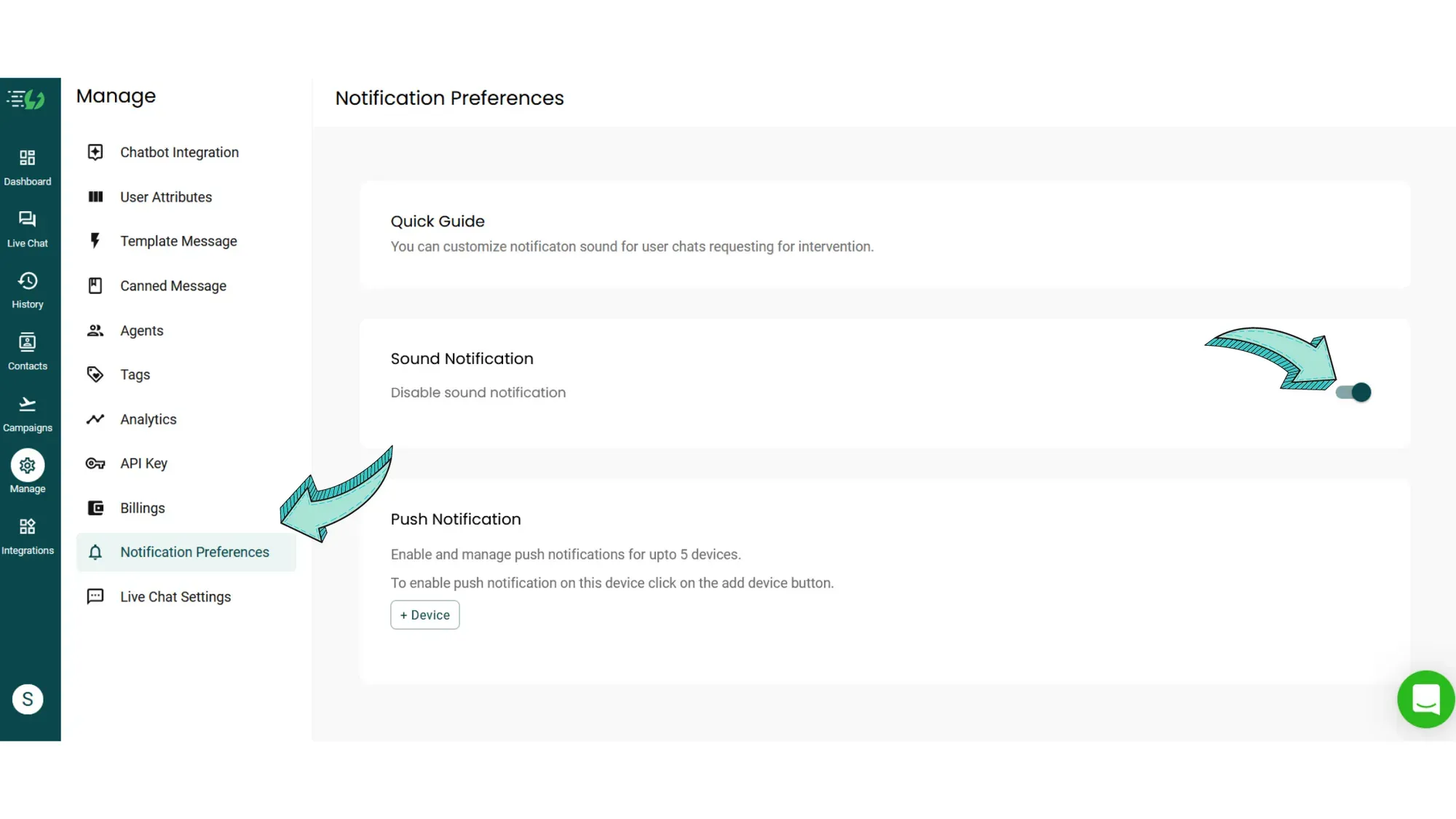
To disable the notification sounds, just turn it off & refresh the browser for the changes to take effect.
How to customize Push Notifications in AiSensy App?
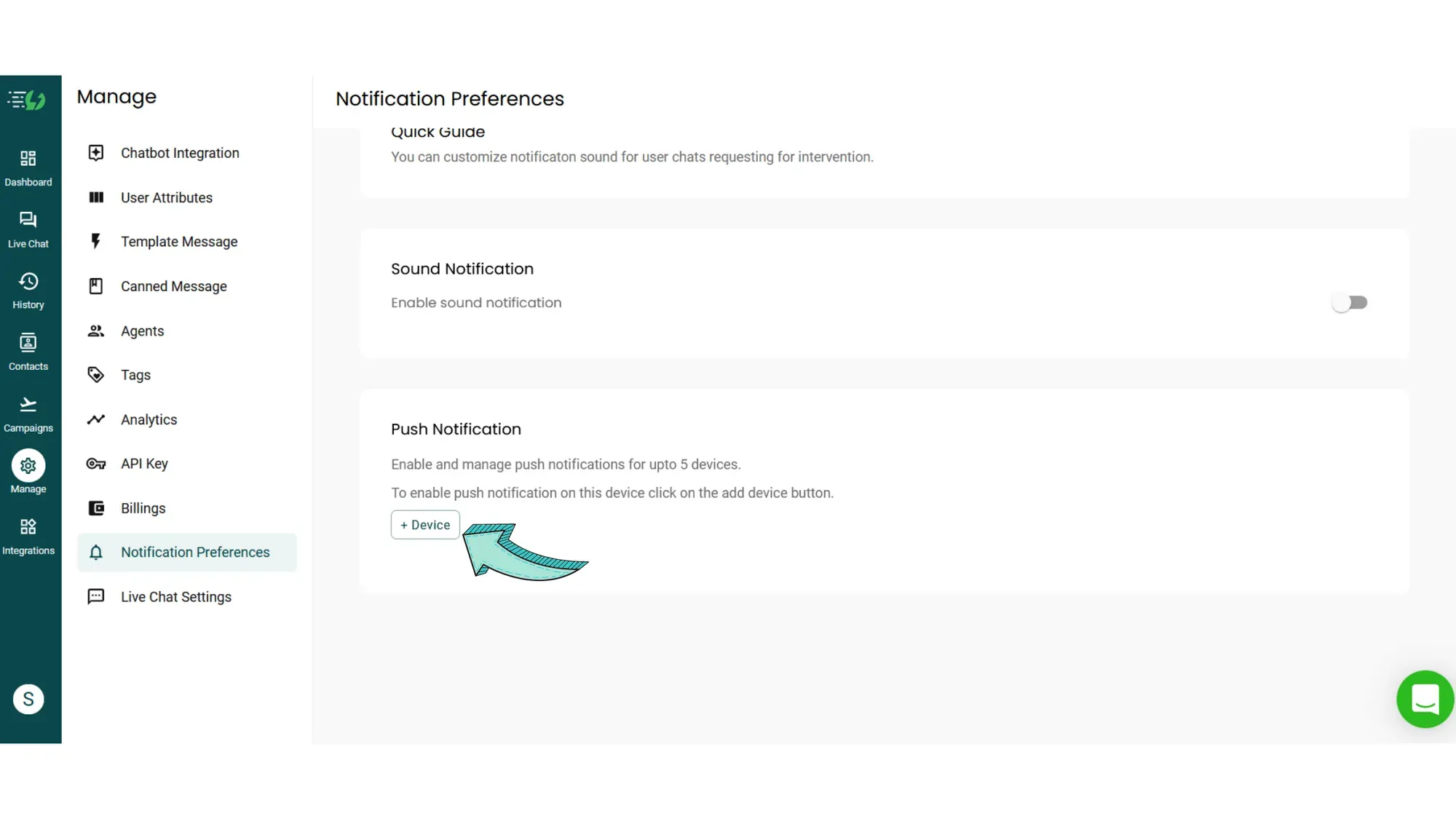
You can enable Push Notifications on as many as 5 devices (mobile/ pc) in AiSensy App.
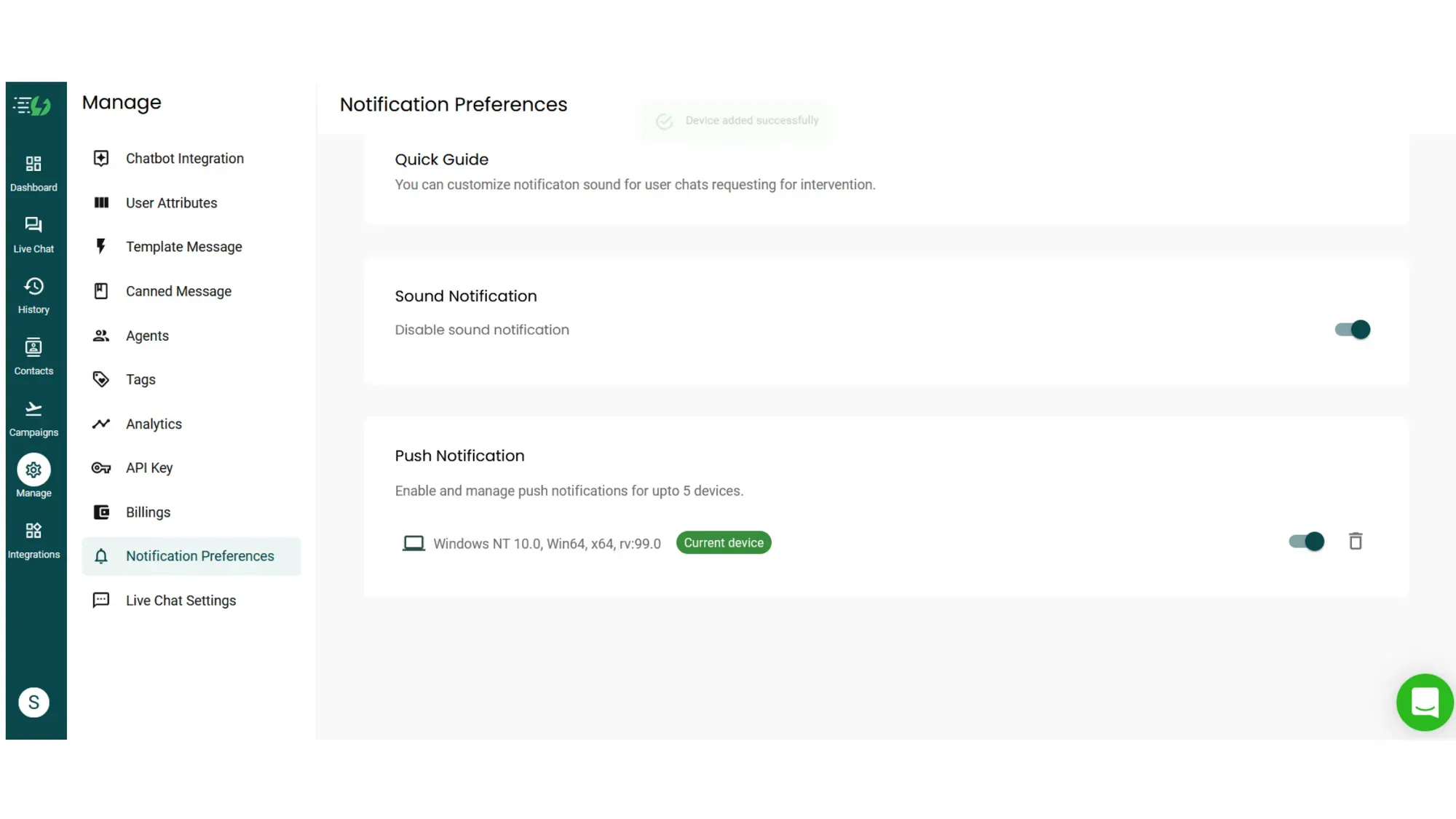
To enable Push Notifications, go to Manage👉Notification Preferences👉 Click +Device
After clicking the '+ Device' icon, Chrome or any other browser you're using might ask you for permission to 'allow' notifications for AiSensy App. Click 'allow' to receive the notifications.
This will enable push notifications on that particular device as shown in the image below.
To disable push notifications, just click the 'bin' icon as shown in the below image. This will remove the device as well as disable push notifications from AiSensy App.
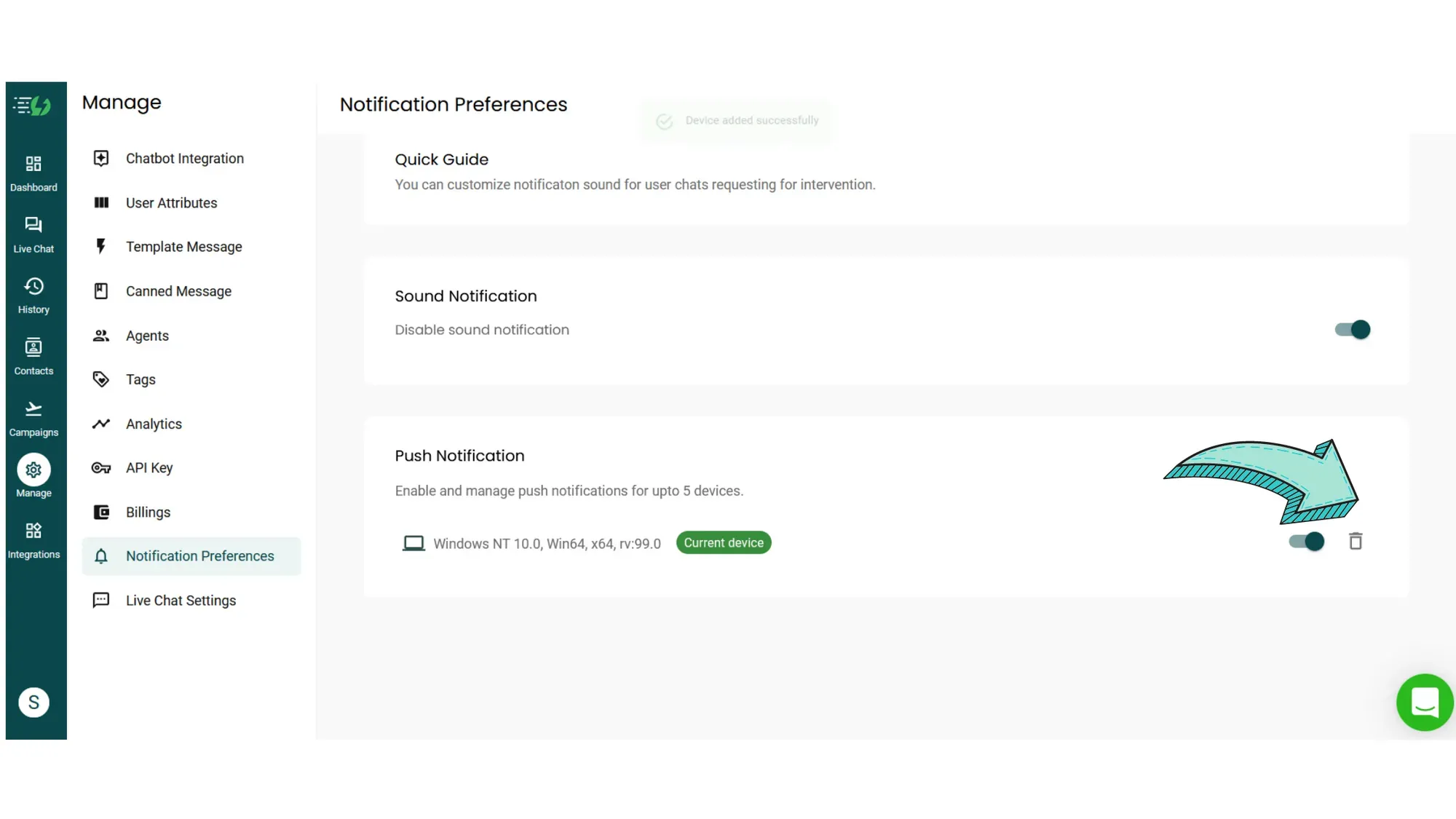
If you only want to disable push notifications but don't want to remove the device, just turn it off by clicking the green check light. This will only disable the push notifications but won't remove the device.