How to integrate Superleap CRM with AiSensy
Connect Superleap CRM with AiSensy to send WhatsApp messages directly to your leads using your AiSensy WhatsApp Business API.
How to integrate Superleap CRM with AiSensy
Connect Superleap CRM with AiSensy to send WhatsApp messages directly to your leads using your AiSensy WhatsApp Business API.
Step 6: Enter API Key
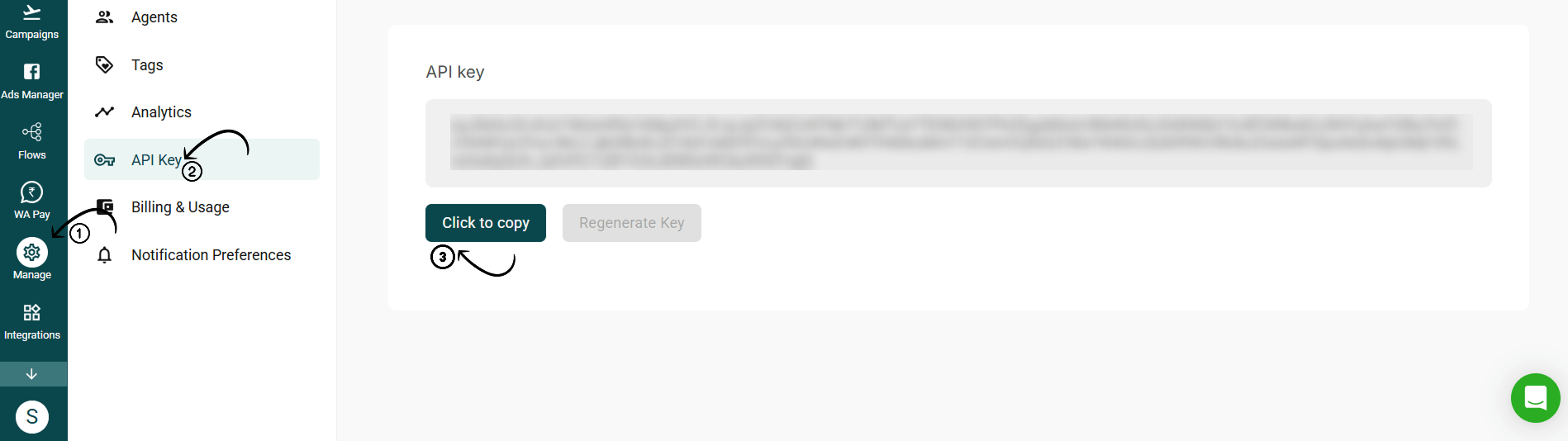
Go to AiSensy Dashboard
Click on Manage → API Keys
Copy the API key provided there (or create a new one)
⚠️ Keep this key safe and confidential
Share this key with AiSensy support. We'll provide you with a password to paste in the required field.
Creating WhatsApp Templates in AiSensy:
1. In AiSensy, navigate to the "Templates" section & create a new template message by clicking "+New".
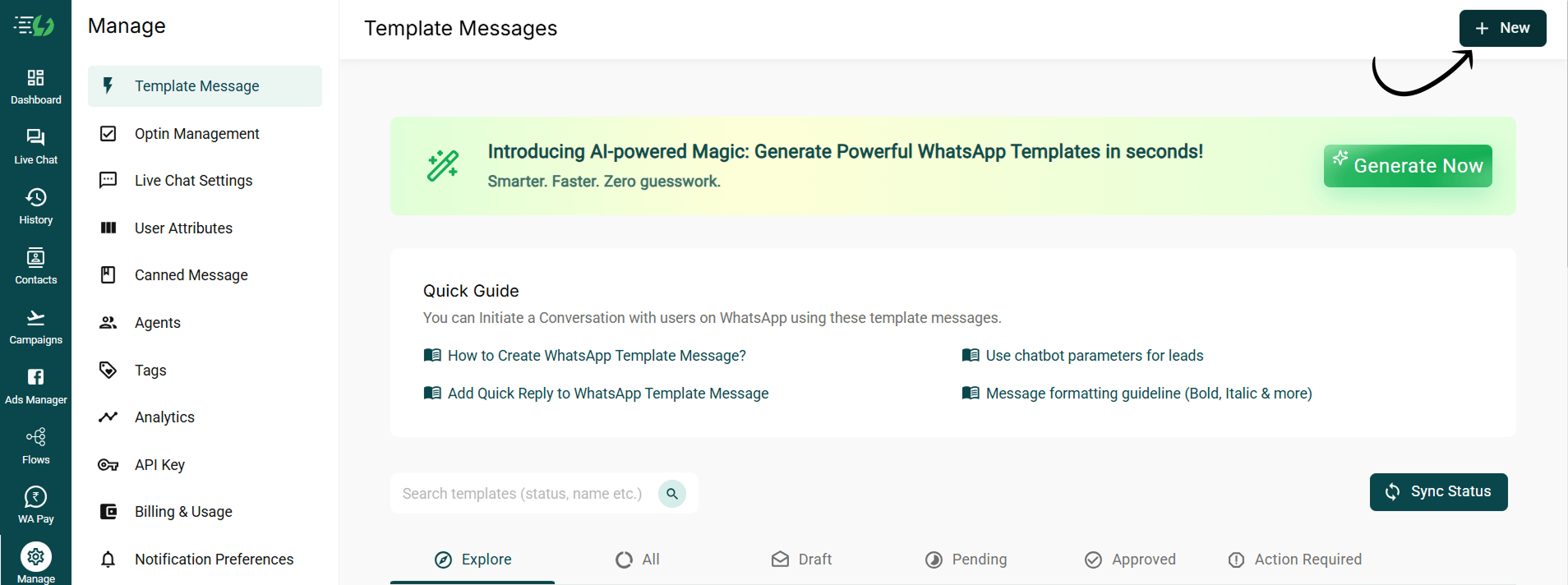
2. Provide necessary details such as template name, category, and message content.
For more info on how to create template messages in AiSensy, check out this template message guide.
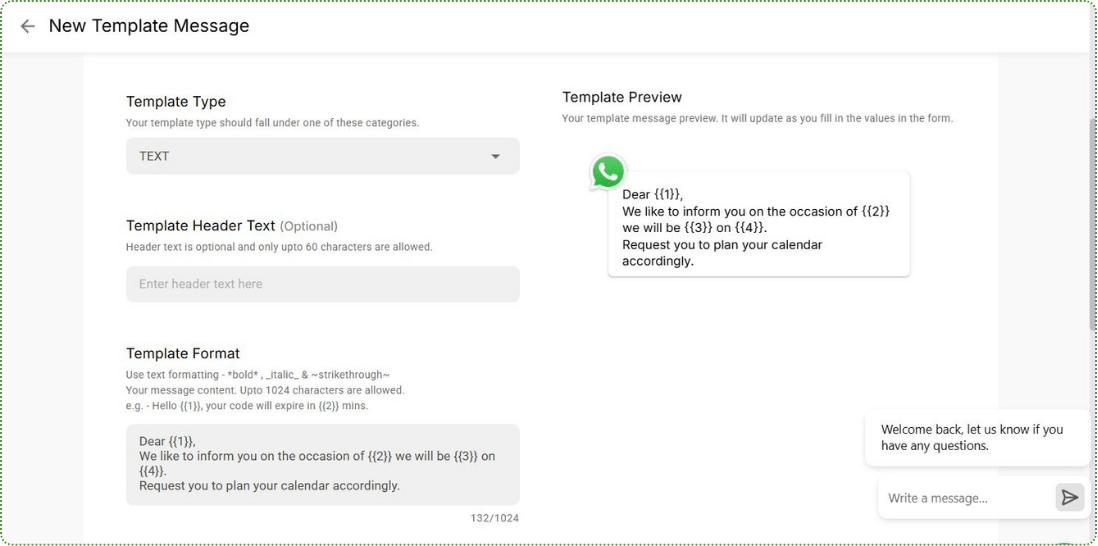
3. Submit the template for approval.
Once approved, the template will be available for use in campaigns.
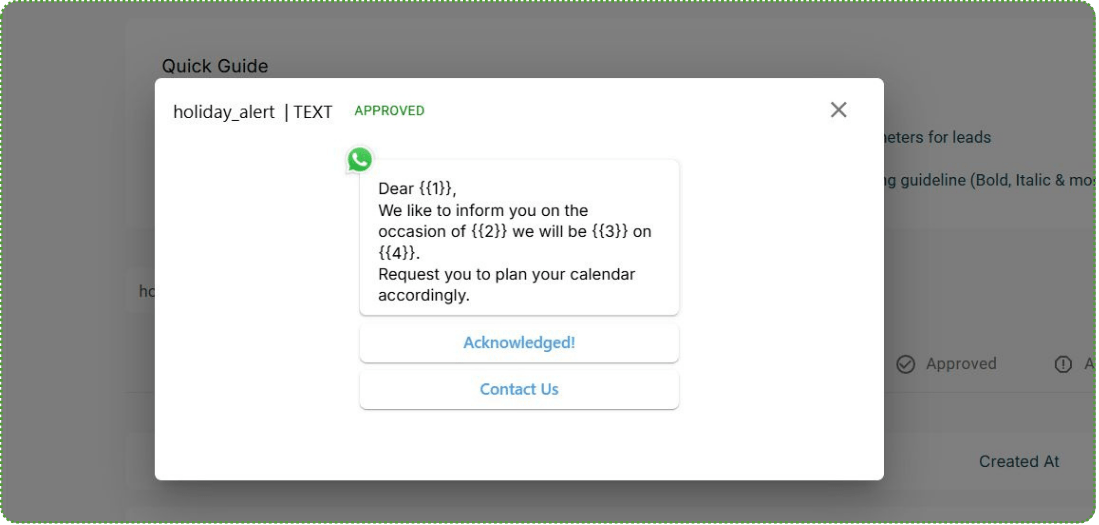
Using WhatsApp Templates in Superleap CRM
After approval, you can access your WhatsApp templates directly in Superleap CRM:
Go to any lead in Superleap CRM.
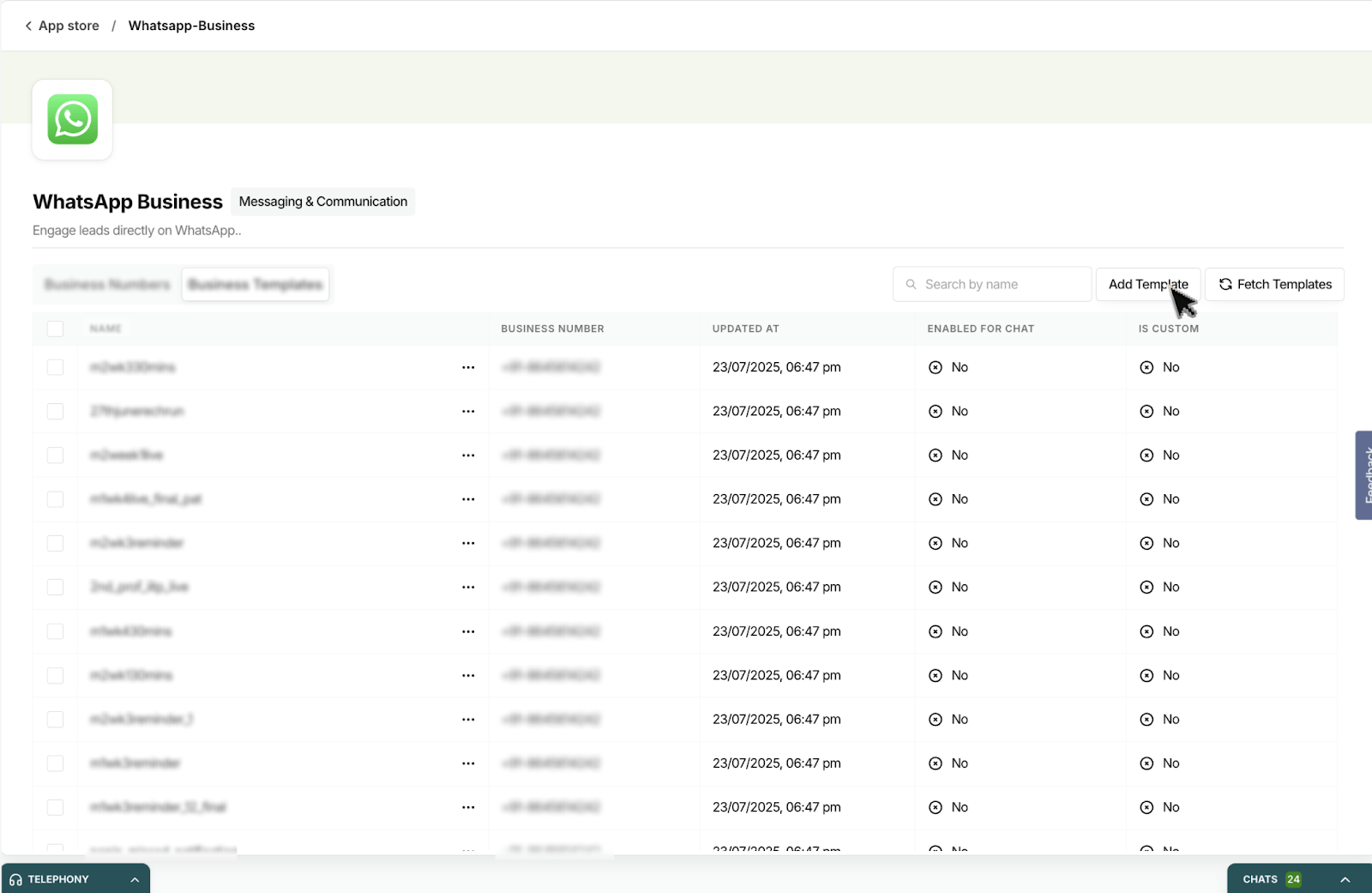
Click Fetch Templates to view available templates.
Select the template to instantly send a WhatsApp message to your lead.
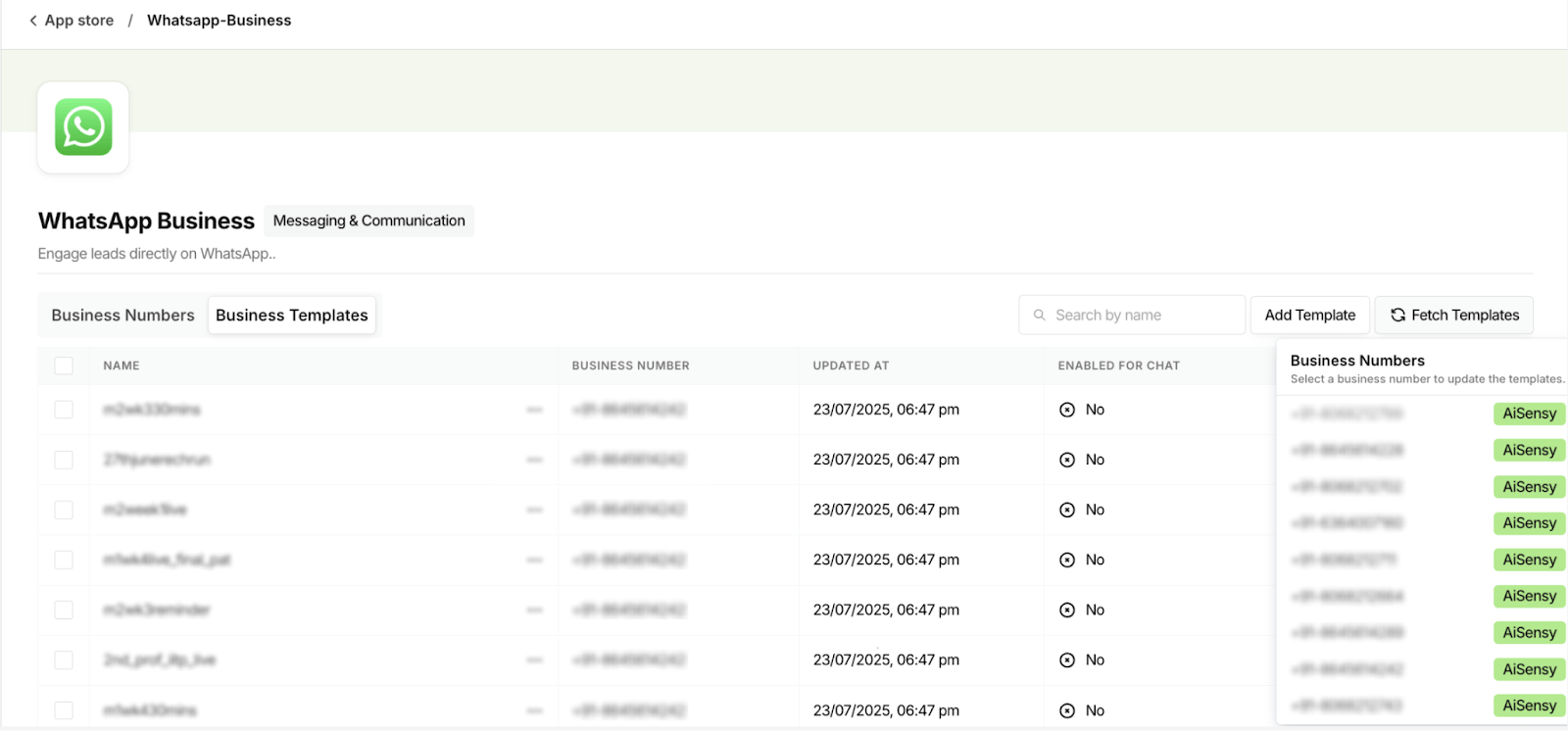
You can also add new templates from Superleap CRM itself. Simply click Add Template and follow the steps shown on-screen.