How to integrate Superleap CRM with AiSensy
Connect Superleap CRM with AiSensy to send WhatsApp messages directly to your leads using your AiSensy WhatsApp Business API.
How to integrate Superleap CRM with AiSensy
Connect Superleap CRM with AiSensy to send WhatsApp messages directly to your leads using your AiSensy WhatsApp Business API.
How to Integrate Superleap CRM with AiSensy?
Here are the steps you need to follow to connect your Superleap CRM with AiSensy's WhatsApp Marketing & Engagement Platform:
Go to Superleap App Store
First, log in to your Superleap CRM account and go to the App Store.
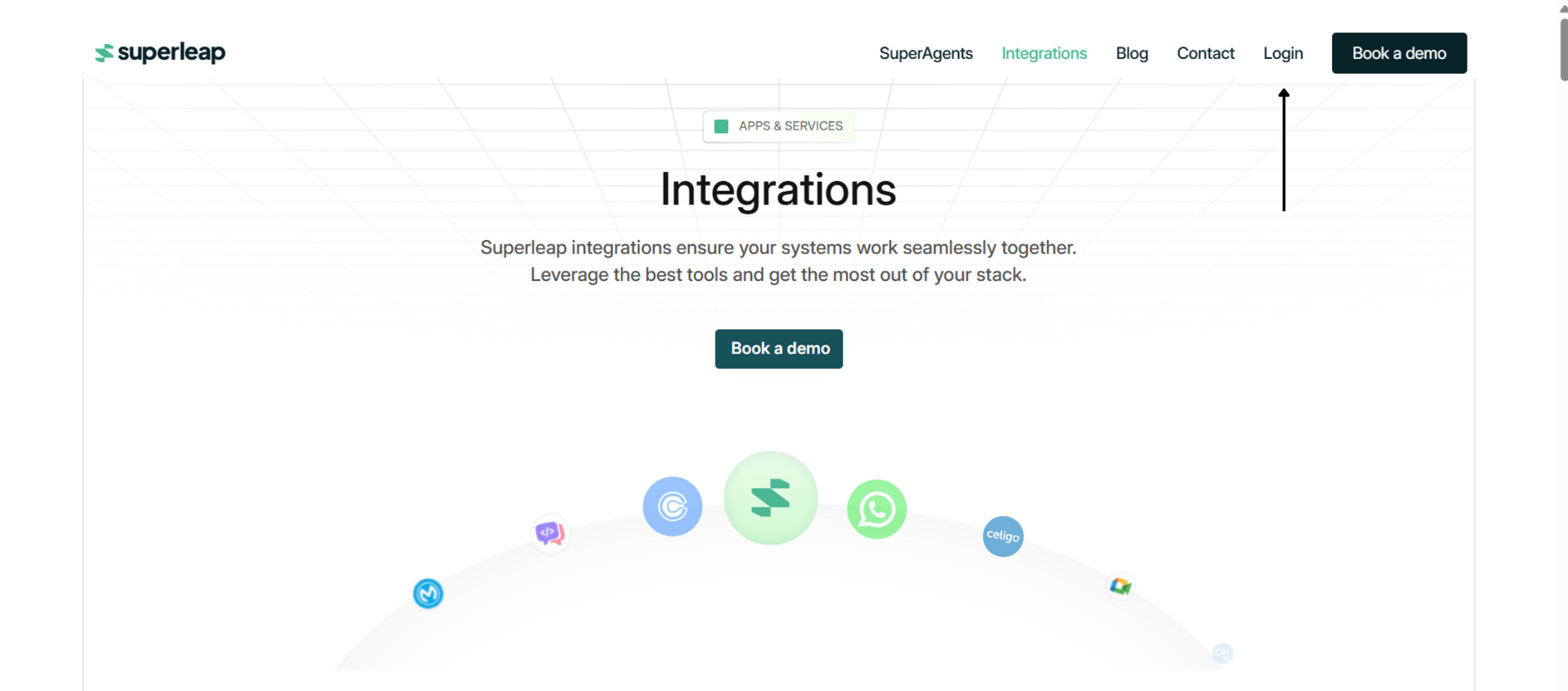
Select 'WhatsApp Business'
From the available apps, select WhatsApp Business and then click Enable to start setting up the WhatsApp integration.
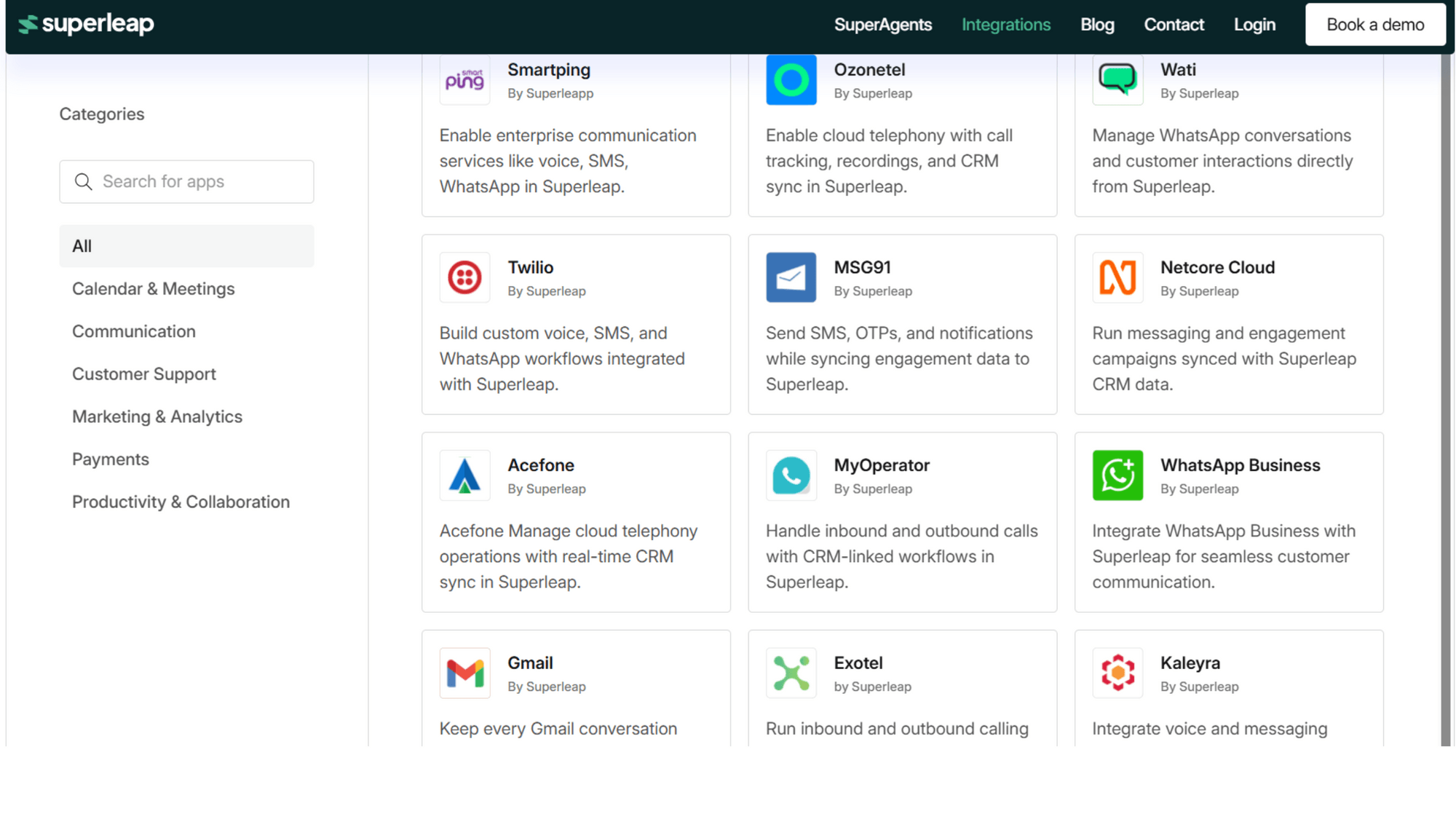
Click 'Add Account'
Once WhatsApp Business is enabled, click Add Account to connect your AiSensy account. And then, a configuration form will appear.
Under Service Provider, choose AiSensy.
Next:
Enter your WhatsApp Business Number (WABA Number).
Under Authentication Method, choose API Key.
Enter your AiSensy API Key
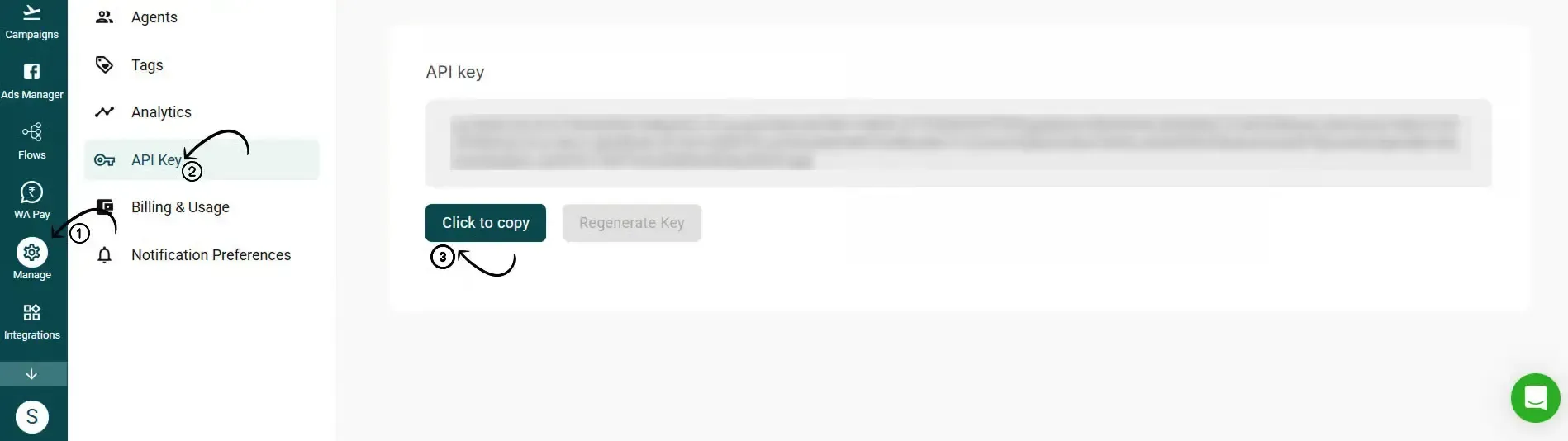
Now, you'll need your AiSensy API Key.
To get your API Key:
Go to your AiSensy Dashboard.
Go to Manage → API Keys.
Copy an existing API Key or create a new one.
Add your Project ID & Account Name
Next, enter your AiSensy account details:
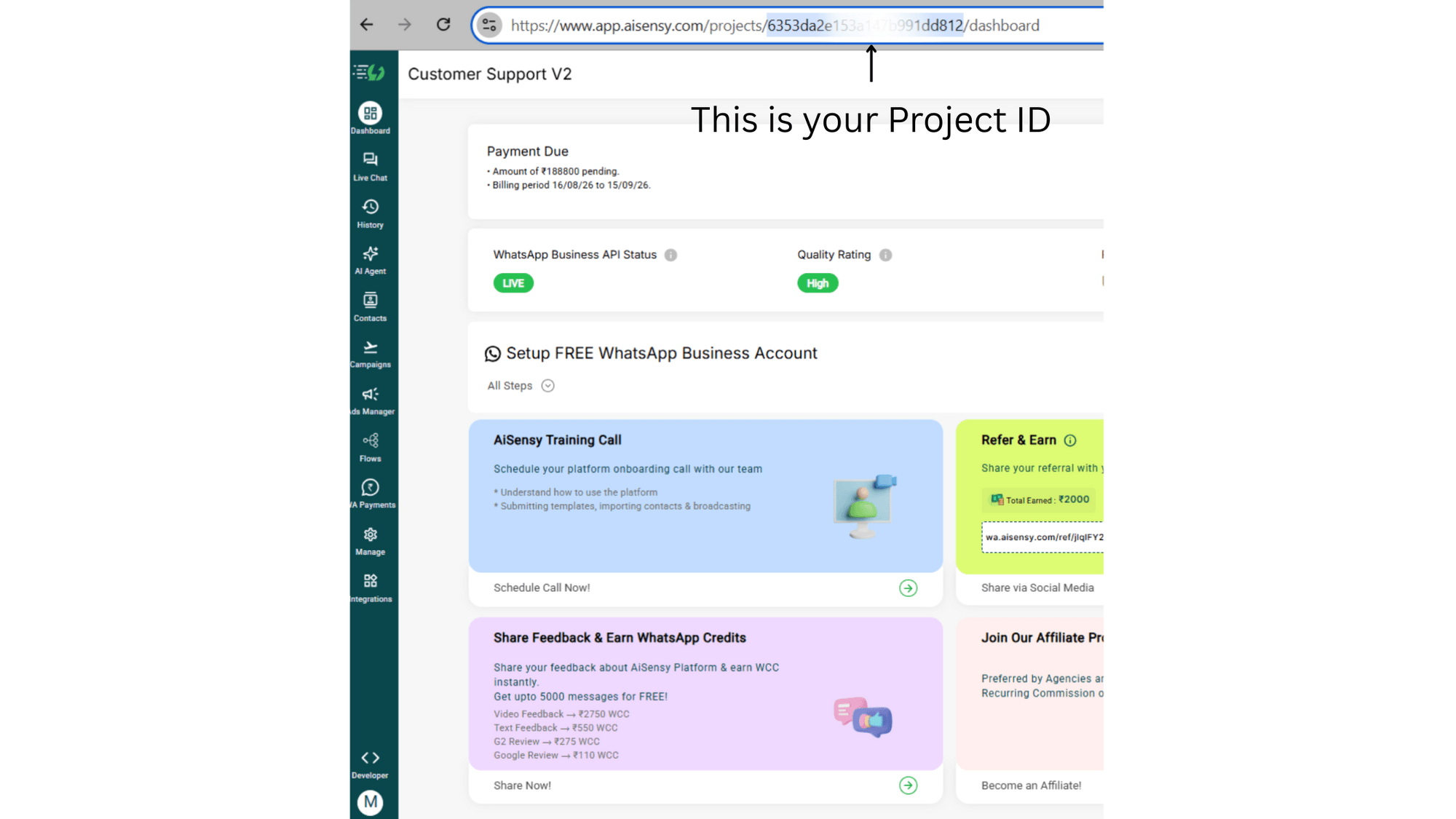
Project ID: Enter your AiSensy Project ID. You can find it in your AiSensy Dashboard URL.
Account Name: Add a simple name to identify your AiSensy account.
For example:
Superleap x YourCompanyName
Once you've added these details, click Submit.
Note: If you're connecting multiple WhatsApp Business Numbers, repeat the same process for each number.
Creating WhatsApp Templates in AiSensy
Before sending WhatsApp messages from Superleap, you need to have an approved WhatsApp Template.
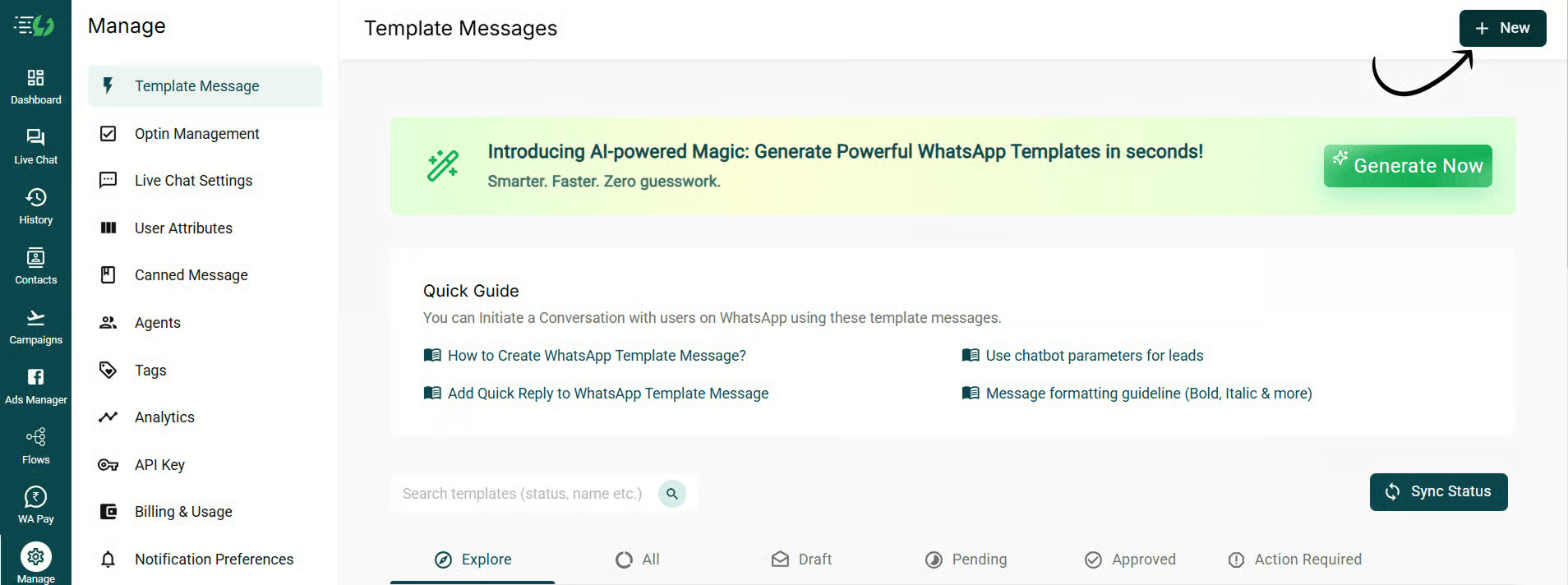
Go to 'Templates' in AiSensy
In your AiSensy Dashboard, go to Templates and click + New to create a new template message.
Add your Template details
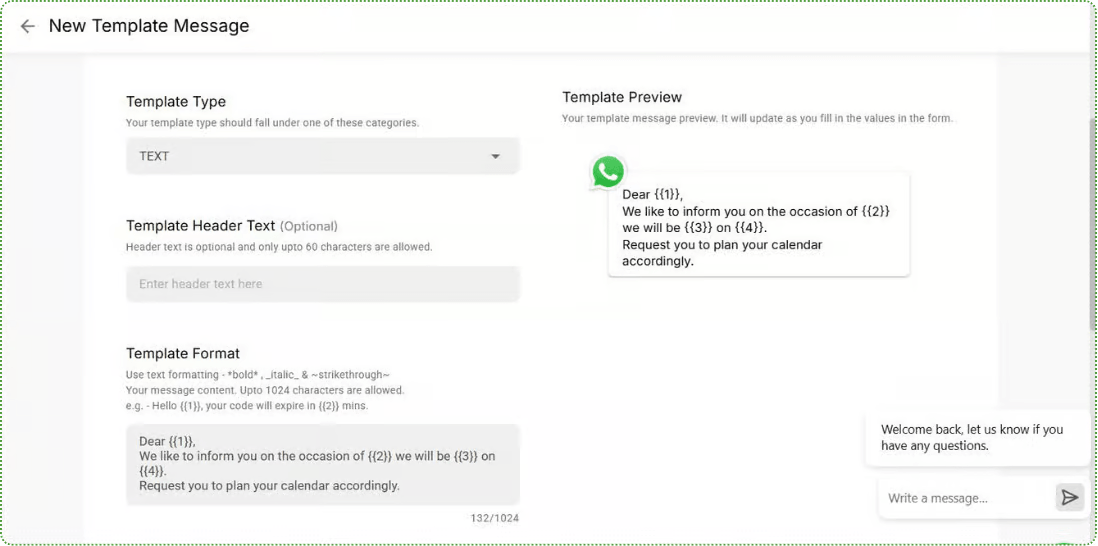
Add the required details, including:
Template name
Category
Message content
Make sure the template follows WhatsApp's template guidelines.
Submit the Template for approval
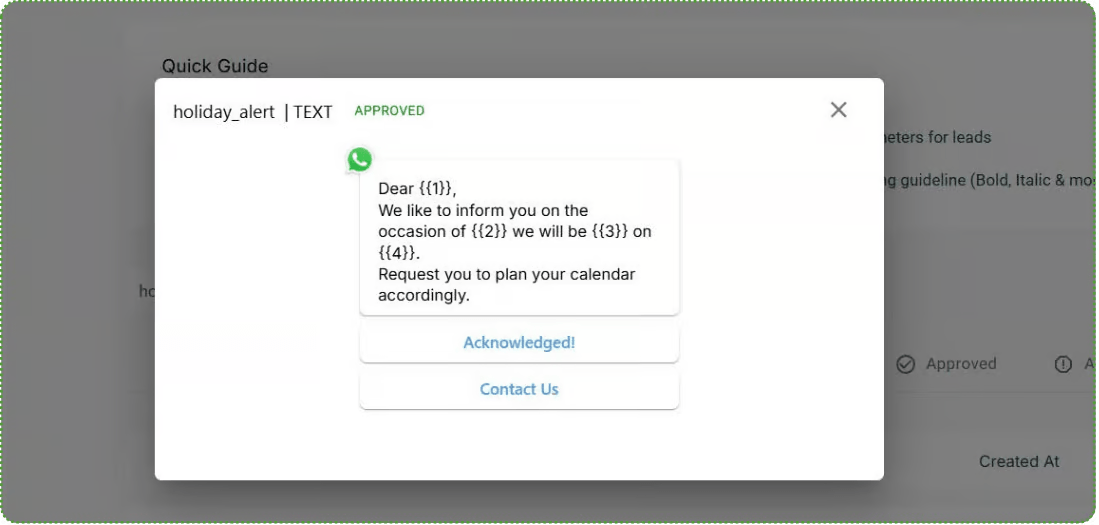
Once you've added all the details, submit the template for approval. Once approved, it will be available to use in Superleap CRM.
Using WhatsApp Templates in Superleap CRM
Now that your integration is set up and your template is approved, you can send WhatsApp messages directly from Superleap.
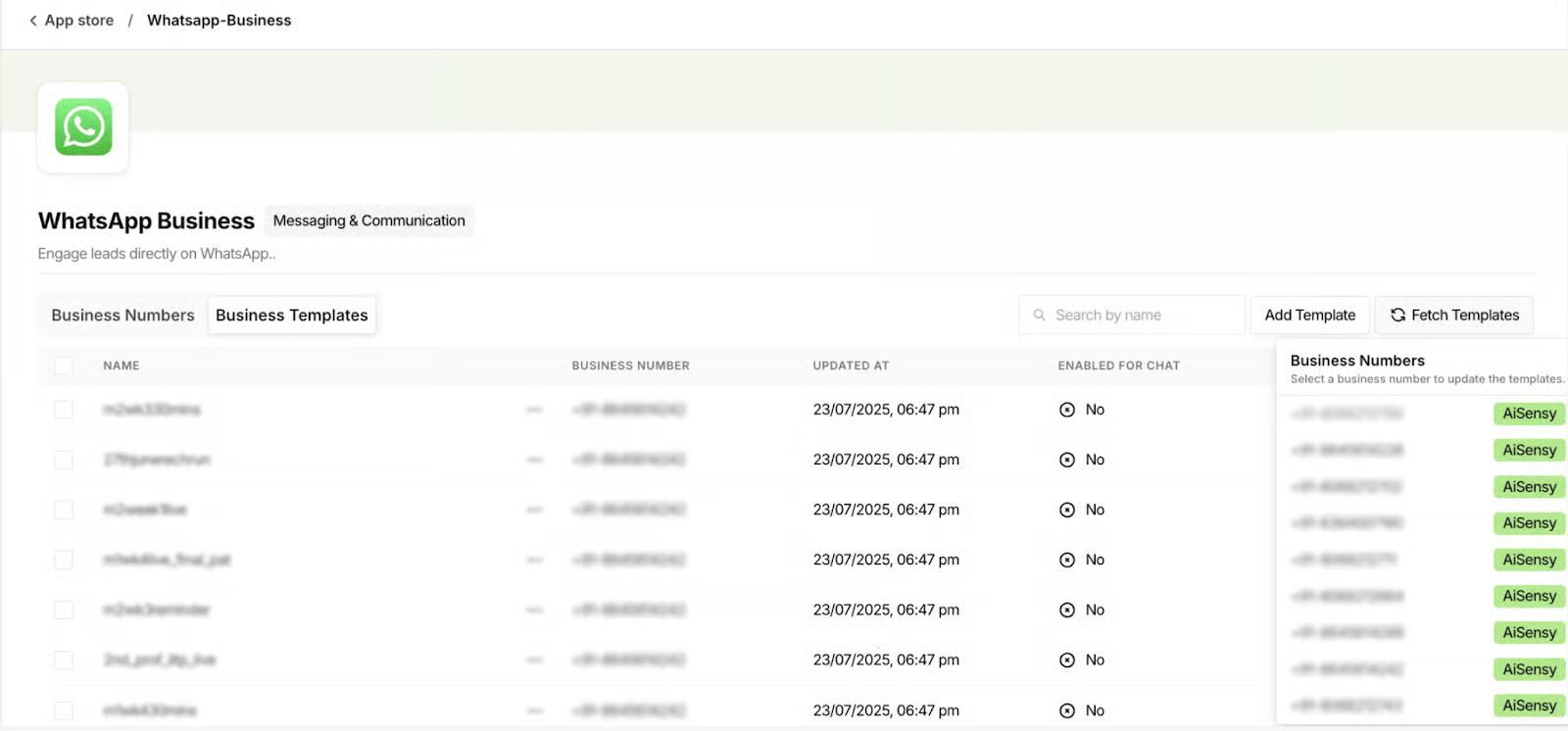
Fetch WhatsApp Templates in Superleap CRM
First, go to any lead in your Superleap CRM account.
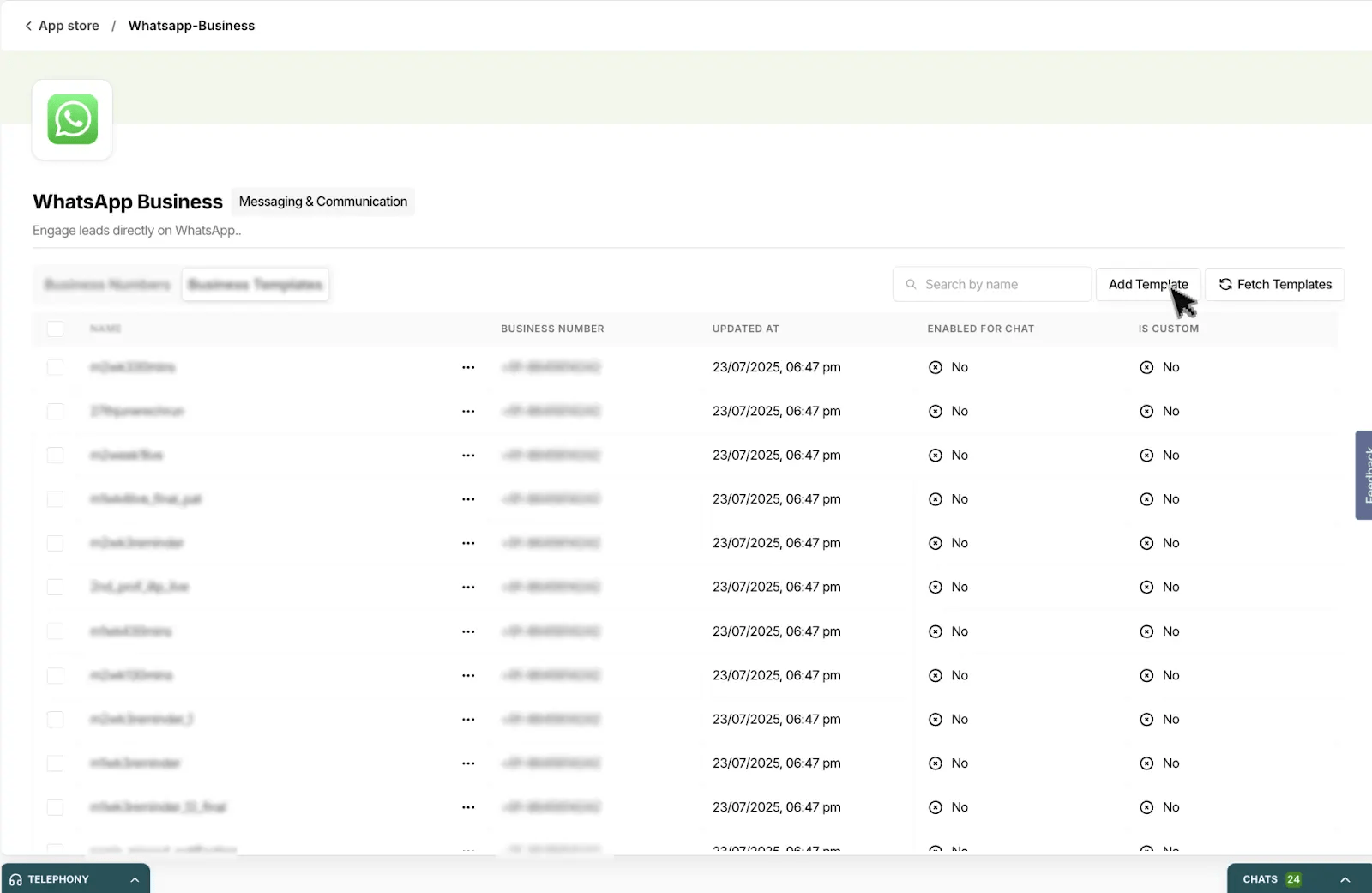
Click Fetch Templates to view all the available WhatsApp templates.
Select the template you want to send to the lead.
That’s it! You can now send a WhatsApp message to your lead directly from Superleap CRM.
Select the Template & Send the Message
Next, select the WhatsApp template you want to send to the lead.
Once you've selected the template, send the WhatsApp message directly from Superleap CRM.
Your Superleap CRM is now connected to AiSensy 🎉
That's it! Your Superleap CRM is now successfully connected to AiSensy.
You can now send WhatsApp messages directly to your leads using AiSensy.
For any questions or help, reach out to our support team directly through your AiSensy Dashboard.
🎉 Happy Messaging!