Login

DaySchedule X AiSensy Integration

Looking to send WhatsApp reminders, confirmations or promotional messages the moment someone books an appointment with you?

With the DaySchedule x AiSensy integration, you can automate this entire process -no manual effort needed! Check this guide for the step-by-step process.
AiSensy-tutorials.webp

Requirements to enable this integration

Before getting started, make sure you have the following:

  • An active AiSensy account subscription

  • An active DaySchedule account subscription

If you have both these ready, let's help you integrate DaySchedule with AiSensy and set up important reminders & confirmations on WhatsApp.

Steps to connect DaySchedule with AiSensy

1. Log in to your DaySchedule account

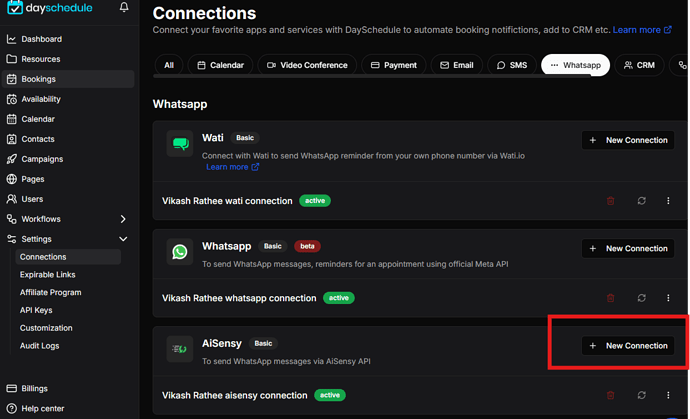
2. Head over to the Connections tab from the sidebar

3. Scroll to the WhatsApp section and click on AiSensy

1-dayschedule-aisensy.png

4. Click on the ‘New Connection’ button

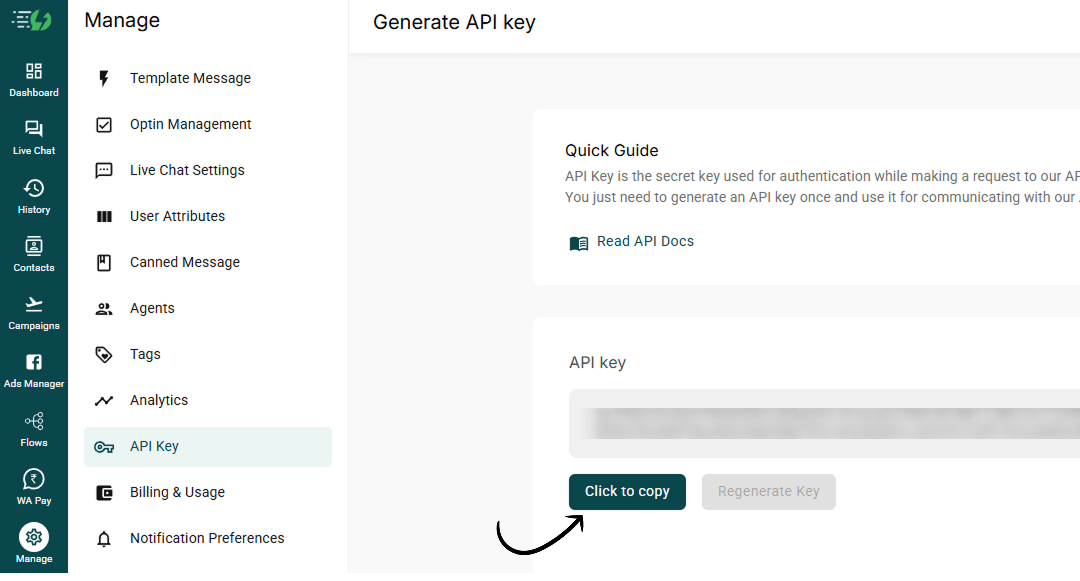
5. Copy your API Key from the AiSensy dashboard

In AiSensy, go to Manage👉API key👉Copy API key

2-dayschedule-aisensy.png

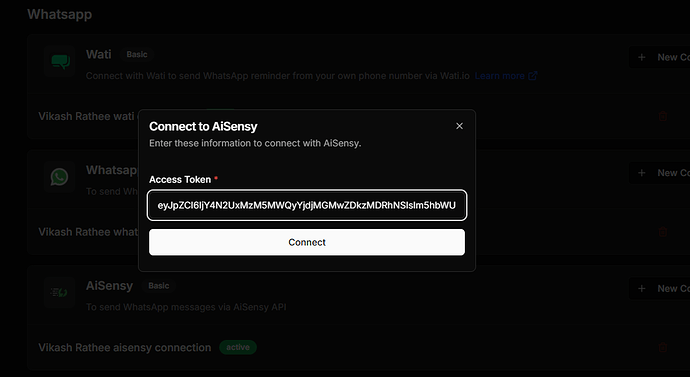
6. Paste the key into DaySchedule and hit ‘Connect’

Once done, you’ll see AiSensy successfully connected. That's it! You've successfully connected AiSensy with DaySchedule.

Now, let's go ahead and help you set up messaging workflows in DaySchedule so your customers automatically receive meeting confirmations and reminders on WhatsApp.

3-dayschedule-aisensy.png

Creating WhatsApp Template message and API Campaign in AiSensy

Now that AiSensy is connected, let’s create a workflow that enables you to send WhatsApp reminders, confirmations, or promotions instantly.

First, you need to create a pre-approved template message in AiSensy and create an API campaign.

Follow these steps below to create a template message in AiSensy and create an API campaign.

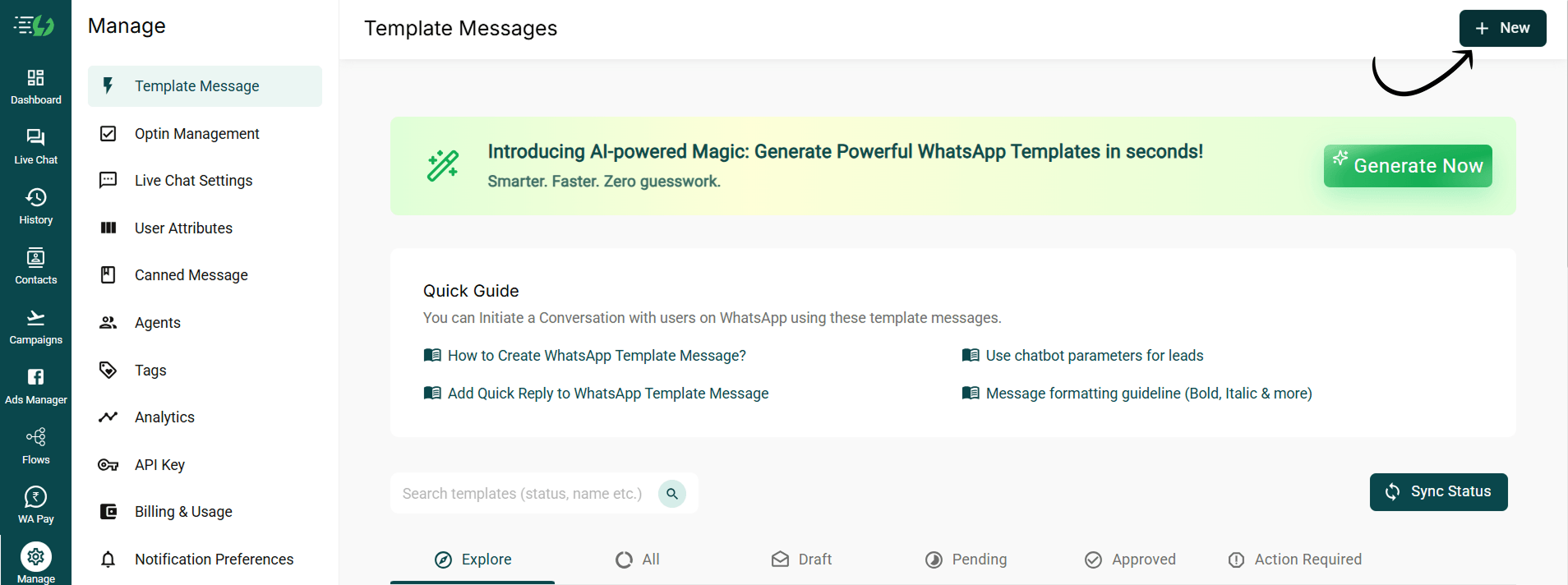
1. Go to AiSensy App & create a new template message

In AiSensy, navigate to the "Templates" section & create a new template message by clicking "+New"

create+template+message+aisensy.png

2. Provide necessary details such as template name, category, and message content

For more info on how to create template messages in AiSensy, check out this template message guide

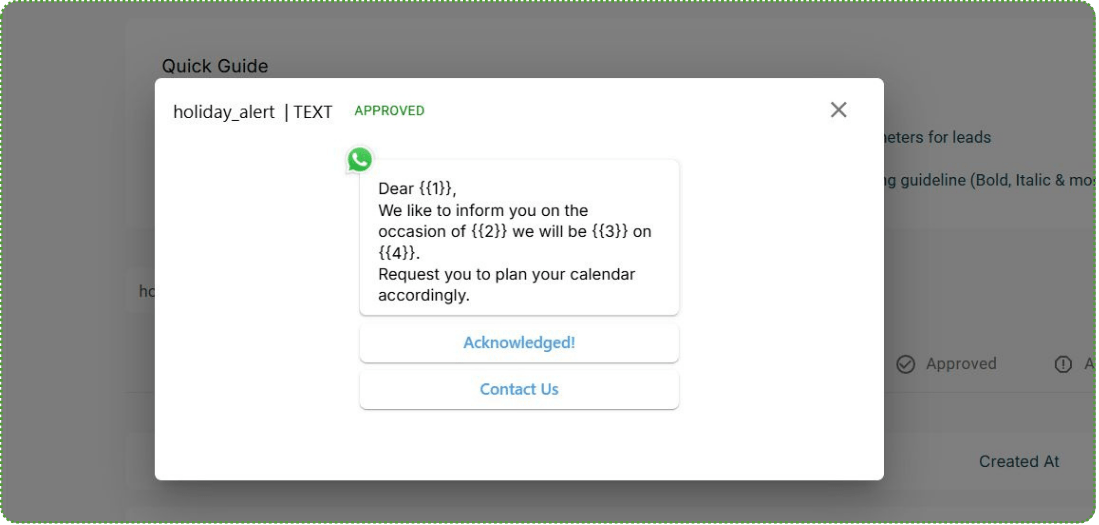
Note: This is just a sample template. You can create and automate any WhatsApp template message for meeting reminders, confirmations and more. The scope is infinite.

New Template Message-low.webp

3. Submit the template for approval

4. Once approved, the template will be available for use in campaigns

template-approved.png

Step 2: Create a Campaign on the AiSensy Platform

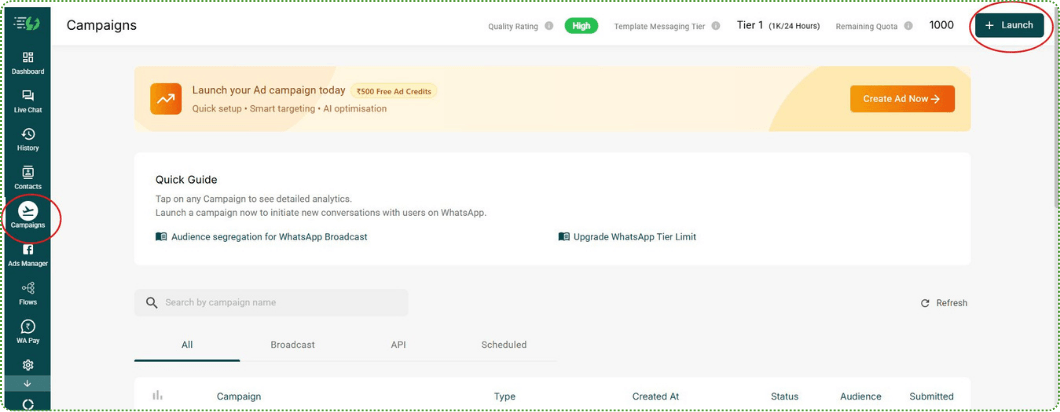
  1. Go to the "Campaigns" section in AiSensy.

Go to the Campaigns section in AiSensy.png
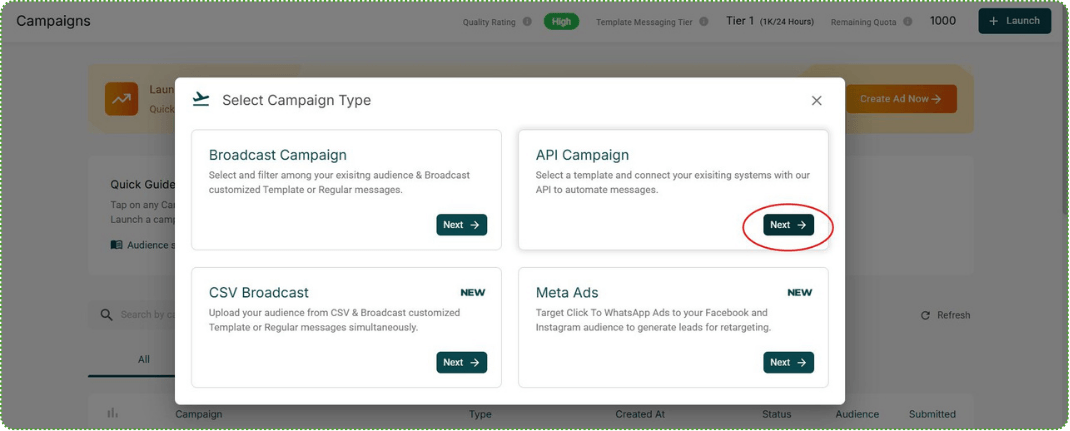
  1. Click on "Launch" and select API Campaign

select-api-campaign.png
  1. Enter a campaign name and select the approved template.

  2. Save and activate the campaign.

campaign-analytics.webp

Setting up WhatsApp Automation Workflow in DaySchedule

Now, you need to setup this workflow in DaySchedule. Here’s how:

1. In DaySchedule, go to Workflows from the main menu

2. Click on ‘Create Workflow’

3. Choose the specific event, webinar, or service this workflow should apply to
(You can also select ‘All’ to apply it universally)

4. For Trigger, select event_scheduled

5-dayschedule-aisensy.webp

5. Under Action, choose AiSensy from the provider list

6. Pick the AiSensy account you just connected

6-dayschedule-aisensy.webp

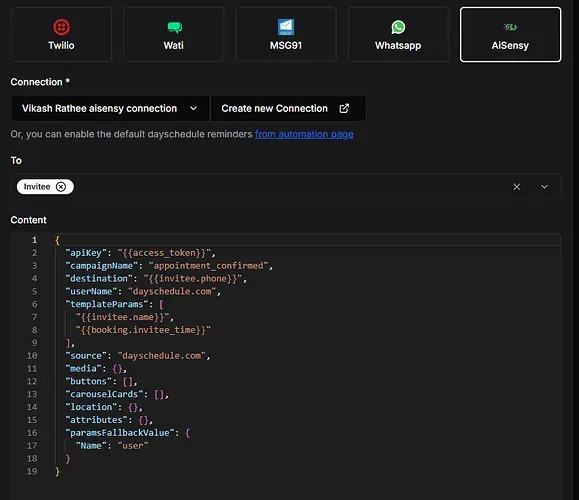
7. Now Customize Campaign Details

  • Enter the campaignName exactly as it appears in your AiSensy dashboard.

  • Add templateParams if your WhatsApp message template requires any personalization fields such as name, time, or service.

  • Click on Test run to test the WhatsApp campaign and save to publish.

You can personalize messages using variables like {{invitee.name}}, {{invitee.phone}} etc. See the complete list of variables here.

Now, every time someone books an appointment, DaySchedule will automatically send the details to AiSensy and trigger a WhatsApp message using the selected API campaign.