TUTORIAL
AI Agent Builder for WhatsApp
Complete tutorial on how to build your first AI Agent on WhatsApp using AiSensy's AI Agent Builder.
TUTORIAL
AI Agent Builder for WhatsApp
Complete tutorial on how to build your first AI Agent on WhatsApp using AiSensy's AI Agent Builder.
Automate Sales & Support on WhatsApp, the smart way!
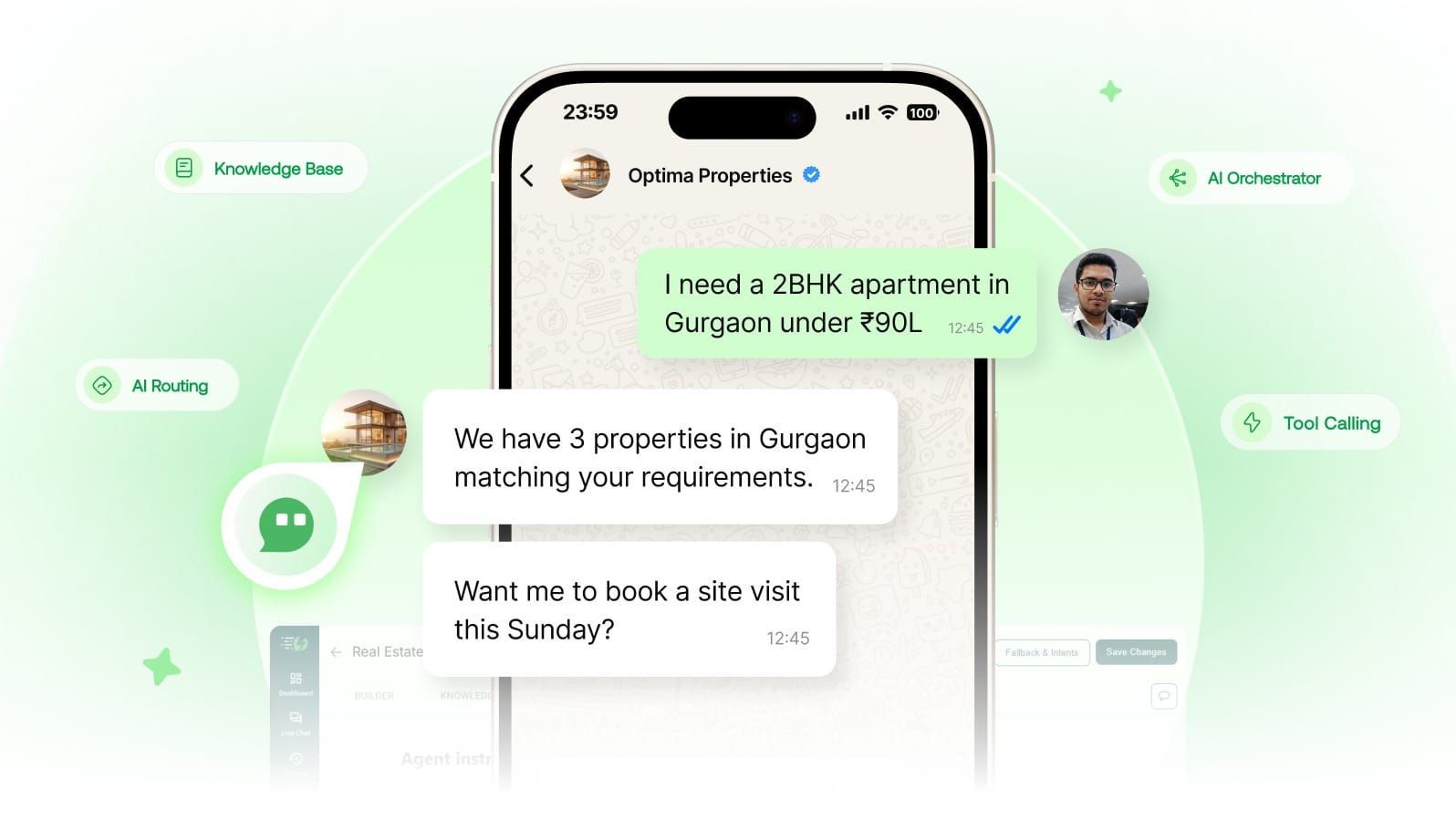
The AiSensy AI Agent Builder now lets you create AI-powered chatbots that understand intent, learn from your business data, and take real actions, all without a single line of code. This tutorial will tell you how to build your first AI Agent using AiSensy's AI Agent Builder.
WhatsApp AI Agent Key Terminologies
A quick glossary before you start

AI Agent
A WhatsApp chatbot that understands intent in natural language, learns from your business data, and takes real actions through APIs — without keywords, scripts, or a single line of code.

Agent Studio
The workspace in your AiSensy dashboard where you build and manage your AI Agent. Found under Agents in the left sidebar.
Knowledge
The memory of your AI Agent. Train it on websites, articles, FAQs, or PDFs, and it answers customer queries using your real business content instead of generic AI replies.

Actions
Tools and API calls your agent can use to fetch live data or trigger a task. For example: check an order, book a slot, update a record (optional).

Skills
The tasks your agent can handle. For example: lead qualification, appointment booking, product recommendations, and so on.

Voice
This controls how your AI Agent sounds & replies to conversations and customer messages. Based on your business, you can customize how your AI agent sounds. Such as friendly, professional etc.

Business Profile
This is where you set up your agent’s identity. Add your business name, website, business description and the greeting message customers will receive.

Fallback message
What your agent sends when it genuinely can't answer a query.

AI Messages
Each reply your agent sends counts as one AI Message, tracked against your plan. You get 500 FREE AI messages to test your ai agent before taking it live.
How AI Agent Builder Works
Every AI Agent built on AiSensy runs on two layers working together to deliver one seamless WhatsApp experience.

STEP-BY-STEP
How To Build an AI Agent in AiSensy
Follow these steps to get started
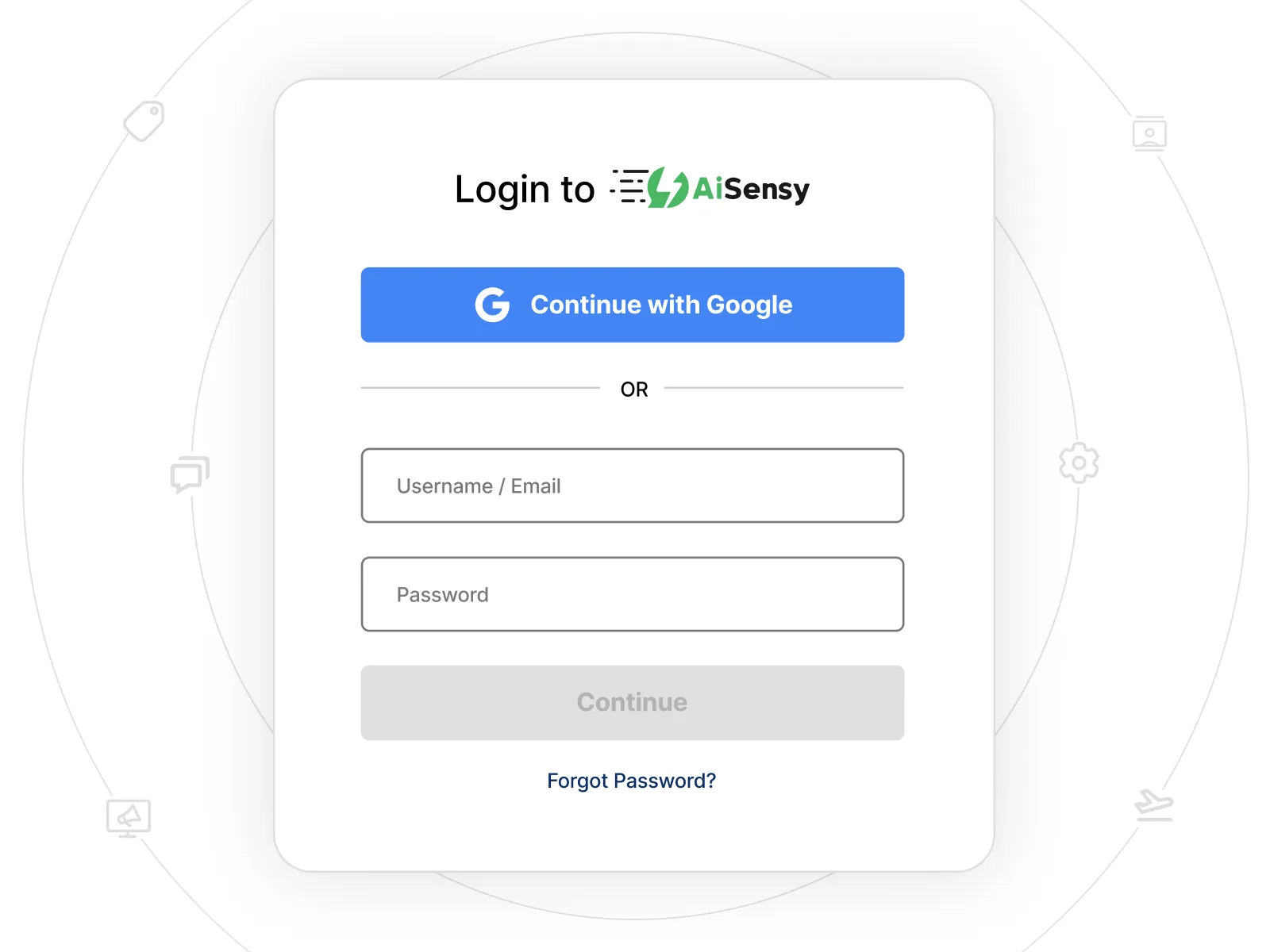
Sign Up to AiSensy
Head to aisensy.com and create a free account with your email, Google login, or phone number. No credit card required to get started.
Open Agents and click "Set Up"
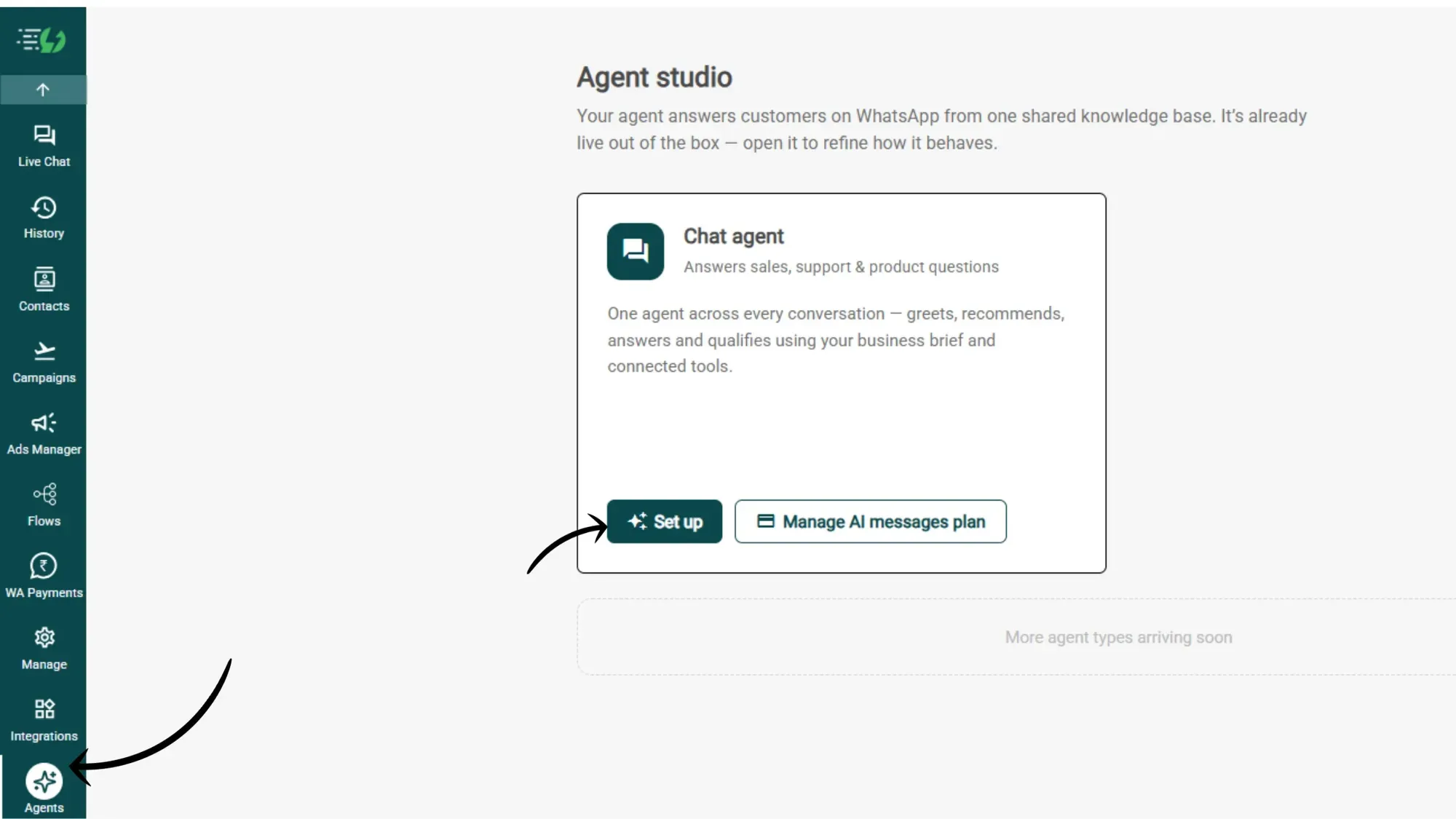
In your dashboard's left sidebar, click Agents. You'll land on Agent Studio, where a Chat agent card is already sitting there. Click on "Set up" to open your Chat Agent
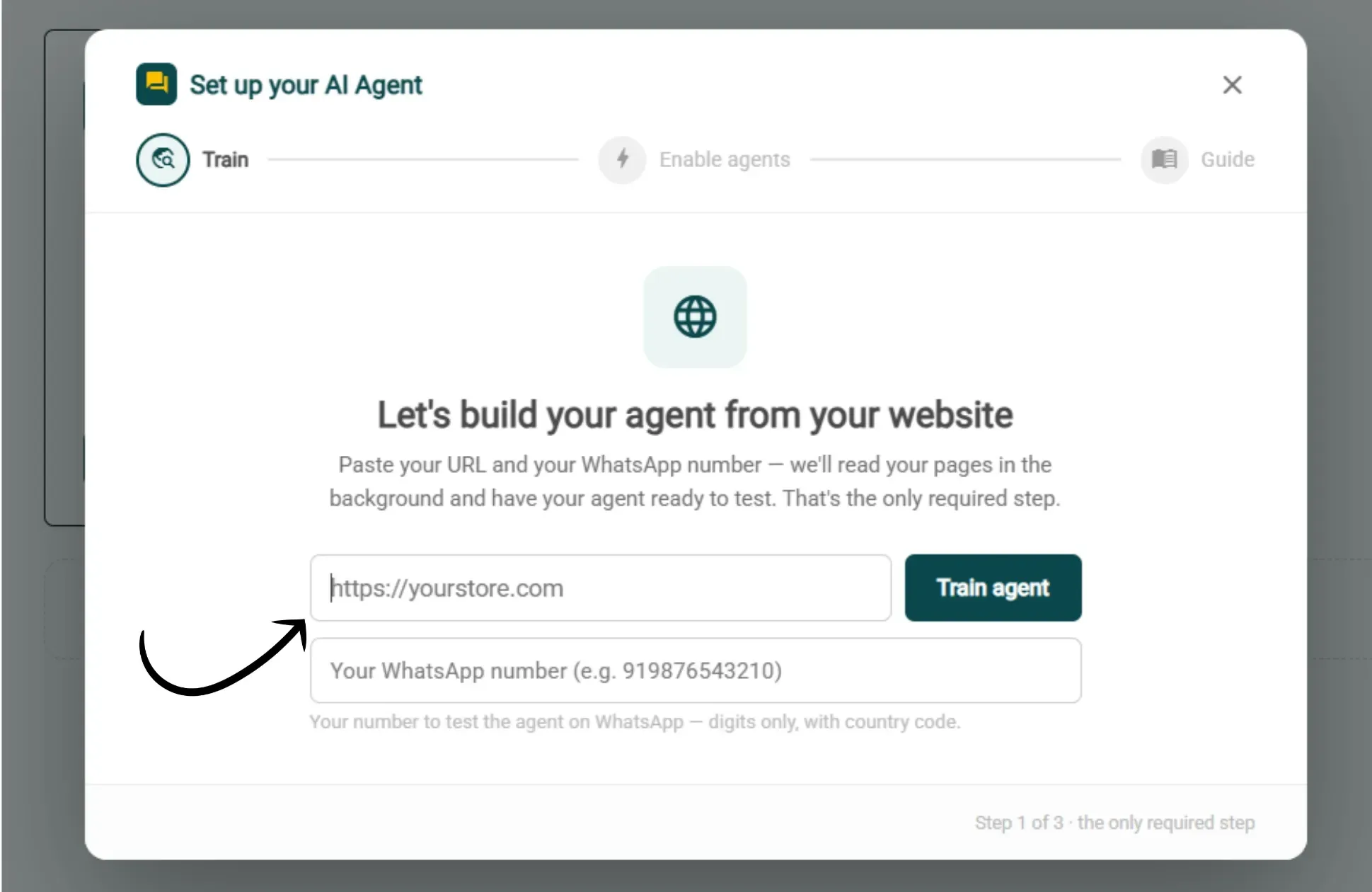
Add your Website and a Test Number
Paste your website link and the WhatsApp number you want to test on, then click Train Agent. AiSensy reads your website for you and builds a first version of your agent automatically.
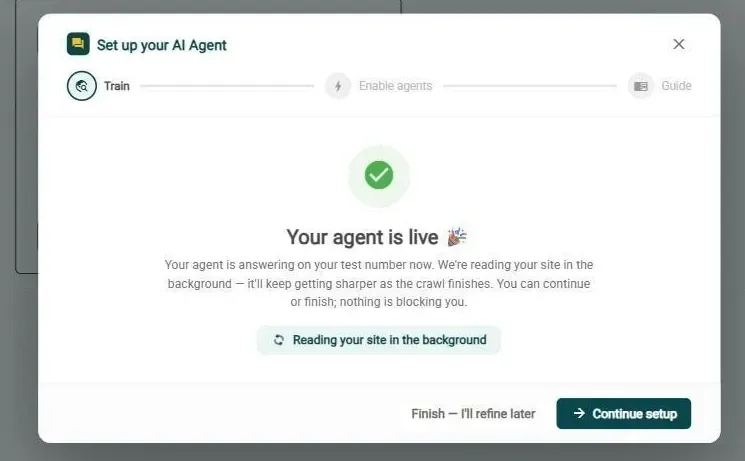
Your Agent Goes Live on your Test Number
Right away, your agent starts replying on that test number. It keeps reading your website in the background and gets smarter on its own — no waiting around.
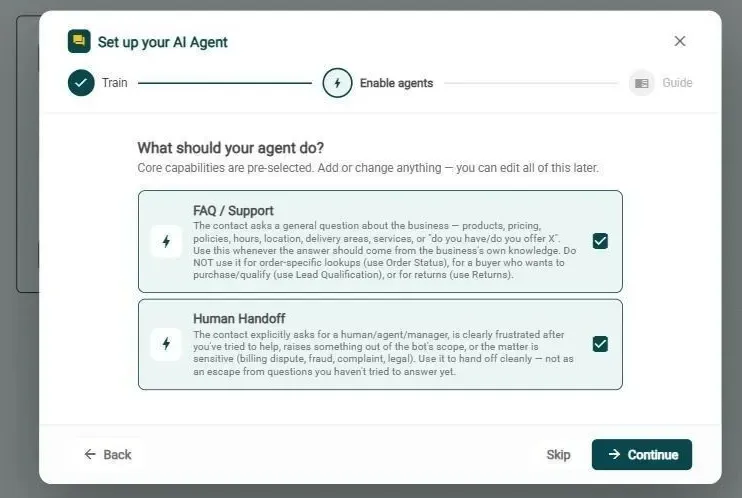
Choose What Your Agent Should Do
Turn on the pre-built capabilities you want your agent to have, like answering FAQs or passing a chat to a human. Don't overthink it: you can change everything later.
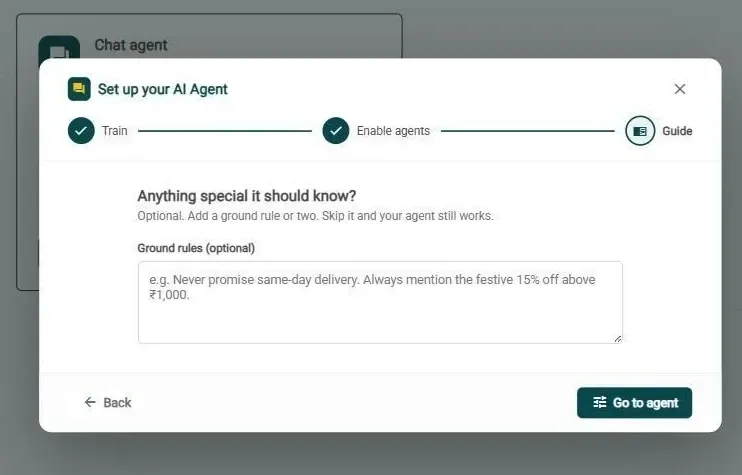
Add a Few Ground Rules (Optional)
These are things your agent should always follow, like "never promise same-day delivery" or "don't make up prices." Skip it if you're not sure — you can add them later.
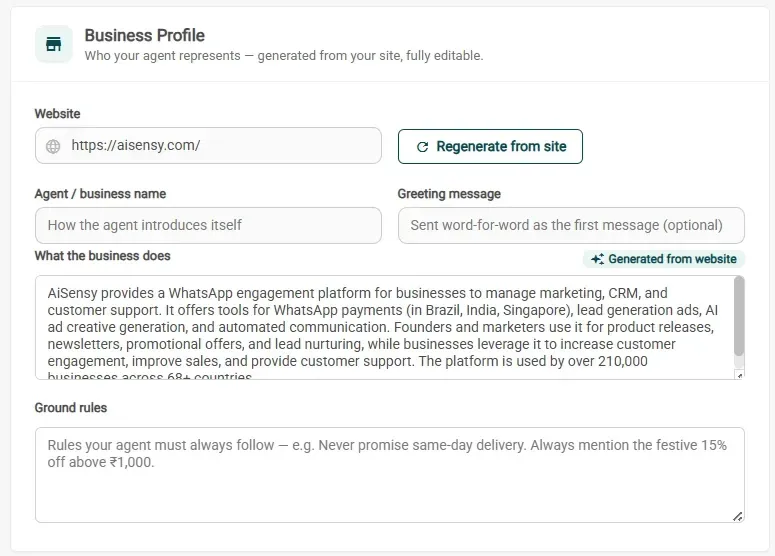
Fill in your Business Profile
Give your agent a name, a short description of what your business does, and a greeting message customers see first (like "Hi! Welcome to Tonkers Corner, how can I help?"). AiSensy drafts the description for you from your website: just check it and tweak.
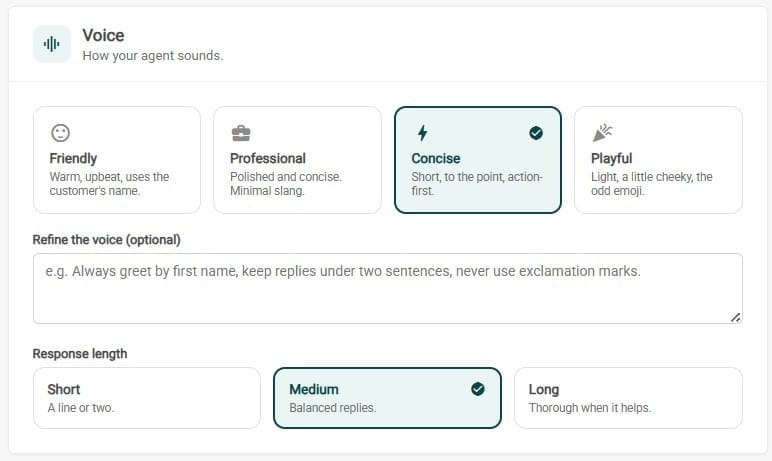
Choose How it Sounds
Pick a voice: Friendly, Professional, Concise, or Playful. Choose the response length. Not sure? Go with Friendly and Medium. That works for most businesses.
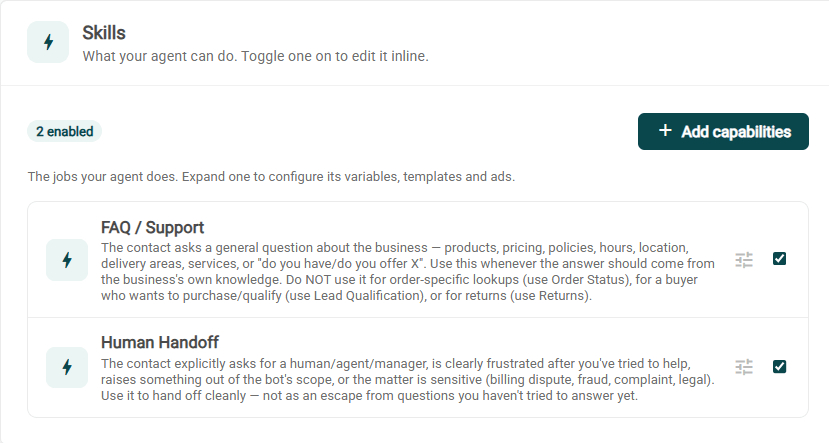
Add Skills to Your AI Agent (Optional)
Skills define the specific jobs your AI Agent can perform.
For example, you can create Skills for:
Answering FAQs
Qualifying leads
Booking appointments
Handling bulk or wholesale enquiries
Collecting feedback
A few pre-built Skills are already available inside AiSensy for reference. Pick a ready-to-use one or describe your own in plain words and let AiSensy draft it. You can skip this and still have a working agent.
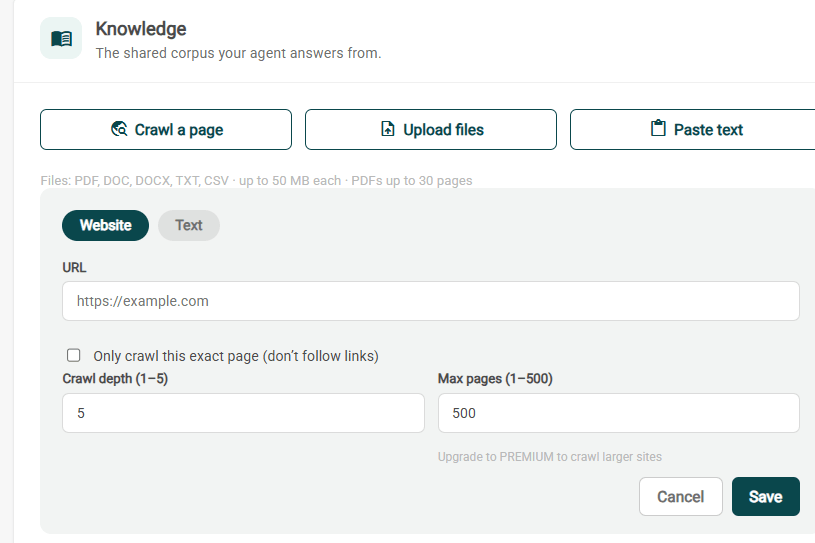
Feed it your Knowledge (the important one)
Knowledge is the business information your AI Agent uses to answer customer questions.
This is one of the most important parts of the setup. If your Knowledge is incomplete, unclear or outdated, the agent’s answers may also be incomplete or incorrect.
Add your info three easy ways: paste a webpage link, upload files (PDF, Word, etc.), or type text directly.
Add Actions (Optional)
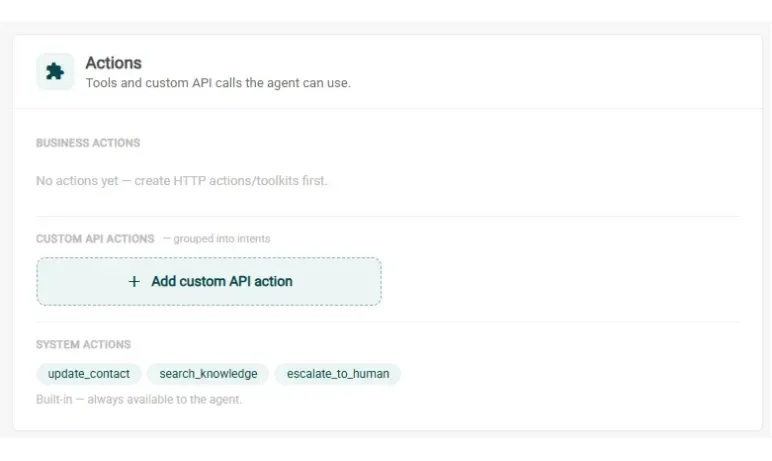
Actions allow the AI Agent to do more than answer questions. They help it update contact information, search Knowledge, transfer a conversation or call an external API. In another words, it connects your agent to the outside world.
You will see three types of Actions:
System Actions
Business Actions
Custom API Actions
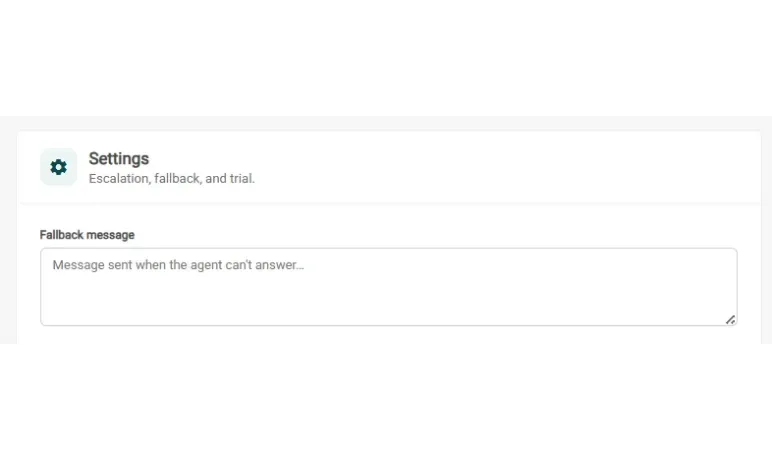
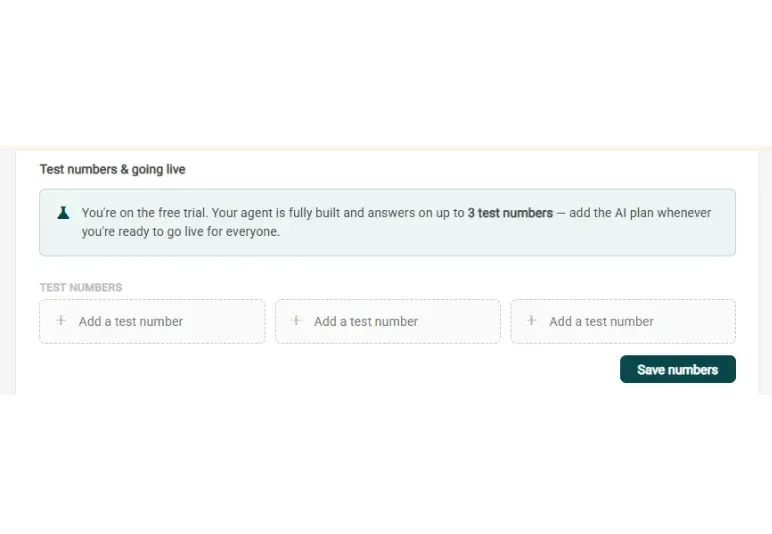
Set a Fallback Message and Test Numbers
Write a friendly message for when your agent doesn't know the answer (like "I'm not sure about that — want me to connect you with our team?"). Then add up to 3 test numbers so you can try it out privately.
Test it Like a Real Customer
Chat with your agent right inside the builder. Ask real questions, throw in typos, try different wording, even other languages. Make sure the answers feel right before anyone else sees it.
Train, Test, and Go Live
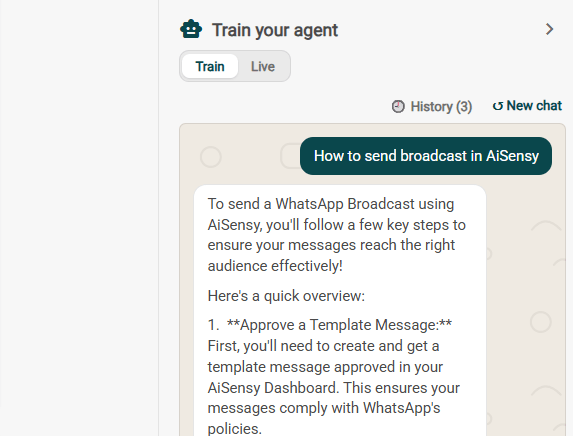
Use the "Train your agent" panel on the right to chat with your agent using free test messages, without touching your live quota. Try the questions real customers would actually ask, across every skill you've added, and fix anything that feels off.
Once you're happy with how it responds, toggle AI on and click Go Live. Your agent starts replying to real customers on WhatsApp immediately.