Login

TUTORIAL

How to fix Floating Parameter Issue in WhatsApp Template Message?

While submitting WhatsApp Template Message, you might have encountered an error message mentioning, "Floating Parameters aren't allowed in Template format."

Here's a simple trick to rectify this issue & successfully submit your WhatsApp Template Message for approval. 

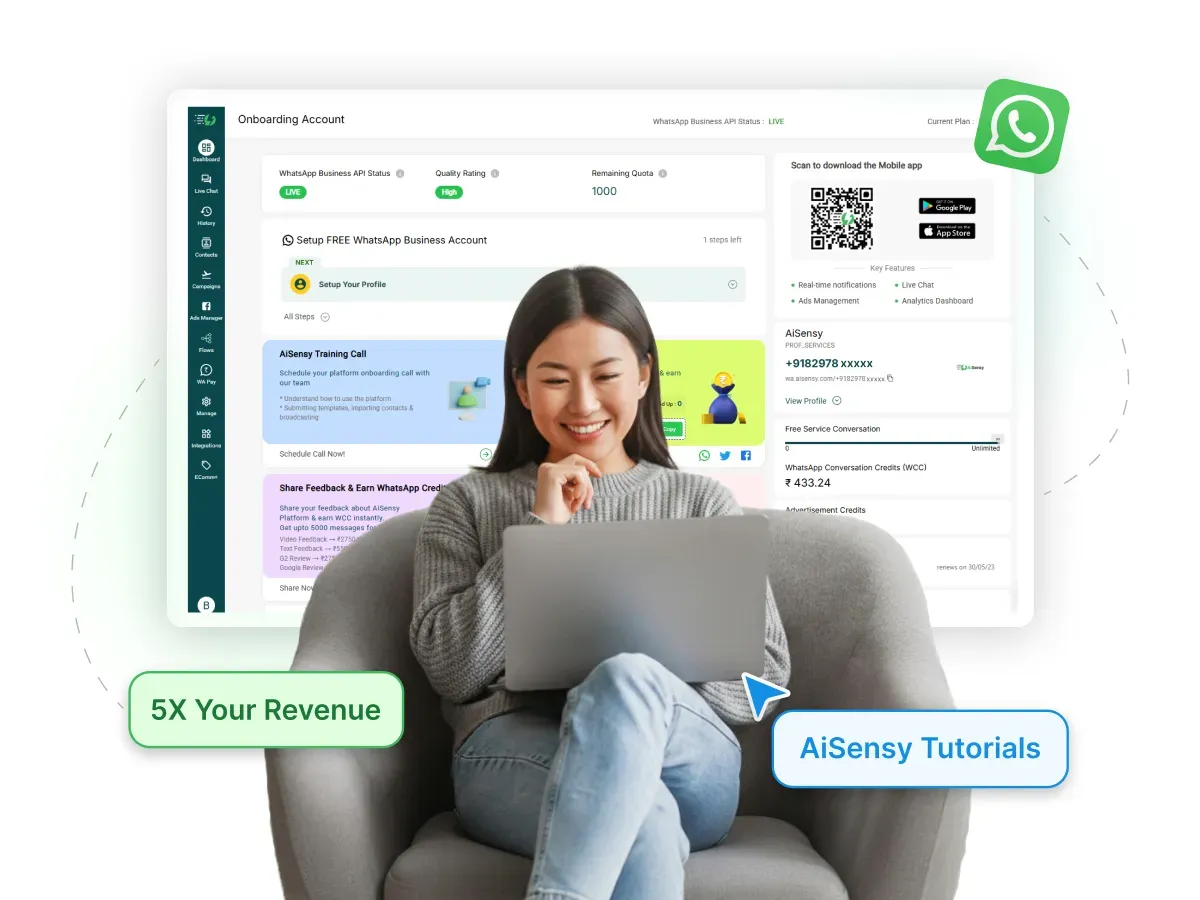
AiSensy-tutorials.webp

Steps to Fix Floating Parameter Issue

Go to manage & add a New Template Message

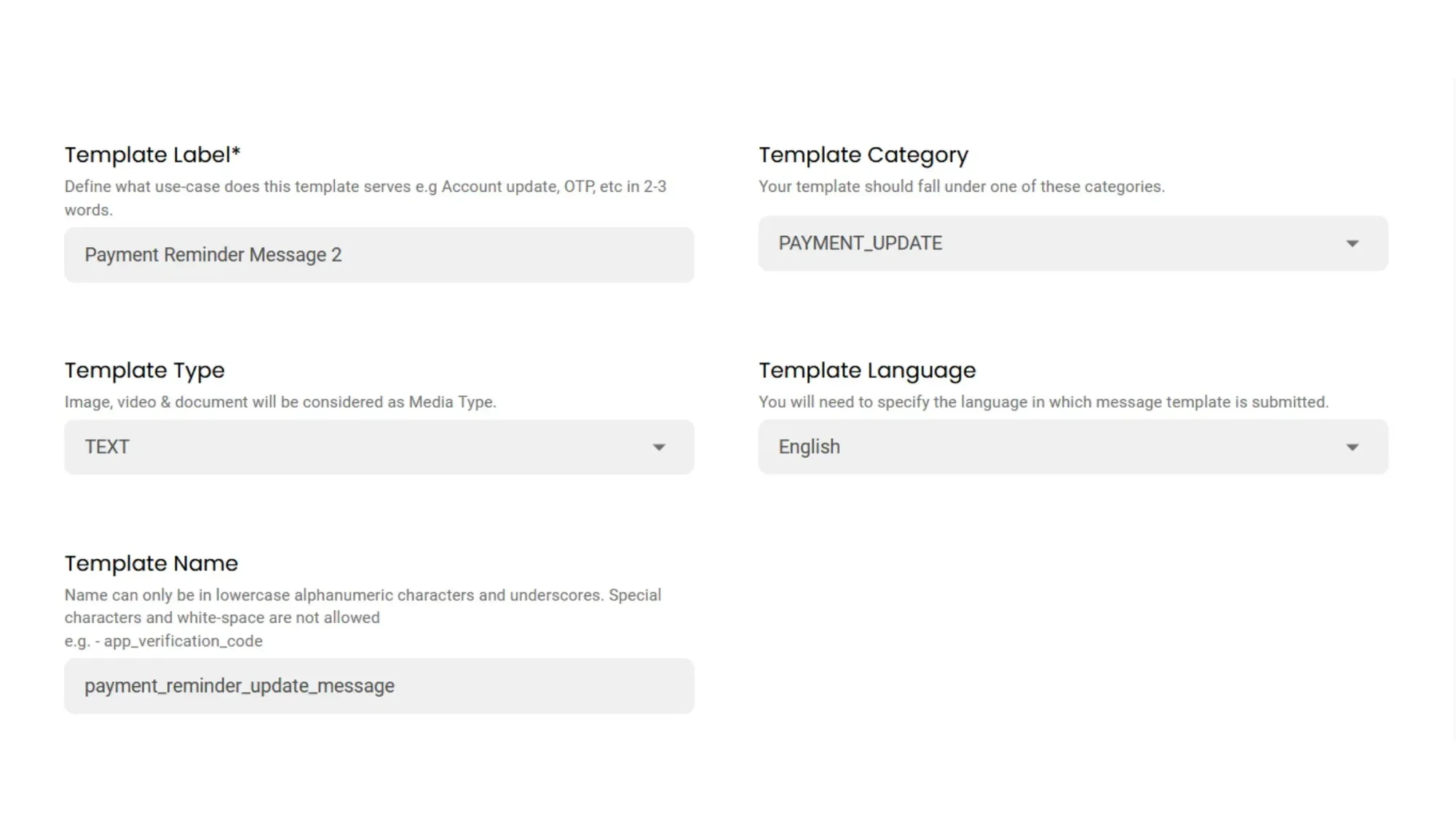
First, go to Manage and click on 'New' to add a template message. 

Add the Template Label, Category, Template Type, language and Template message name. 

If you don't know how to create a template message, check out the guide:

Step 1 fix Floating Parameter Issue.webp

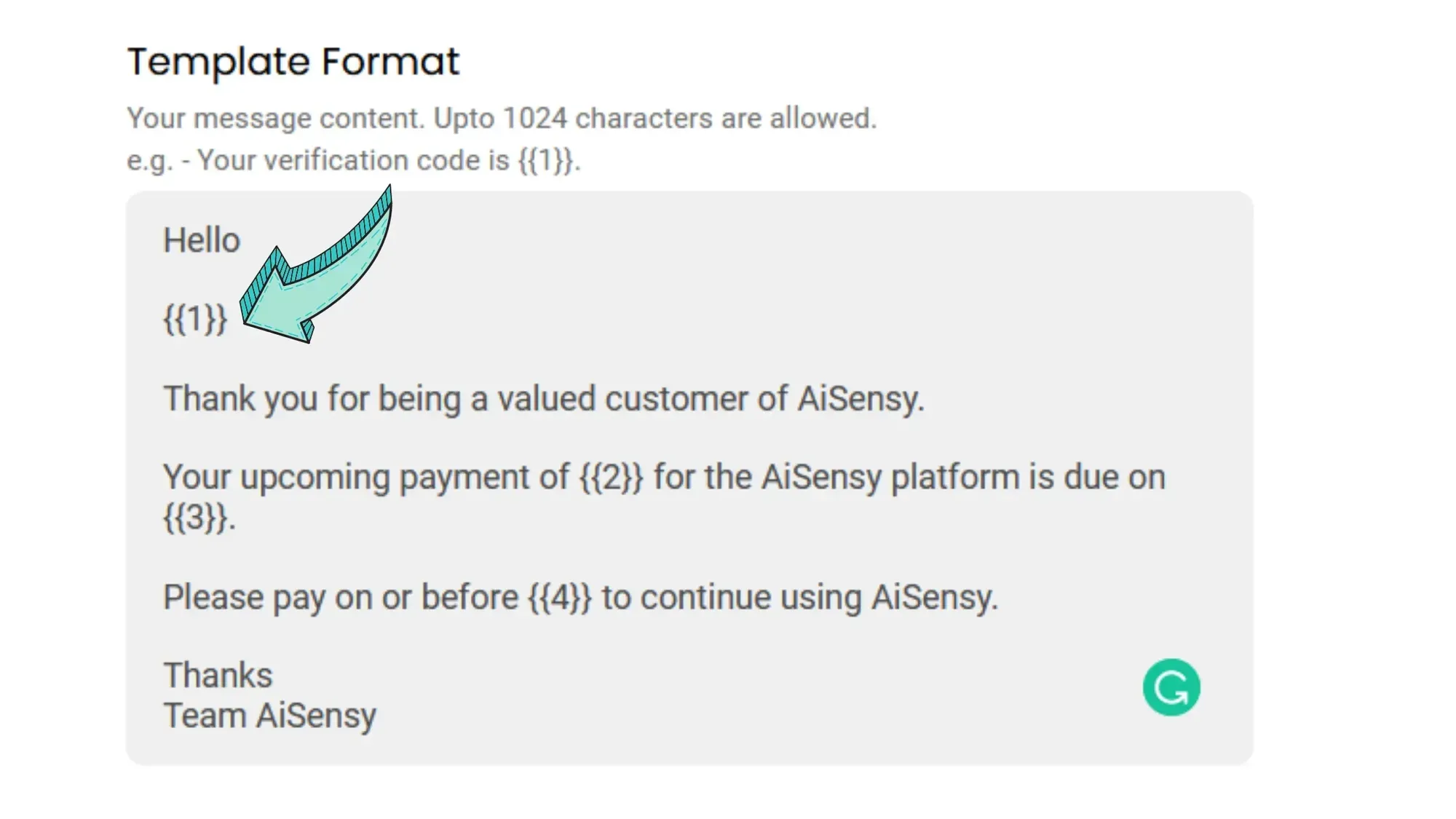
Template Format with floating Parameter Issue

On the left is the Format for our Template Message. We've added the parameters containing value '1' in a separate line.

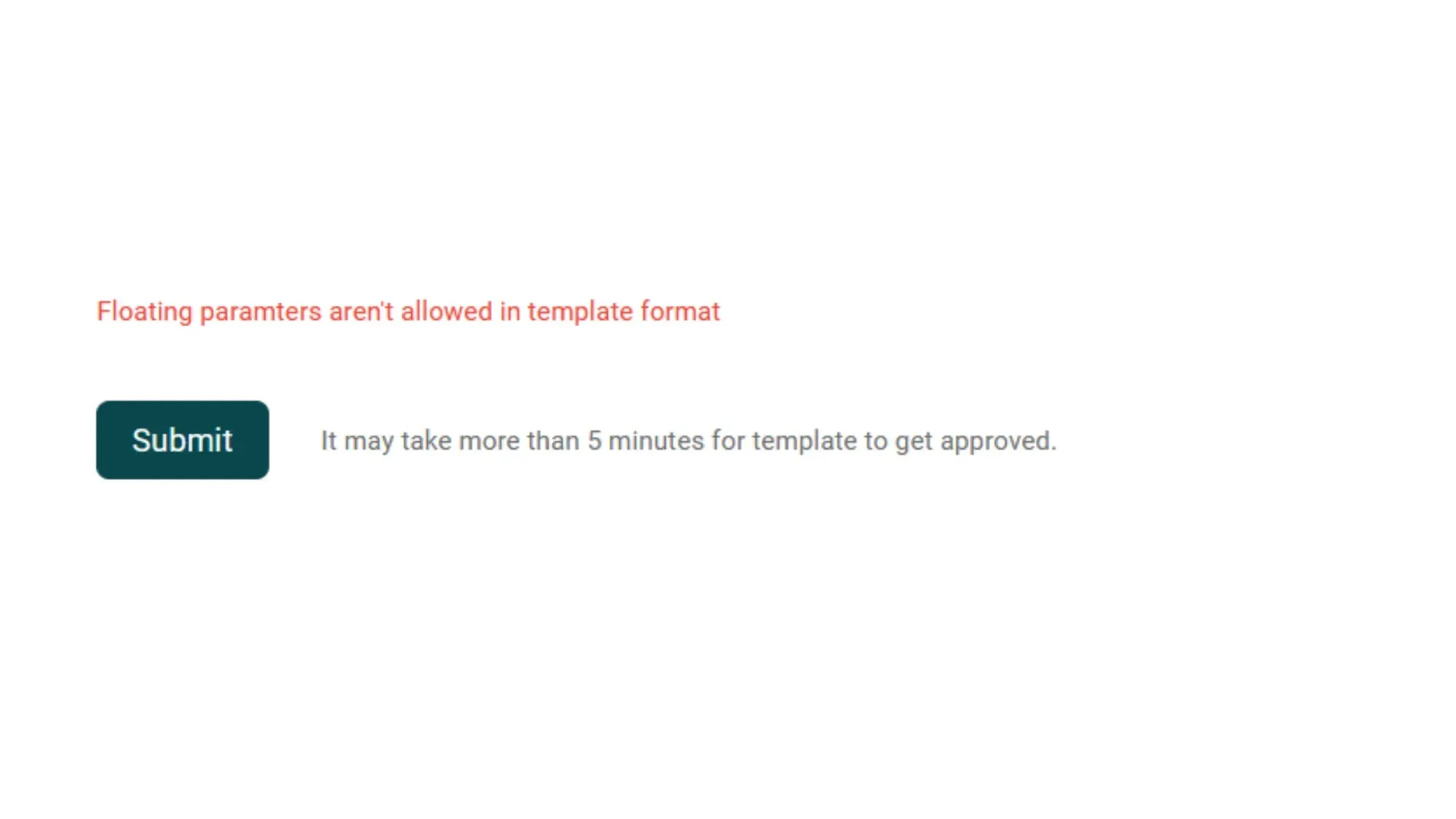
If you do this, you will see an error message while submitting the template message.

Step 2 fix Floating Parameter Issue.webp

Floating Parameter Issue

This is the floating parameter issue that happens when you add a parameter to a separate line without adding anything else. 

To resolve the issue, simply do this👇‍

Step 3 fix Floating Parameter Issue.webp

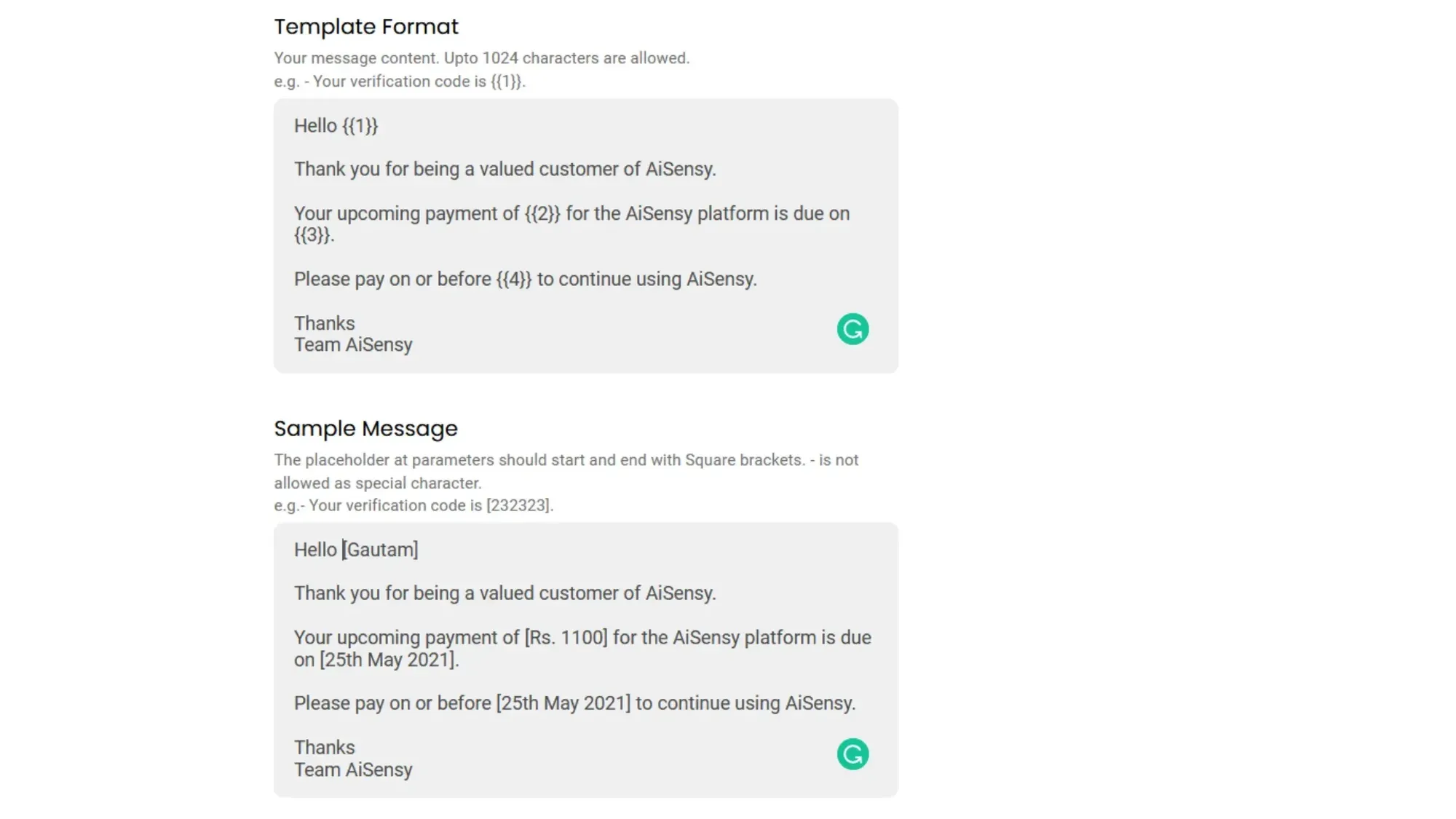
Correct way of using Parameter in Template Message

The image on the right shows the correct way of using parameters in a sentence. 

You should add a word along with the parameters to resolve the Floating Parameter Issue. 

Also, note that you can only add one blank line in-between sentences. 

Adding multiple blank lines will prevent you from submitting the WhatsApp Template Message for Approval.

Step 4 fix Floating Parameter Issue.webp

Submit Template Message for Approval

After correcting the Floating Parameter Issue, proofread your Template Message. 

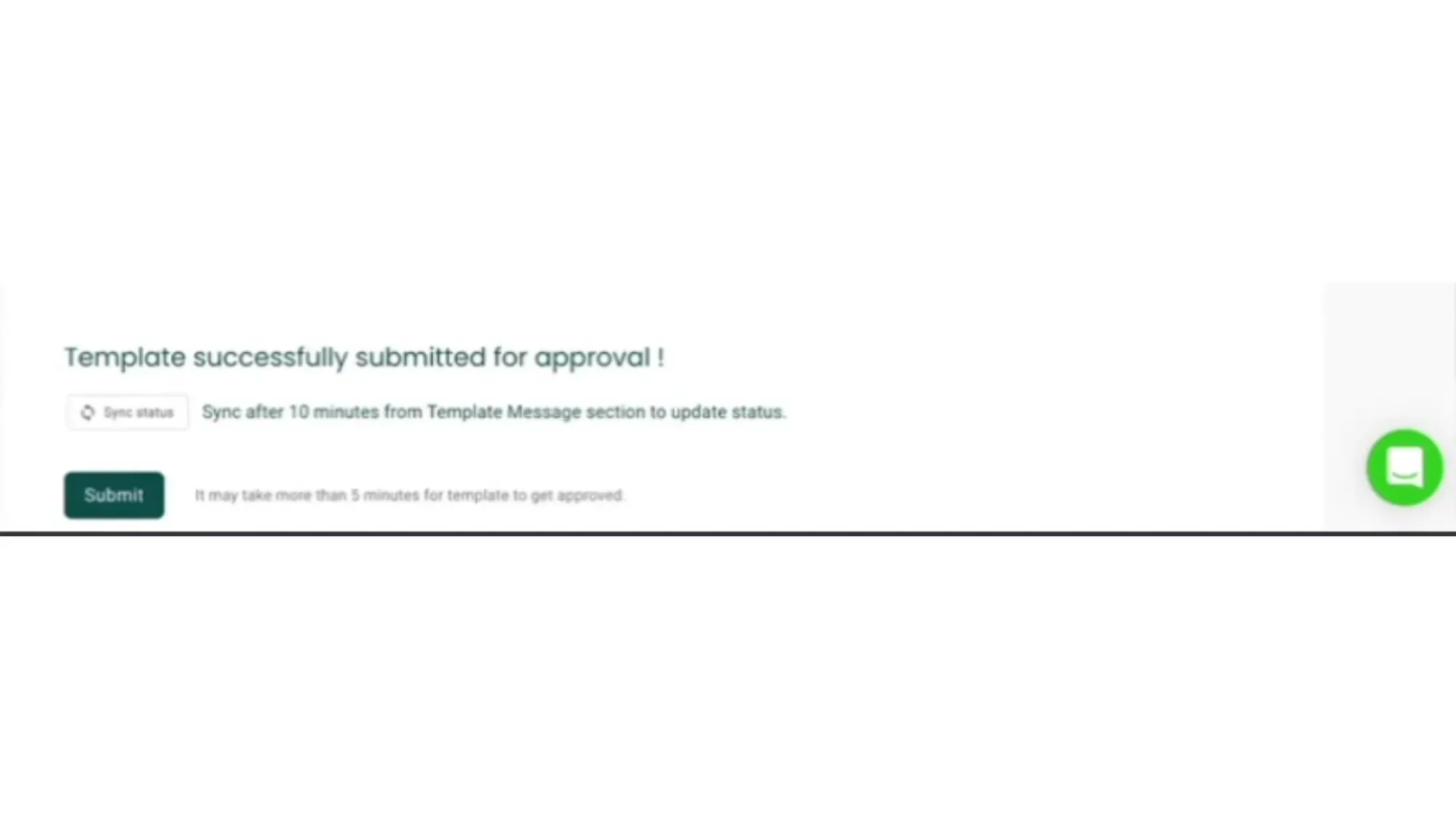
Last, submit it for approval. You shall see a 'successfully submitted' message as shown in the image on the left. 

Step 5 fix Floating Parameter Issue.webp

FAQ

Frequently asked questions answered

What kind of template message does WhatsApp approve?

WhatsApp approves template messages that follow Meta’s Commerce and Business Policies and fit one of three categories: Marketing (offers, promotions), Utility (order updates, reminders), or Authentication (OTPs).

Can I edit any approved WhatsApp Message Template?

No! Once a WhatsApp Template Message is approved, you can not make changes or edit the Template Message. Only the dynamic values in the Template Message can be edited which is set while submitting it.

What are the WhatsApp Template Message formatting rules?

Proofread your content for spelling and grammar before submitting it for review. Messages with incorrect spellings or any grammatical errors may prompt customers to view these messages as spam

Make sure to use variable parameters and that they have the correct number of curly brackets (i.e., there need to be 2 brackets on the left and 2 on the right of the variable)

Make sure the parameters (e.g., {{1}}) contains some text with it.

For example:

Correct Format: Hello {{1}}

Wrong Format: {{1}} {{2}}

Make sure the language selected matches the content of your message template

If you select Spanish as the message template language but the content is in English, your message template will be rejected

Ensure that your content is in one language. A mixture of languages such as "Hinglish" or "Spanglish" will not be approved

If you’re going to submit a message template for testing your API connection, please ensure it’s in the correct format. Any other variation will be rejected.