How to Integrate Nector with AiSensy for WhatsApp Notifications
Connect Nector with AiSensy to automate WhatsApp notifications whenever customers sign up, earn points, redeem rewards, and more.
How to Integrate Nector with AiSensy for WhatsApp Notifications
Connect Nector with AiSensy to automate WhatsApp notifications whenever customers sign up, earn points, redeem rewards, and more.
How to Integrate Nector with AiSensy?
Here are the steps you need to follow to connect your Nector account with AiSensy and automate WhatsApp notifications.
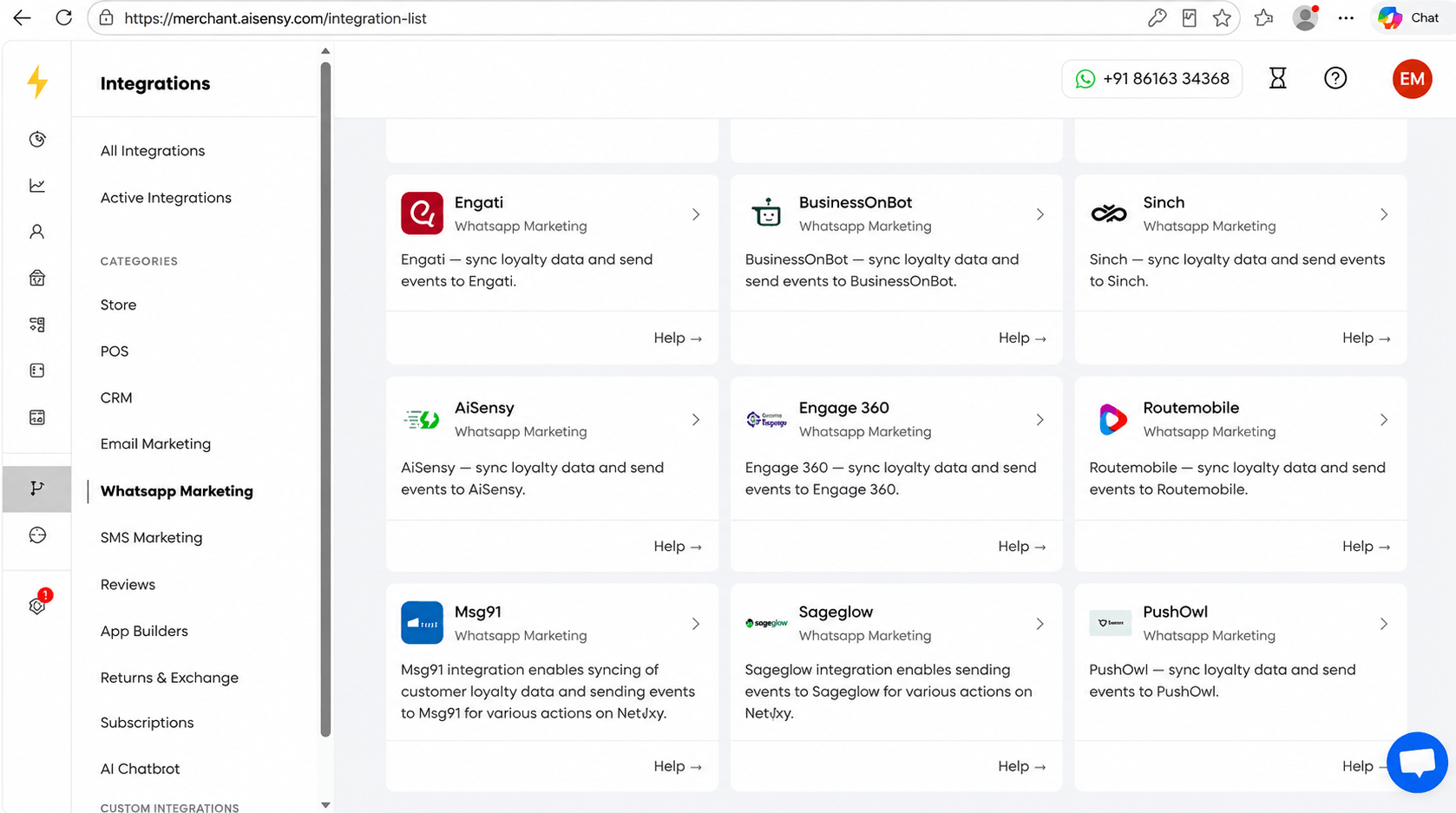
Go to Nector Integrations
First, log in to your Nector Merchant Dashboard and go to Integrations.
Under Categories, select Whatsapp Marketing.
Next, find the AiSensy integration and click on it.
Copy Your API Campaign Key from AiSensy
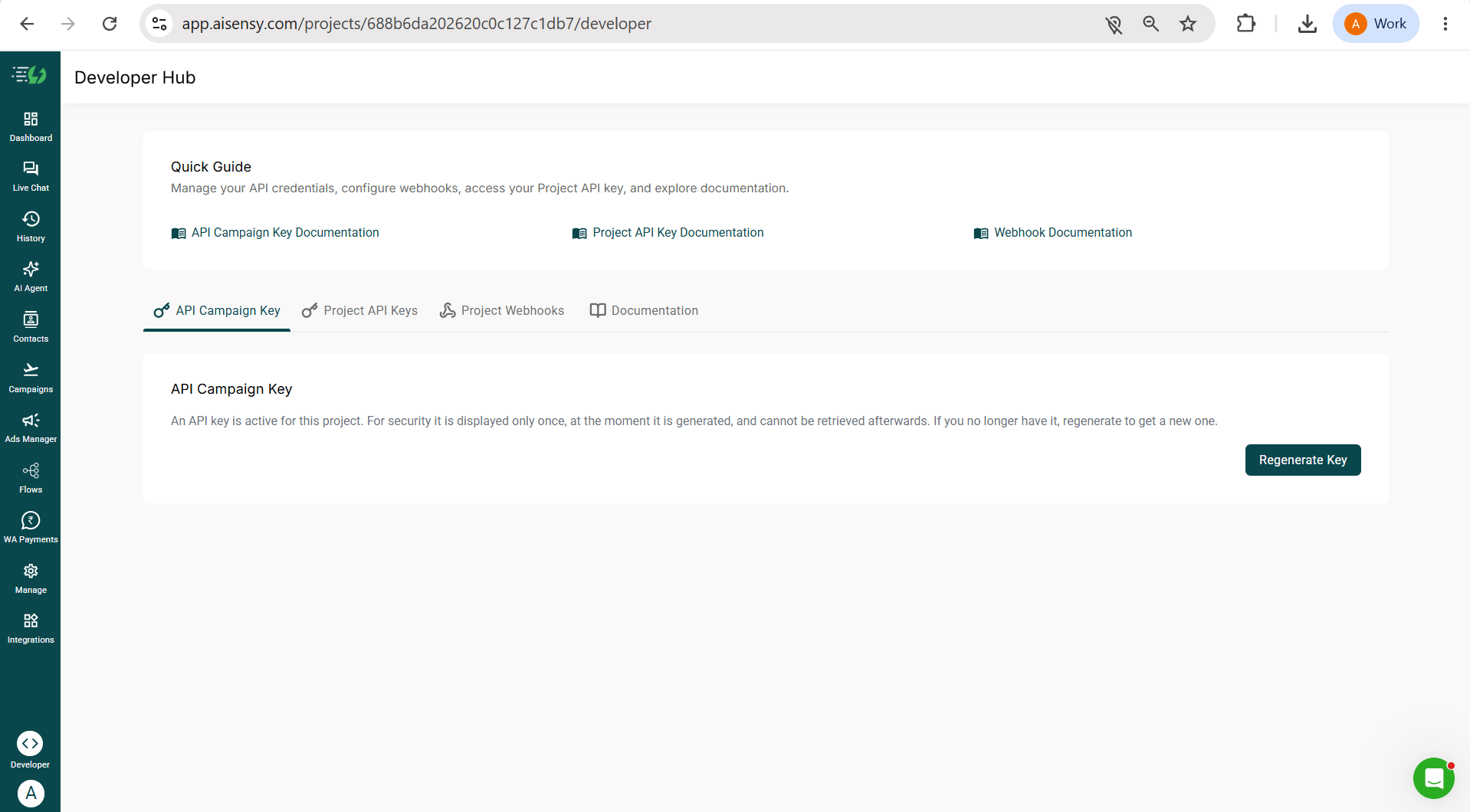
Before connecting Nector, you'll need your API Campaign Key from AiSensy.
To get your API Campaign Key:
Go to your AiSensy Dashboard.
Click Developer in the left sidebar to open the Developer Hub.
Open the API Campaign Key tab.
Click Regenerate Key if you don't already have one.
Copy the key.
Note: You'll need this key while setting up the integration in Nector.
Create an API Campaign in AiSensy
Next, create an API Campaign that Nector will use to send WhatsApp messages.
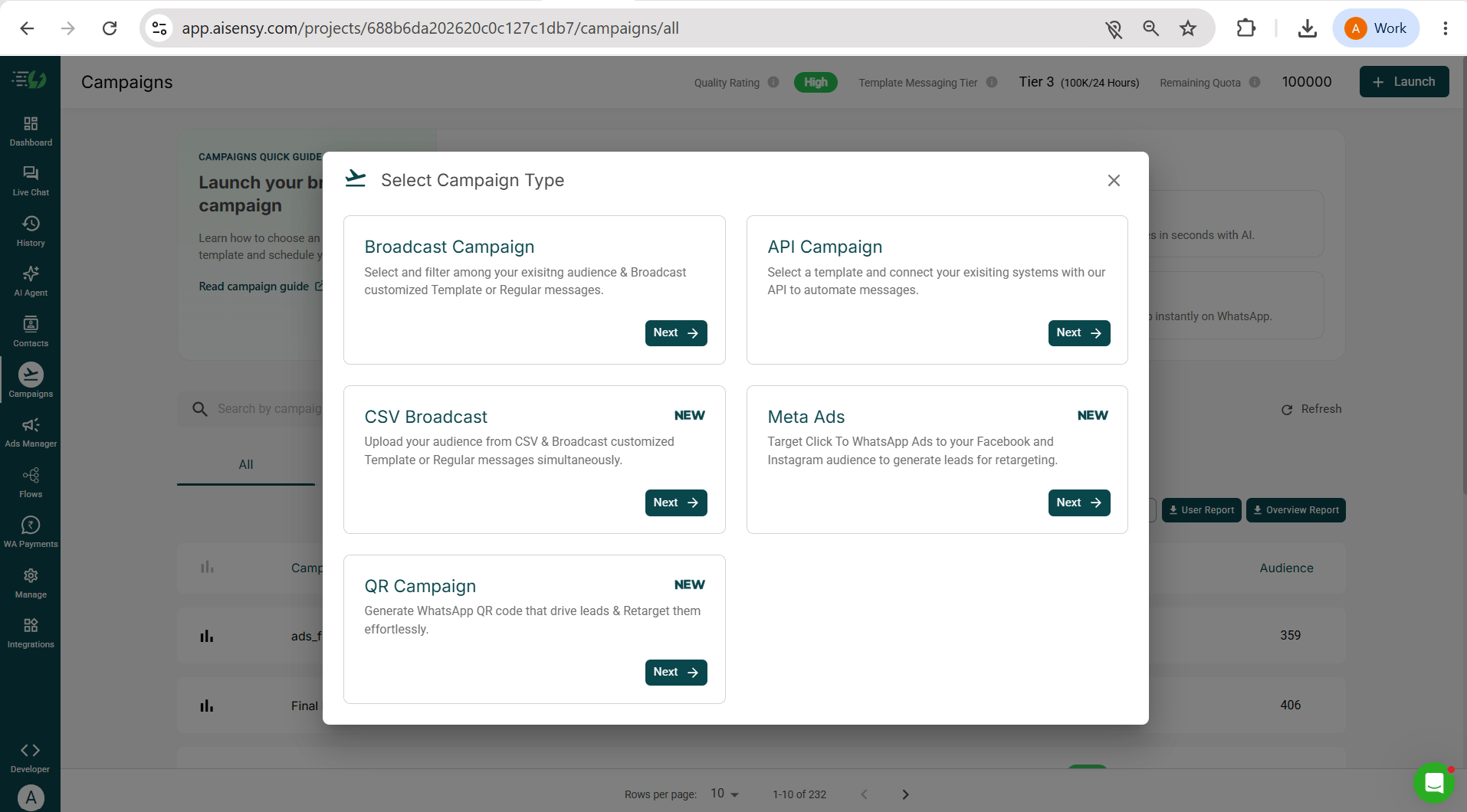
Go to Campaigns in AiSensy.
Click + Launch.
Under Select Campaign Type, choose API Campaign.
Enter a Campaign Name and select your approved WhatsApp Template.
Save and activate the campaign.
Note: Make sure the campaign is LIVE and keep the Campaign Name handy. You'll need to enter the exact same name in Nector.
Connect AiSensy Inside Nector
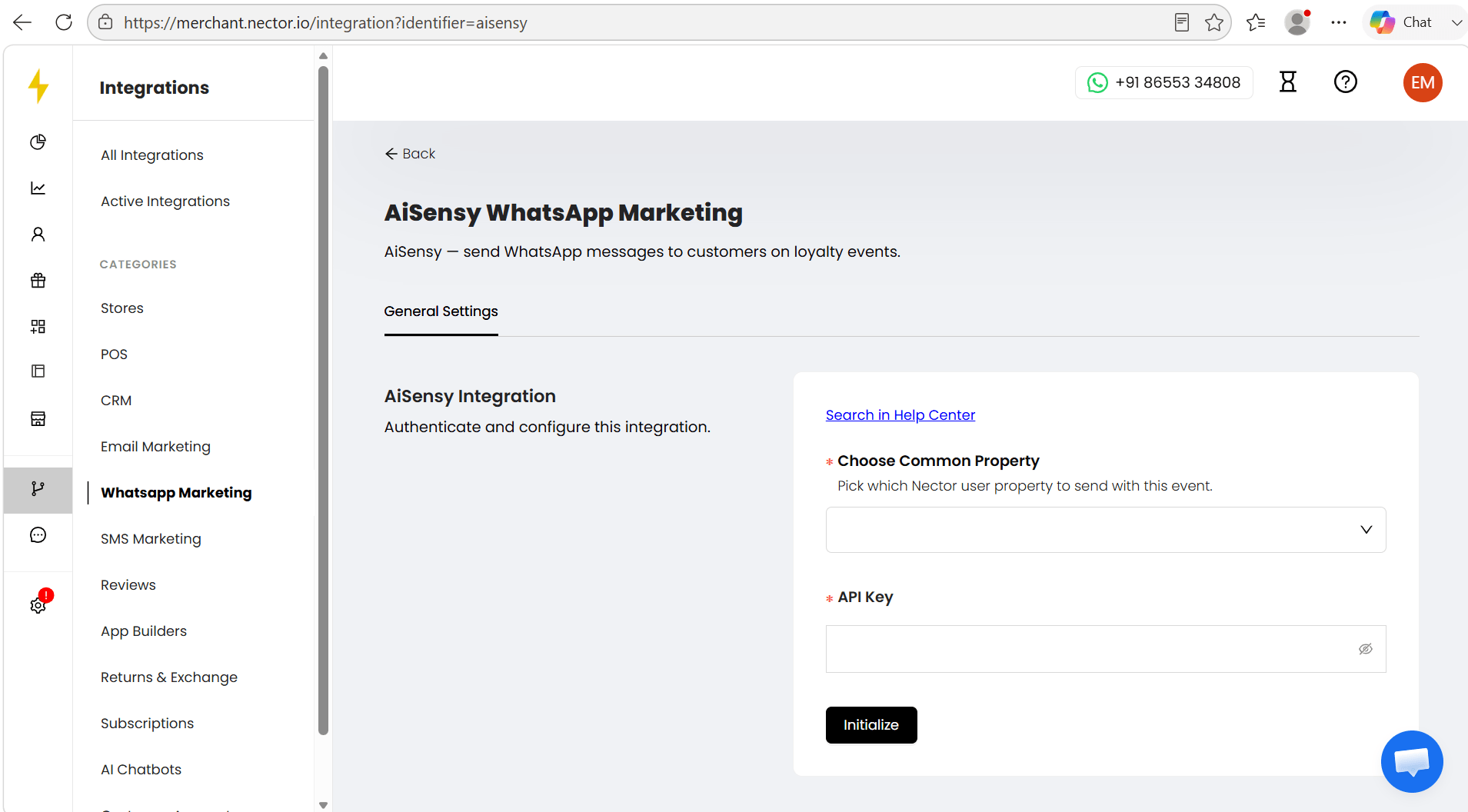
Now, go back to Nector and open the AiSensy WhatsApp Marketing integration.
Under the General Settings tab:
Choose the Nector property you want to send with every event under Choose Common Property. For example: Mobile
Paste the API Campaign Key you copied from AiSensy.
Click Initialize.
Your AiSensy integration is now initialized in Nector.
Create an Event to Trigger WhatsApp Messages
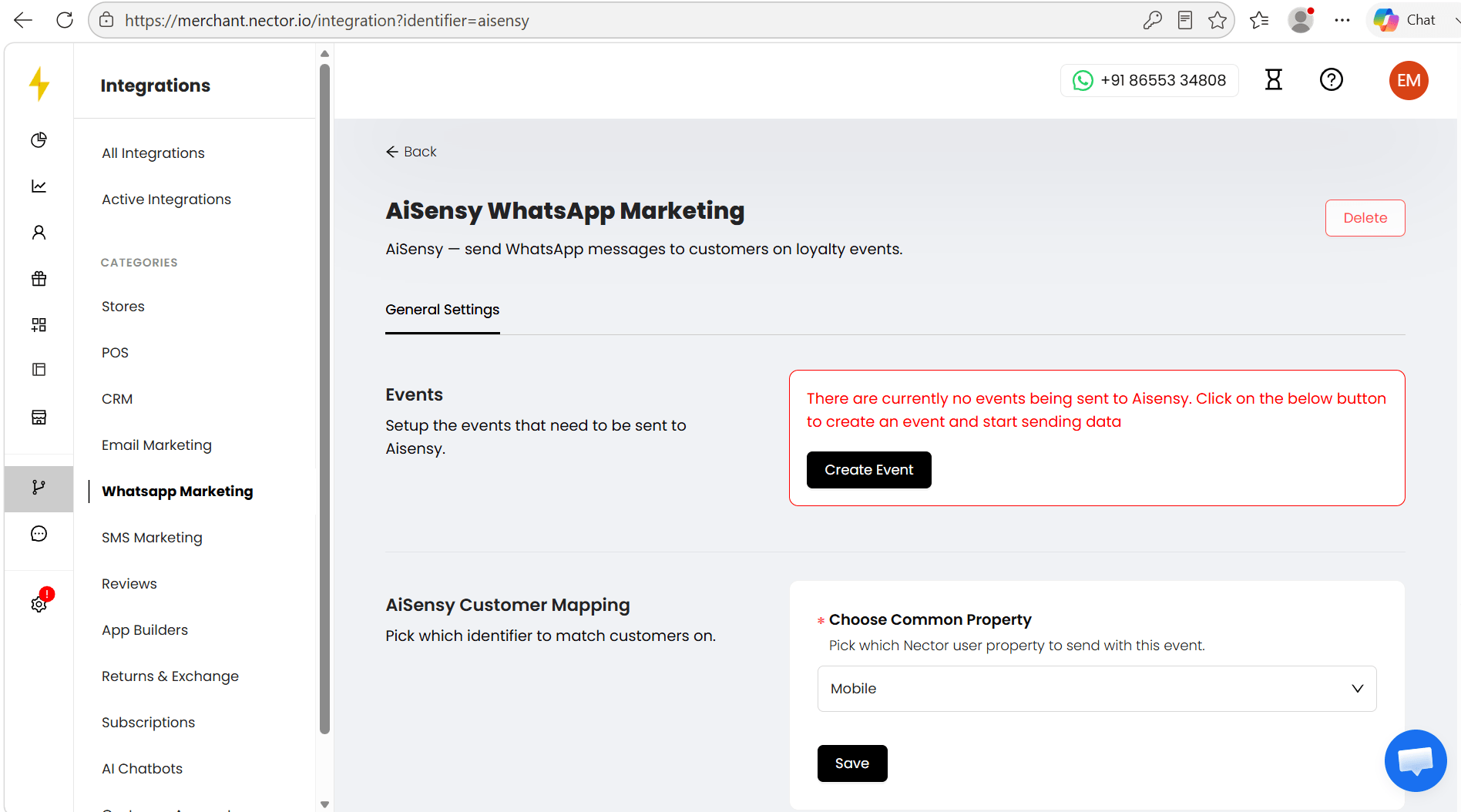
Now, let's create an event that will trigger your WhatsApp message.
Click Create Event, and in the Send Event pop-up:
Choose the Nector event you want to use. For example: Customer signs up
Under Send data to, select AiSensy.
Under AiSensy Campaign Name, enter the exact Campaign Name created in AiSensy.
Map the Nector properties to your WhatsApp Template variables in the same order as they appear in your template.
If your template has a dynamic button, select the relevant Nector property for the button.
Click Create.
Turn On the Event
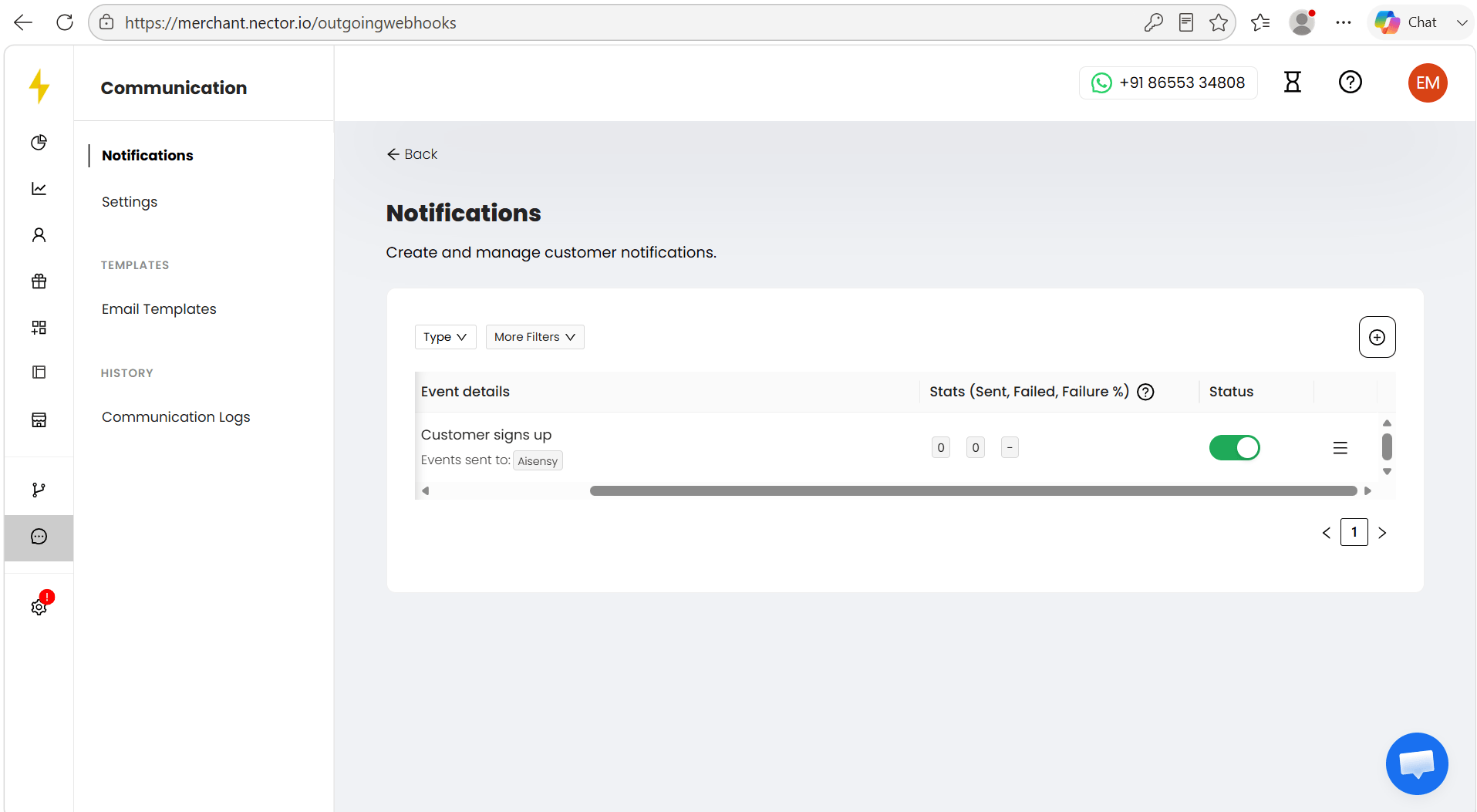
Once the event is created, it will appear in the Notifications list under Communication.
You'll see the event name, where it's being sent, live stats, and a status toggle.
Make sure the toggle is switched ON (green) to activate the event.
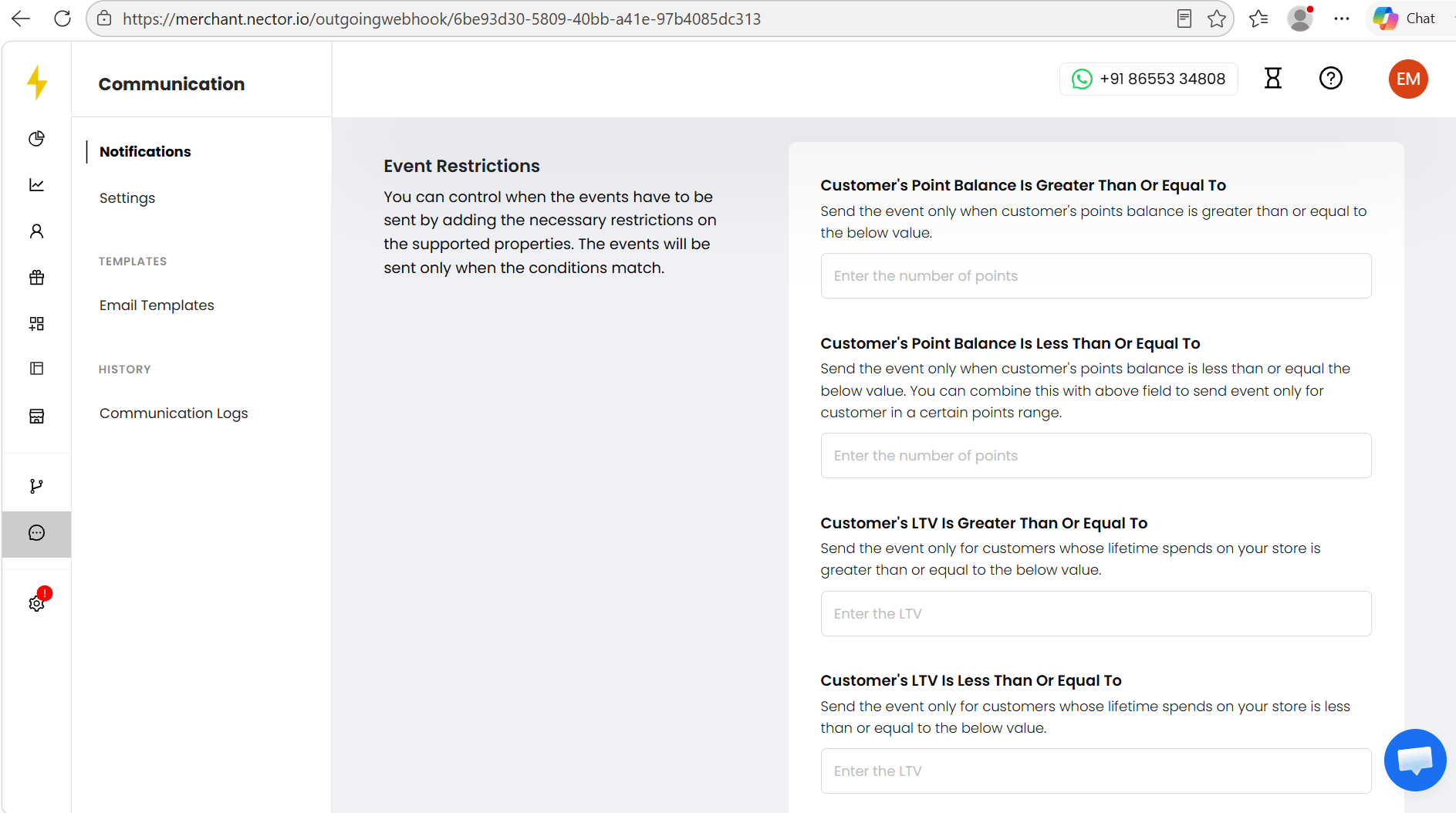
Add Event Restrictions (Optional)
You can control when your WhatsApp message should be sent using Event Restrictions.
You can set restrictions based on:
Customer's Point Balance Is Greater Than Or Equal To
Customer's Point Balance Is Less Than Or Equal To
Customer's LTV Is Greater Than Or Equal To
Customer's LTV Is Less Than Or Equal To
Leave these fields blank if you want the event to trigger every time.
Or, add the required conditions to send WhatsApp messages only when a customer meets your criteria.
You're All Set 🎉
Your Nector x AiSensy integration is now live.
Customers will now automatically receive WhatsApp notifications whenever a loyalty or Rewards event happens in your store, helping you drive engagement, retention, and repeat purchases without any manual effort.
🎉 Happy Messaging!