Login

WhatsApp AI Agent by AiSensy

WhatsApp AI Agent for Student Admissions

Turn every student admission enquiry into a qualified applicant, automatically with this WhatsApp AI Agent.

Train the ready-made Admissions AI Agent on your courses & cut-offs, and let it answer, qualify and route round the clock.

No coding needed!

What Your AiSensy Admissions AI Agent Handles

Admission conversations happen on WhatsApp, taking the load off your counsellors.

Answers the Questions Every Parent Asks

Fees, eligibility, hostel, placements, last date to apply - answered in seconds from your prospectus, not from guesswork.

Qualifies Before Your Counsellors Call

Course, board and marks, city, intake, budget. The WhatsApp AI agent collects what your team needs to judge an enquiry, one question at a time.

Filters Out Who You Can't Admit

Wrong stream, below the cut-off, looking at the wrong intake. Handled politely, and kept out of your counsellor queue.

Routes Serious Applicants Instantly

A qualified enquiry reaches the right counsellor with the full WhatsApp chat & every answer attached - while the student is still interested.

Keeps Next-Intake Students Warm

Right student, wrong year? They go into a nurture list instead of the bin, ready for the intake that actually suits them.

Answers in the Student's Language

English, Hindi, Hinglish or anything in between - the agent matches how the student or parent writes.

How an Admission Enquiry Gets Qualified on WhatsApp

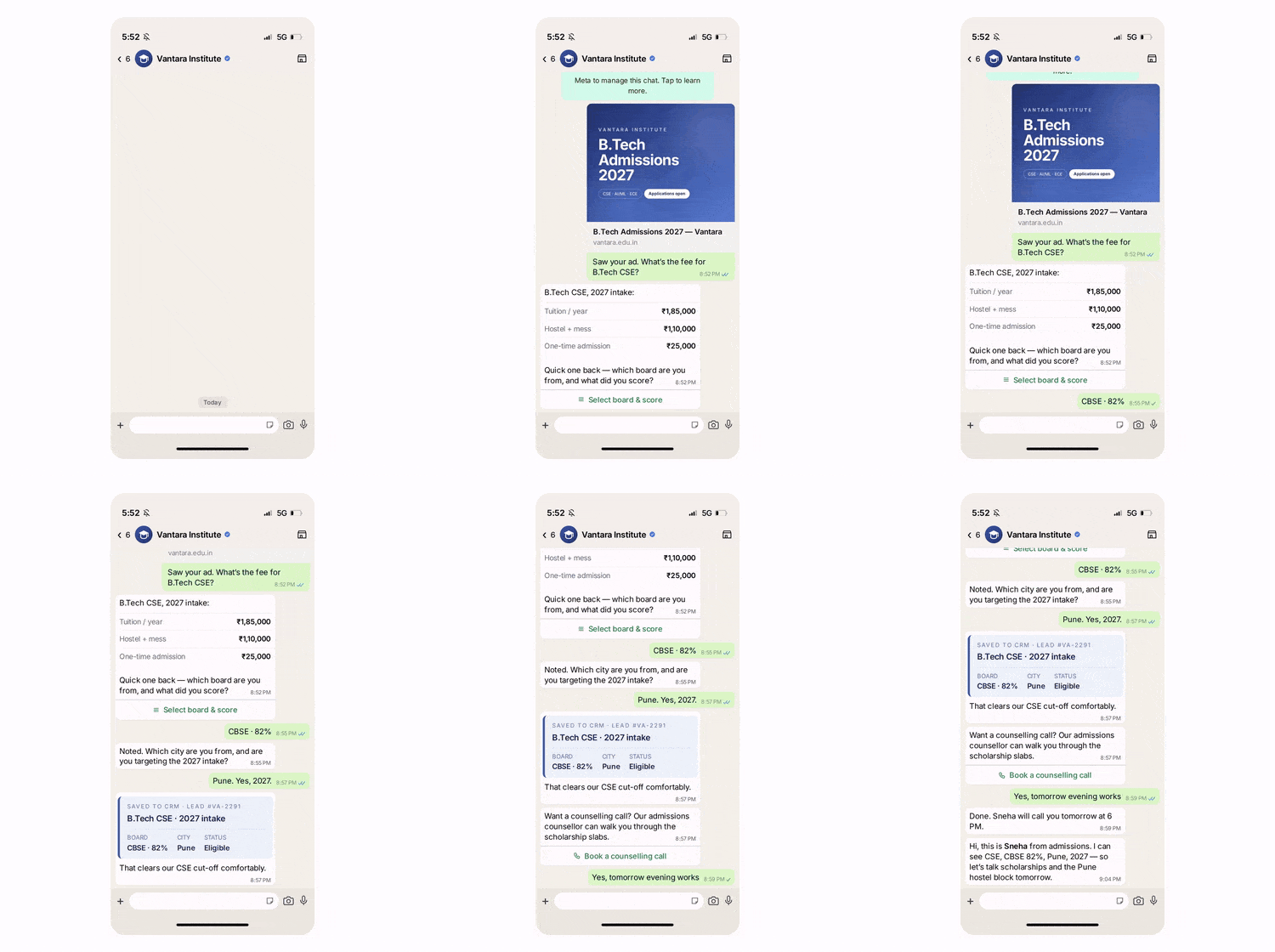
A real conversation, step by step - your counsellor only joins once the enquiry is worth a call.

  • The Enquiry

    Student messages: "Saw your ad. What's the fee for B.Tech CSE?"
    The agent answers from the fee structure you submitted & asks one thing in return - which board they studied from, and what was their score?

  • The Questions

    There could be several questions related to boards and percentage, home city students belong to, and which intake they're targeting. Asked inside the WhatsApp chat, not a form.

  • The Verdict

    The student secured 82% marks in CBSE, eligible for Pune, 2027 intake. That clears your cut-off - the agent pushes every answer into your CRM and offers a counselling call.

  • The Handover

    She seems a serious applicant and not only a name on a list. The WhatsApp chat is then handed over to a counsellor who opens the chat already knowing the stream, the score and the intake. 

  • Key Terms: How AiSensy AI Agent works

    A brief description on each section you'll see inside AiSensy AI Agent Studio and what each one actually does.

    term_1_business_profile.png

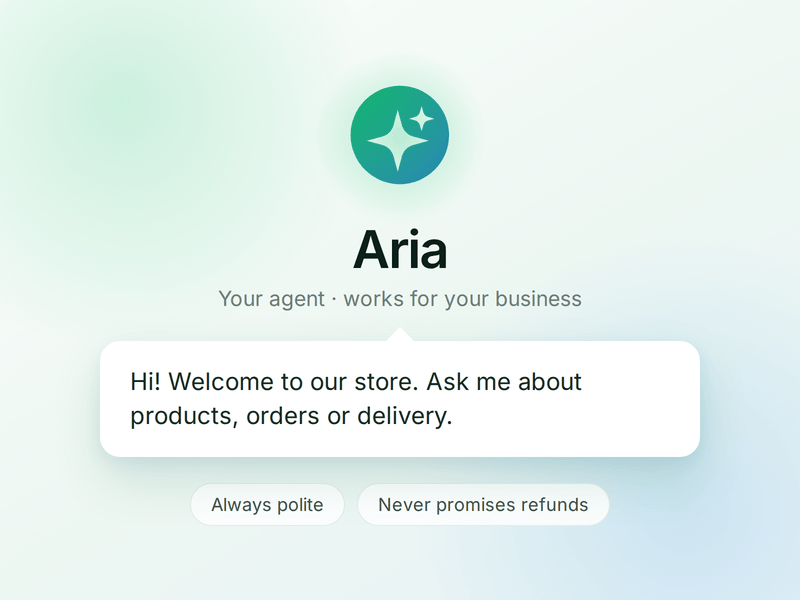
    Business Profile

    Who your agent is and who it works for. Your business details, the agent's name and greeting, and the ground rules it must always follow.

    term_2_knowledge.png

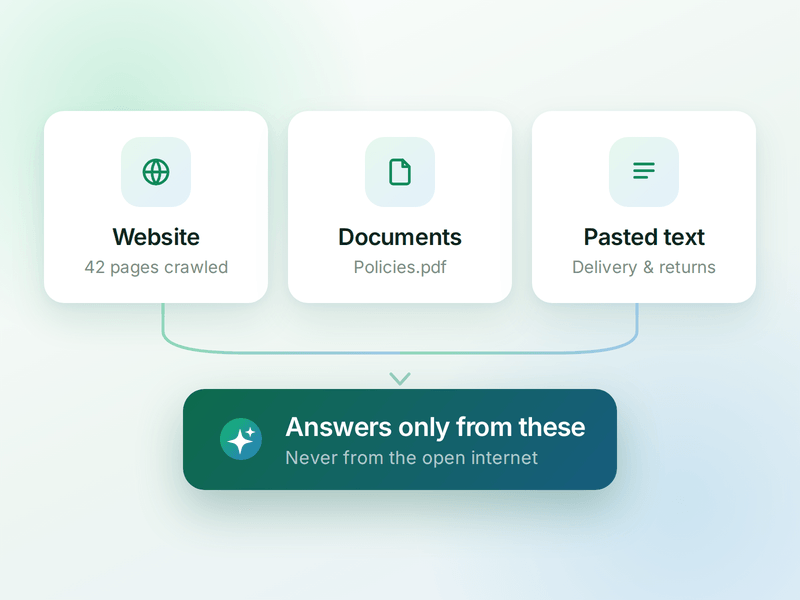
    Knowledge

    Everything your agent is allowed to know. Crawl your website, upload documents or paste text - the WhatsApp AI agent answers from these, not from the internet.

    term_3_skills.png

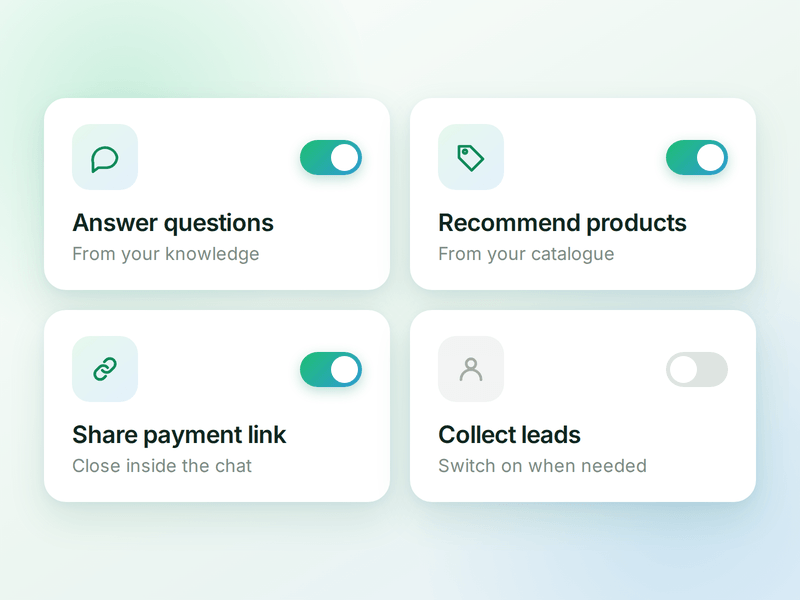
    Skills

    The jobs your agent can do. Switch on a ready-made skill or create your own, and the agent works out which one a conversation needs.

    term_4_products.png

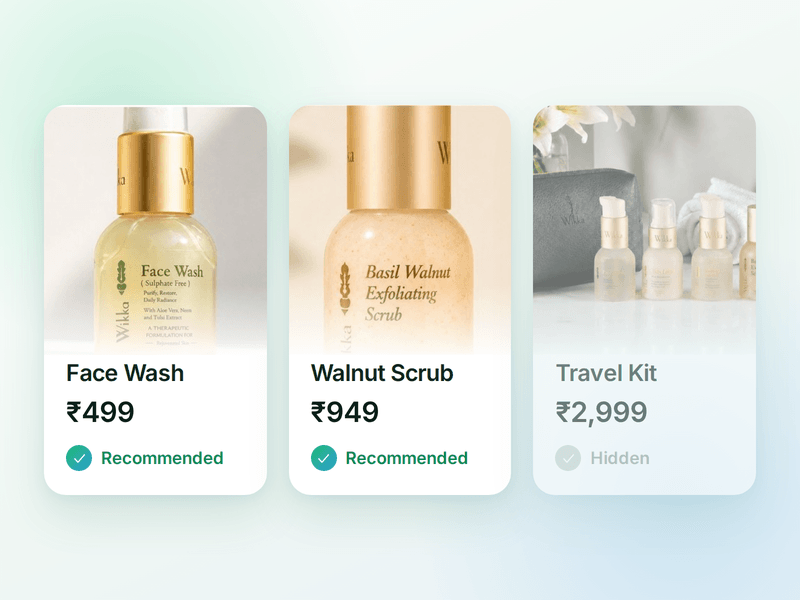
    Products

    The catalogue your agent sells from. Sync your store or add items by hand, then pick which ones the agent is allowed to recommend.

    term_5_payments (1).png

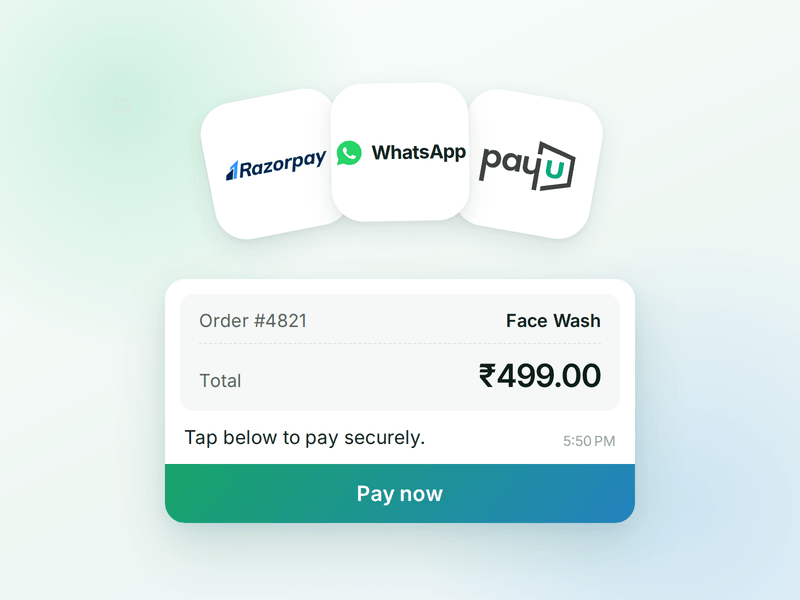
    Payments

    Your checkout, inside the WhatsApp chat. Connect Razorpay or PayU & the agent can send a secure payment link the moment a customer decides.

    term_6_ai_messages (2).png

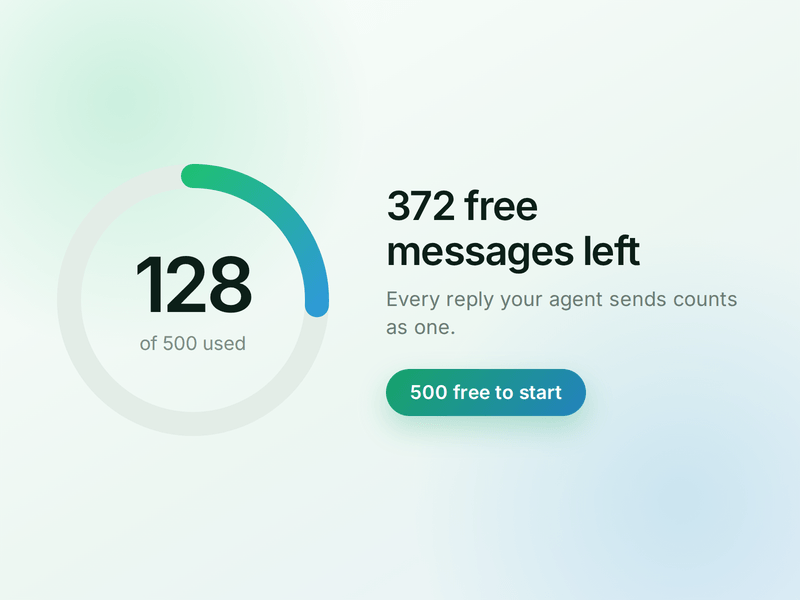
    AI Messages

    Each reply sent by your AI Agent counts as one AI Message and is deducted from your active plan. You get 500 free AI Messages to test your agent before going live.

    How to Build Your WhatsApp Students Admissions

    AI Agent in AiSensy

    Here's how a real brand goes from zero to a live Admission AI Agent on WhatsApp.

    Sign up on AiSensy

    Go to the AiSensy Signup Page. Create your account using either:

    • Your Google account, or

    • Your business email address by filling out the sign-up form.

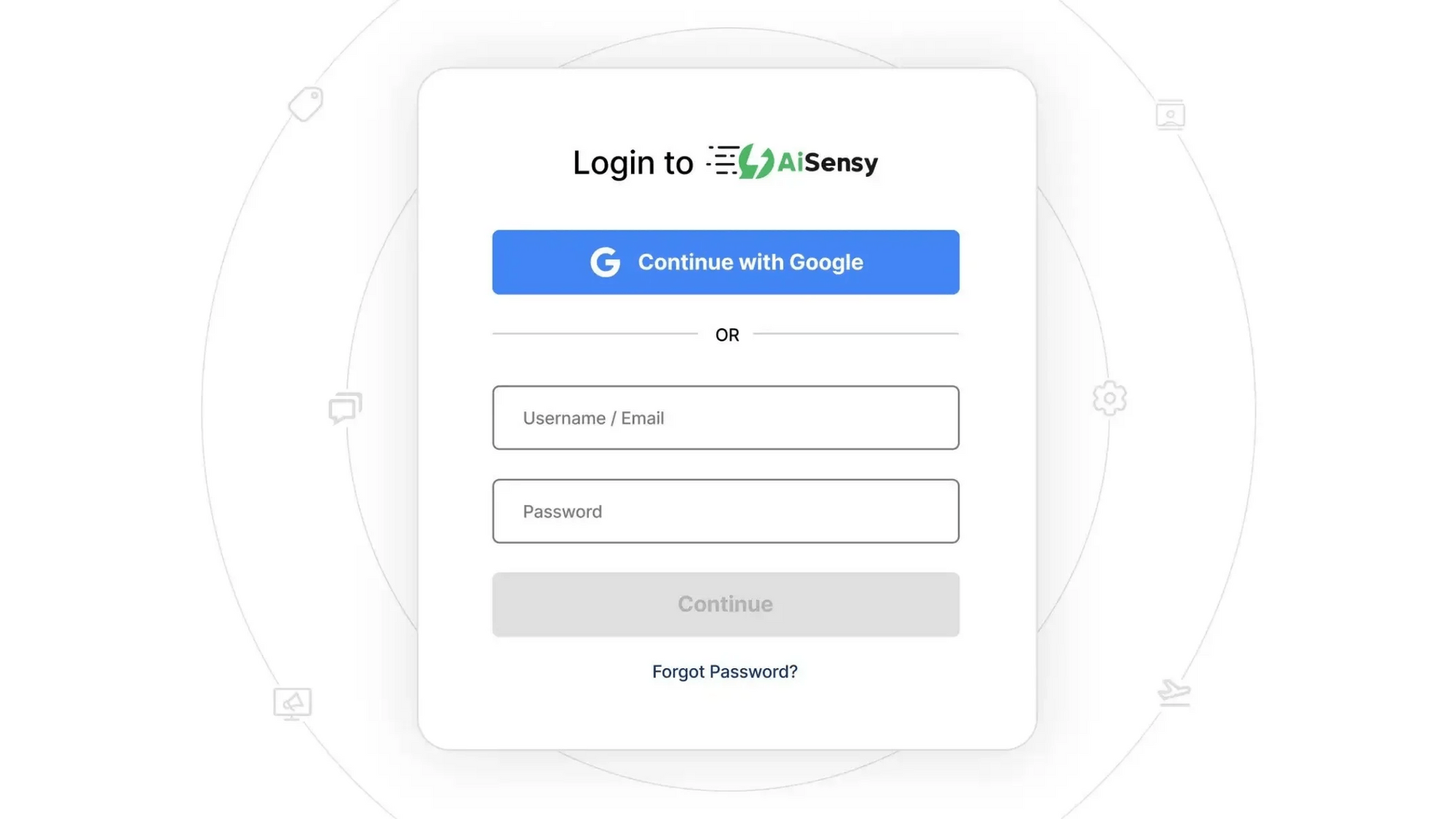
    Once signed up, Log in to AiSensy using the same Google account or email credentials.

    login1.png

    Build Your Agent from Your Website

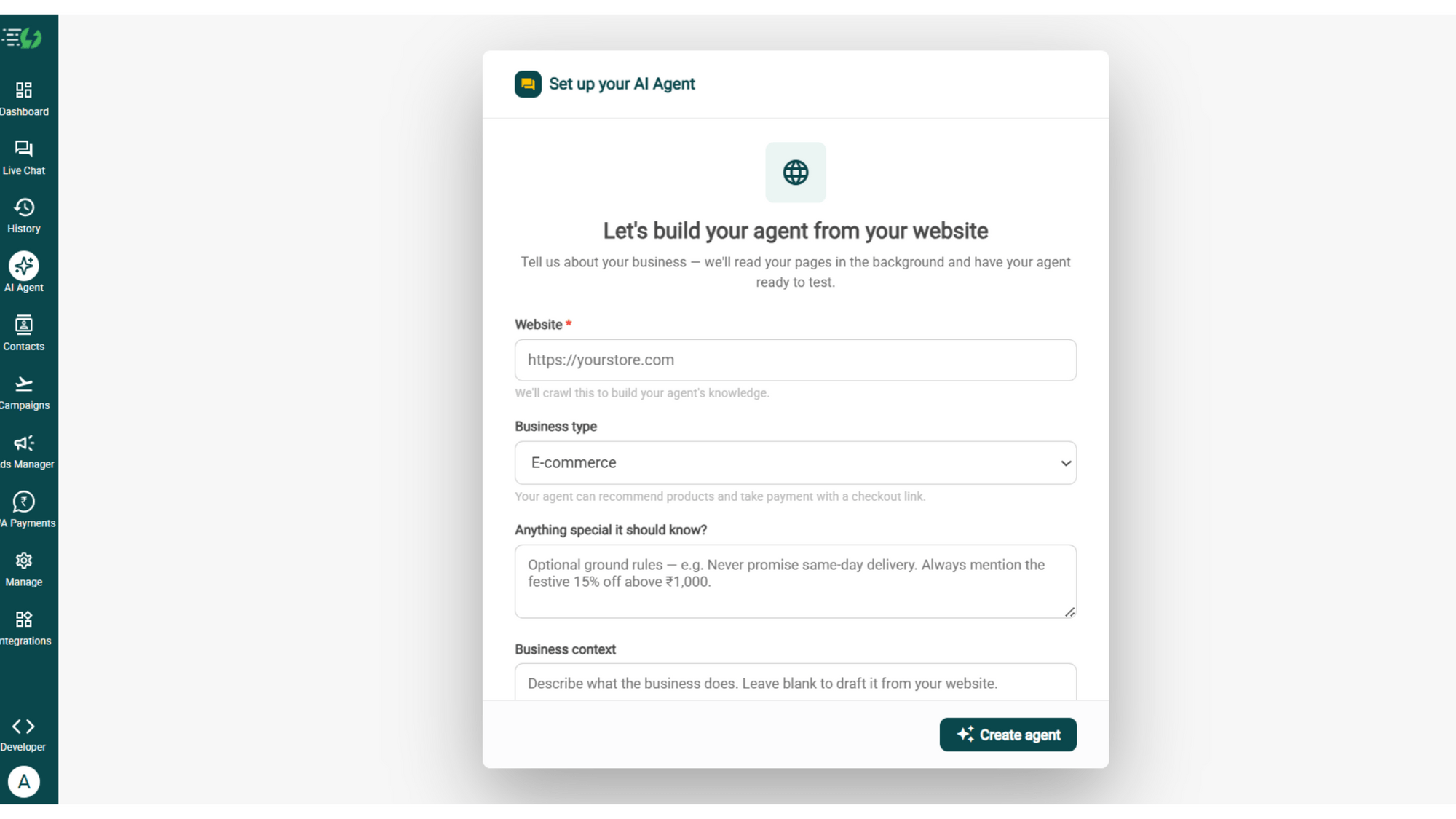
    Once you are logged in, navigate to and click on AI Agent available on the navbar on the left.

    Fill in the details given below:

    • Website (mandatory)

    • Business type

    • Anything special it should know? (optional)

    • Business context (optional)

    Once you fill these details correctly, proceed to hit '✨ Create agent' button. AiSensy automatically builds an agent trained on your business.

    image (4).png

    Add Your Business Profile

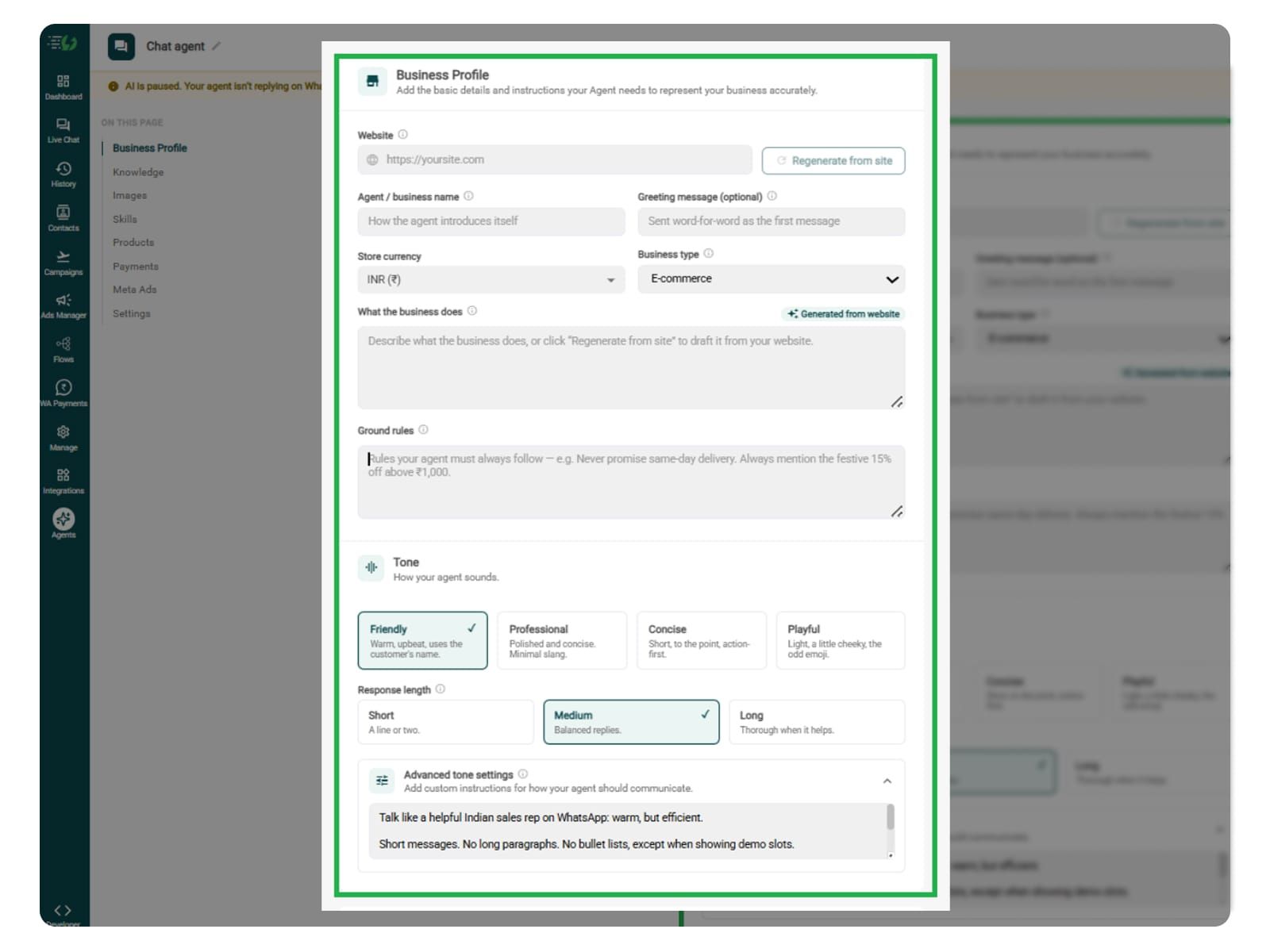
    When you add your website, AiSensy AI engine auto-generates your business description. Set your agent's name, greeting, and a few ground rules it must always follow.

    Fill the details given below:

    • Website (fetched automatically)

    • Agent/business name

    • Greeting message (optional)

    • Store currency

    • Business type

    • What the business does

    • Ground rules

    Add business profile.jpg

    Train the Agent with Your Knowledge

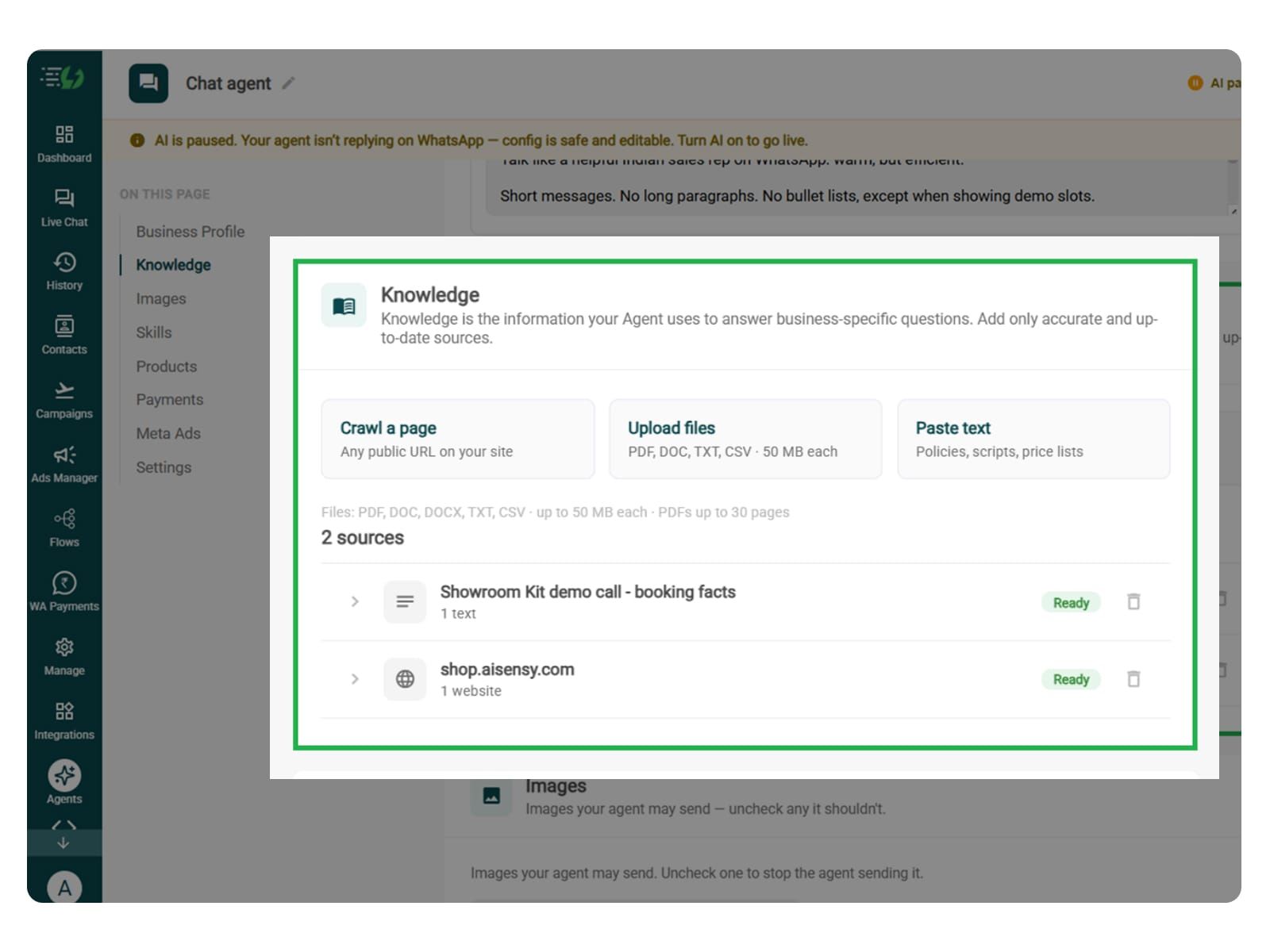
    In this step, you have to tell the agent about your business website. While adding information, you can add details such as course details, eligibility requirements, fees, scholarship criteria, application deadlines, required documents, and admission policies. This will help the agent answer properly.

    You can submit this information in the form of PDF, DOC, TXT, or CSV files. The agent entirely relies on the kind of information you submit. Hence it always responds according to it and never gives generic replies.

    Every source shows "Ready" once learned.

    Perform the below mentioned steps:

    • Crawl a page (website URL)

    • Upload files (PDF, DOC, TXT, CSV - up to 50MB each)

    • Paste text (policies, scripts, price lists)

    knowledge.jpg

    Choose the Images It Can Share (Optional)

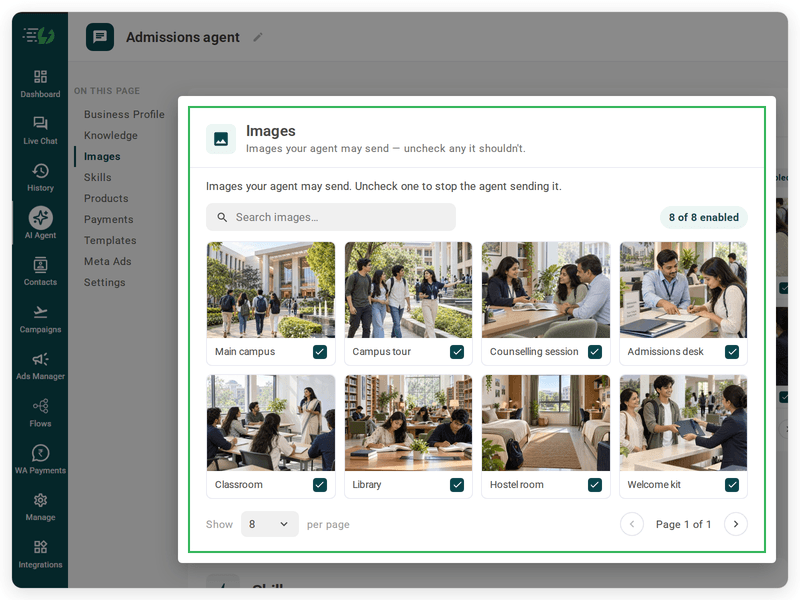
    It is an optional step but adding image results in leaving a good impression on students and parents. You can add course overview graphics, campus photos, or visual application guides that can help students. But they are not essential.

    When you add your website, the AI Agent automatically fetches the image from it. You can control the visuals the agent can share in chat - product shots, catalogs, offers.

    Untick any image it shouldn't send.

    You can:

    • Create Image library (enable/disable per image)

    • Search images

    admissions.png

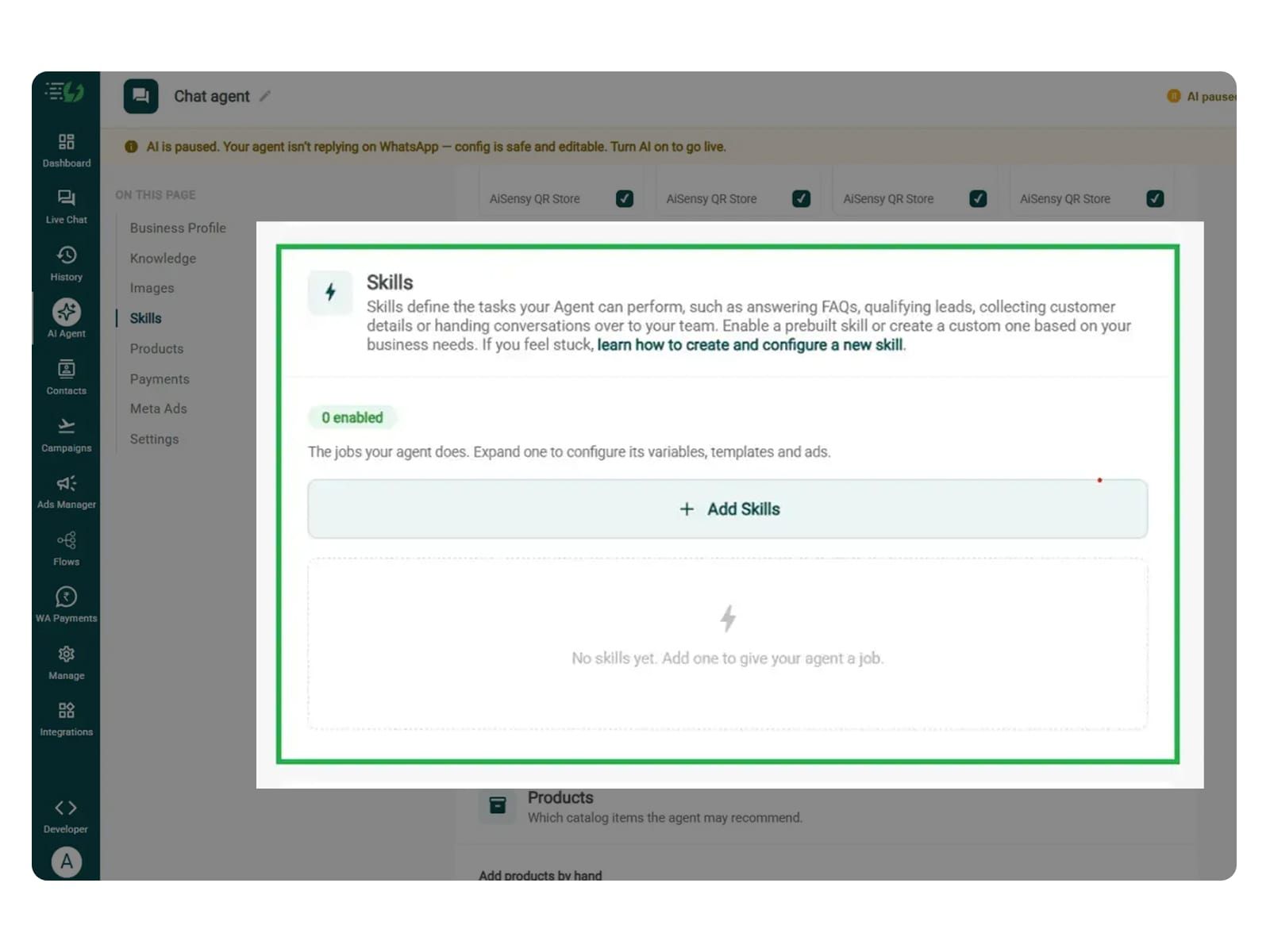
    Create the Admissions Skill

    Open Add Skills and check the prebuilt list first - if the skill you need isn't there, hit Create custom. You can now name it Admissions, and pick Task skill as the type.

    The other details which need to be filled are given below:

    • What kind of skill is this? (Task skill)

    • Icon & name: Admissions

    • When should the agent use it?

    • Instructions

    • Add skills

    Now, you must make sure that the instructions fed to the agent are clear and easy to understand. The agent behaves according to the instructions given to it.

    One such example is:

    “When a student asks ‘How do I apply for this course?’, ask which course they’re interested in and their current qualification. Use the admission information provided to explain eligibility, fees, deadlines, and required documents, then share the application link. Do not guarantee admission. Refer questions that need further review to the admissions team.”

    The agent uses your instructions and the information provided to guide students through the application process.

    For more info, tap here to learn how to create a custom skill

    add skills.jpg

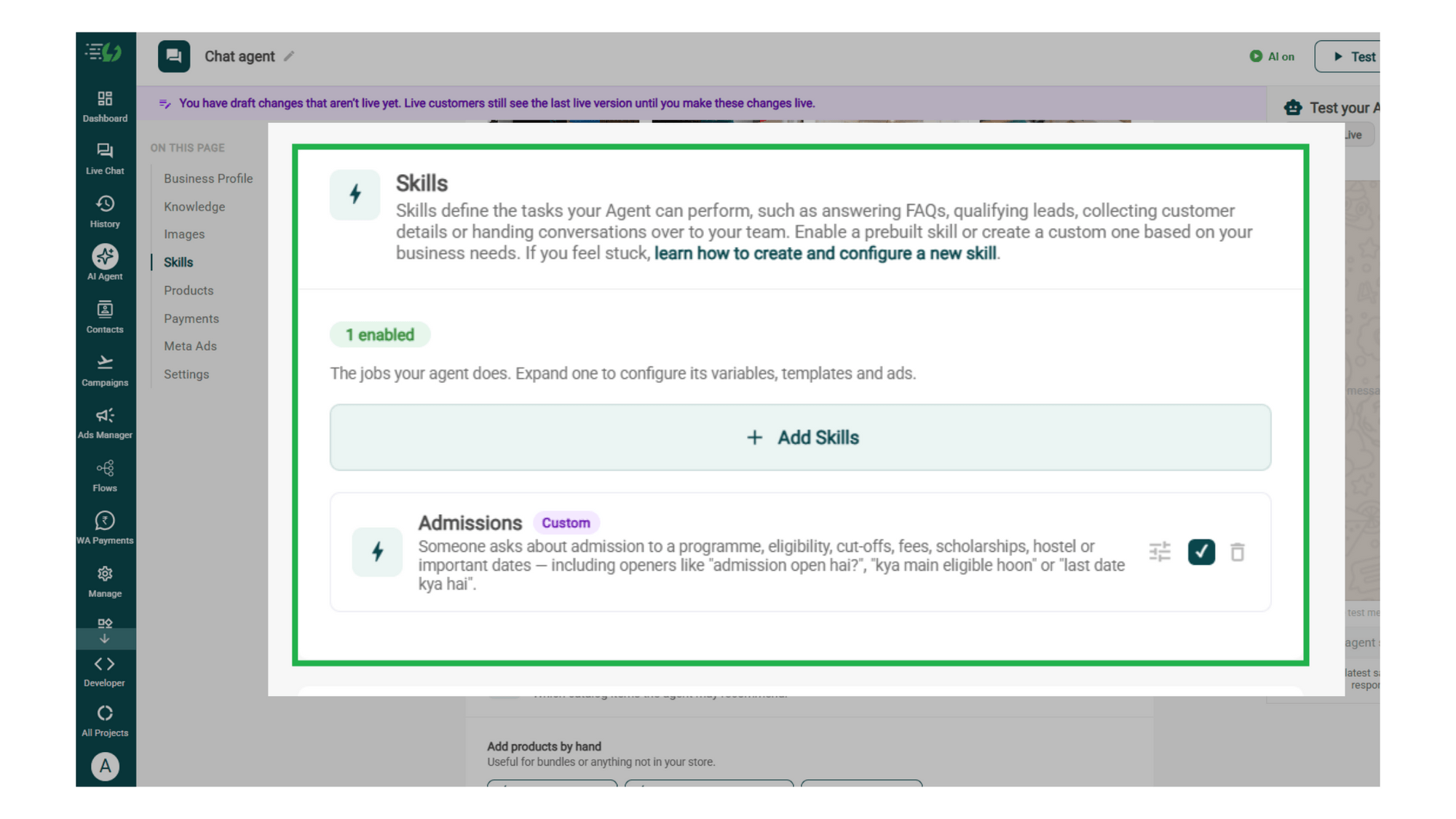
    Enable It on Your Agent

    Now that you have created the skill you need, it starts to appear in the Skills list. You can now switch it on, expand it to set your cut-off and where a qualified applicant should go, then hit Done.

    All that you have to go through is:

    • Skills list

    • Enable the admissions skill

    • Expand to configure its variables, templates & ads

    • Skills enabled counter

    Now you agent is well taught and it knows how it should respond.

    Before enabling the skill, you must proceed to configure the Admissions skill. Doing this will train the agent to ask about the learner’s education, goals, preferred course, and learning format, one question at a time. It will also explain eligibility and application steps using the criteria provided to it.

    The agent will be able to clearly distinguish eligibility from confirmed admission.

    skills admissions.png

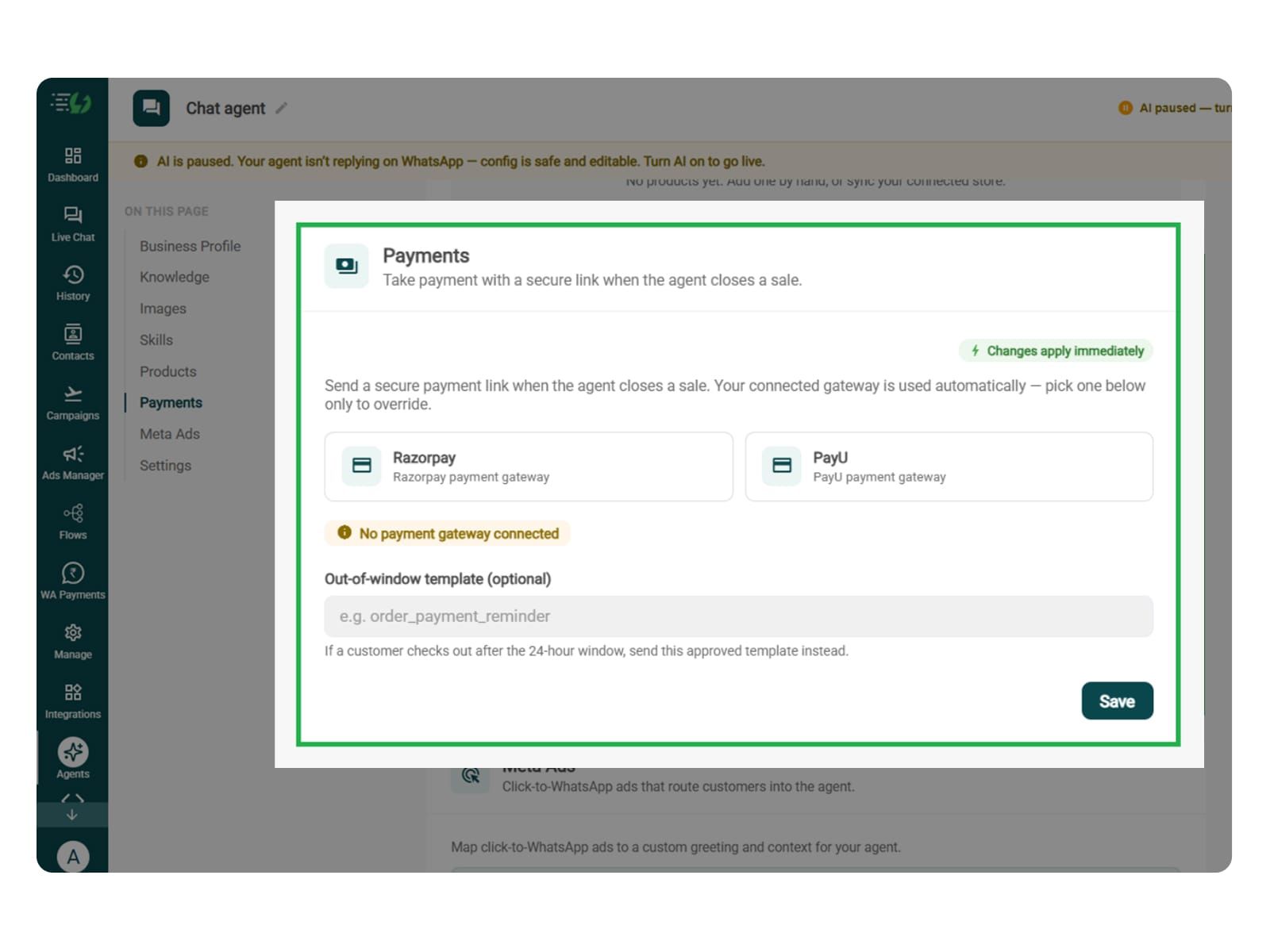
    Connect Your Payment Gateway (Optional)

    This step is relevant only if you train you agent to collect application fees, enrolment deposits, or course fees. You can simply skip this step if payments happen through an external admissions portal or a counsellor.

    Connect your payment gateway so the agent closes sales with a secure payment link, right inside the WhatsApp chat.

    • Payment gateway (Razorpay or PayU)

    • Out-of-window template (optional)

    payments.jpg

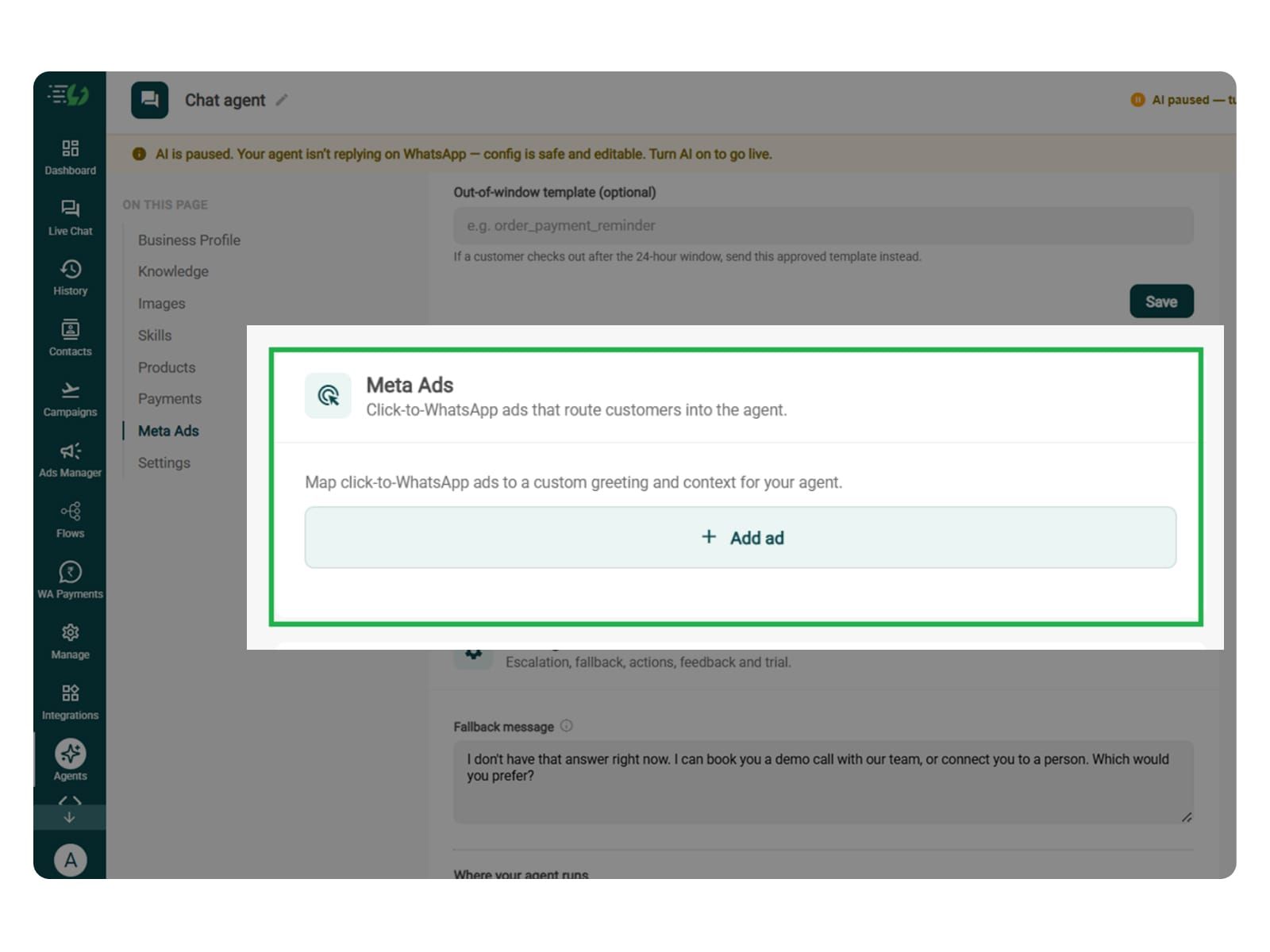
    Link Your Meta Ads (Optional)

    If you are planning to run Click-to-WhatsApp ads in order to promote admission to some specific courses, then this step proves useful. 

    You can map each ad to a custom greeting & context, so the agent knows exactly which ad brought the customer in.

    • Add ad (map ad → custom greeting & context)

    • Ad ID

    • Label

    • Greeting (first message to user)

    • Context (extra context for the agent)

    • Discount honoured at checkout (optional)

    • Products featured in this ad

    meta ads.jpg

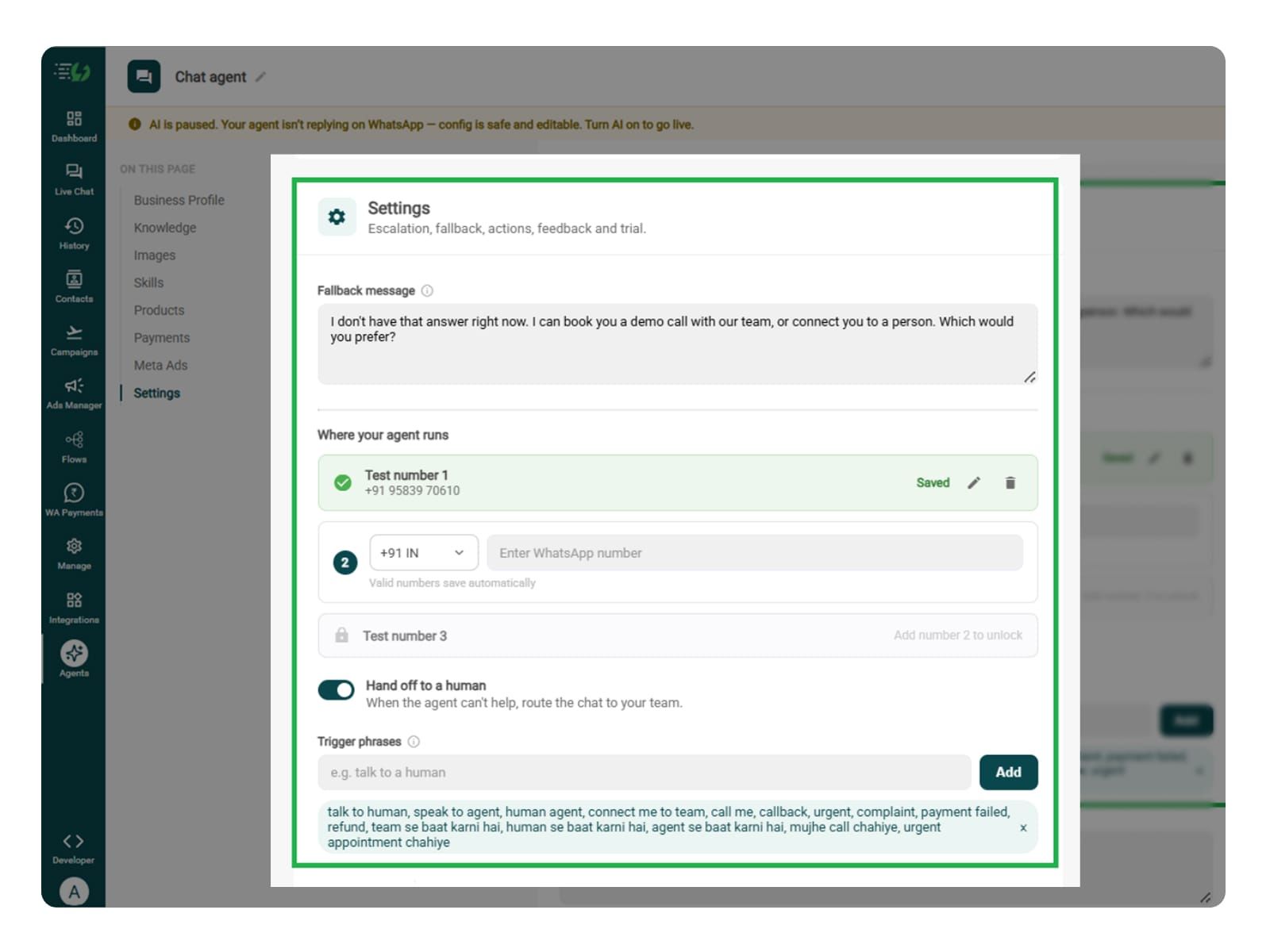
    Set Your Fallback & Handoff Rules

    This step decides what happens when the agent can't help. Here, you can set handoff triggers for situations such as eligibility exceptions, scholarship requests needing approval, document issues, payment problems, or requests to speak with a counsellor.

    Write the fallback message, switch on Hand off to a human, and add the phrases that should pull a person into the chat immediately. 

    What you must fill:

    • Fallback message

    • Where your agent runs: up to 3 test numbers

    • Hand off to a human: toggle

    • Trigger phrases

    • Handoff message

    fallback.jpg

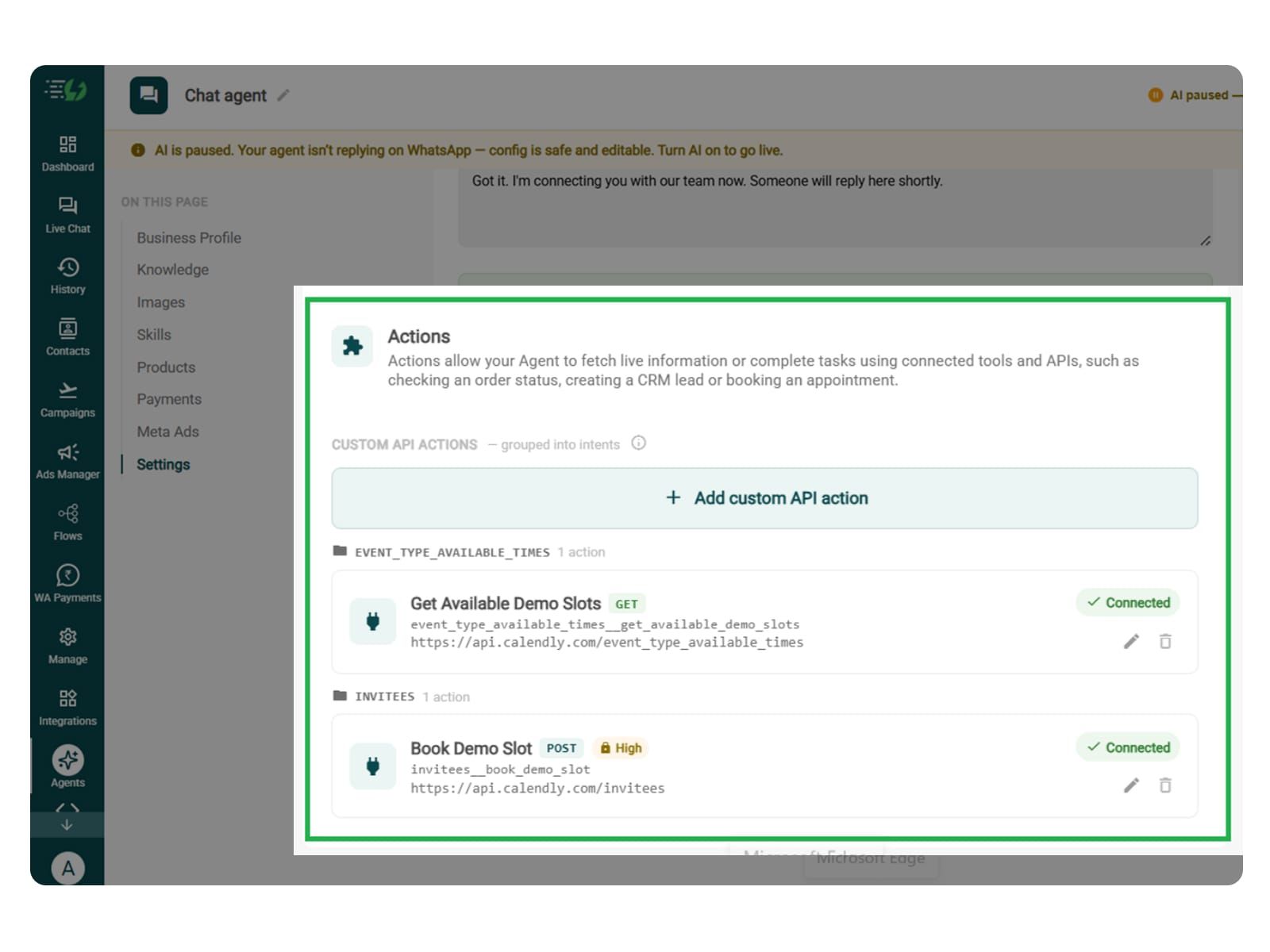
    Connect Tools & APIs (Optional)

    Connecting your tools depends on the admissions flow. It stands optional for course FAQs and sharing application link. It will be needed to submit applications, retrieve individual application status, check seat availability, or book counselling sessions in an external system.

    Actions let your agent fetch live information or complete tasks using connected tools and APIs.

    Hit Add custom API action, tell it when to call it, then paste your cURL - the request fills itself in.

    • Action name

    • When should the agent call it?

    • Paste cURL

    • Request: method + endpoint URL

    • Headers

    • Params

    • Body

    • Auth

    • Test call

    Click on - Next: variables

    Actions.jpg

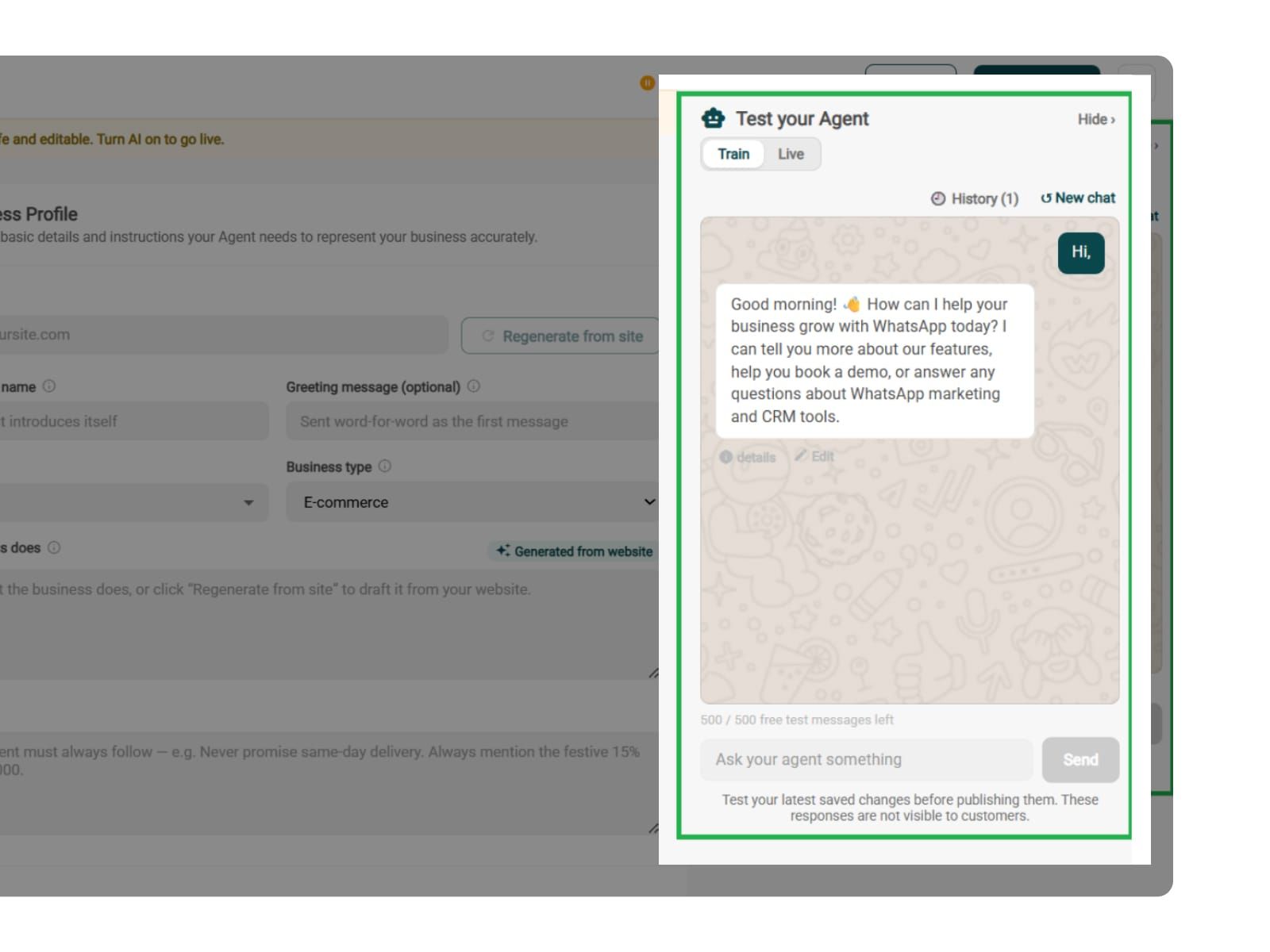
    Test, Publish & Go Live

    In this step, you can test your Admissions AI Agent before going live. You can try asking questions about eligibility, application deadlines, required documents, fees, and cases where a student doesn’t meet the admission criteria.

    Make sure the agent uses only the admission information you’ve provided. It shouldn’t invent eligibility rules, deadlines, fees, available seats, or application status.

    You can chat with your agent before your customers do with AiSensy's 500 free AI messages for a trial.

    Publish, switch the AI on & you're live.

    • Test your Agent panel (Train/Live modes)

    • Publish

    • AI on/off toggle

    test.jpg

    Simple Pricing. Every Agent Included.

    One plan unlocks the entire library - deploy any AI Agent, or build your own.

    ₹1,350

    Per Month (includes 1000 AI messages)

    Start for Free

    $50

    Per Month, Billed Annually (includes 1000 AI messages)

    Start for Free

    WhatsApp AI Agent Features

    Access every pre-built AI Agent in this library, plus the no-code builder to create your own - trained on your business and live on WhatsApp in minutes.

    • 1000 AI messages every month

    • 500 FREE AI messages for testing

    • Knowledge Base Q&A - train it on your website & documents

    • Long-term customer memory

    • No-code builder to customize any agent

    • Tool calling, skills & API integrations

    FAQ

    Frequently asked questions answered

    What can the Admissions AI Agent do?

    It answers the questions every enquiry starts with - fees, eligibility, courses, dates - then qualifies the student against your criteria and routes serious applicants to your counsellors. The ones you can't admit never reach the queue.

    What does it ask a student?

    Whatever you decide. Course of interest, board and marks, home city, intake year, budget - you set the questions and the agent asks them naturally across the conversation instead of dumping a form.

    How does it know who qualifies?

    On your rules, not its own judgement. You set the signals it must capture and the threshold an enquiry has to clear, so a below-cut-off student is handled politely without ever reaching a counsellor.

    Will it push enquiries into my CRM?

    Yes. "Push to CRM" is one of the routing options on the skill, so course, marks, city and intake land in your system automatically. Your counsellors never re-type an enquiry.

    Can it book a counselling call or campus visit?

    Yes - "Send to booking" is a routing option, and pairing it with the Appointment Booking agent lets a qualified student pick a slot in the same conversation.

    What happens to students who apply for the wrong intake?

    They go into a nurture list rather than being dropped. A student who's right for you but a year early is worth keeping warm until the intake that suits them opens.

    When does a counsellor take over?

    Whenever you decide. A qualified applicant, a question outside the agent's knowledge, or a parent who simply asks for a person - all handed over with the full conversation attached.

    Can I test it before students see it?

    Yes. You get 500 free AI messages to chat with your agent in Train mode, and up to 3 WhatsApp test numbers before going live. Nothing you test is visible to students.

    How much does the Admissions AI Agent cost?

    It's included in the AI Agent plan at ₹1350 a month which gives you 1000 AI messages for a month. That one plan unlocks every pre-built agent in the library plus the no-code builder to create your own - you're not paying per agent.