WhatsApp AI Agent by AiSensy
WhatsApp AI Agent for Appointment Booking
Fill your calendar without a single phone call with this WhatsApp AI Agent.
Train the ready-made Appointment Booking WhatsApp AI Agent on your services & hours, and let it book, reschedule and cancel round the clock.
No coding needed!

What Your AiSensy Appointment Booking AI Agent Handles
Every step of booking a slot happens inside WhatsApp, taking the load off your front desk.
Shows Real Availability
Connected to your scheduling tool, the agent offers slots that are genuinely free - so nobody waits for someone to ring them back.
Books the Slot Inside the Chat
The customer picks a time & it's confirmed on the spot. No forms, no app download, no phone tag. Everything within a WhatsApp chat.
Reschedules & Cancels Too
Plans may change. The AI agent moves or cancels the booking itself and frees the slot, instead of leaving it to sit empty.
Asks What You Need First
Service, branch, name, anything else you require - collected before the slot is held, so your team isn't chasing basics later.
Confirms in Writing, Every Time
Your own confirmation message goes out the moment a slot is booked, so the customer has the details in the WhatsApp chat they already use.
Books in Your Customer's Language
English, Hindi, Hinglish or anything in between - the agent matches how your customer talks.
How an Appointment Booking Happens on WhatsApp
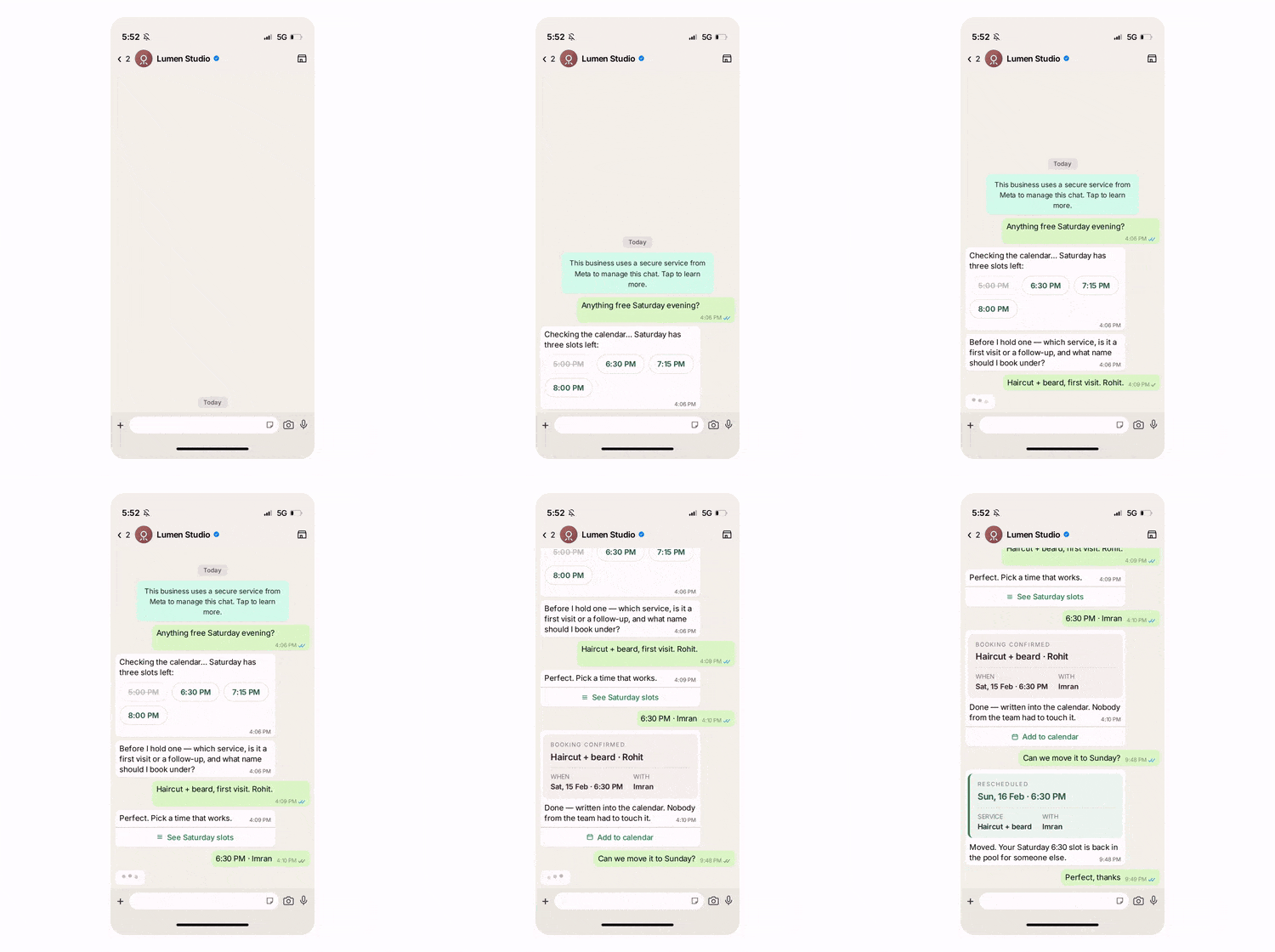
A real conversation, step by step - your front desk never touches it.
The Request
Customer asks a simple question : "Anything free Saturday evening?"
The WhatsApp AI agent runs through the instructions fed and checks your live calendar & replies with the slots that are actually open.
The Details
Before holding the slot, the agent asks for other details that you need to know such as - which service the customer seeks, it's their first visit or a follow-up, and what name to book under.
The Booking
The customer picks the slot that suits them the most, let's say - 6:30pm. The slot booking gets confirmed in chat, written into your calendar. This all gets done within a WhatsApp chat.
The Change
Any last minute changes in the schedule may turn up. Such as a WhatsApp message on a Friday night: "Can we move it to Sunday?"
The WhatsApp AI agent analyzes the situation and then reschedules & frees the Saturday slot - which someone else can now take.

Key Terms: How AiSensy AI Agent works
A brief description on each section you'll see inside AiSensy WhatsApp AI Agent Dashboard and what each one actually does.

Business Profile
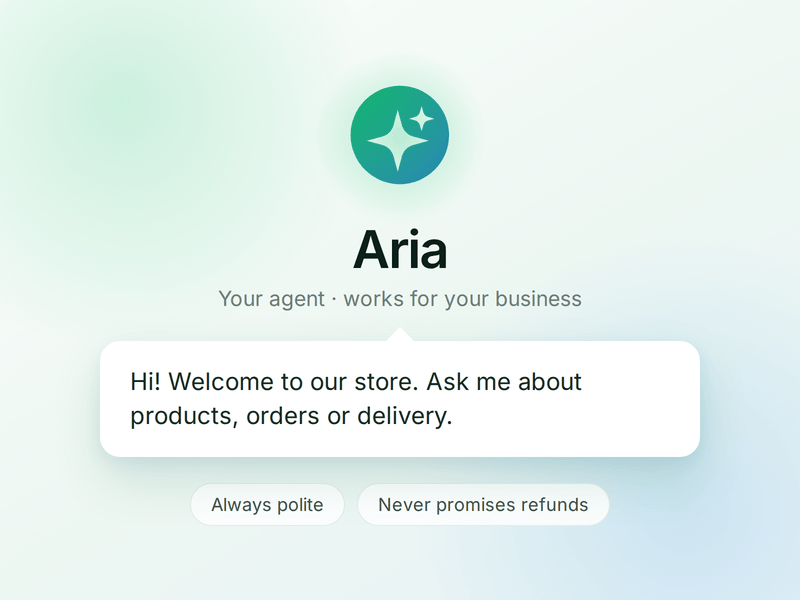
Who your agent is and who it works for. Your business details, the agent's name and greeting, and the ground rules it must always follow.

Knowledge
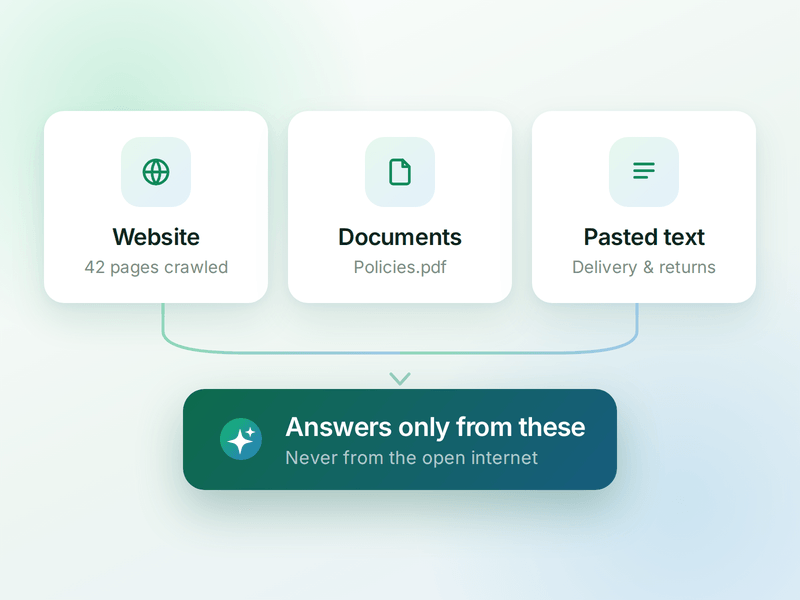
Everything your agent is allowed to know. Crawl your website, upload documents or paste text - the WhatsApp AI agent answers from these, not from the internet.

Skills
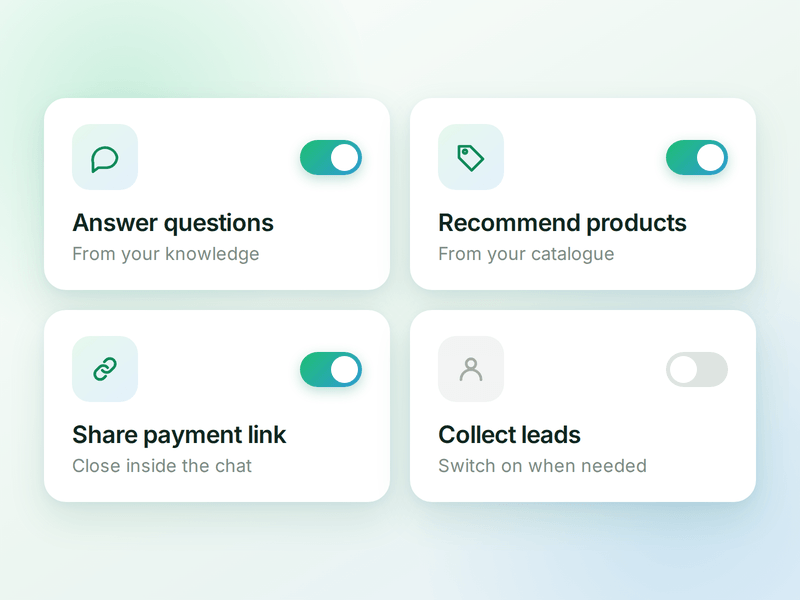
The jobs your agent can do. Switch on a ready-made skill or create your own, and the agent works out which one a conversation needs.

Products
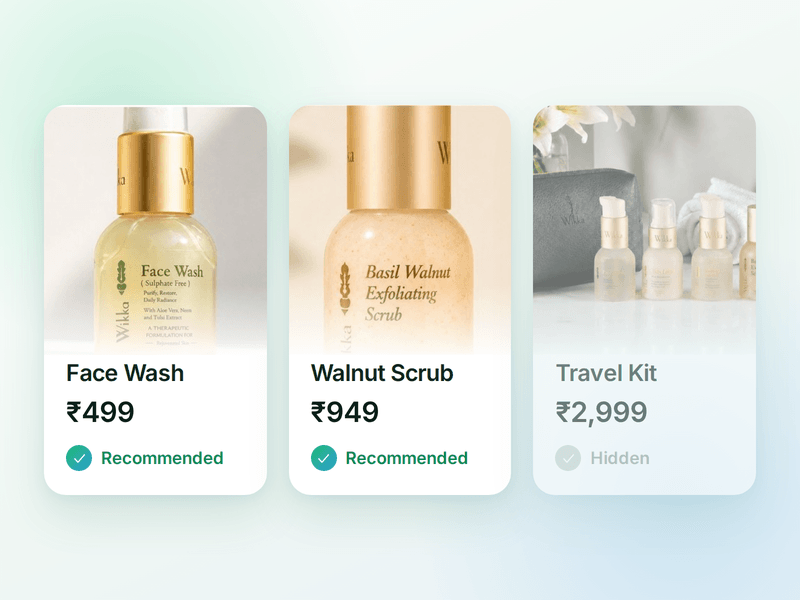
The catalogue your agent sells from. Sync your store or add items by hand, then pick which ones the agent is allowed to recommend.

Payments
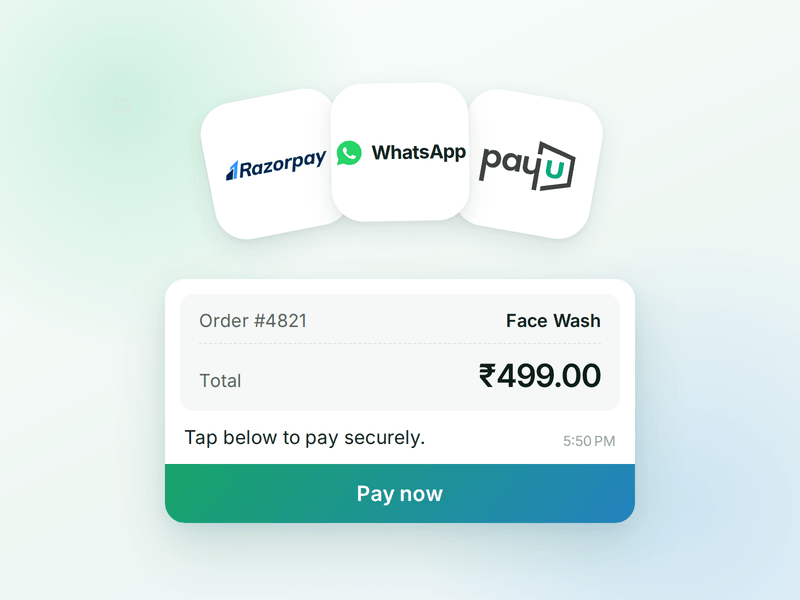
Your checkout, inside the WhatsApp chat. Connect Razorpay or PayU & the agent can send a secure payment link the moment a customer decides.

AI Messages
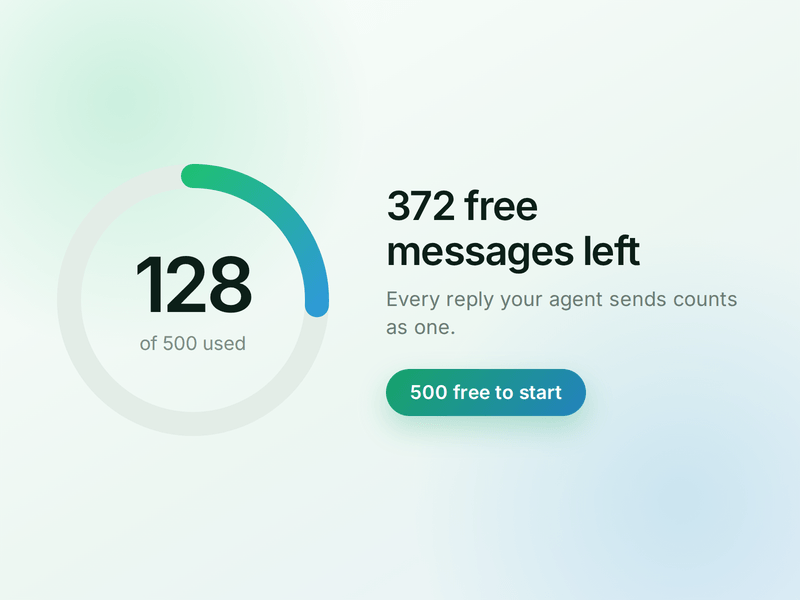
Each reply sent by your AI Agent counts as one AI Message and is deducted from your active plan. You get 500 free AI Messages to test your agent before going live.
How to Build Your WhatsApp Appointment Booking AI Agent in AiSensy
Here's how a real brand goes from zero to a live Appointment Booking AI Agent on WhatsApp.
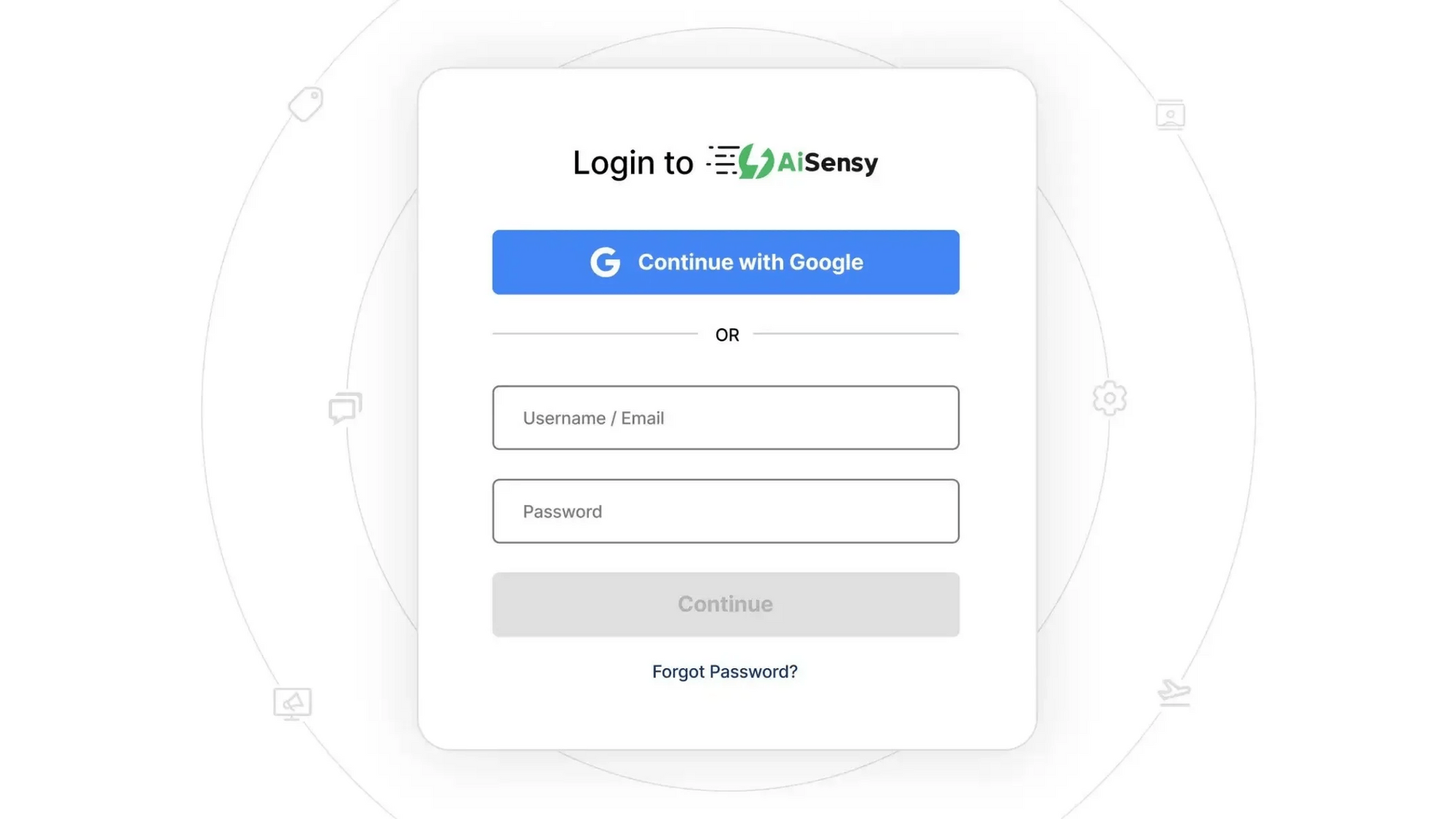
Sign up on AiSensy
Go to the AiSensy Signup Page. Create your account using either:
Your Google account, or
Your business email address by filling out the sign-up form.
Once signed up, Log in to AiSensy using the same Google account or email credentials.

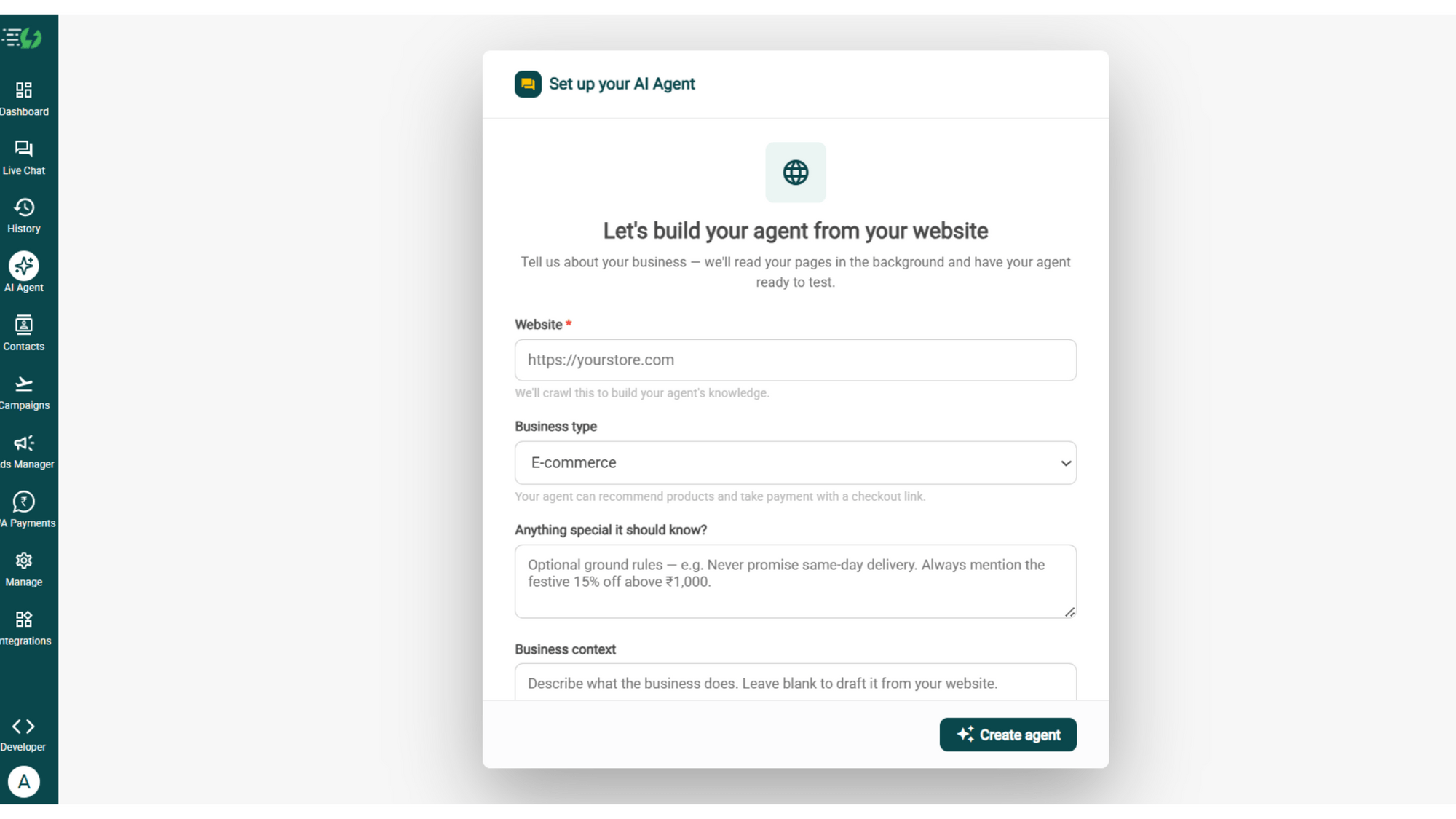
Build Your Agent from Your Website
Once you are logged in, navigate to and click on AI Agent available on the navbar on the left.
Fill in the details given below:
Website (mandatory)
Business type
Anything special it should know? (optional)
Business context (optional)
Once you fill these details correctly, proceed to hit '✨ Create agent' button. AiSensy automatically builds an agent trained on your business.

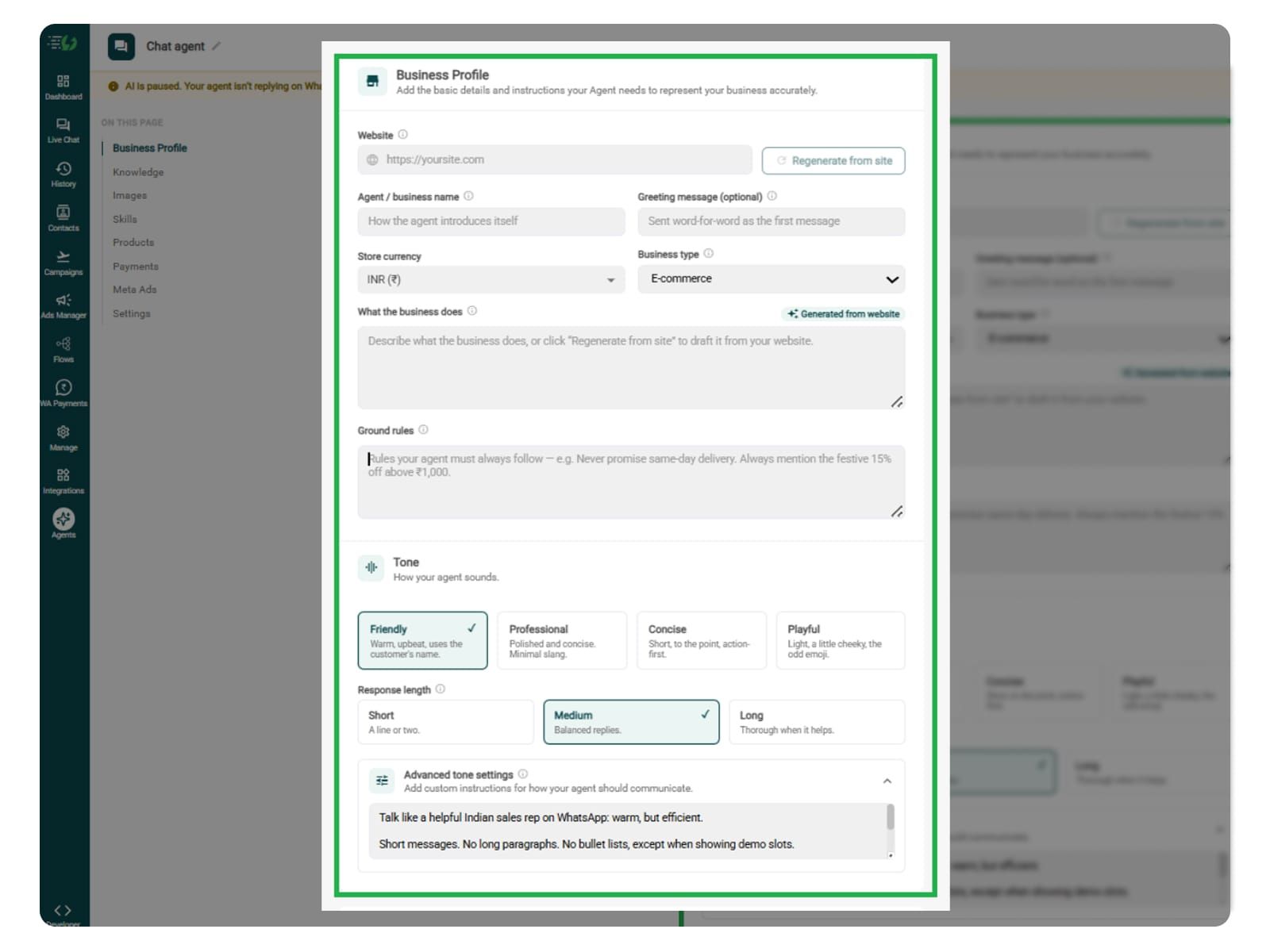
Add Your Business Profile
When you add your website, AiSensy AI engine auto-generates your business description. Set your agent's name, greeting, and a few ground rules it must always follow.
Fill the details given below:
Website (fetched automatically)
Agent/business name
Greeting message (optional)
Store currency
Business type
What the business does
Ground rules

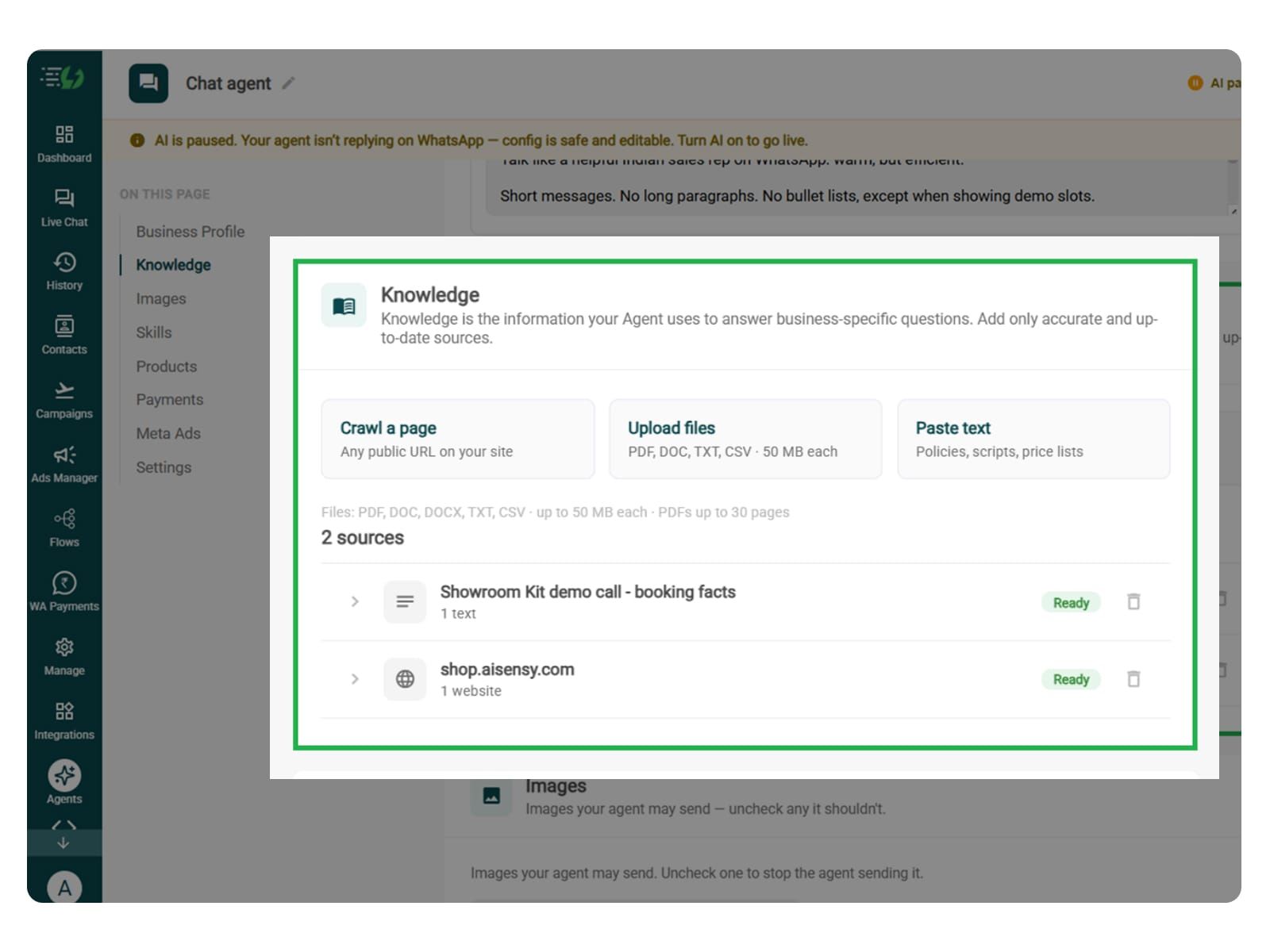
Train the Agent with Your Knowledge
In this step, you have to tell the agent about your business website. Here, you can include services, durations, fees, locations, operating hours, preparation instructions, and cancellation or rescheduling policies. Adding operating hours alone don’t tell the agent which slots are available.
It answers from the information you feed to it. This information can be submitted in the form of PDF, DOC, TXT, or CSV files. It never gives generic replies.
Every source shows "Ready" once learned.
Perform the below mentioned steps:
Crawl a page (website URL)
Upload files (PDF, DOC, TXT, CSV - up to 50MB each)
Paste text (policies, scripts, price lists)

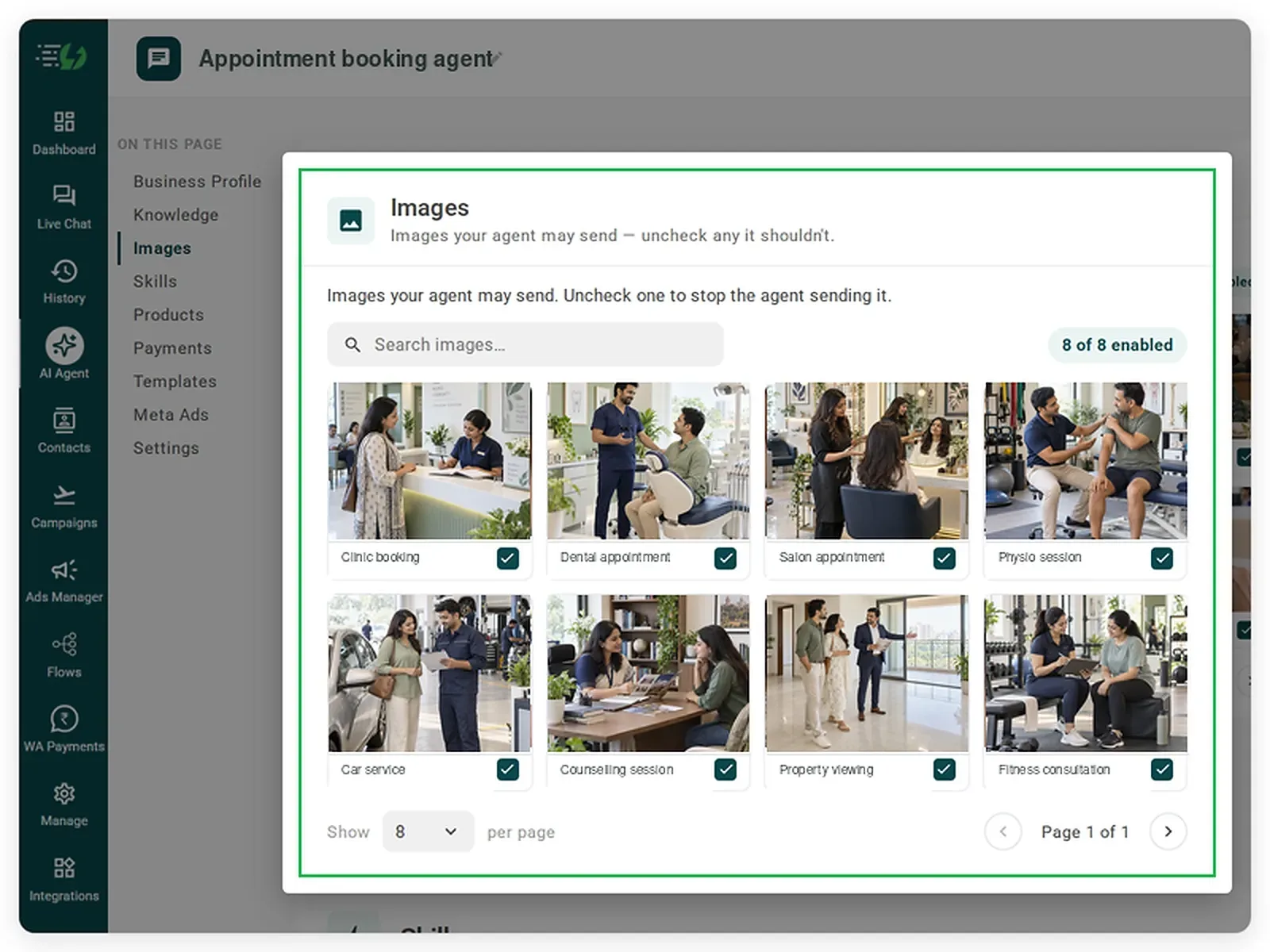
Choose the Images It Can Share (Optional)
You can keep this step only if you add location maps, entrance photos, or preparation guides can help customers, but the step is not essentially important for a booking agent.
When you add your website, the WhatsApp AI Agent automatically fetches the images from it. You can control the visuals the agent can share inside the WhatsApp chat.
Untick any image it shouldn't send.
You can:
Create Image library (enable/disable per image)
Search images

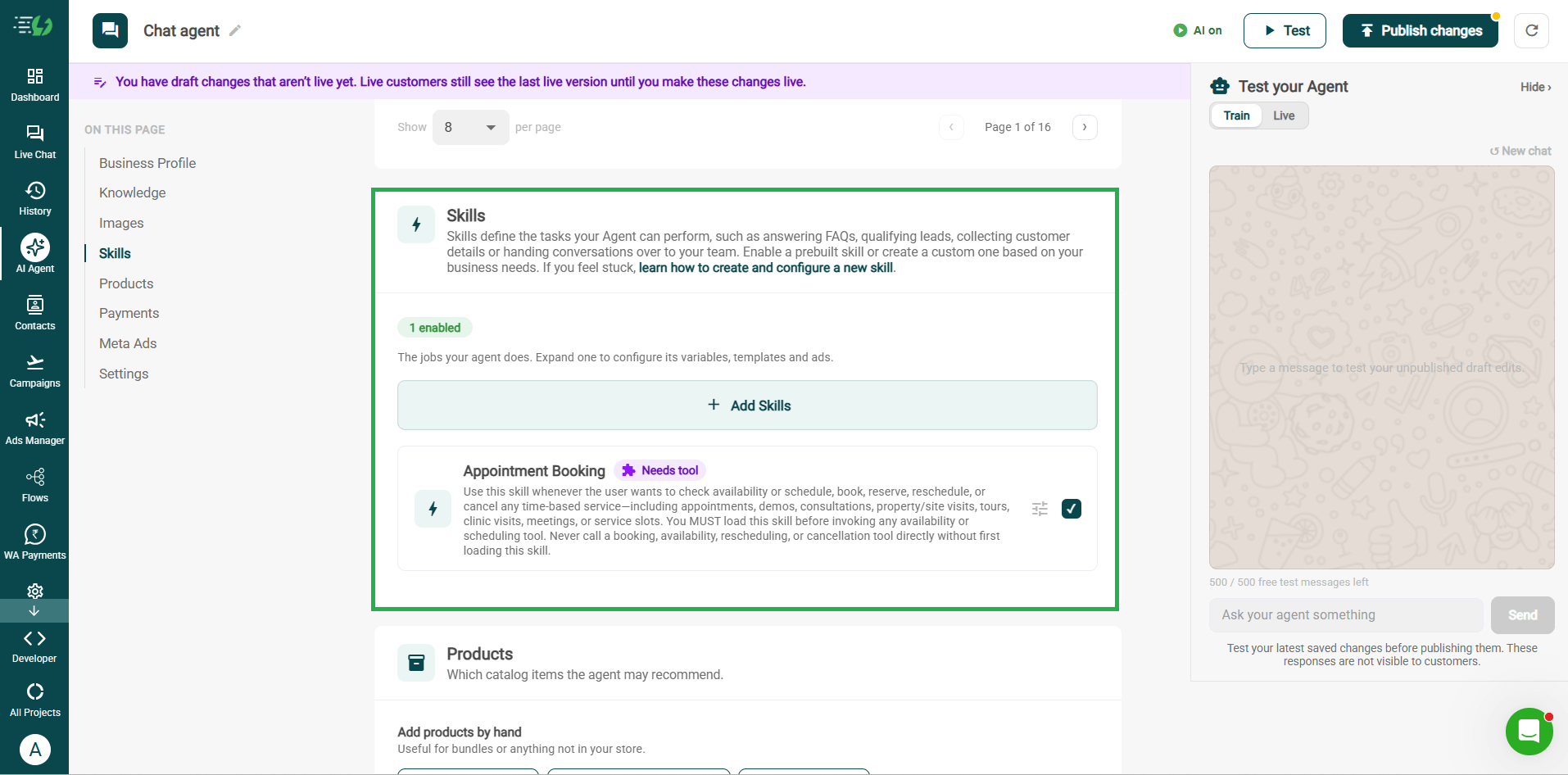
Enable the Appointment Booking Skill on Your Agent
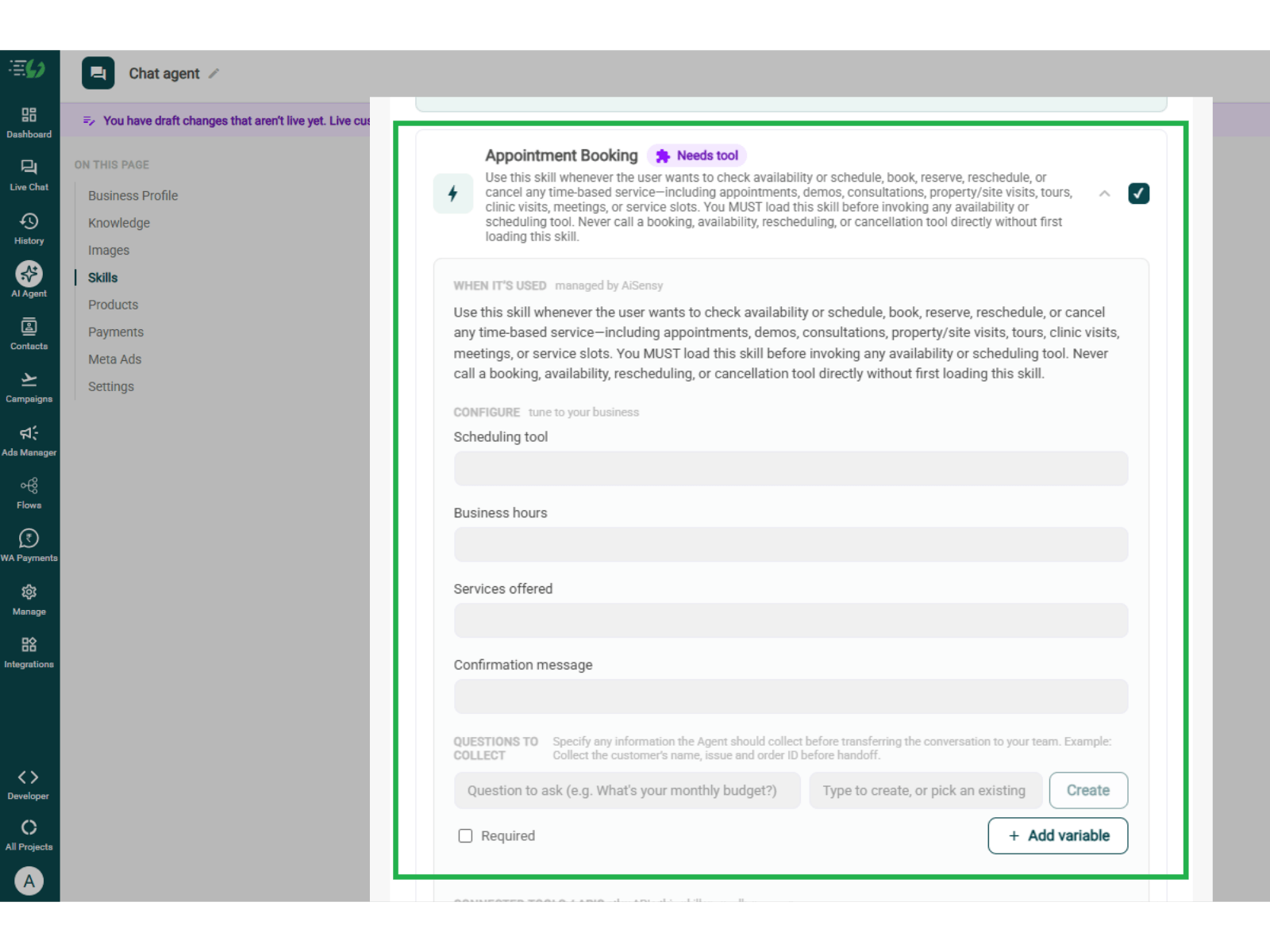
Appointment Booking skill is one of the pre-defined skills. You can simply click on '+ Add Skill' button and enable the 'Appointment Booking' skill by clicking on the checkbox available next to it.
Once the selected skill is switched on, you can expand it to set your qualifying questions, your cut-off and where a qualified applicant should go, then hit Done.
You can also train your agent to check available slots, offer suitable options, and ask the customer to confirm their selection before booking. Clearly state the date, time, time zone, and location.

Configure the Appointment Booking Skill
While configuring the skill, there are some fields which must be filled correctly. The details filled by you ensure how the agent behaves when it interacts with users.
The 'When it’s used' section covers availability checks, booking, rescheduling, and cancellations. It’s managed by AiSensy.
The details which need to be filled are:
Scheduling tool - Calendar the agent checks.
Business hours - Working hours and days off.
Services offered - Bookable services, durations, and optional prices.
Confirmation message - Message sent when booked.

Collect Booking Details and Connect Tools
Add the customer details to collect and connect your scheduling system.
Questions to collect: Ask for details such as name, service, and preferred date. Mark essential questions as Required.
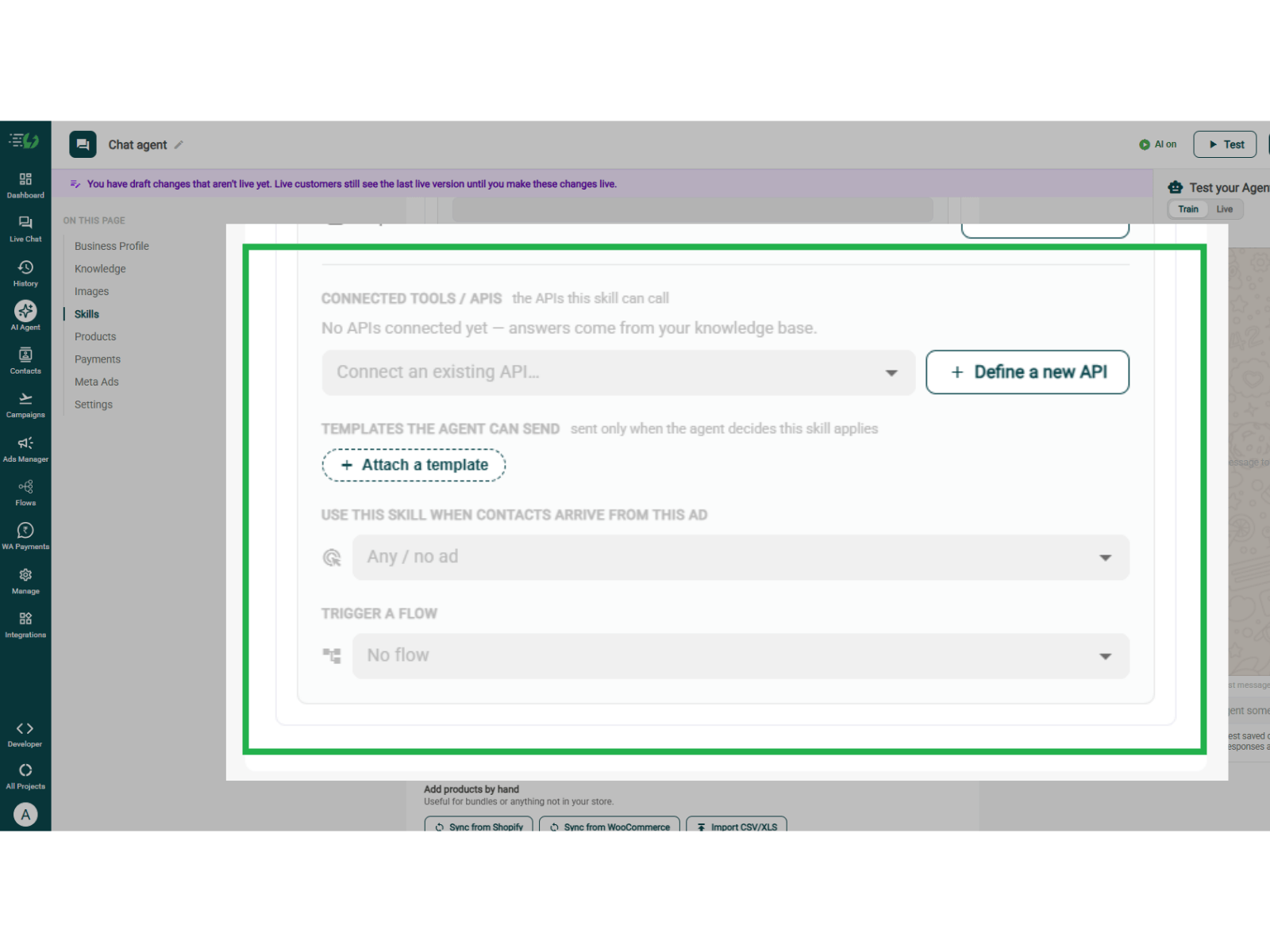
Connected tools / APIs: Connect the tool that checks availability and manages bookings.
Templates: Attach approved WhatsApp messages.
Ad mapping: Select the ad linked to this skill, if relevant.
Trigger a flow: Choose an optional chatbot flow.
This skill needs a connected scheduling tool to check live availability and complete booking actions.

Define a New API (Optional)
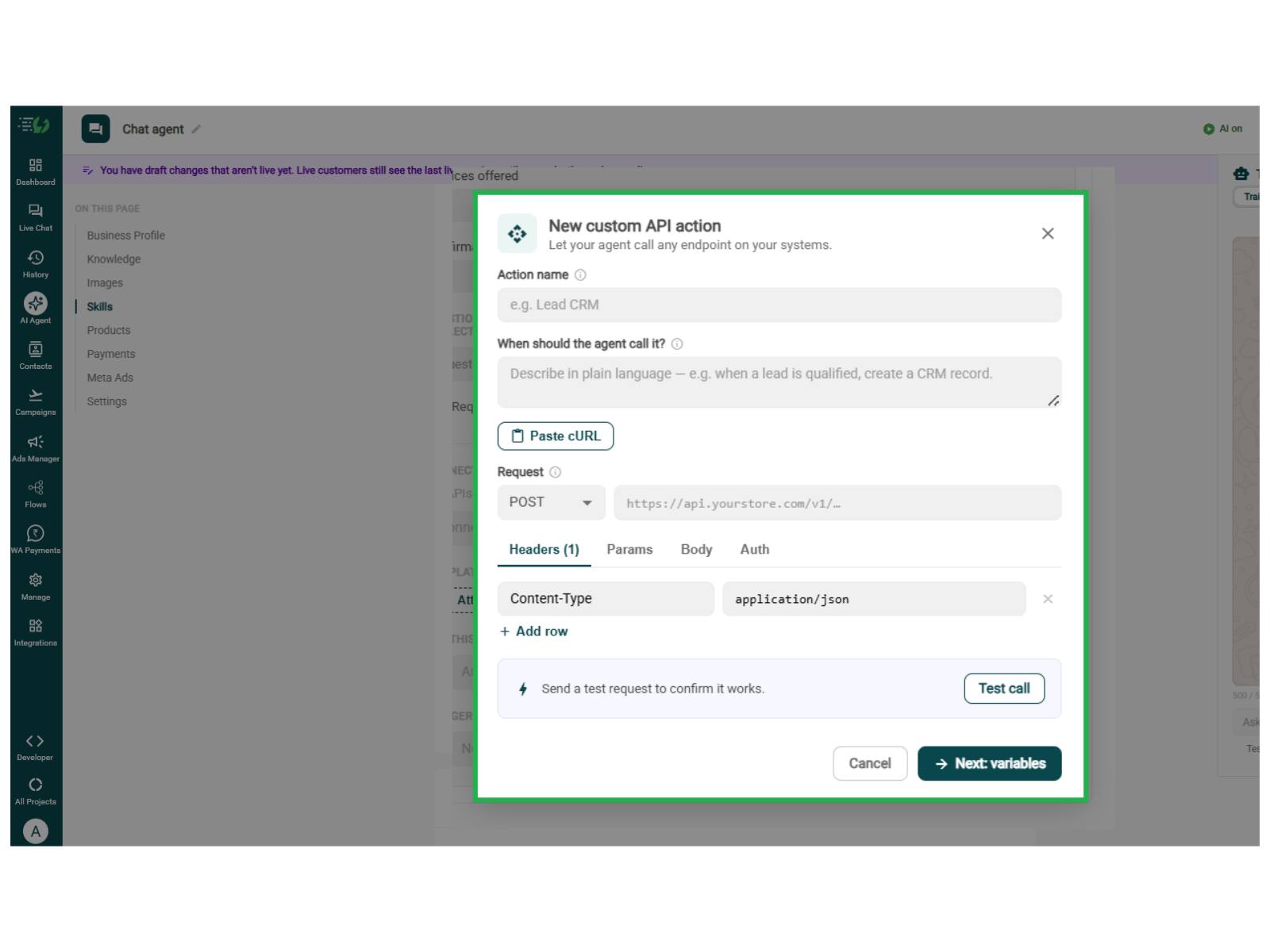
If your scheduling API isn’t already connected, click + Define a new API.
Action name: Name the action, such as “Check Available Slots”.
When should the agent call it? Describe when it should run.
Request: Select the method and enter the API URL.
Headers, Params, Body & Auth: Add the details required by your API.
You can also use Paste cURL to import the request.
Click Test call to check it, then Next: variables to continue.

Connect Your Payment Gateway (Optional)
This step can be optional. It proves useful only while booking requires an advance payment or deposit. You can simply skip this step for free appointments or payments collected at the appointment.
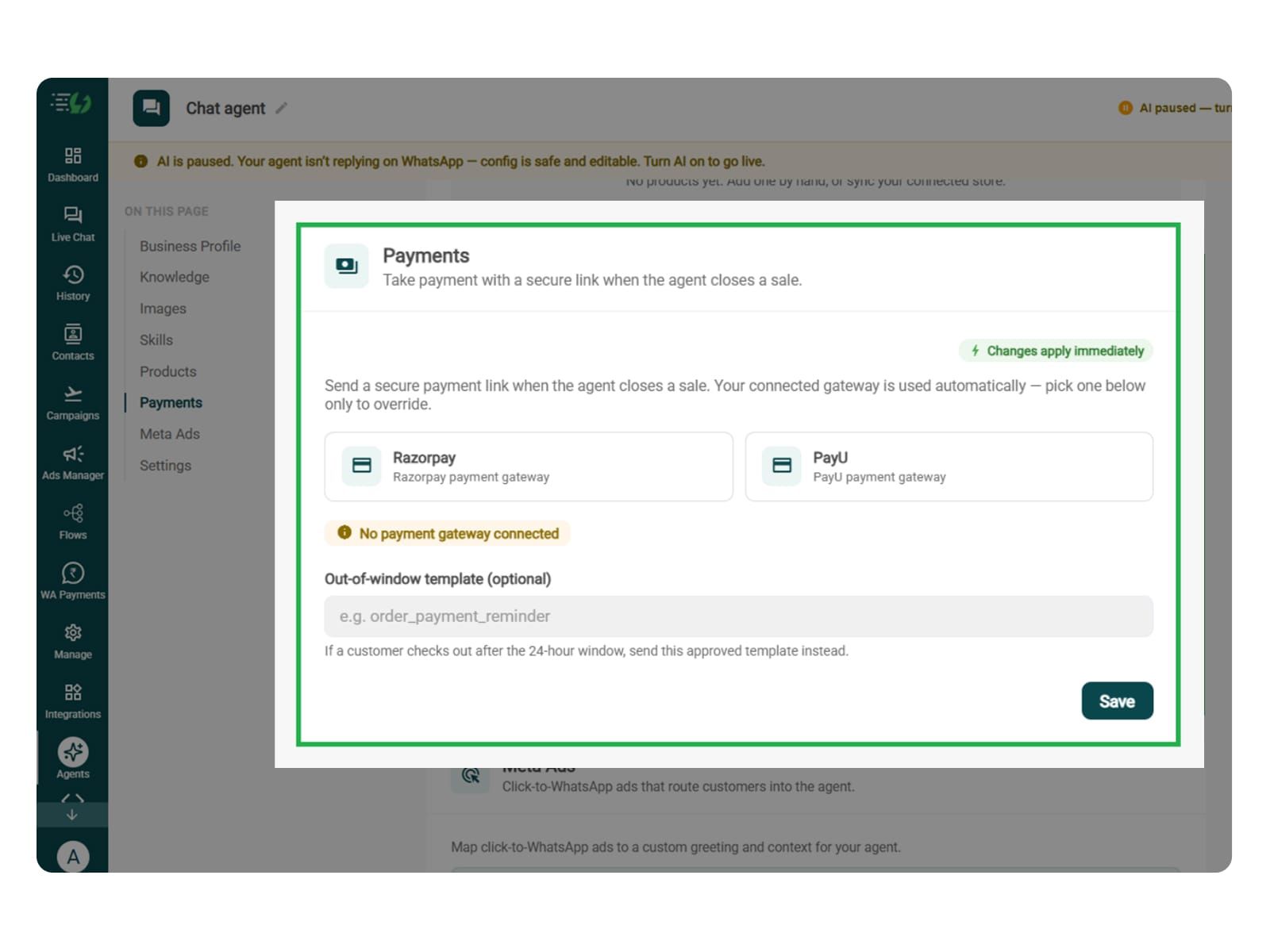
Connect your payment gateway so the agent closes sales with a secure payment link, right inside the WhatsApp chat.
Payment gateway (Razorpay or PayU)
Out-of-window template (optional)

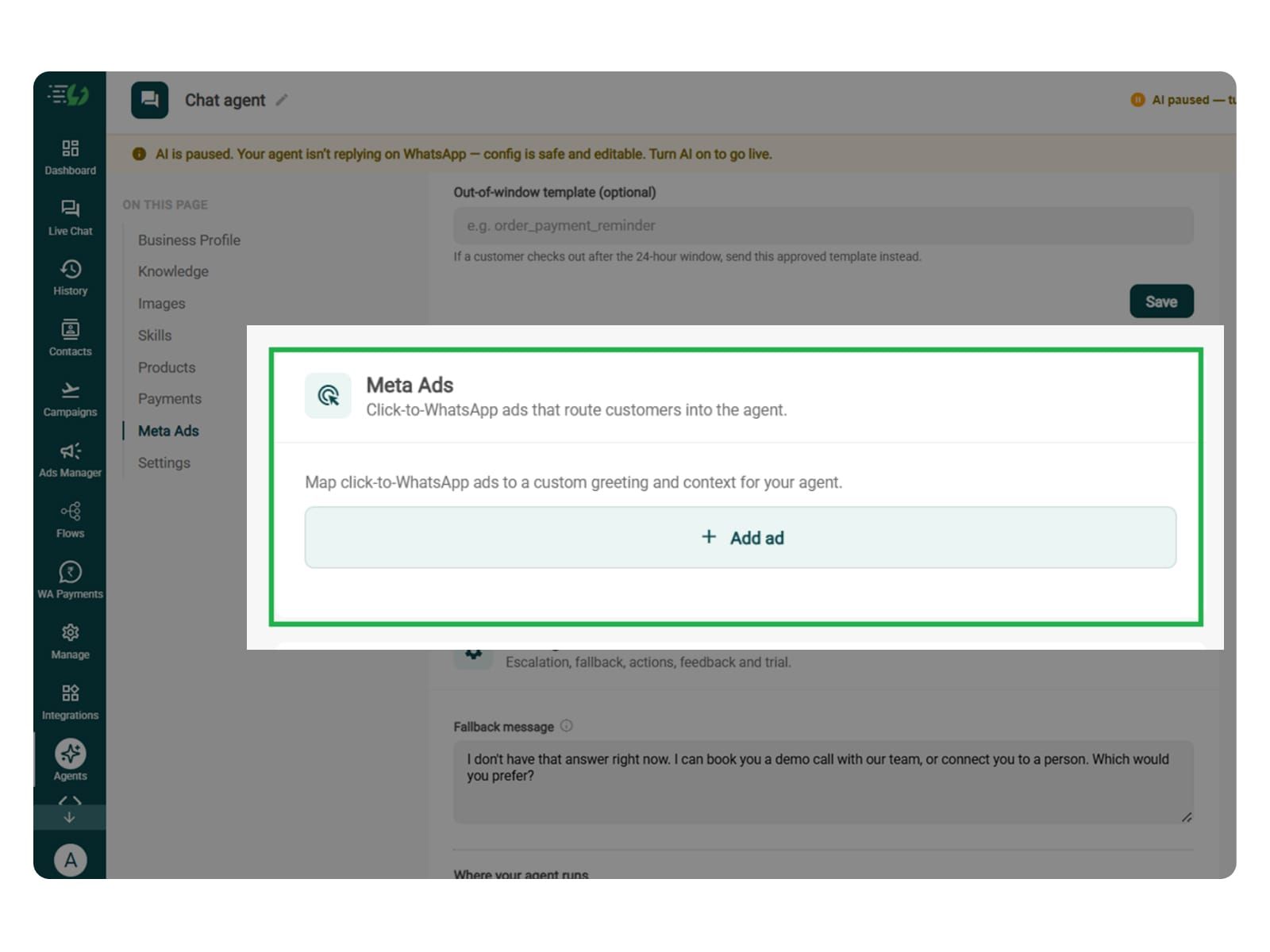
Link Your Meta Ads (Optional)
You can keep this step only if you are running Click-to-WhatsApp ads promoting consultations, demos, or some specific services.
Map each ad to a custom greeting & context, so the agent knows exactly which ad brought the customer in.
Add ad (map ad → custom greeting & context)
Ad ID
Label
Greeting (first message to user)
Context (extra context for the agent)
Discount honoured at checkout (optional)
Products featured in this ad

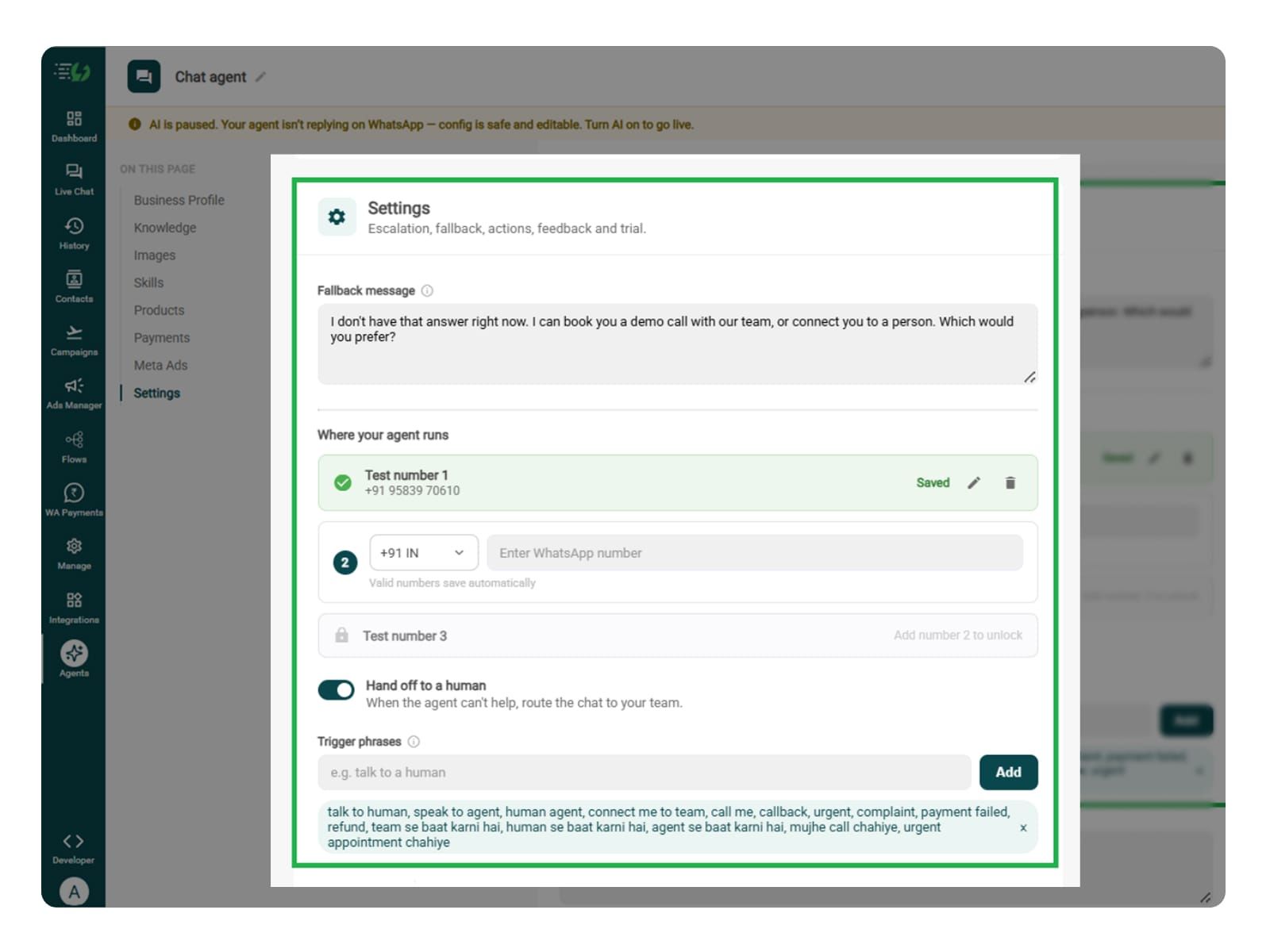
Set Your Fallback & Handoff Rules
In this step, you will be required to train your agent to use triggers for booking failures, unavailable slots with no suitable alternatives, policy exceptions, payment issues, or requests to speak with your team.
This step decide what happens when the agent can't help. Write the fallback message, switch on Hand off to a human, and add the phrases that should pull a person into the WhatsApp chat.
What you must fill:
Fallback message
Where your agent runs: up to 3 test numbers
Hand off to a human: toggle
Trigger phrases
Handoff message

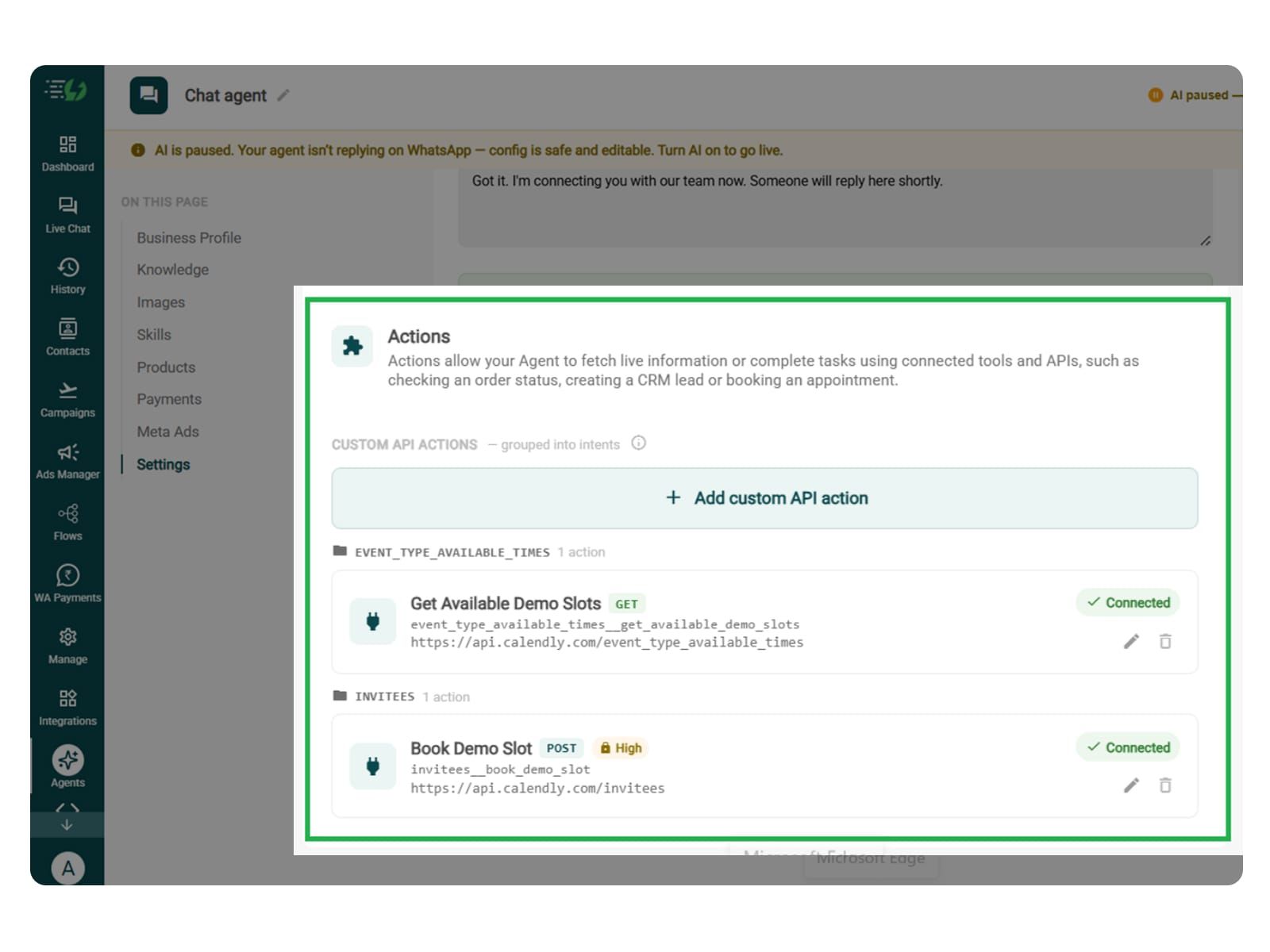
Connect Tools & APIs (Optional)
Though the step is optional but is essential for an appointment booking agent. You can connect the relevant calendar or booking system to check availability and create, reschedule, or cancel appointments.
If you want your agent to only share a booking link or collect requests for your team to confirm, then you can simply skip this step.
Actions let your agent fetch live information or complete tasks using connected tools and APIs - checking an order status, creating a CRM lead or booking an appointment.
Hit Add custom API action, tell it when to call it, then paste your cURL - the request fills itself in.
Action name
When should the agent call it?
Paste cURL
Request: method + endpoint URL
Headers
Params
Body
Auth
Test call
Click on - Next: variables

Test, Publish & Go Live
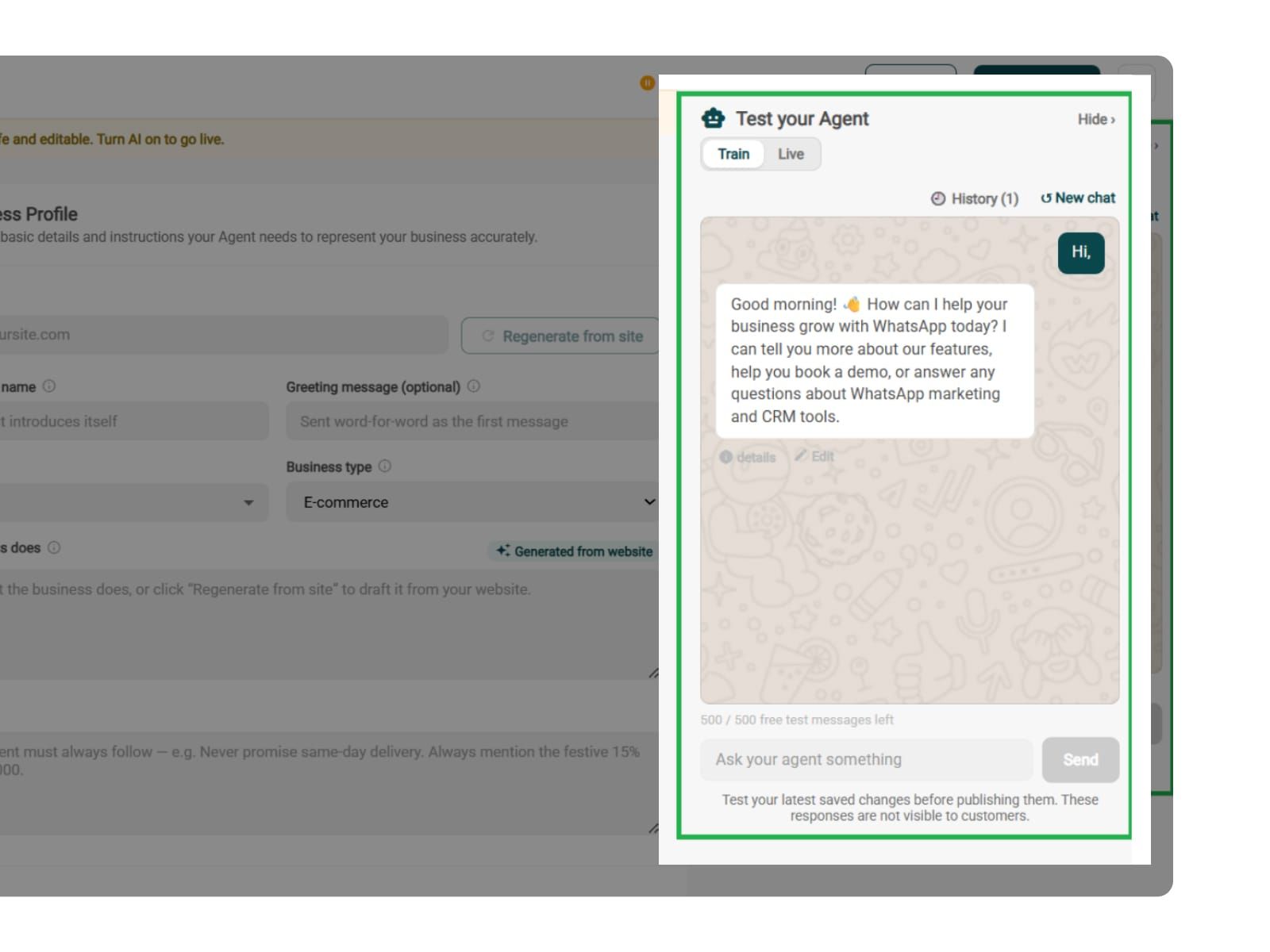
Before you go live with your agent, you can simply test if this works fine or not. You can test new bookings, rescheduling, cancellations, unavailable slots, and integration failures.
The agent can also verify ownership before changing existing appointments, and confirm a booking only after the scheduling system reports success.
You can chat with your agent before your customers do with AiSensy's 500 free AI messages for a trial.
Publish, switch the AI on & you're live.
Test your Agent panel (Train/Live modes)
Publish
AI on/off toggle

Simple Pricing. Every Agent Included.
One plan unlocks the entire library - deploy any AI Agent, or build your own.
₹1,350
Per Month (includes 1000 AI messages)
$50
Per Month, Billed Annually (includes 1000 AI messages)
WhatsApp AI Agent Features
Access every pre-built AI Agent in this library, plus the no-code builder to create your own - trained on your business and live on WhatsApp in minutes.
1000 AI messages every month
500 FREE AI messages for testing
Knowledge Base Q&A - train it on your website & documents
Long-term customer memory
No-code builder to customize any agenthing
Tool calling, skills & API integrations
What can the Appointment Booking AI Agent book?
Any time-based service - appointments, demos, consultations, site visits, tours, clinic visits, meetings or service slots. If it sits on a calendar, the agent can handle it.
Does it need to connect to my calendar?
Yes. This skill needs a connected scheduling tool to work - that's how it sees real availability instead of guessing. You connect it under Tools & APIs, then set your business hours and the services you offer.
Can it reschedule or cancel bookings too?
Yes, and that's where most of the value sits. The agent moves or cancels a booking on request and frees the slot, so a change of plan doesn't leave an empty chair.
What does it ask before confirming a booking?
Whatever you tell it to. Set the details it must collect - service, branch, name, anything you'd otherwise chase later - and mark which ones are required before the slot is held.
Can I limit it to my business hours and services?
Yes. Business hours and services offered are both fields on the skill, so the agent only ever offers slots you actually work and services you actually provide.
Will customers get a confirmation?
Yes. You write the confirmation message and it goes out the moment a slot is booked. You can also attach an approved template, which is what lets the agent reach a customer outside the 24-hour messaging window.
When does a human take over the conversation?
Whenever you decide. Anything outside the agent's scope, a customer who asks for a person, or a request your policy doesn't cover - handed to your team with the full conversation attached.
Will it work with my Click-to-WhatsApp ads?
Yes. Map each ad to its own greeting & context, and you can set the skill to fire only for contacts arriving from a specific ad - so a "book a free consultation" ad goes straight into booking.
Can I test it before customers see it?
Yes. You get 500 free AI messages to chat with your agent in Train mode, and up to 3 WhatsApp test numbers before going live. Nothing you test is visible to customers.
How much does the Appointment Booking AI Agent cost?
It's included in the AI Agent plan at ₹1350 a month that let's you send 1000 AI messages. That one plan unlocks every pre-built agent in the library plus the no-code builder to create your own - you're not paying per agent.