Login

WhatsApp AI Agent by AiSensy

WhatsApp AI Agent for Helpdesk Support

Handle customer complaints, connection transfers & technician bookings on WhatsApp.

The Helpdesk Support AI Agent answers enquiries, troubleshoots issues, raises tickets & helps schedule service visits.

No coding needed!

What Your AiSensy Helpdesk AI Agent Handles

From "My Wi-Fi isn't working" to booking a technician visit, all handled inside WhatsApp.

Answers Common Support Questions

From slow internet and billing issues to password resets and connection problems, the AI Agent handles everyday customer enquiries, 24/7.

Walks Customers Through Troubleshooting

Many issues need a simple fix. The WhatsApp AI Agent guides customers through approved router checks, cable connections, and restart steps before raising a complaint.

Helps With Wi-Fi & Connection Transfers

"I'm shifting to a new house. Can I transfer my Wi-Fi?"

The agent collects the new address, checks service availability through your connected system, and guides customers through the transfer process.

Books Technician Visits Automatically

Need someone to visit your home?

The agent checks available technician slots and helps customers book installation, repair, or connection transfer visits.

Shares Live Ticket & Service Updates

"Any update on my complaint?"

The agent retrieves ticket status, technician visit details, or connection transfer updates from your connected support system.

Escalates With the Whole History Attached

For genuine faults, the WhatsApp AI agent hands over the chat with full context, so customers don’t have to repeat themselves.

How a Customer Support Request Gets Handled on WhatsApp

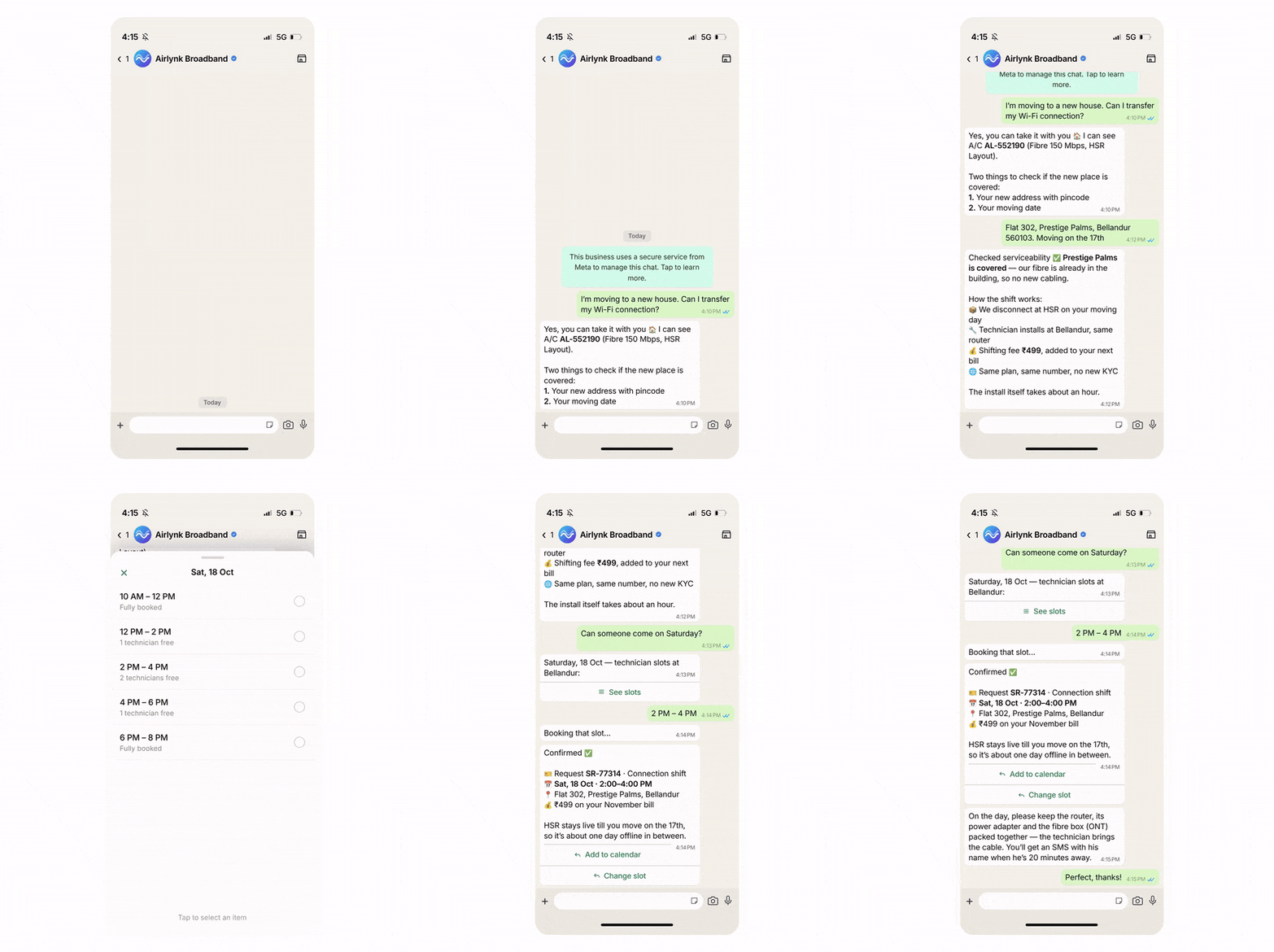
Here's how the AiSensy Helpdesk Support WhatsApp AI Agent handles connection transfers, checks availability, and schedules technician visits automatically.

  • Starts With a Customer Request

    Customer: "I'm moving to a new house. Can I transfer my Wi-Fi connection?"

    The agent asks for their new address and moving date to understand the transfer request and check the next steps.

  • Checks Service Availability

    The agent checks your connected serviceability system to see whether the internet connection is available at the new address. It also explains the transfer process and applicable charges.

  • Finds a Technician Visit Slot

    Customer: "Can someone come on Saturday?"

    The agent checks available technician slots and shares suitable timings for the connection transfer or installation.

  • Confirms the Service Visit

    Once the customer selects a slot, the agent books the visit through your connected system and shares the confirmed date, time, and service request details on WhatsApp.

  • helpdesk support new.gif

    Key Terms: How AiSensy WhatsApp AI Agent works

    A brief description on each section you'll see inside AiSensy AI Agent dashboard and what each one actually does.

    term_1_business_profile.png

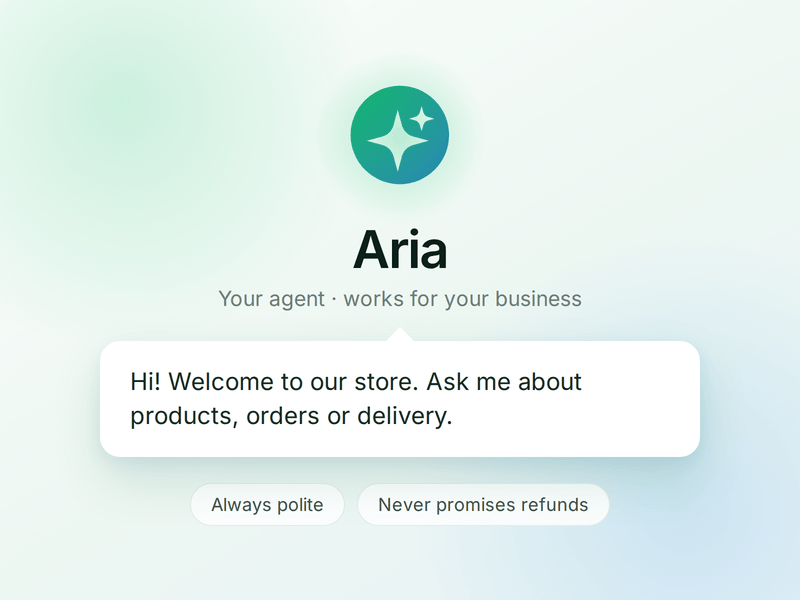
    Business Profile

    Who your agent is and who it works for. Your business details, the agent's name and greeting, and the ground rules it must always follow.

    term_2_knowledge.png

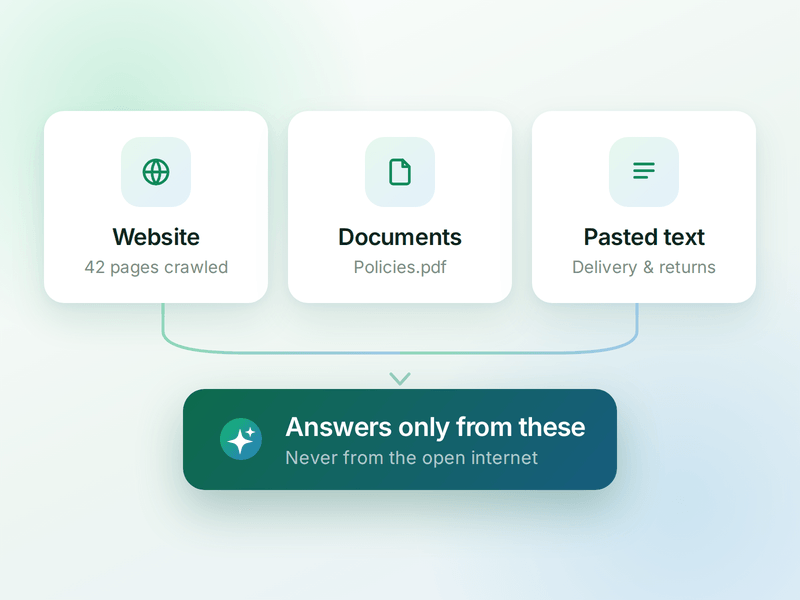
    Knowledge

    Everything your agent is allowed to know. Crawl your website, upload documents or paste text - the WhatsApp AI agent answers from these, not from the internet.

    term_3_skills.png

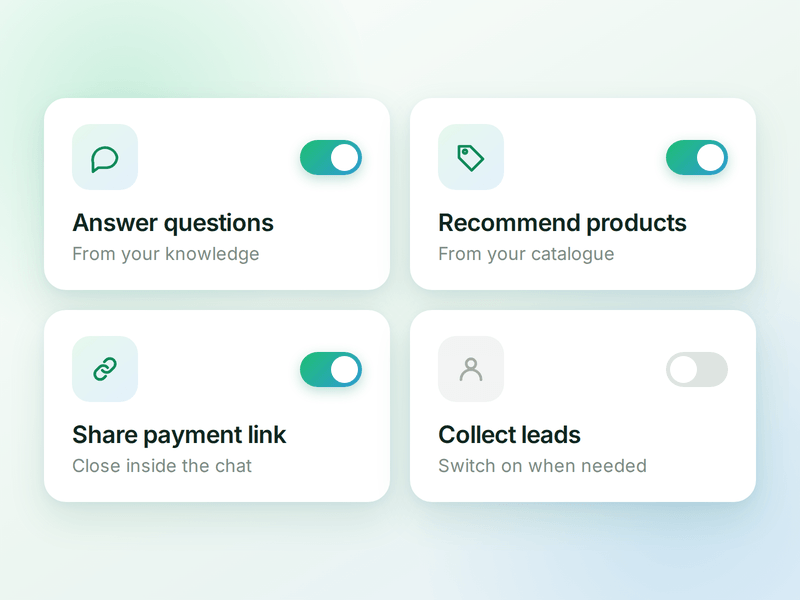
    Skills

    The jobs your agent can do. Switch on a ready-made skill or create your own, and the agent works out which one a conversation needs.

    term_4_products.png

    Products

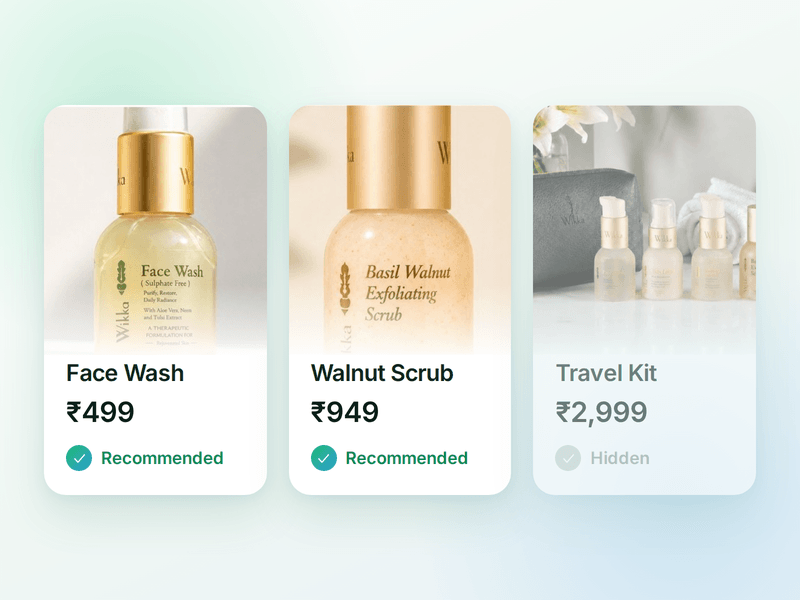
    The catalogue your agent sells from. Sync your store or add items by hand, then pick which ones the agent is allowed to recommend.

    term_5_payments (1).png

    Payments

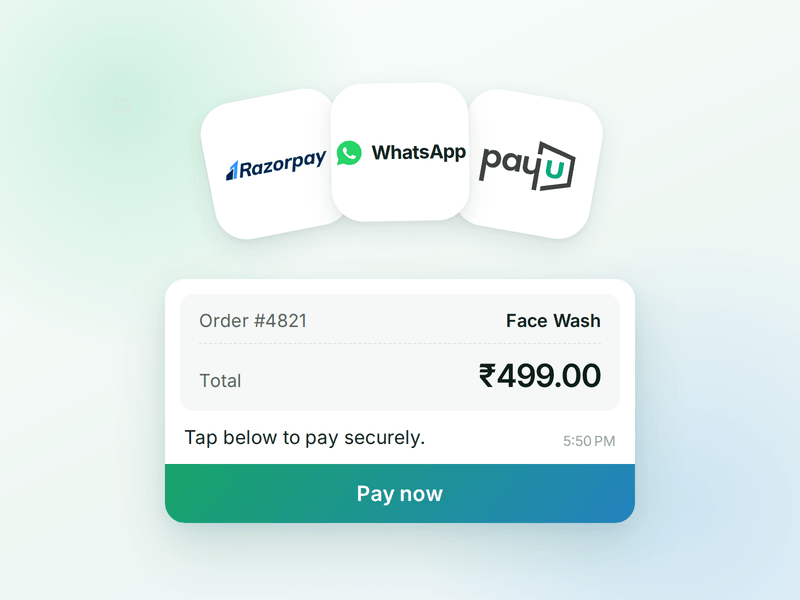
    Your checkout, inside the WhatsApp chat. Connect Razorpay or PayU & the agent can send a secure payment link the moment a customer decides.

    term_6_ai_messages (2).png

    AI Messages

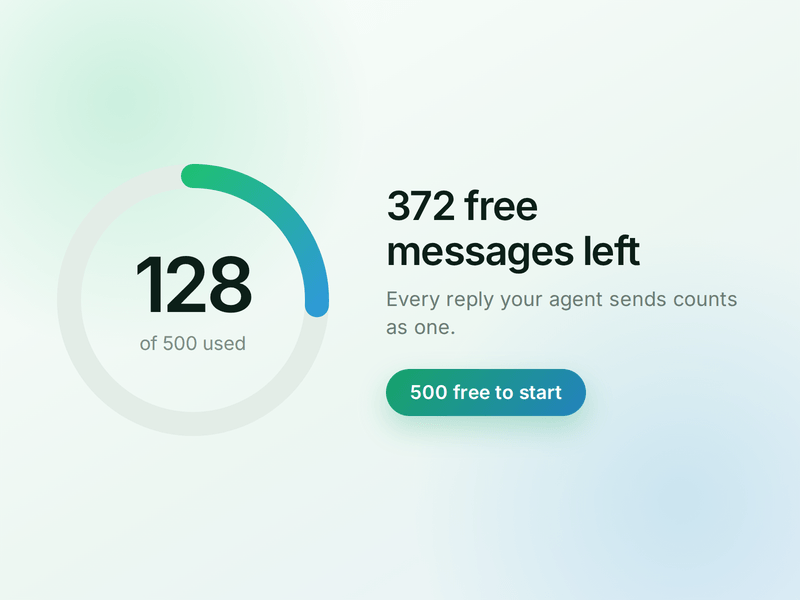
    Each reply sent by your AI Agent counts as one AI Message and is deducted from your active plan. You get 500 free AI Messages to test your agent before going live.

    How to Build Your WhatsApp Helpdesk AI Agent in AiSensy

    Here's how a real brand goes from zero to a live Helpdesk AI Agent on WhatsApp.

    Sign up on AiSensy

    Go to the AiSensy Signup Page. Create your account using either:

    • Your Google account, or

    • Your business email address by filling out the sign-up form.

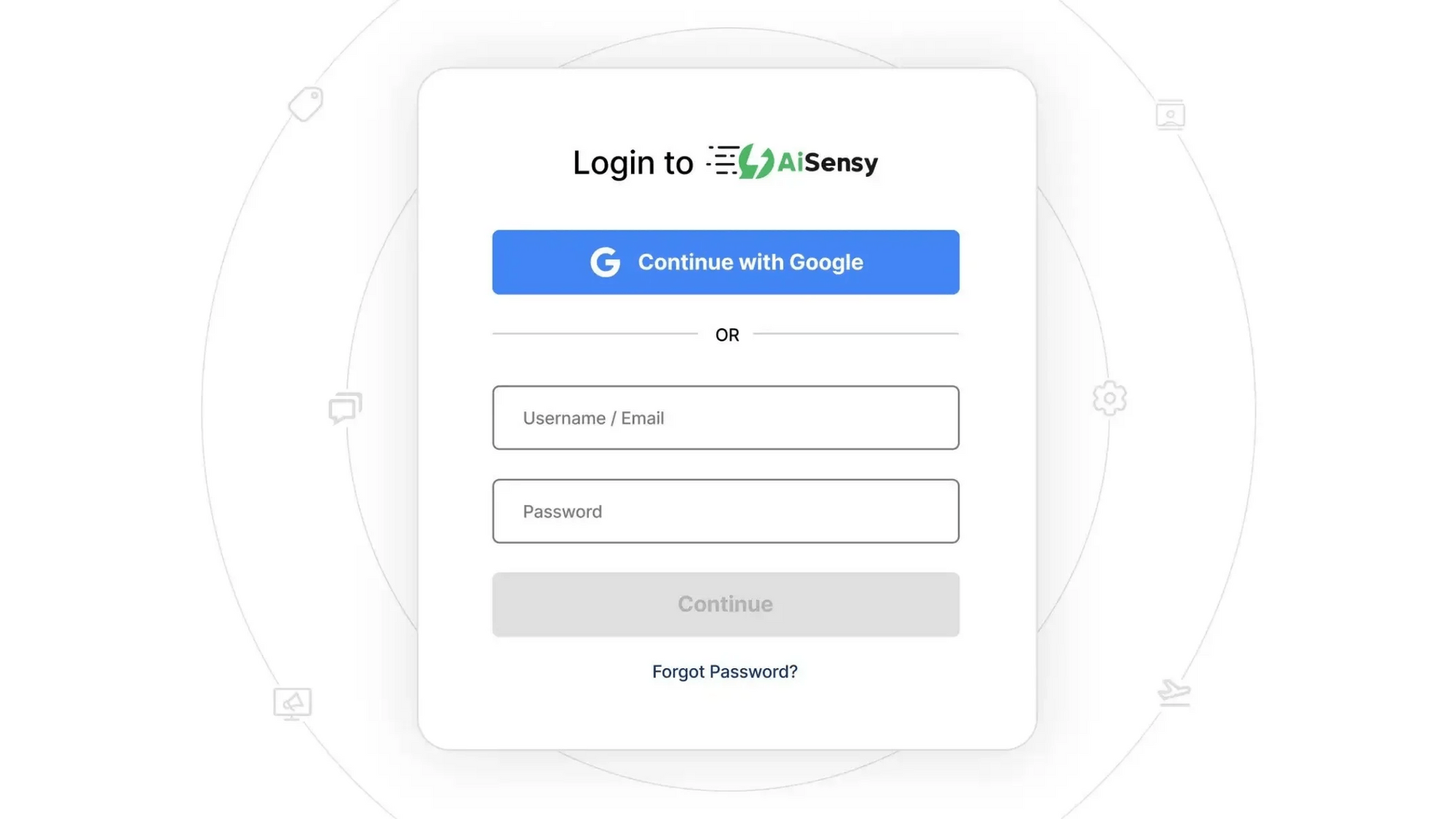
    Once signed up, Log in to AiSensy using the same Google account or email credentials.

    login1.png

    Build Your Agent from Your Website

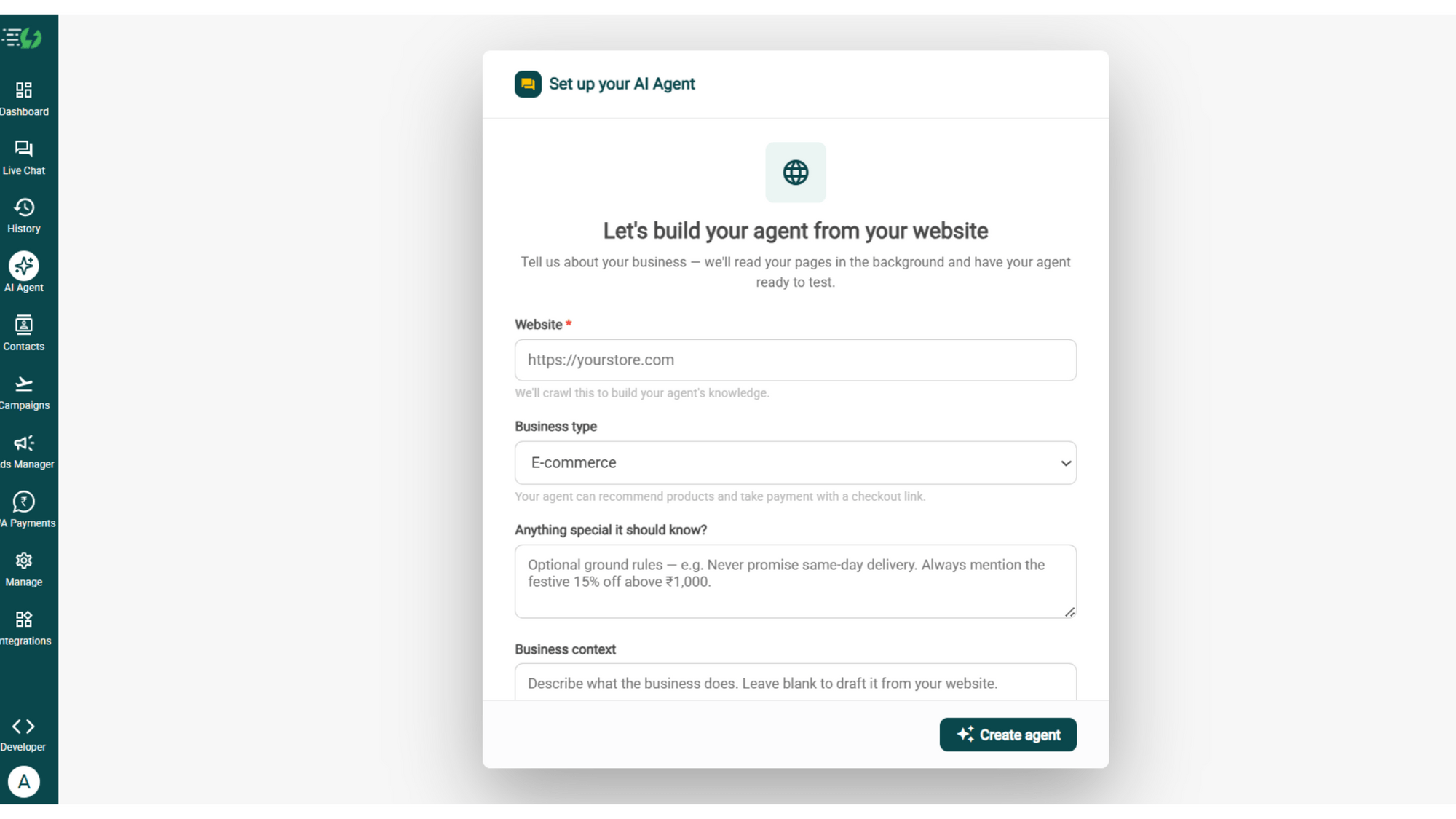
    Once you are logged in, navigate to and click on AI Agent available on the navbar on the left.

    Fill in the details given below:

    • Website (mandatory)

    • Business type

    • Anything special it should know? (optional)

    • Business context (optional)

    Once you fill these details correctly, proceed to hit '✨ Create agent' button. AiSensy automatically builds an agent trained on your business.

    image (4).png

    Add Your Business Profile

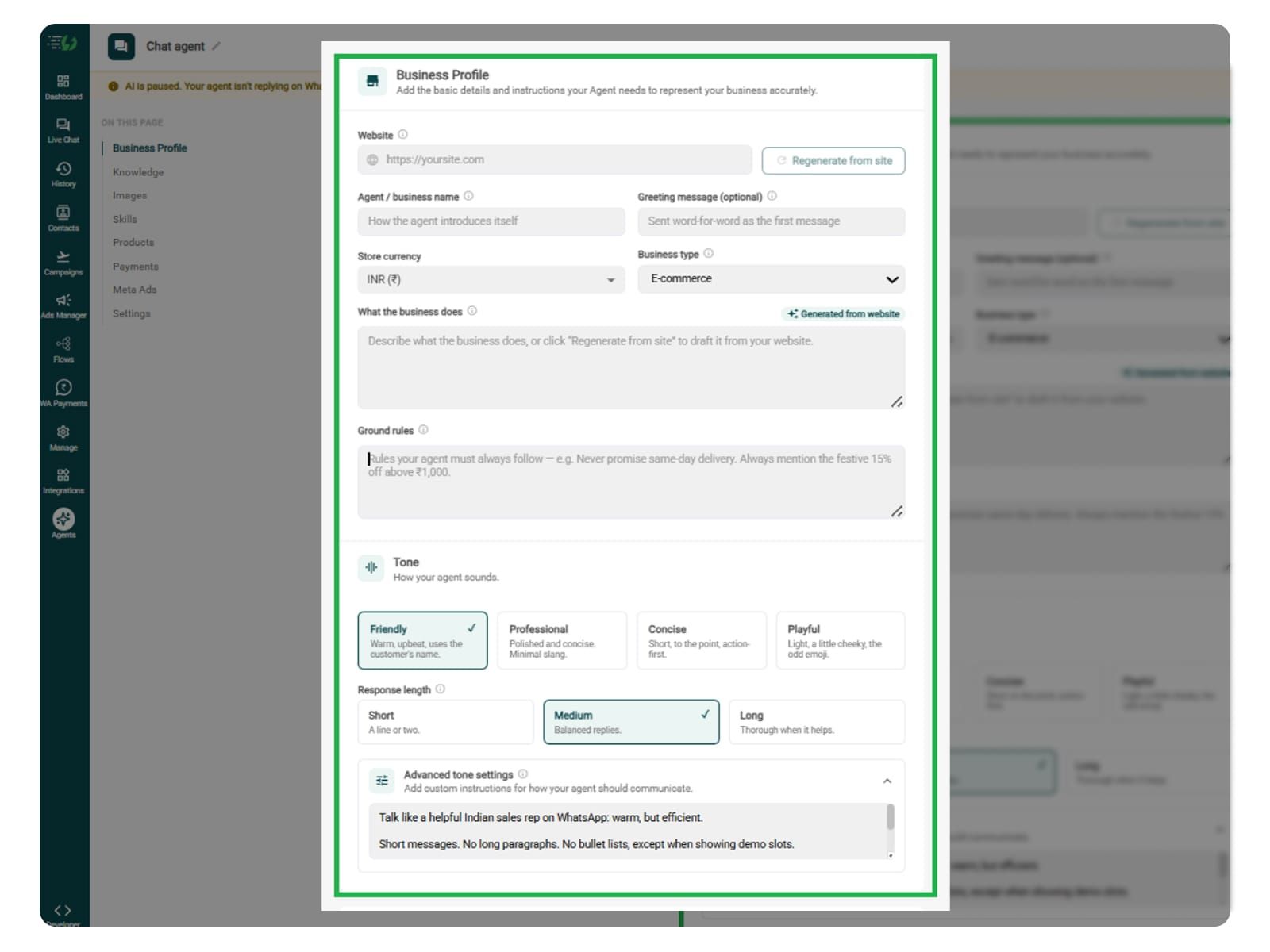
    When you add your website, AiSensy AI engine auto-generates your business description. Set your agent's name, greeting, and a few ground rules it must always follow.

    Fill the details given below:

    • Website (fetched automatically)

    • Agent/business name

    • Greeting message (optional)

    • Store currency

    • Business type

    • What the business does

    • Ground rules

    2.jpg

    Train the Agent with Your Knowledge

    In this step, train the agent on your customer support services and policies. Add information about internet plans, troubleshooting guides, connection transfers, installation procedures, technician visits, billing policies, and FAQs.

    You can also train your agent to retrieve live service availability, complaint status, and technician schedules through connected systems.

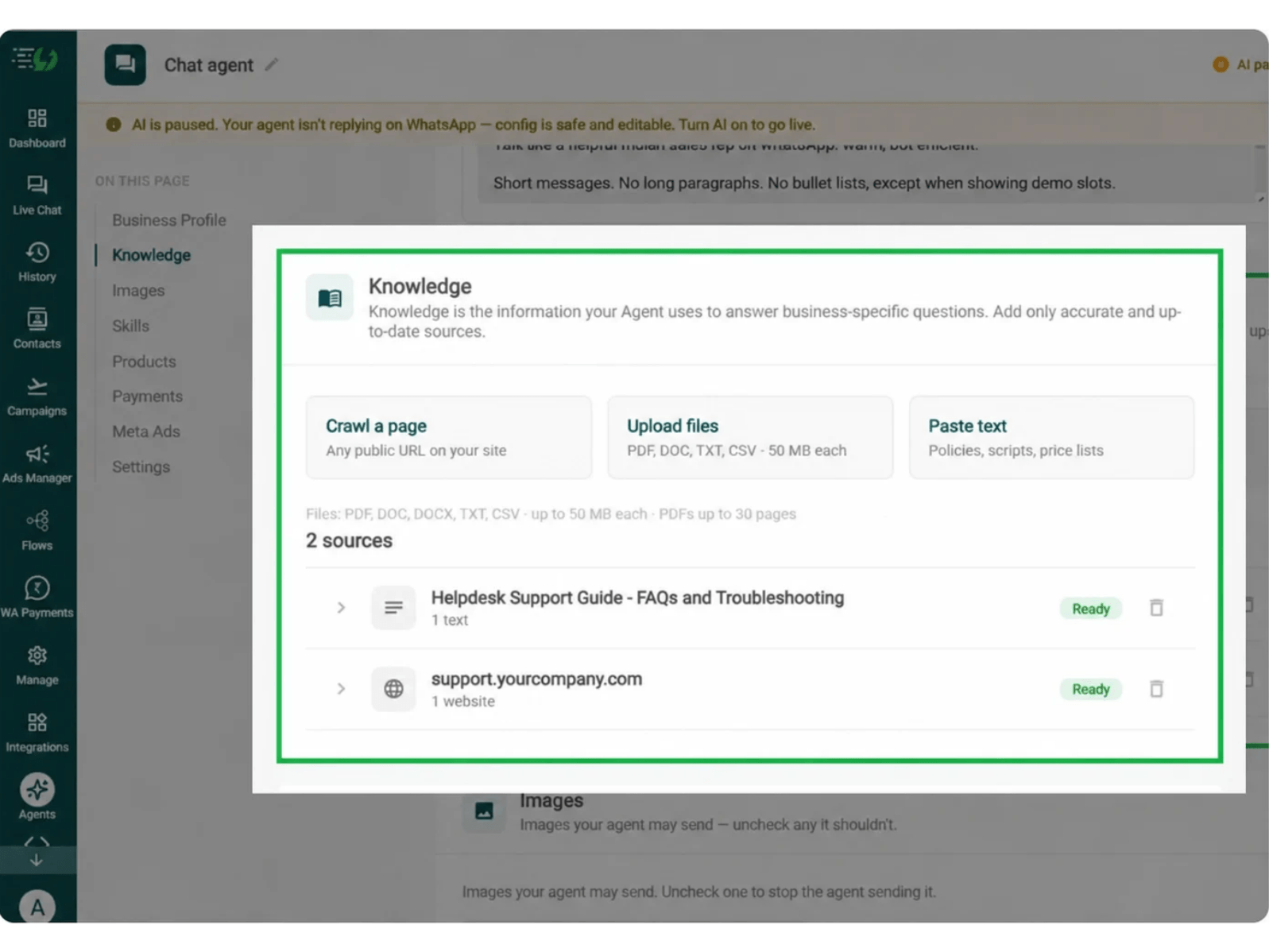
    You can submit this information through PDF, DOC, TXT, or CSV files. The agent uses your provided knowledge to answer customer enquiries and guide users through support requests.

    Every source shows "Ready" once learned.

    Add your information using these options:

    • Crawl a page: Add your business or support website URL.

    • Upload files: PDF, DOC, TXT, or CSV, up to 50MB each.

    • Paste text: FAQs, troubleshooting guides, connection transfer policies, installation procedures, and support scripts.

    Helpdesk Support Knowledge Panel.png

    Choose the Images It Can Share (Optional)

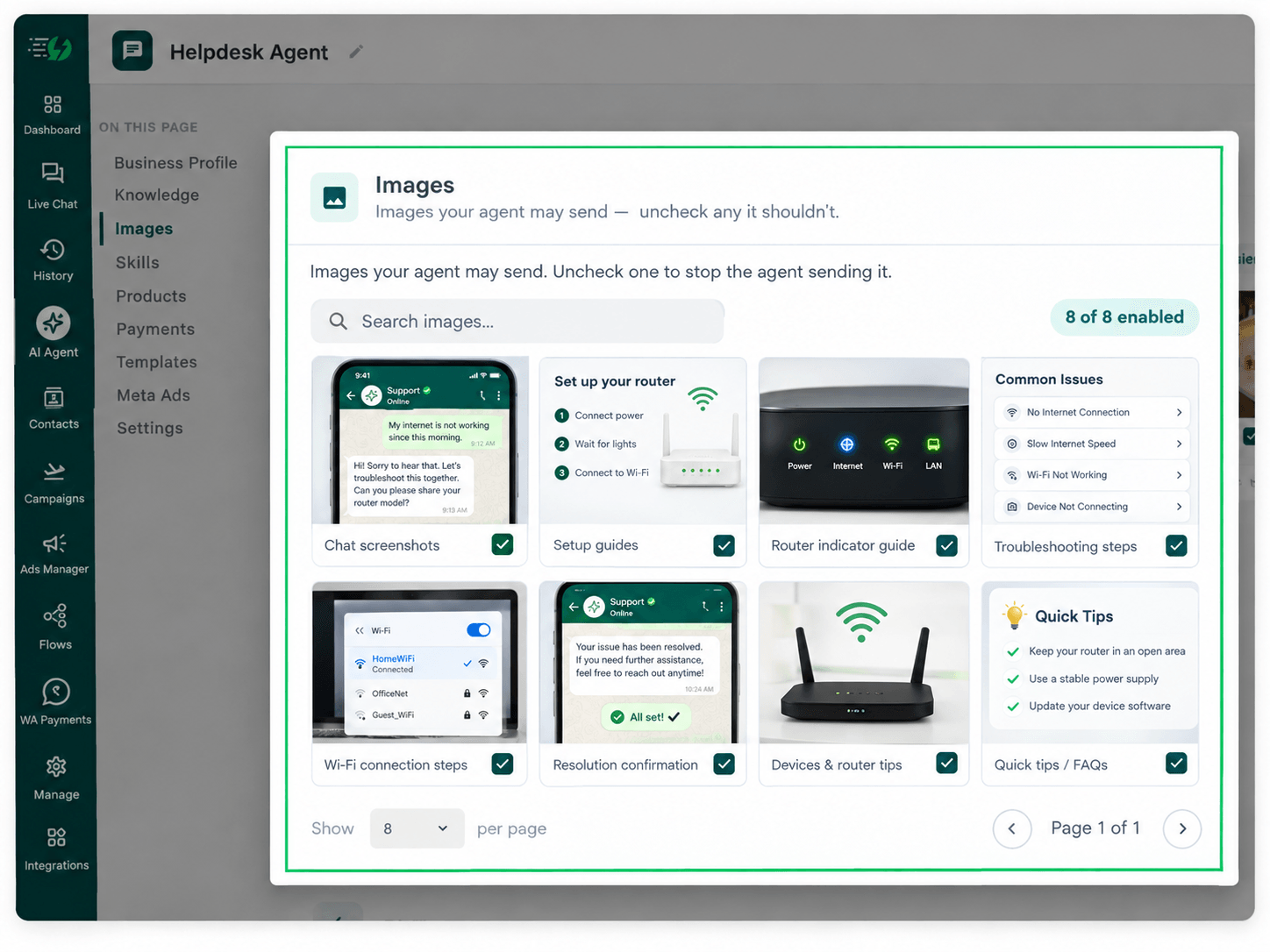
    In this step you can add screenshots, setup guides, and router indicator images can help explain troubleshooting steps. This step is entirely optional. If you feel the need of it, you can add images. 

    Though, when you add your website, the AI Agent fetches images from it (only from the website). You can review which visuals it can share in chat.

    Untick any image you don’t want the agent to send.

    You can:

    • Manage your image library: Enable or disable individual images.

    • Search images: Quickly find the visuals you need.

    • Upload guidelines PDF to help users

    helpdesk.png

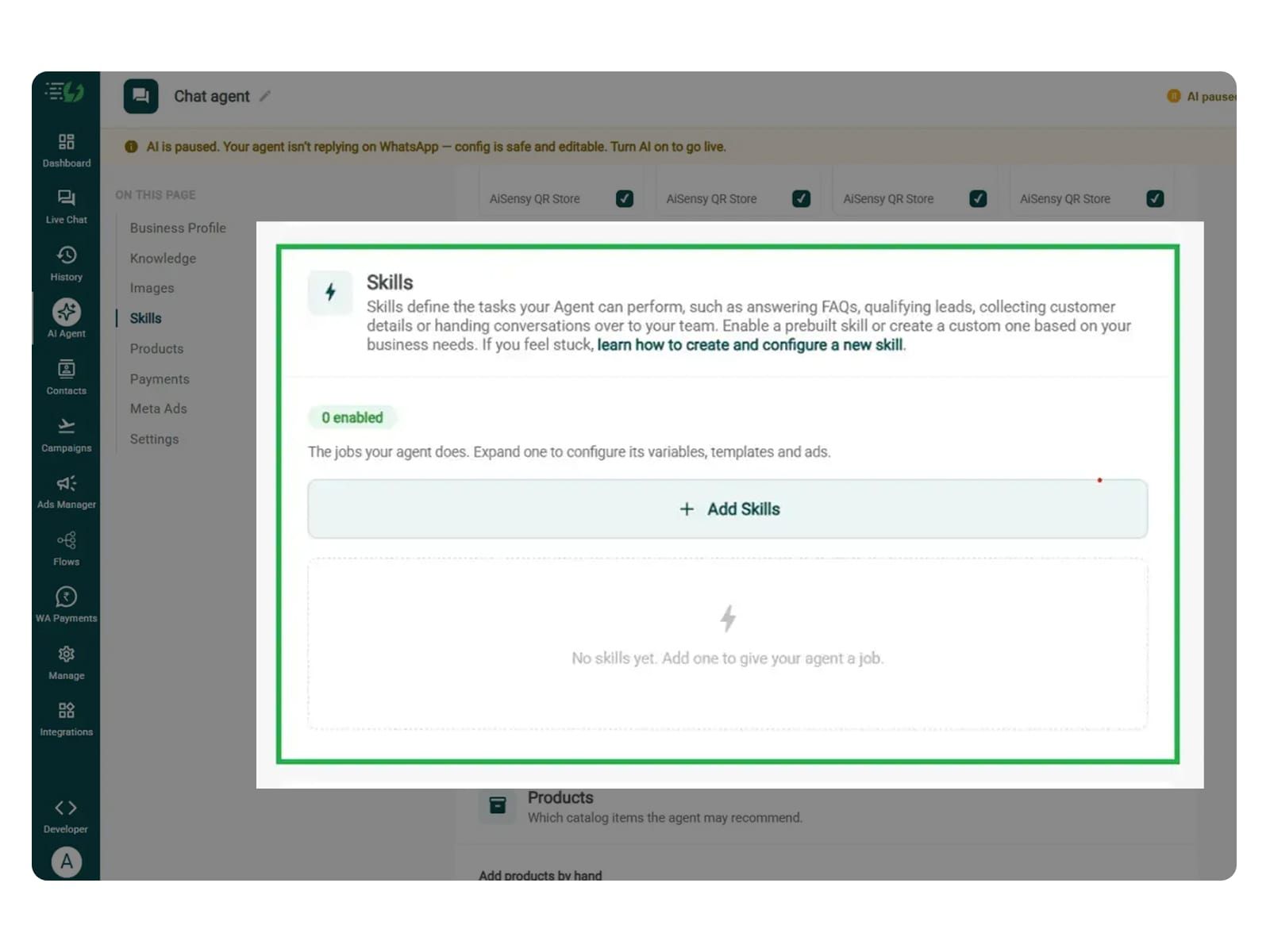
    Create the Helpdesk Support Skill

    In this step, navigate to and click on Add Skills. Check the prebuilt skills list first. If the skill you need isn't already available, then navigate to and hit 'Create custom' button, name it Helpdesk Support, and pick Task skill as the type.

    The other details which need to be filled are given below:

    • What kind of skill is this? (Task skill)

    • Icon & name: Helpdesk Support

    • When should the agent use it?

    • Instructions

    • Add skills

    In this step, train your agent to understand customer complaints, guide users through troubleshooting, handle connection transfer requests, and assist with technician visit bookings.

    Make sure the instructions are clear and easy to understand. The agent follows these instructions when responding to customer enquiries.

    One such template is:

    “When a customer reports an internet issue, ask about the problem and guide them through approved troubleshooting steps. For house shifting or Wi-Fi transfer requests, collect the new address and check service availability through the connected system. If a technician visit is needed, check available slots and help book an appointment. Never confirm a booking without verification, and escalate unresolved issues to the support team.”

    Once you enter these instructions, the agent fetches the information around the instructions and replies accordingly. 

    For more info, tap here to learn how to create a custom skill

    add skills.jpg

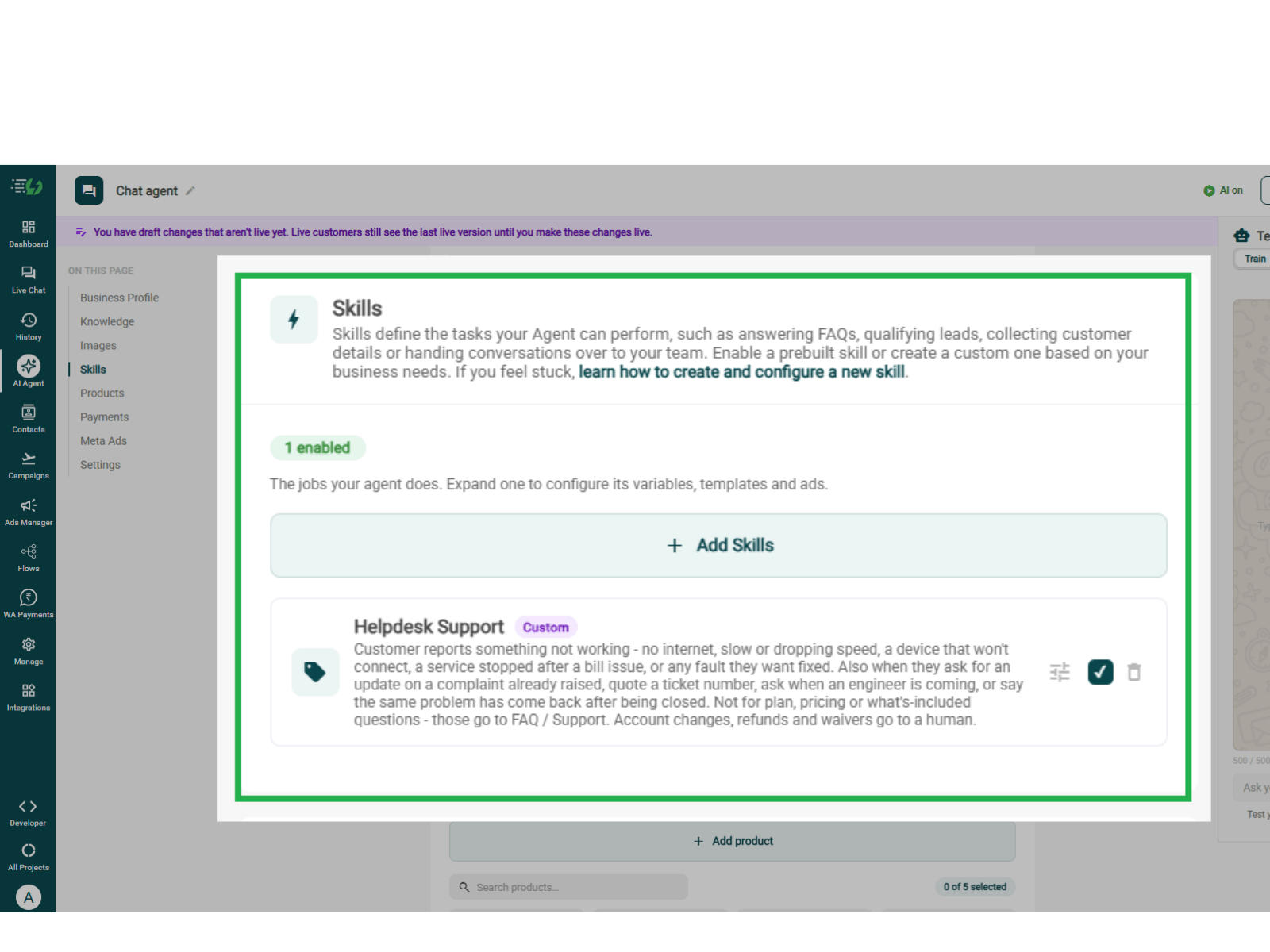
    Enable the Helpdesk Support Skill on Your Agent

    Once you have created the Helpdesk Support skill, it will appear in your Skills list. You can now switch it on, expand it to configure and then click Done.

    All you have to go through is:

    • Skills list

    • Enable the Helpdesk Support skill

    • Expand to configure its variables, templates & ads

    Your agent is now trained to handle customer complaints, connection transfer requests, troubleshooting enquiries, and technician visit bookings.

    While configuring the Helpdesk Support skill, train your agent to ask relevant questions, follow approved support procedures, check live availability through connected systems, and escalate unresolved requests to your support team.

    helpdesk support.png

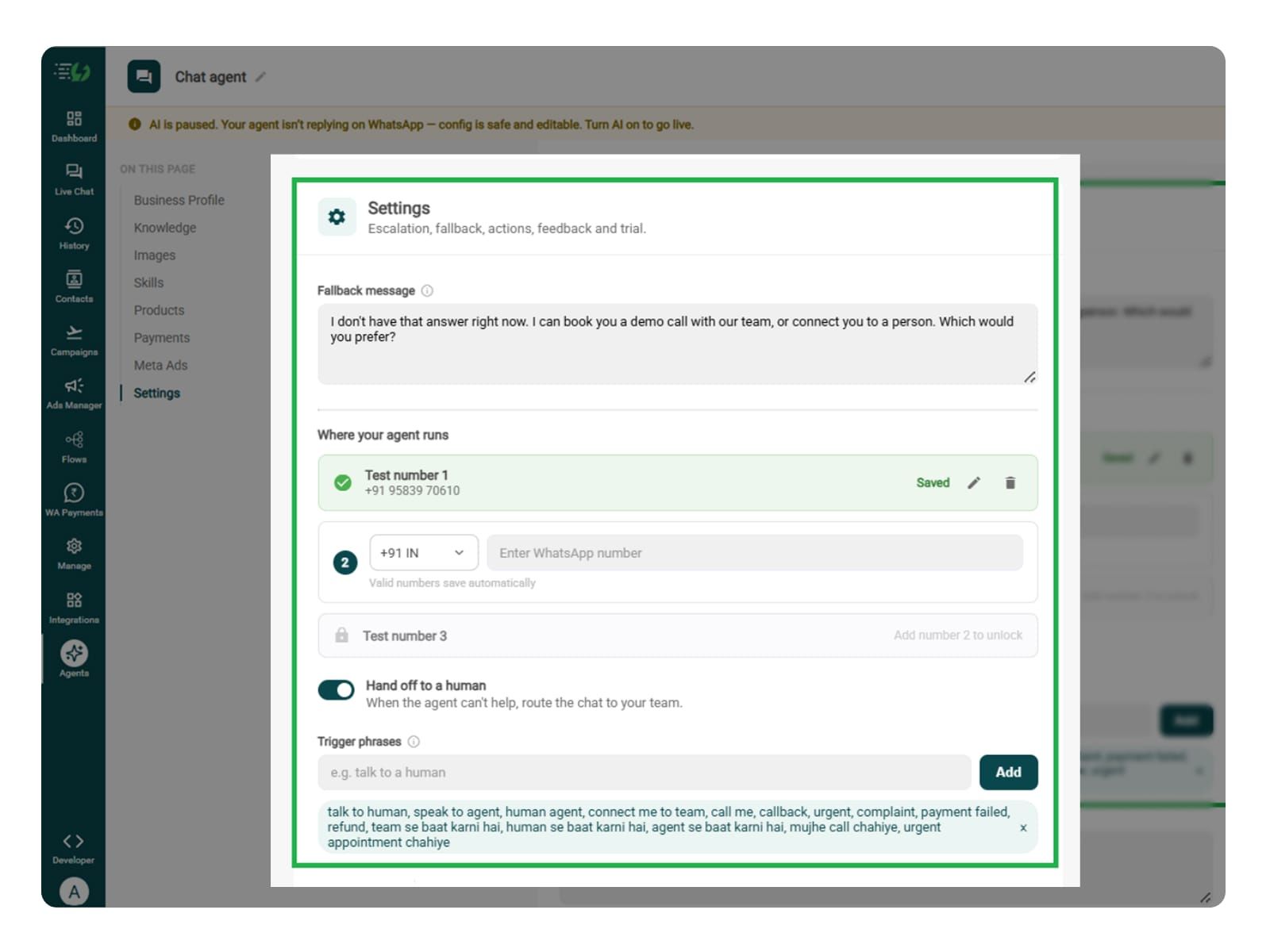
    Set Your Fallback & Handoff Rules

    This step decides what happens when the agent cannot resolve a customer complaint, verify service availability, book a technician visit, or complete a connection transfer request.

    Fallback message: Write a reply for situations where the agent cannot retrieve information, answer a support question, or confirm service availability.

    Human handoff: Enable handoff for unresolved technical issues, unavailable technician slots, connection transfer problems, urgent service failures, and requests to speak with your support team.

    Add trigger phrases that should transfer the conversation to a human, along with a message informing the customer about the handoff.

    What you must fill:

    • Fallback message

    • Where your agent runs: up to 3 test numbers

    • Hand off to a human: toggle

    • Trigger phrases

    • Handoff message

    8.jpg

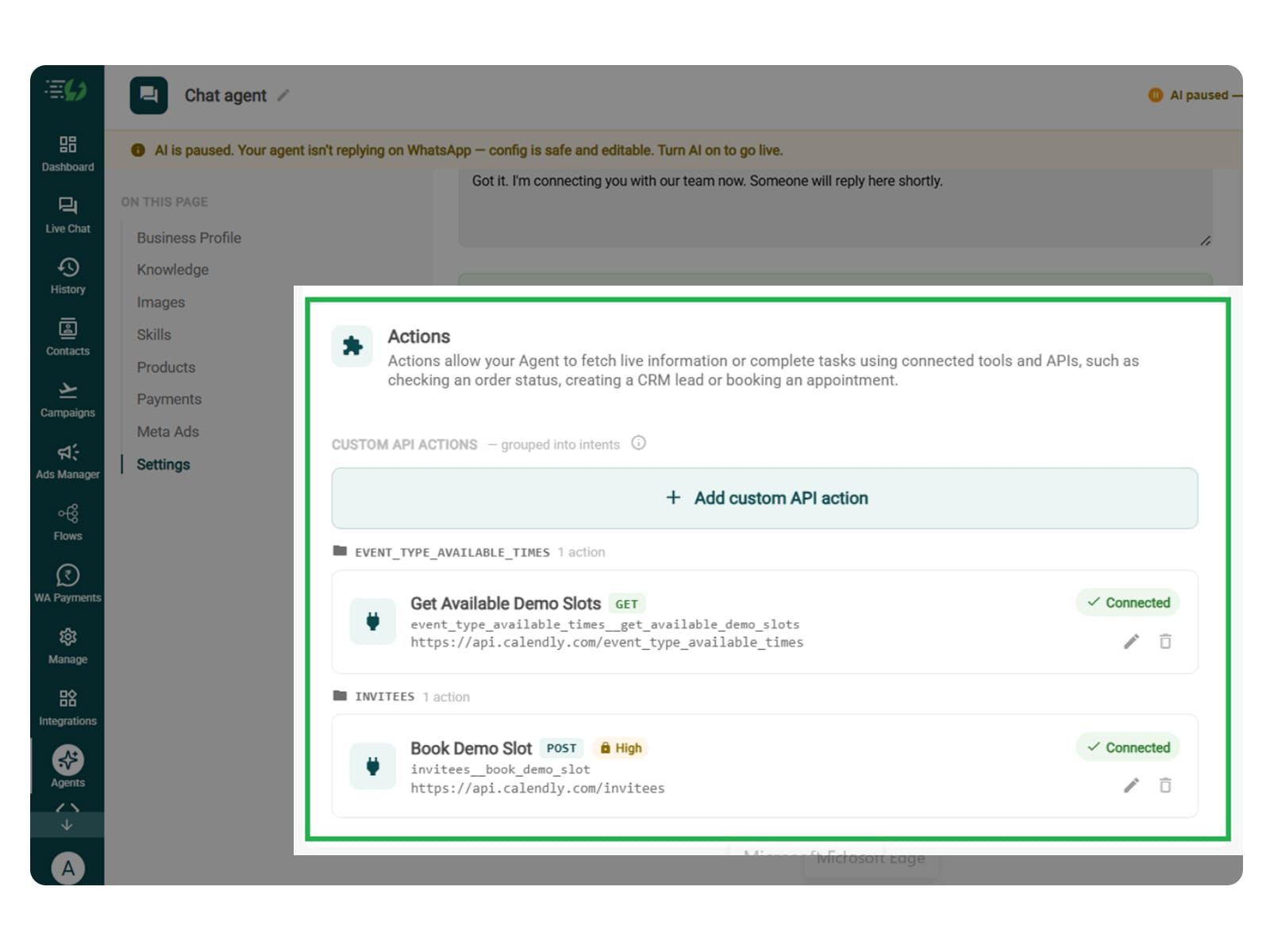
    Connect Tools & APIs

    Connect your customer support, serviceability, or technician scheduling system through APIs. This allows the Helpdesk Support AI Agent to check connection availability, create service requests, book technician visits, and retrieve complaint updates.

    This step is required if you want the agent to perform these actions automatically instead of simply collecting customer information.

    Click Add custom API action, specify when the agent should use it, and paste your cURL to automatically fill in the request details.

    Review the following fields:

    • Action name

    • When should the agent call it?

    • Paste cURL

    • Request: method + endpoint URL

    • Headers

    • Params

    • Body

    • Auth

    • Test call

    Click Next: variables to continue.

    Note* For house shifting, connection transfers, and technician bookings, make sure your APIs return verified service availability and appointment slots. The agent should confirm requests only after the connected system successfully records them.

    1.jpg

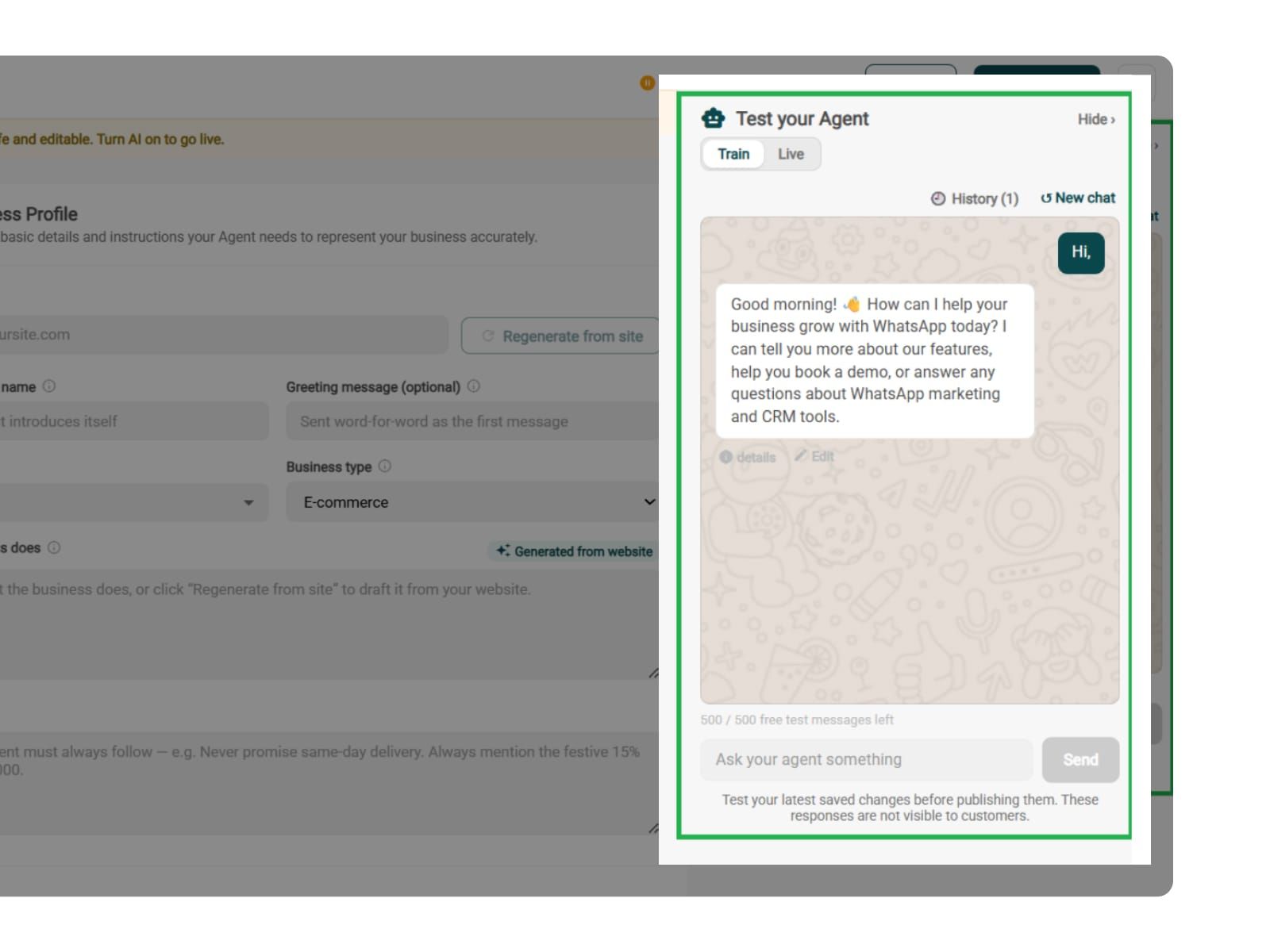
    Test, Publish & Go Live

    Before your AiSensy-powered Helpdesk Support WhatsApp AI Agent goes live, make sure to test it.

    You can test how the agent handles internet complaints, troubleshooting enquiries, house-shifting requests, Wi-Fi transfers, service availability checks, technician bookings, and human handoffs.

    Make sure the agent doesn't invent solutions, confirm unavailable services, promise technician visits without verification, or provide incorrect complaint updates.

    You can chat with your agent before your customers do with AiSensy's 500 free AI messages for testing.

    Publish, switch the AI on & you're live.

    • Test your Agent panel (Train/Live modes)

    • Publish

    • AI on/off toggle

    9.jpg

    Simple Pricing. Every Agent Included.

    One plan unlocks the entire library - deploy any AI Agent, or build your own.

    ₹1,350

    Per Month (includes 1000 AI messages)

    Start for Free

    $50

    Per Month, Billed Annually (includes 1000 AI messages)

    Start for Free

    WhatsApp AI Agent Features

    Access every pre-built AI Agent in this library, plus the no-code builder to create your own - trained on your business and live on WhatsApp in minutes.

    • 1000 AI messages every month

    • 500 FREE AI messages for testing

    • Knowledge Base Q&A - train it on your website & documents

    • Long-term customer memory

    • No-code builder to customize any agent

    • Tool calling, skills & API integrations

    FAQs

    Frequently asked questions answered

    What does the Helpdesk Support AI Agent do?

    The Helpdesk Support WhatsApp AI Agent answers customer enquiries, troubleshoots common issues, raises support tickets, and shares updates. It can also help with Wi-Fi transfers, service availability checks, and technician visit bookings through connected systems.

    How does the AI Agent help customers raise support tickets?

    When basic troubleshooting doesn't resolve an issue, the agent collects complaint details and the steps already tried. It can then create a support ticket through your connected ticketing system and share the reference number on WhatsApp.

    Does the Helpdesk AI Agent connect to my ticketing system?

    Yes. You can connect your existing ticketing software or customer support system through Tools & APIs. This allows the agent to create tickets, retrieve complaint details, and share real-time updates with customers.

    How can customers track their complaint status on WhatsApp?

    Customers can simply ask for an update on their complaint. The agent checks your connected ticketing system and shares the latest status, technician updates, or pending actions without requiring customers to call your support team.

    How does the AI Agent handle Wi-Fi transfers during house shifting?

    When customers move to a new house, the agent asks for their new address and preferred transfer date. It checks service availability through your connected system and guides them through the connection transfer process.

    Is it possible to check internet availability at a new address?

    Yes. The agent can check whether your internet services are available at a customer's new location through your connected serviceability system. It can also share available plans, installation details, and applicable charges.

    Can customers book technician visits through WhatsApp?

    Yes. The agent checks available technician slots through your connected scheduling system and helps customers book installation, repair, or Wi-Fi transfer visits. Once confirmed, it shares the appointment details directly on WhatsApp.

    What happens during an internet outage?

    The agent checks your connected outage monitoring system and shares available updates with affected customers. It can explain known issues, provide expected restoration times when available, and guide customers through the next steps.

    When does a human support agent take over?

    You can enable human handoff for unresolved complaints, connection transfer problems, urgent technical issues, or requests to speak with support staff. The agent transfers the conversation with its context, so customers don't have to explain everything again.

    How much does the Helpdesk Support WhatsApp AI Agent cost?

    AiSensy's AI Agent plan starts at ₹1,350 per month for 1,000 AI messages. It includes access to the prebuilt AI Agent library and no-code builder, allowing you to create and manage your Helpdesk Support AI Agent. Check the latest AiSensy pricing for current plan details.