WhatsApp AI Agent by AiSensy
WhatsApp AI Agent for Clinics & Hospitals
A front desk that never closes.
The Patient AI Agent handles timings, test prep, reports and billing on WhatsApp, and sends clinical queries to your team.
No coding needed!

WhatsApp AI Agent by AiSensy
WhatsApp AI Agent for Clinics & Hospitals
A front desk that never closes.
The Patient AI Agent handles timings, test prep, reports and billing on WhatsApp, and sends clinical queries to your team.
No coding needed!
How your AI Agent answers Patient Questions
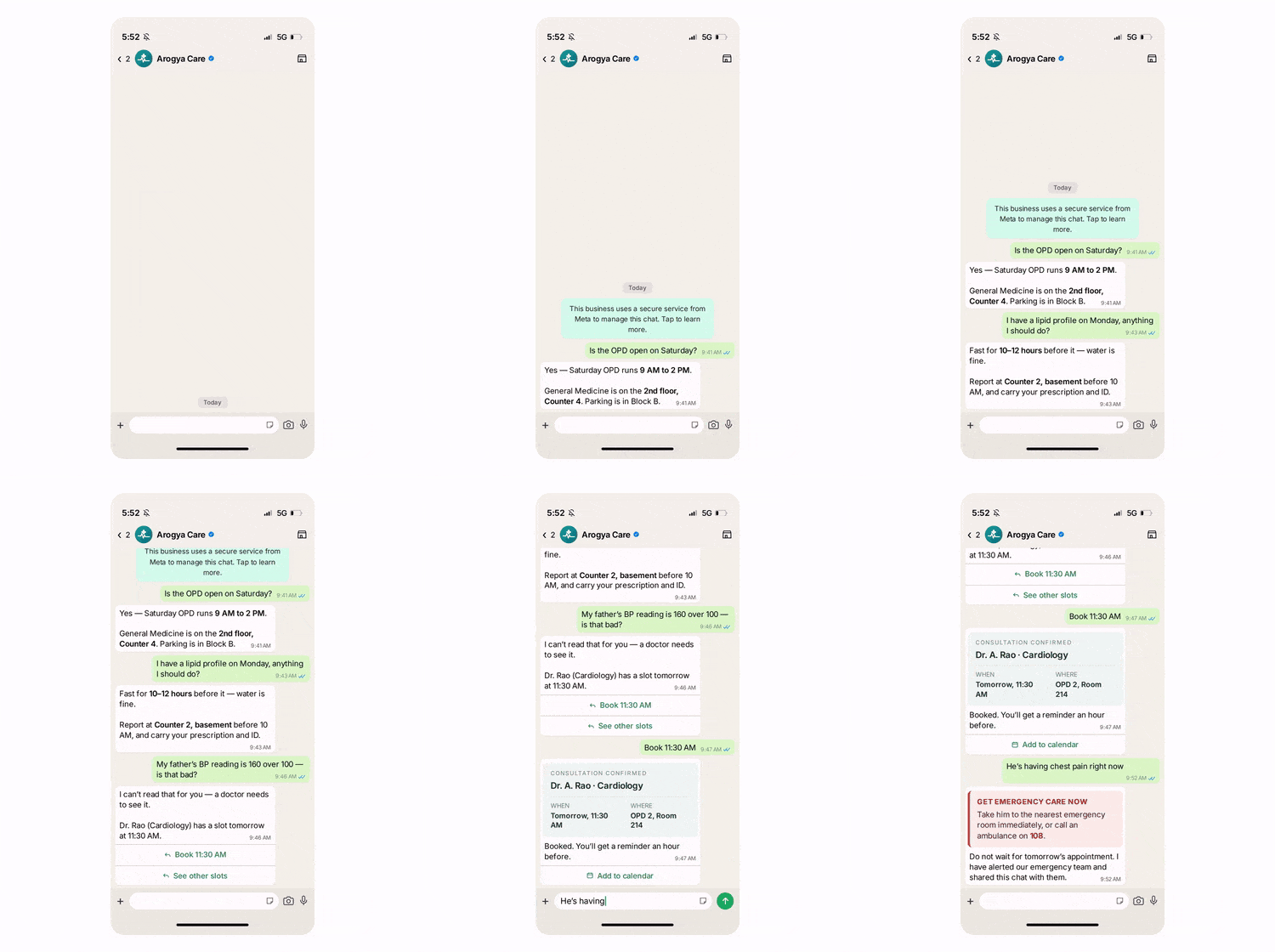
A real conversation, step by step - including the two moments the agent knows to stop.
The Question
"Is the OPD open on Saturday?"
Questions regarding timings, department, floor get answered in seconds, from your own schedule.
The Preparation
"I have a lipid profile on Monday, anything I should do?"
It prepares you beforehand. Fasting hours, what to bring, which counter to report at, everything gets answered straight from your instructions, so nobody arrives having eaten breakfast.
The Line It Won't Cross
"My father's BP reading is 160 over 100 - is that bad?"
It already sounds like a critical situation. Hence, the agent doesn't answer that. It says a doctor needs to see the reading, and offers the next available consultation.
The Emergency
"He's having chest pain right now."
This is something an AI agent must not handle. It tells them to get to emergency care immediately & alerts your team in the same moment.
Key Terms: How AiSensy AI Agent works
A brief description on each section you'll see inside AiSensy AI Agent Studio and what each one actually does.
Business Profile
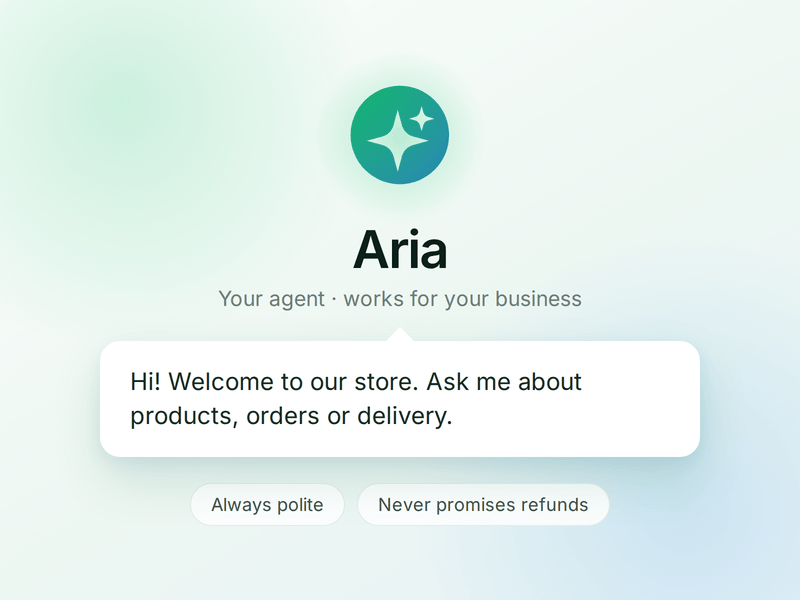
Who your agent is and who it works for. Your business details, the agent's name and greeting, and the ground rules it must always follow.
Knowledge
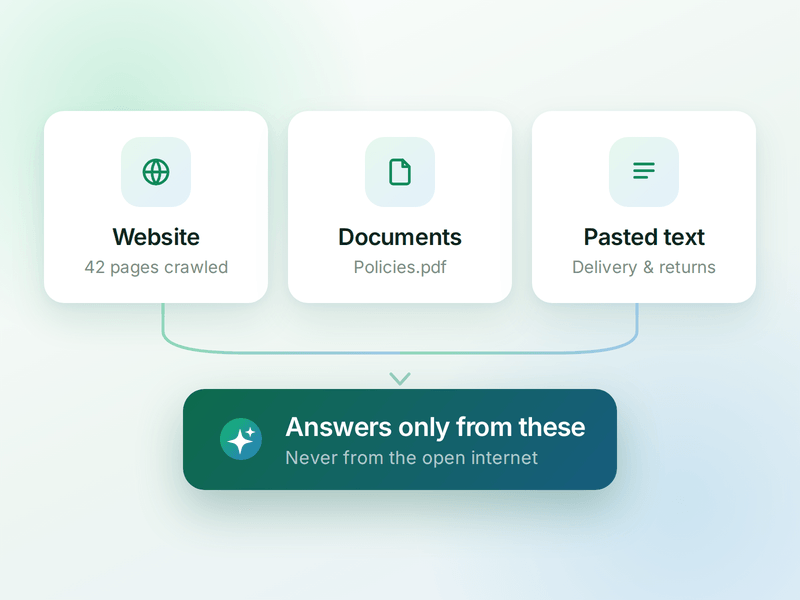
Everything your agent is allowed to know. Crawl your website, upload documents or paste text - the agent answers from these, not from the internet.
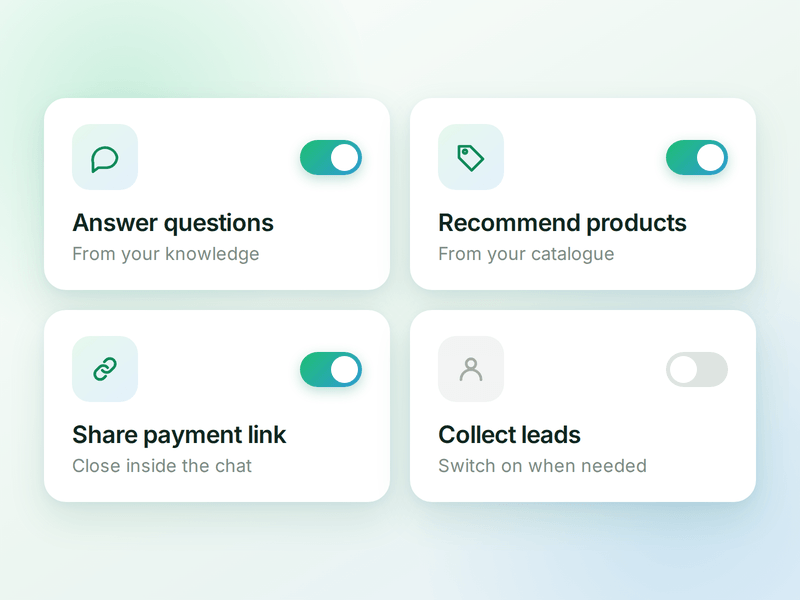
Skills
The jobs your agent can do. Switch on a ready-made skill or create your own, and the agent works out which one a conversation needs.
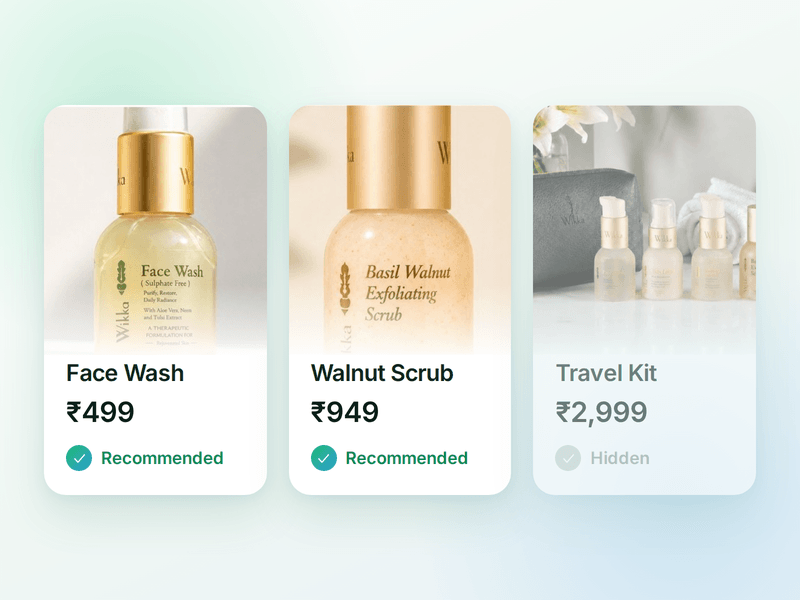
Products
The catalogue your agent sells from. Sync your store or add items by hand, then pick which ones the agent is allowed to recommend.
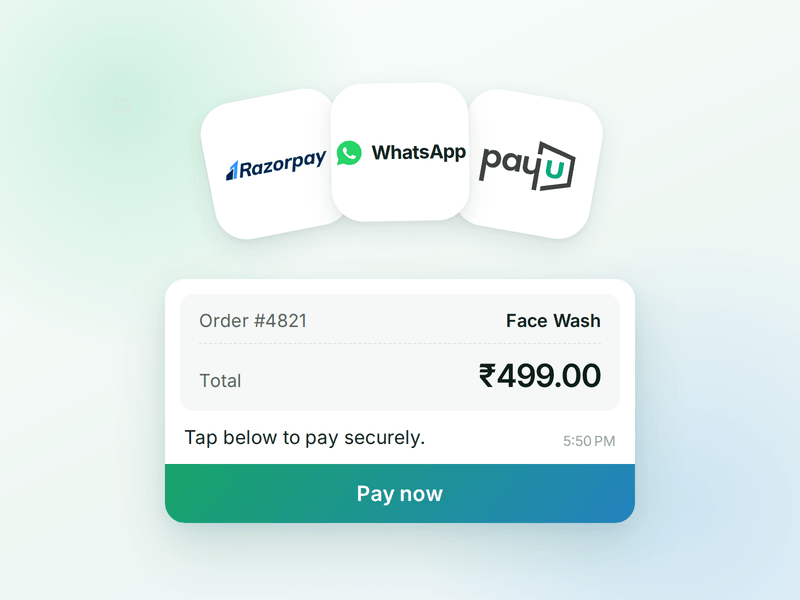
Payments
Your checkout, inside the chat. Connect Razorpay or PayU & the agent can send a secure payment link the moment a customer decides.
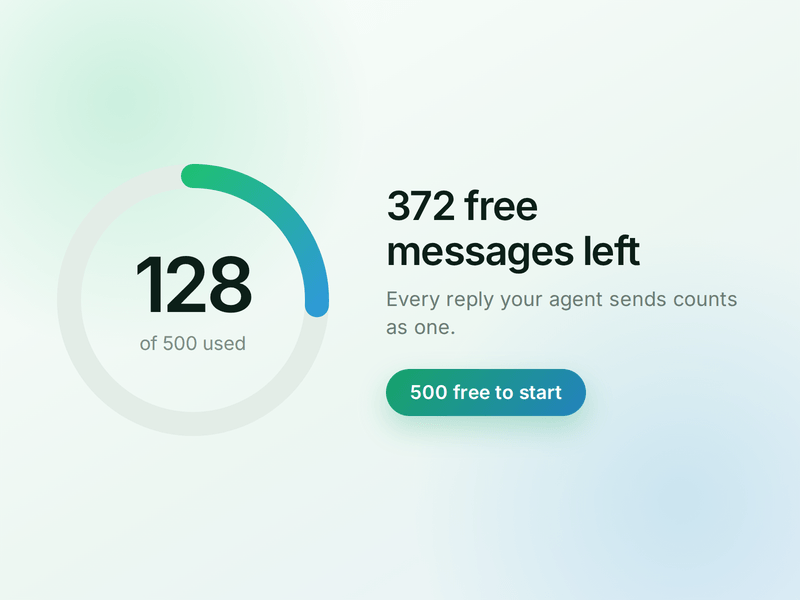
AI Messages
Each reply sent by your AI Agent counts as one AI Message and is deducted from your active plan. You get 500 free AI Messages to test your agent before going live.
How to Build Your WhatsApp Patient Support AI Agent in AiSensy
Here's how a real brand goes from zero to a live Patient AI Agent on WhatsApp.
Sign up on AiSensy
Go to the AiSensy Signup Page. Create your account using either:
Your Google account, or
Your business email address by filling out the sign-up form.
Once signed up, Log in to AiSensy using the same Google account or email credentials.
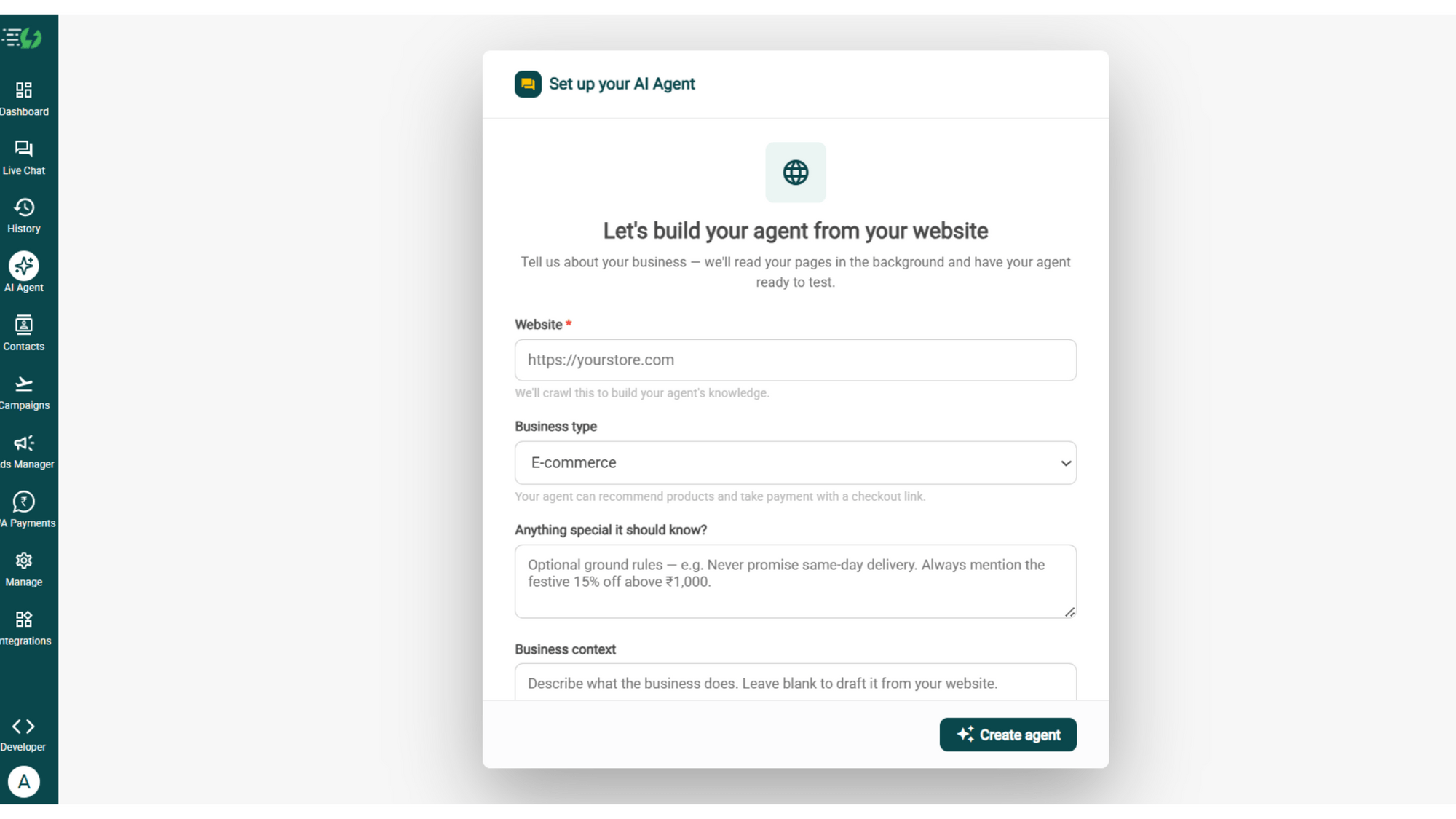
Build Your Agent from Your Website
Once you are logged in, navigate to and click on AI Agent available on the navbar on the left.
Fill in the details given below:
Website (mandatory)
Business type
Anything special it should know? (optional)
Business context (optional)
Once you fill these details correctly, proceed to hit '✨ Create agent' button. AiSensy automatically builds an agent trained on your business.
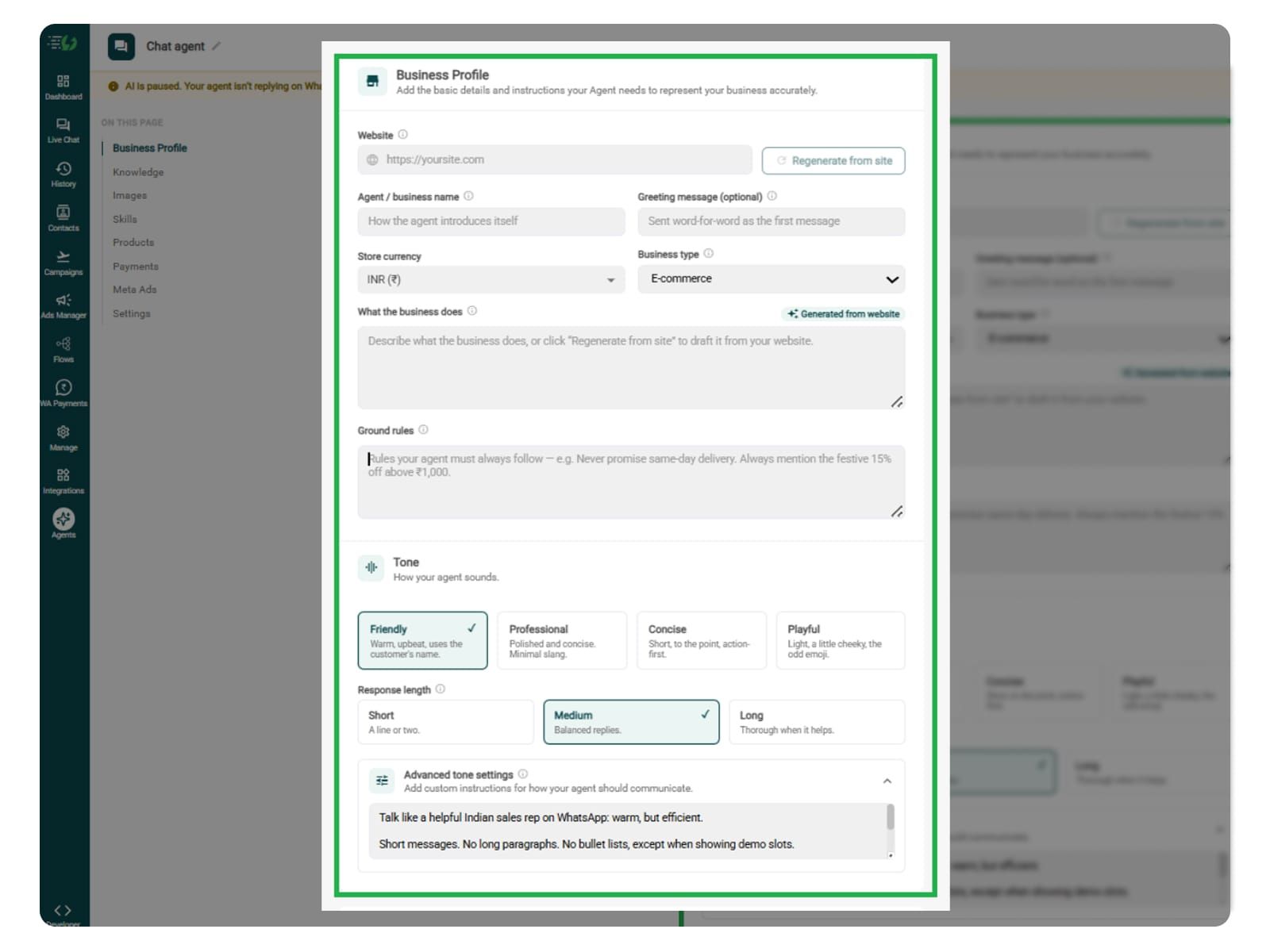
Add Your Business Profile
When you add your website, AiSensy auto-generates your business description. Set your agent's name, greeting, and a few ground rules it must always follow.
Fill the details given below:
Website
Agent/business name
Greeting message (optional)
Store currency
Business type
What the business does
Ground rules
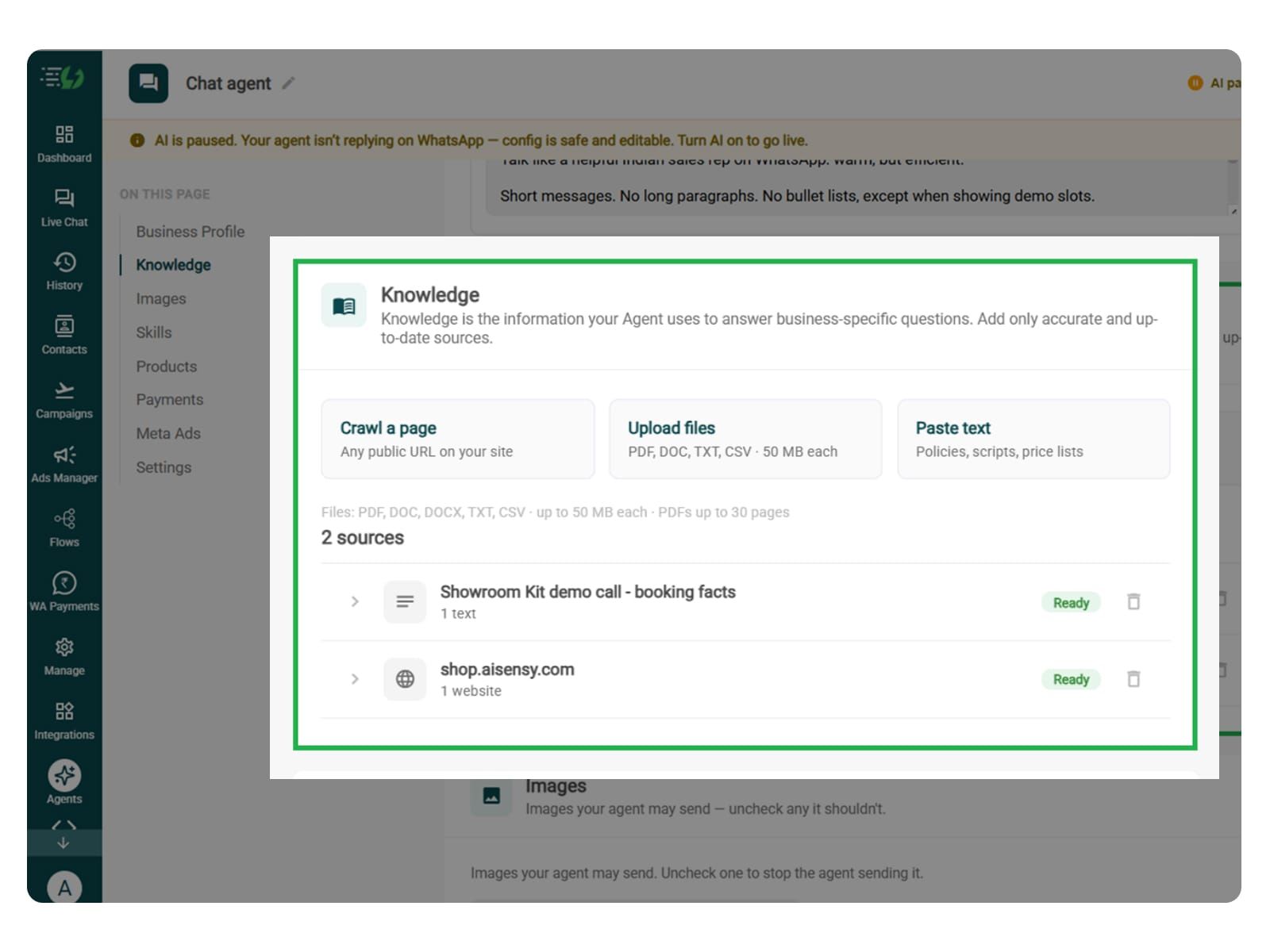
Train the Agent with Your Knowledge
Train the agent on your business website. While adding information, you can add details related to clinic timings, doctor schedules, approved test preparation instructions, report collection process, and billing FAQs.
It answers from the information you feed to it. You can submit this information in the form of PDF, DOC, TXT, or CSV files. It never gives generic replies.
Every source shows "Ready" once learned.
Perform the below mentioned steps:
Crawl a page (website URL)
Upload files (PDF, DOC, TXT, CSV - up to 50MB each)
Paste text (policies, scripts, price lists)
Now that the page is related to patient queries, you can also add hospital services, tests, and fees. Patients usually seek information around these details.
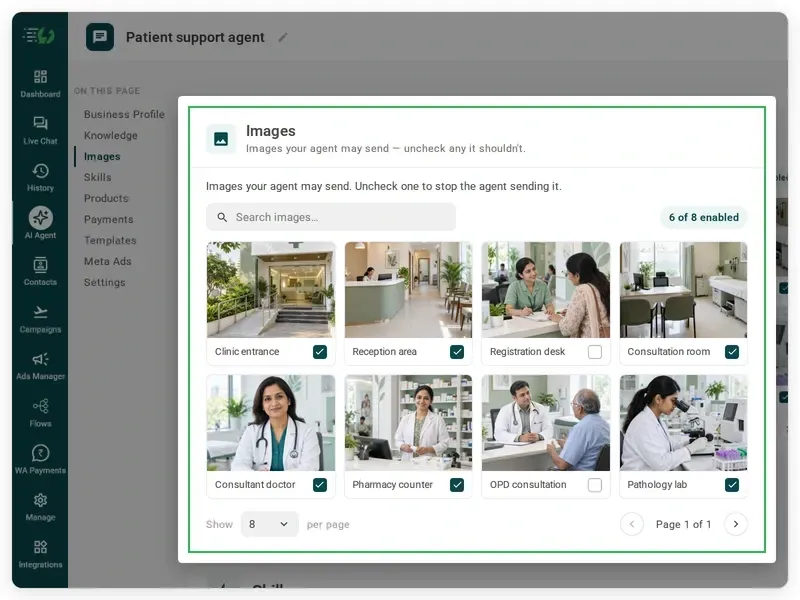
Choose the Images It Can Share (Optional)
When you add your website, the AI Agent automatically fetches the image from it. You can control the visuals the agent can share in chat - product shots, catalogs, offers.
Untick any image it shouldn't send.
You can:
Create Image library (enable/disable per image)
Search images
You can add images of hospital entrance, department, or location images can help patients, but aren’t mandatory.
Create the Patient Support Skill
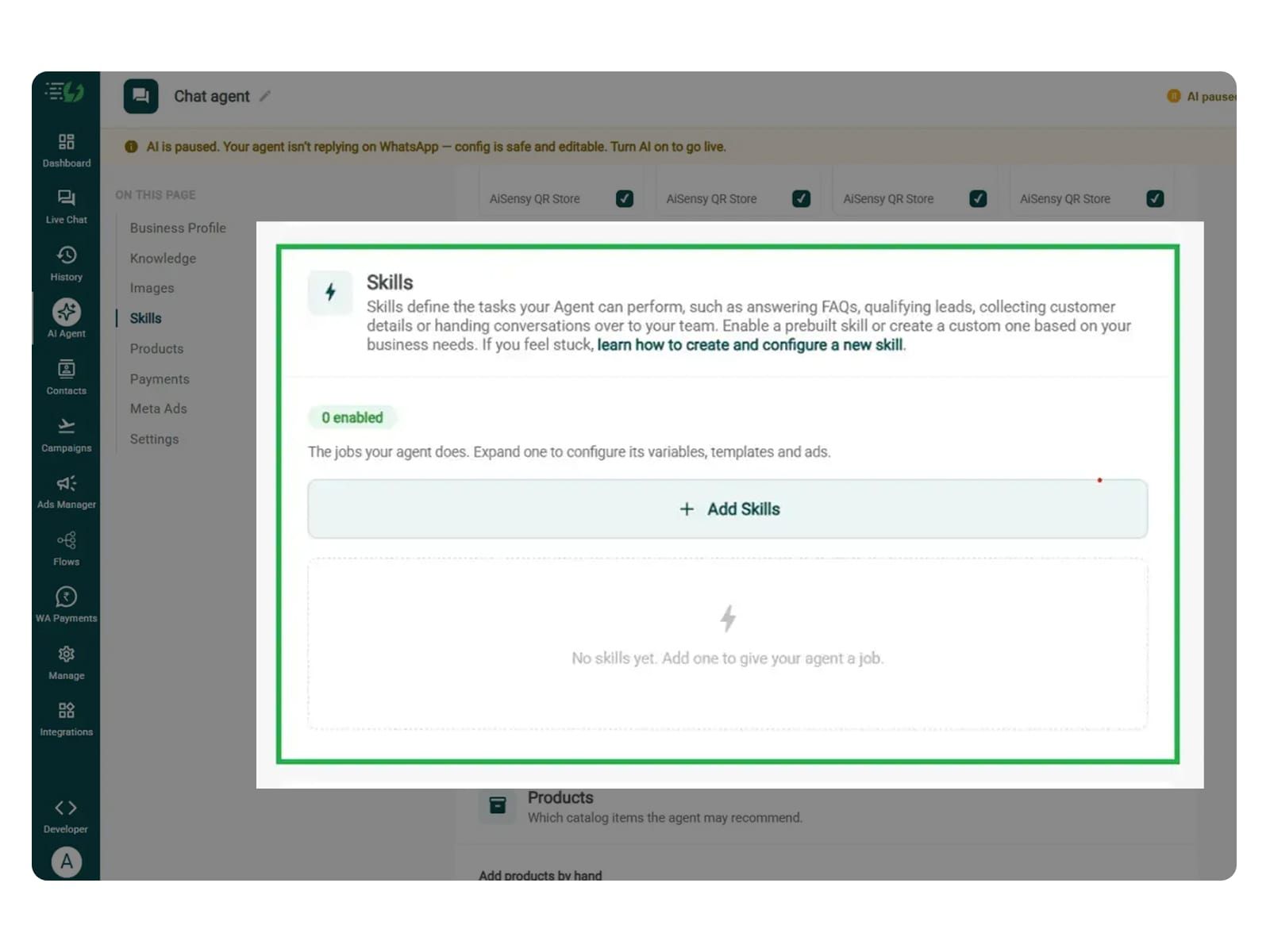
Navigate to and open Add Skills and hit Create custom. You can now name it Patient Queries, and pick Task skill as the type.
The other details which need to be filled are given below:
What kind of skill is this? (Task skill)
Icon & name: Patient
When should the agent use it?
Instructions
Add skills
Now, you must make sure that the instructions fed to the agent are clear and easy to understand. The agent behaves according to the instructions given to it.
One such template is:
"When a patient asks “What are the OPD timings?”, answer using the hospital schedule provided. If they ask “Is my BP reading normal?”, do not interpret it. Refer them to a doctor and offer help booking a consultation."
Once you enter these instructions, the agent fetches the information around the instructions and replies accordingly.
For more info, tap here to learn how to create a custom skill
Enable It on Your Agent
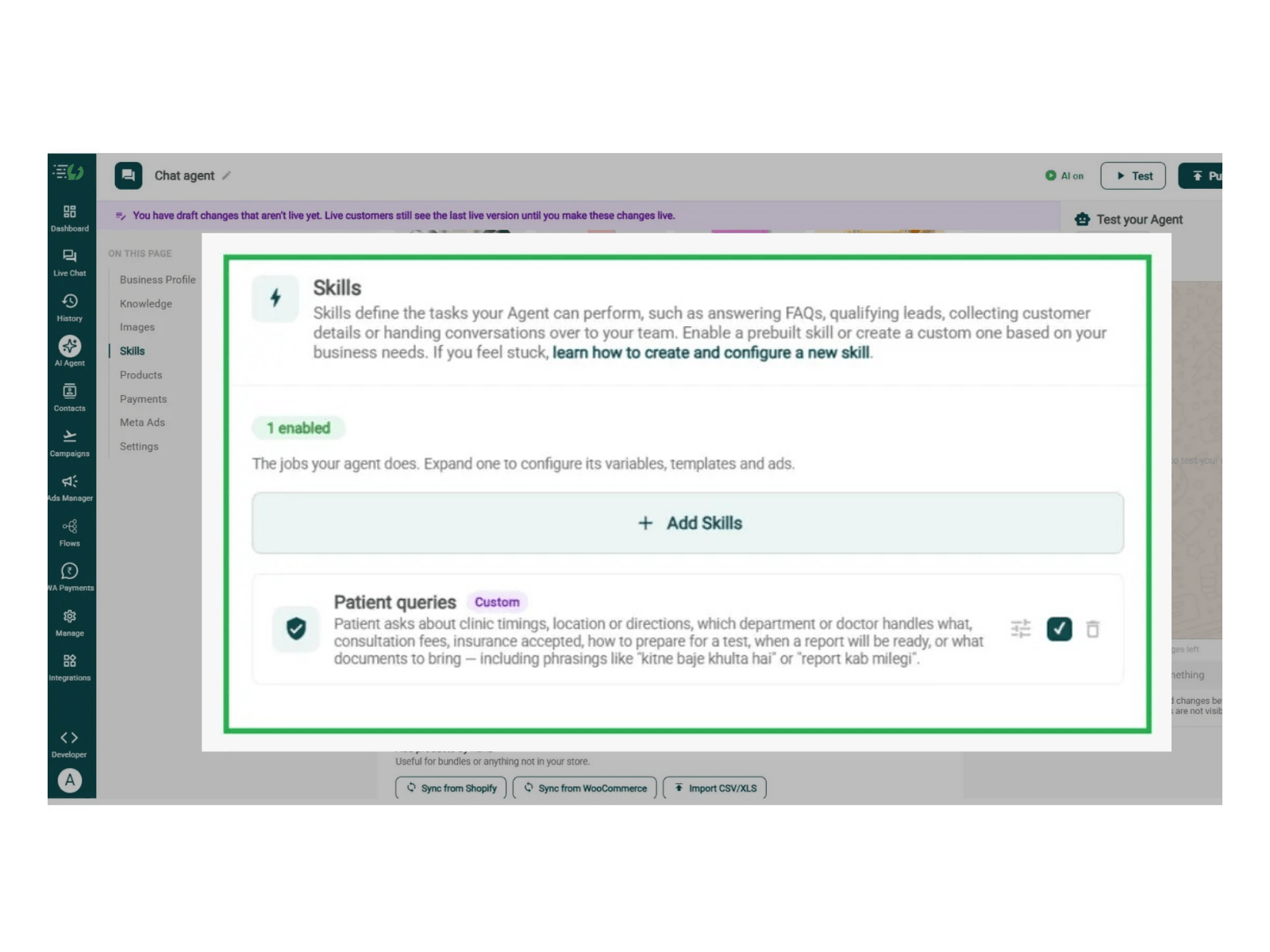
The skill you just created lands in the Skills list. You can now switch it on, expand it to set your qualifying questions, your cut-off and where a qualified applicant should go, then hit Done.
Skills list
Enable the patient queries skill
Expand to configure its variables, templates & ads
Skills enabled counter
Now you agent is well taught and it knows how it should respond.
Connect Your Payment Gateway (Optional)
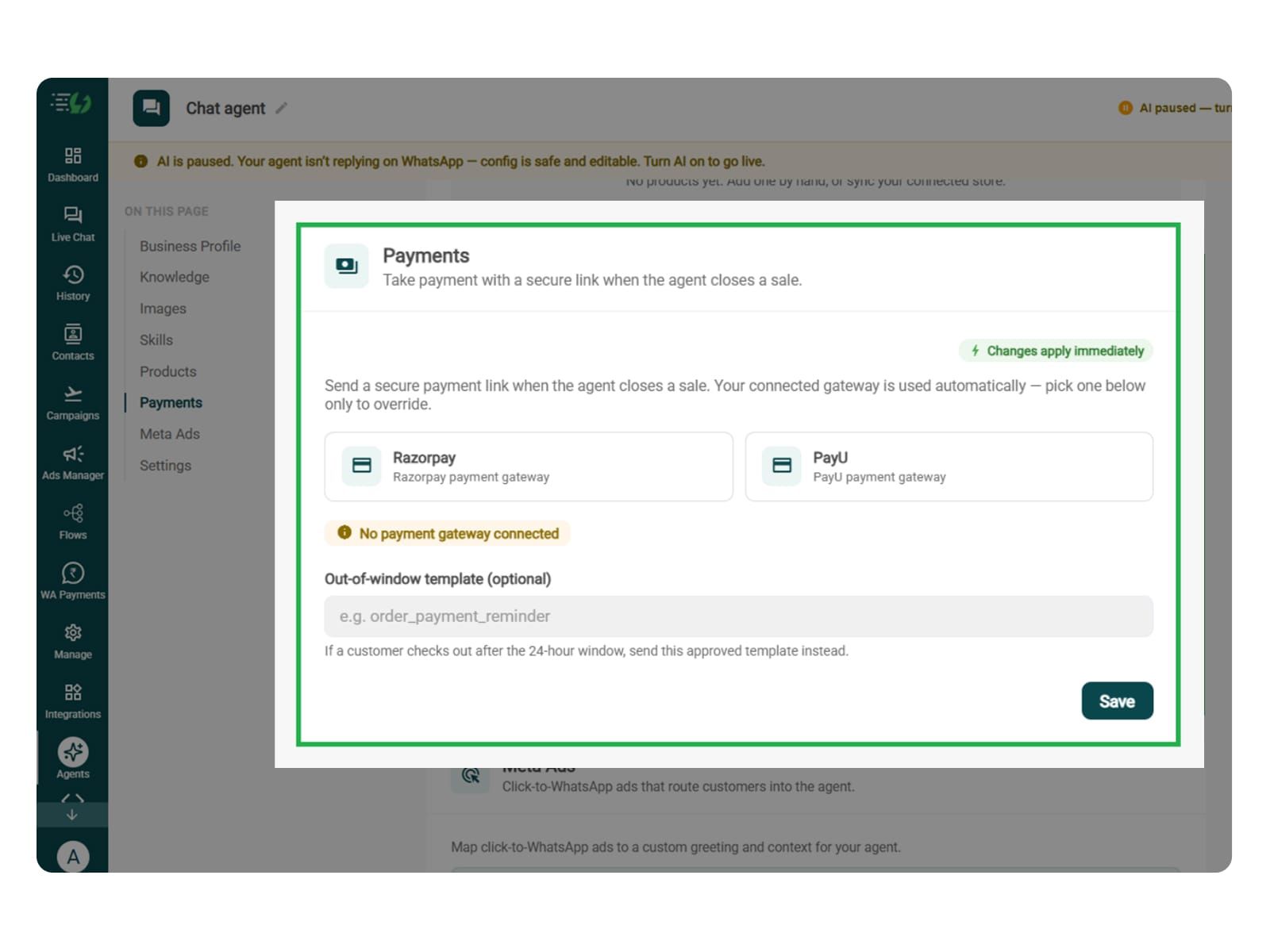
Connect your payment gateway so the agent closes sales with a secure payment link, right inside the chat.
Payment gateway (Razorpay or PayU)
Out-of-window template (optional)
This step is relevant only if the agent also collects consultation or test payments. When it is only about answering patient questions, the agent doesn’t require it.
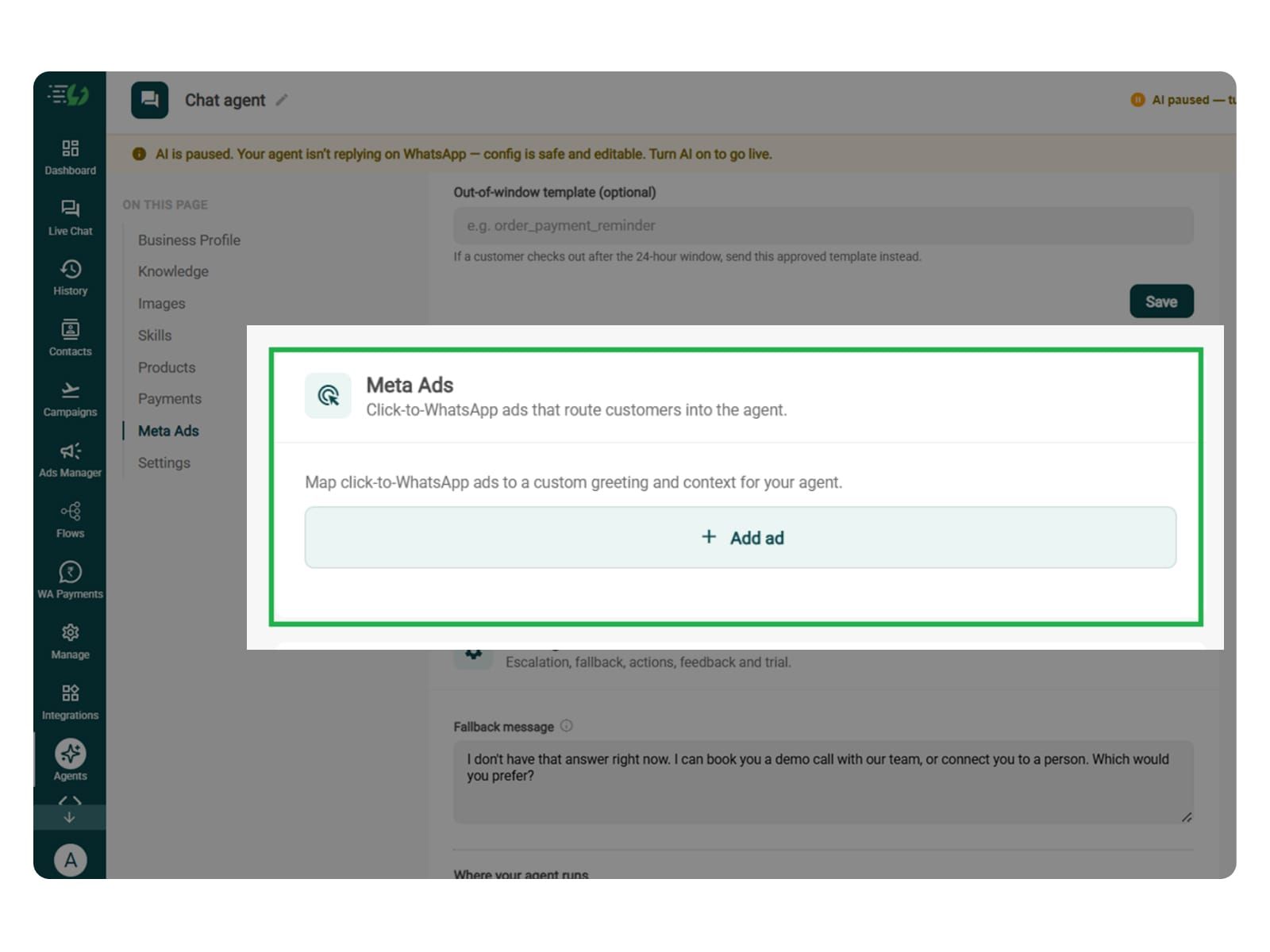
Link Your Meta Ads (Optional)
If your hospital/clinic runs Click-to-WhatsApp ads, then you can link your meta ads here.
You can map each ad to a custom greeting & context, so the agent knows exactly which ad brought the customer in.
Add ad (map ad → custom greeting & context)
Ad ID
Label
Greeting (first message to user)
Context (extra context for the agent)
Discount honoured at checkout (optional)
Products featured in this ad
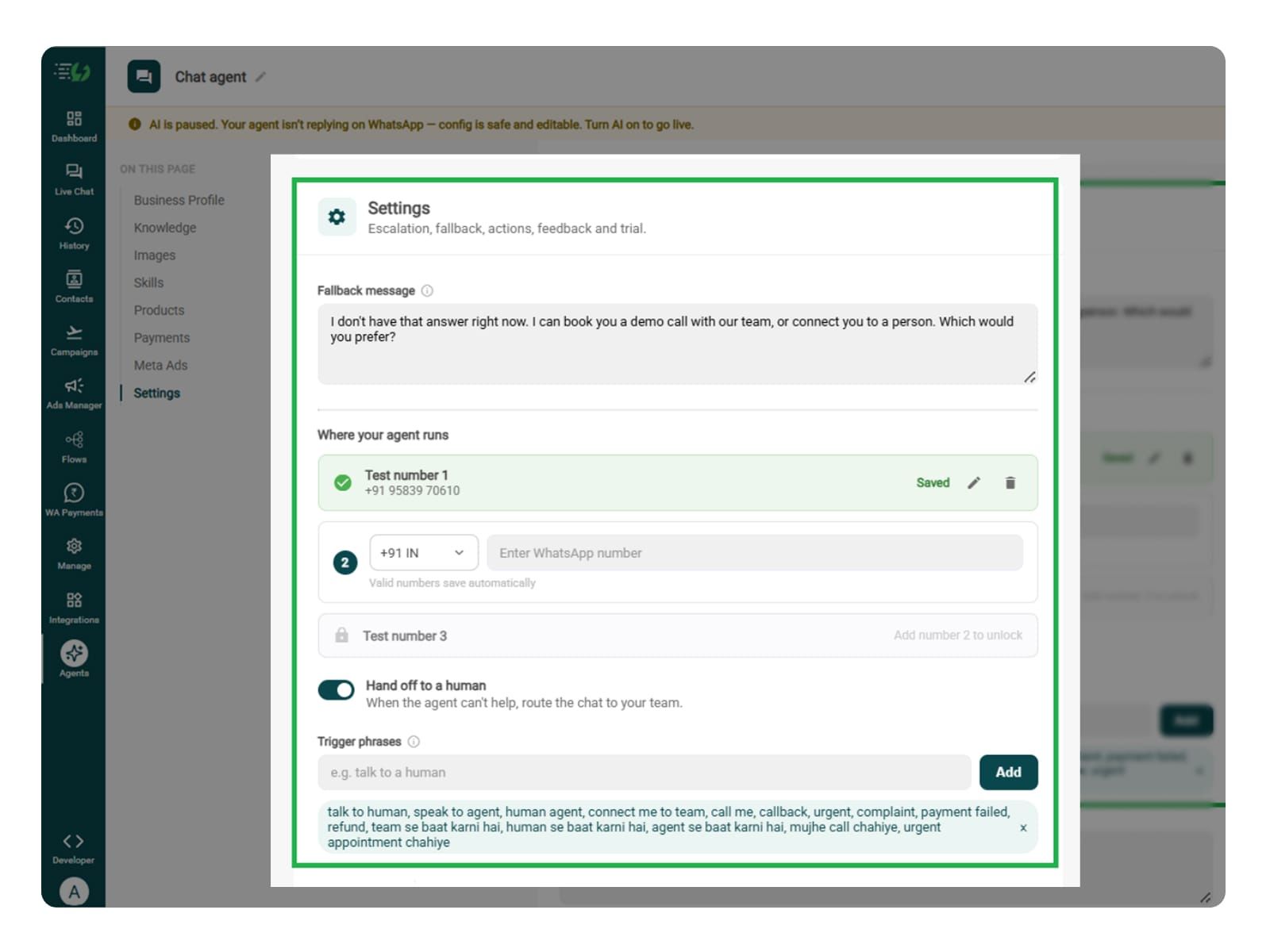
Set Your Fallback & Handoff Rules
This step decides what happens when the agent can't help. There will be situations where the agent can't be trusted with. For such cases, write the fallback message, switch on Hand off to a human, and add the phrases that should pull a person into the chat immediately.
What you must fill:
Fallback message
Where your agent runs: up to 3 test numbers
Hand off to a human: toggle
Trigger phrases
Handoff message
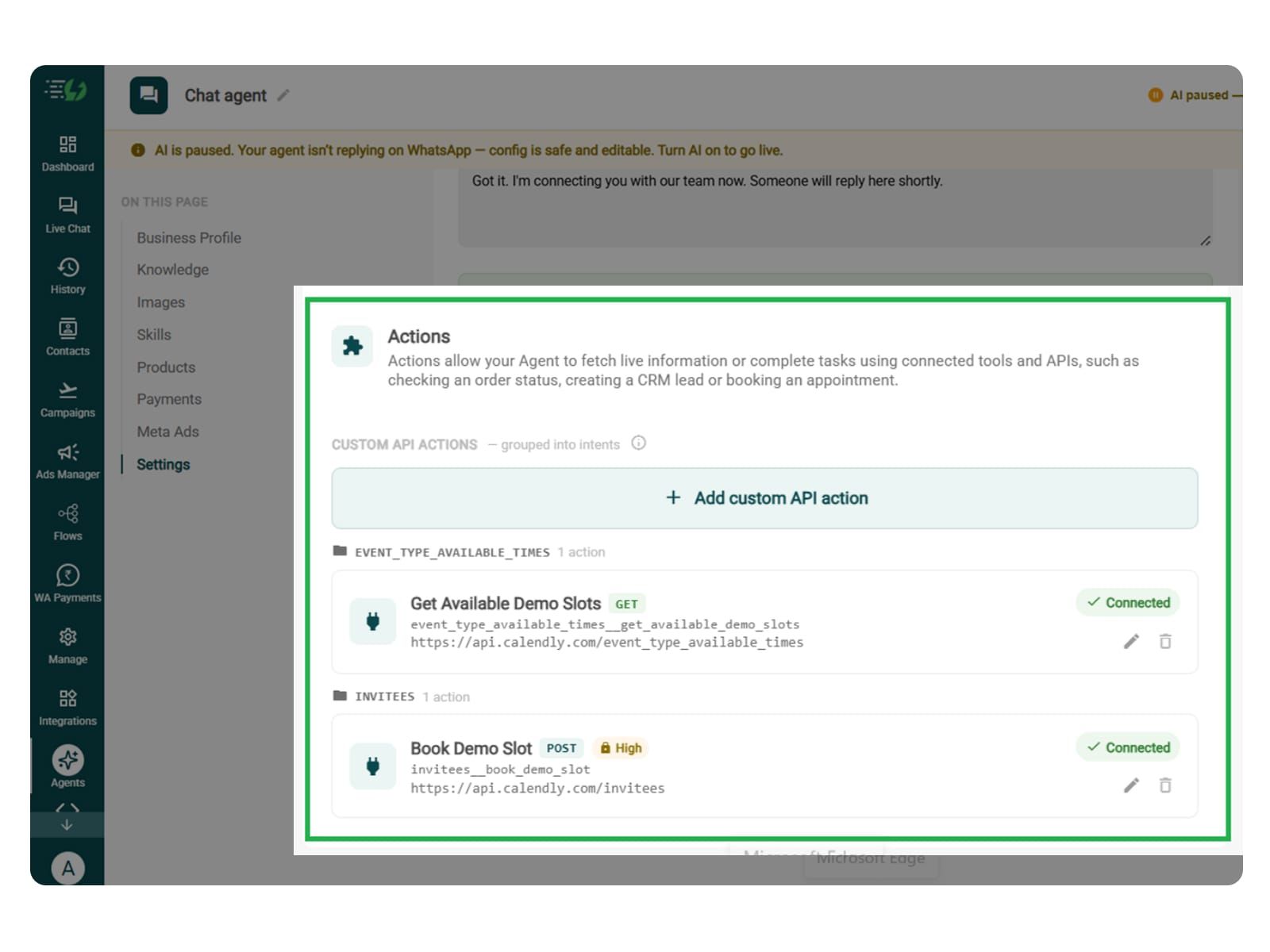
Connect Tools & APIs (Optional)
It is an entirely optional step. Only useful if you are checking a particular patient’s report status or booking an appointment. This requires a connected system to retrieve information or complete the action.
Actions let your agent fetch live information or complete tasks using connected tools and APIs.
Hit Add custom API action, tell it when to call it, then paste your cURL - the request fills itself in.
Action name
When should the agent call it?
Paste cURL
Request: method + endpoint URL
Headers
Params
Body
Auth
Test call
Click on - Next: variables
Test, Publish & Go Live
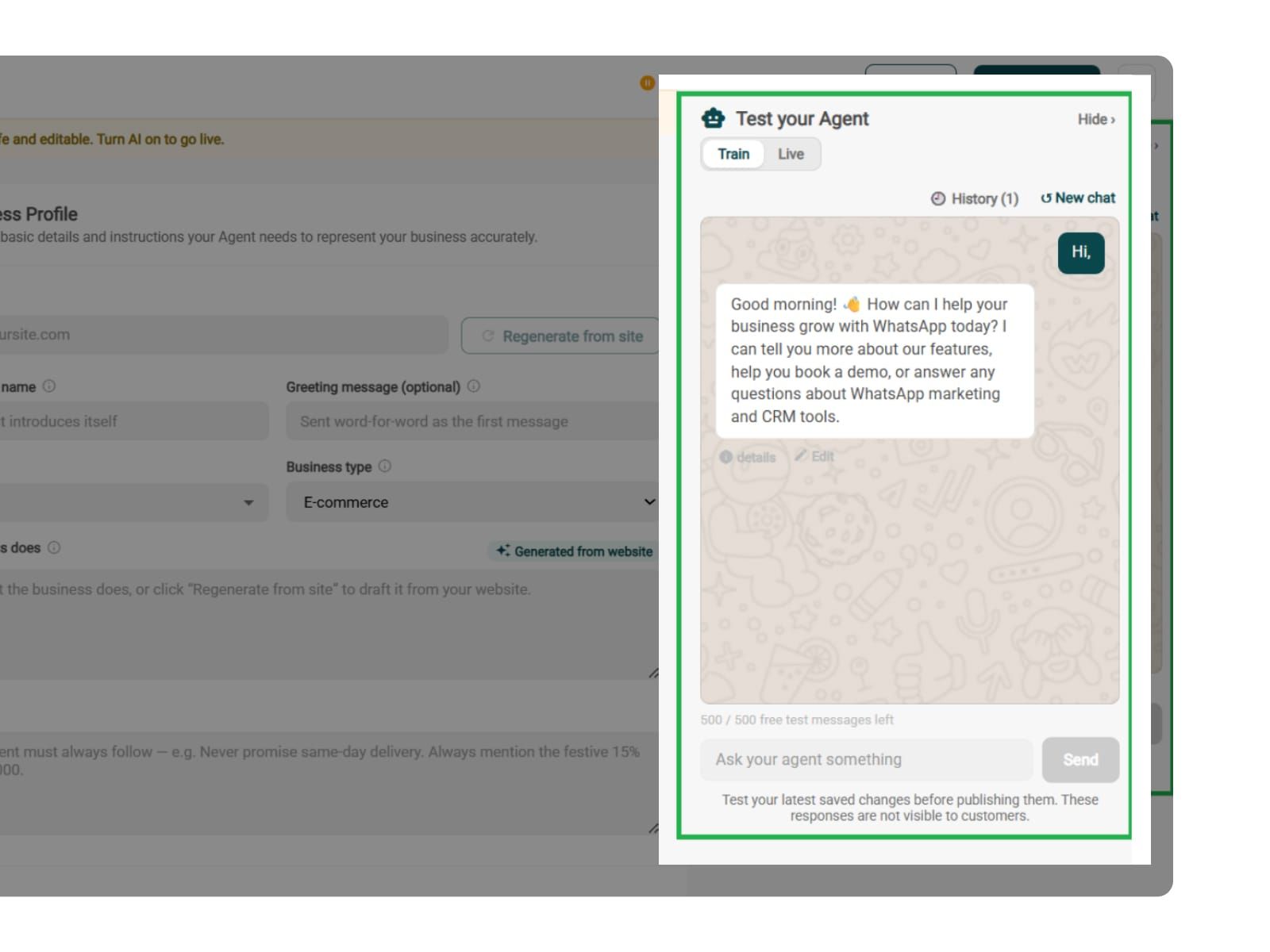
Chat with your agent before your customers do - 500 free AI messages to trial it. Happy?
Publish, switch the AI on & you're live.
Test your Agent panel (Train/Live modes)
Publish
AI on/off toggle